TeamViewer currently provides new updates to its software every month. A TeamViewer subscription plan includes all updates, both major and minor. This means you are free to update your TeamViewer easily when a new version is available to ensure you are always working with the latest version of TeamViewer (Classic).
📌Note: Users on older versions of TeamViewer (Classic) will need to check if the update(s) currently provided pertain to their perpetual license to avoid service interruptions.
This article applies to all TeamViewer (Classic) users.
How to update TeamViewer (Classic)
To update TeamViewer (Classic) on the full version, please follow the instructions below:
- Open TeamViewer (Classic)
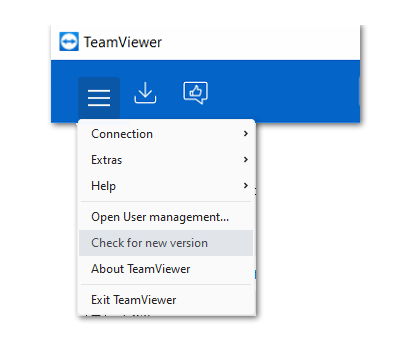
- Click on the three-line menu (≡)
- Click on Check for new version
- If available, you will be prompted to confirm the update. Click on OK.
To update TeamViewer Host, please follow the instructions below:
- Right-click on the TeamViewer icon within the system tray
- Click on Check for new version
How to update TeamViewer (Classic) remotely
To update TeamViewer (Classic) on your remote computer, please follow the instructions below:
- Connect to your remote device
- In the remote control toolbar, click the Remote update button.
Alternatively, you can also:
- Click on Actions
- Click on Remote update...
A prompt will appear, informing of the current and updated versions. To confirm, click Update. TeamViewer (Classic) on the remote computer will close and install the new version.
After the update, you will be reconnected to the remote computer automatically.
📌Note: Updating multiple TeamViewer (Classic) clients on Windows PCs can be best achieved using our MSI package, which is available with our Corporate license. Instructions can be found within the MSI download package.
Why should I update my TeamViewer (Classic)?
Industry-leading security, performance, and user experience are at the core of TeamViewer’s design. Our team is proud to offer the most powerful product in the market with constant innovation above and below the hood.
Using the latest version of any software is considered a best practice to access the latest features and the industry's highest security standards and performance. With a TeamViewer subscription plan, you can always be sure to be able to use our latest versions.
Compatibility
TeamViewer (Classic)
Maintaining the latest version on all devices is key to ensuring access to your remote devices, as well as to benefit from the latest improvements, security updates, and high performance - It is recommended to keep both your own devices as well as your remote devices on the latest version of TeamViewer.
📌Notes:
- Connections from an older version of TeamViewer (Classic) to a newer version of TeamViewer are impossible.
- TeamViewer users with a free license are required to use the latest version of TeamViewer. Connections to an older TeamViewer (Classic) version are only possible if a valid commercial license is attached to your TeamViewer account. Learn more here.
Operating systems
TeamViewer strives to offer the highest compatibility with a variety of operating systems. We always ensure that we are compatible with the most recent operating systems for the best possible user experience. Please understand that only the most recent TeamViewer version can be part of this vision.
Please read this article to learn which operating systems are supported.