Knowledge Base
Activate a license or an add-on as a tenant manager
Last Modified: Nov 5, 2025
How to activate a license or add-on as a tenant manager
To activate licenses as tenant manager in the company you manage, please follow our step-by-step guide here:
Step 1
Open the license activation email sent to the email account used to purchase the license. Click Activate.
Note: If you have purchased more than one product, each license must be individually activated.
Step 2
Step 3
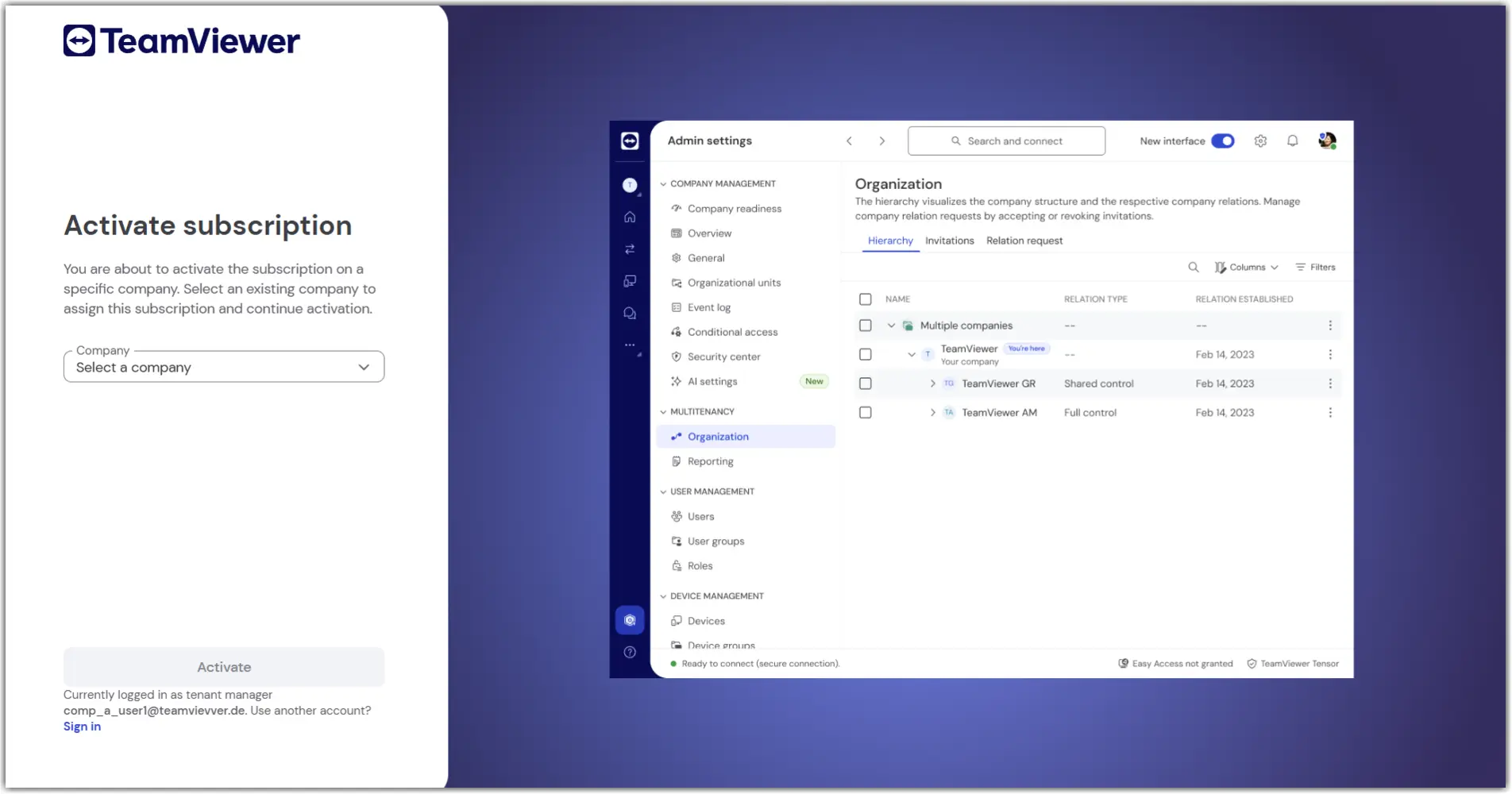
On the next screen, select one of your existing companies to assign the subscription and click Activate.
You have successfully assigned your license or your add-on.