The new TeamViewer Tensor user interface (UI) offers a modern, streamlined experience for remote access and support. To ensure consistency across your organization, company admins can enable or enforce the new UI for their users, even on devices that are not centrally managed.
This article applies to all TeamViewer Tensor license holders.
How to enable or enforce the new UI
To enable the new UI for your company users, please follow the instructions below:
- Sign in to your TeamViewer account within the TeamViewer client or via https://web.teamviewer.com/.
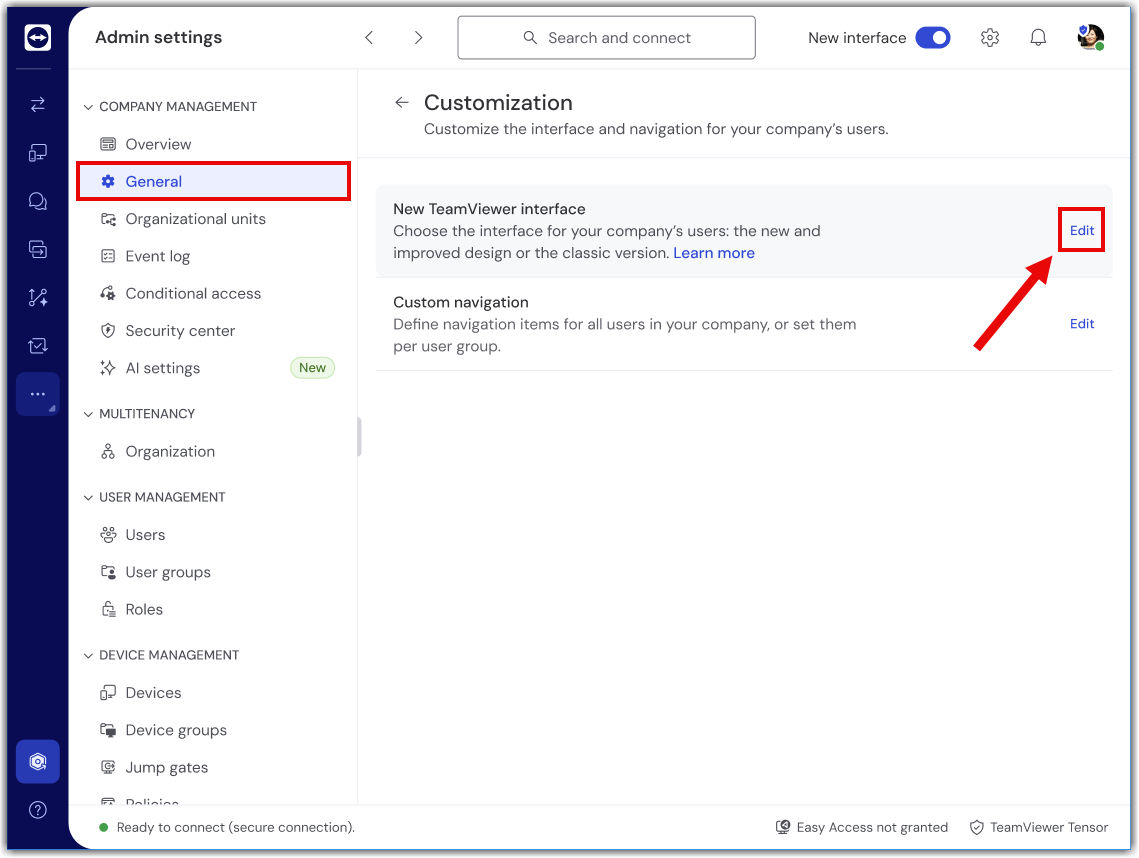
- Go to Admin settings.
- Go to the General section.
- Go to Customization.
- Within New TeamViewer interface, click Edit.
- You can now choose to enable the interface either for specific user groups or for all users.
- Once you’re done, click Save.
Important notes:
- Changes apply only to users who are logged in with their company account.
- If a device has a local policy set, it will override the company-wide setting.