
File sharing
Transfer files quickly and securely
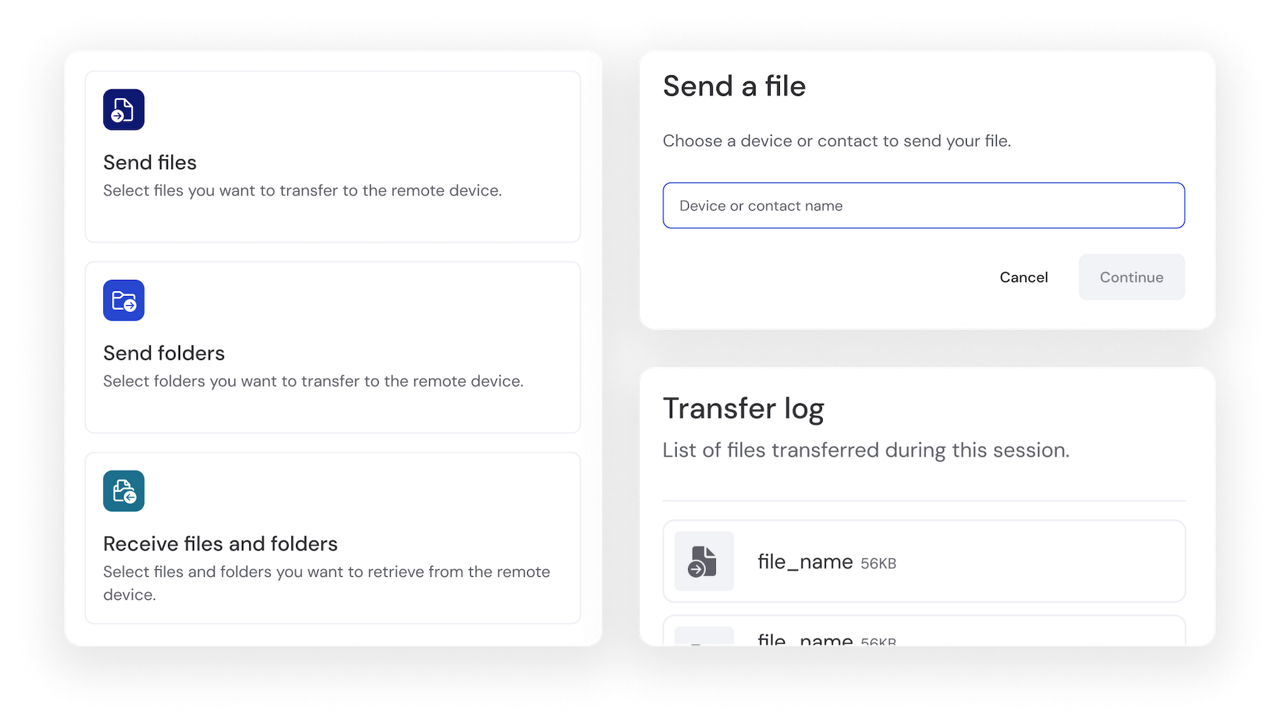
File sharing
Too often, email attachments and other legacy or ad-hoc file transfer techniques lead to headaches, such as file size limitations, slow transfer speeds, and delivery failures. Dedicated file transfer software means waving goodbye to these problems. Choose the right solution and benefit from faster, safer file transmission, easier collaboration, smoother workflows, and happier end-users.
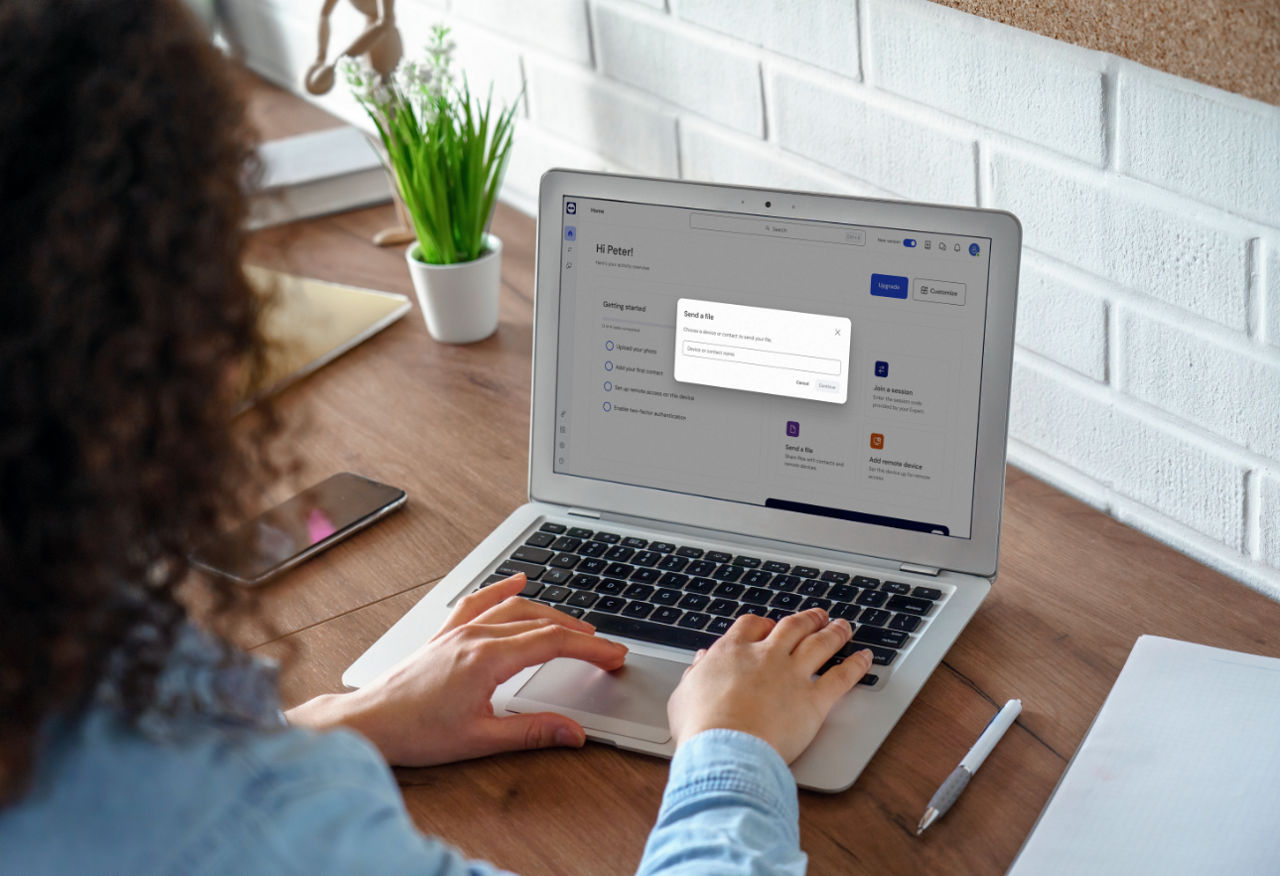
This file transfer mode allows you to perform a transfer without taking control of the other device’s screen.
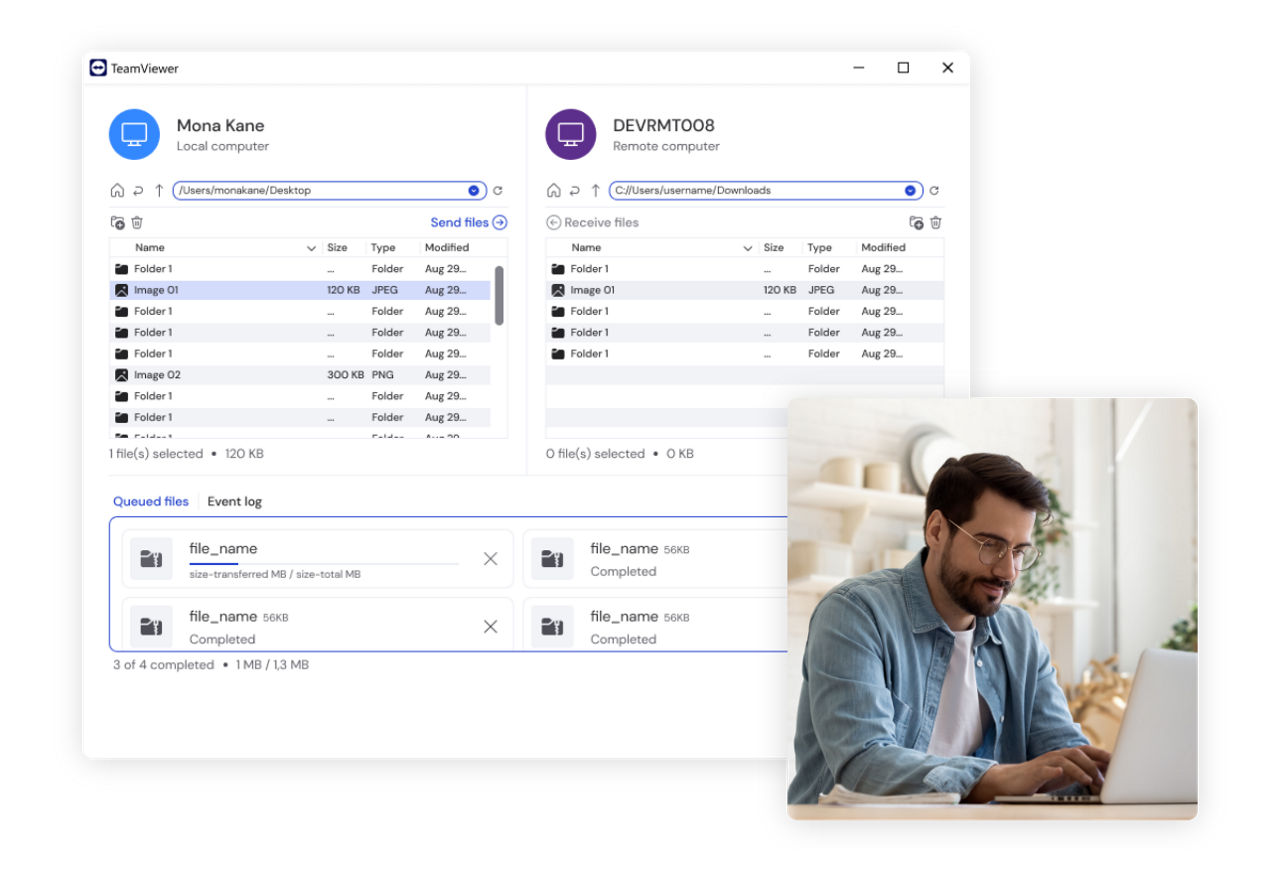
During a remote control session, you can transfer files from PC to PC as follows:
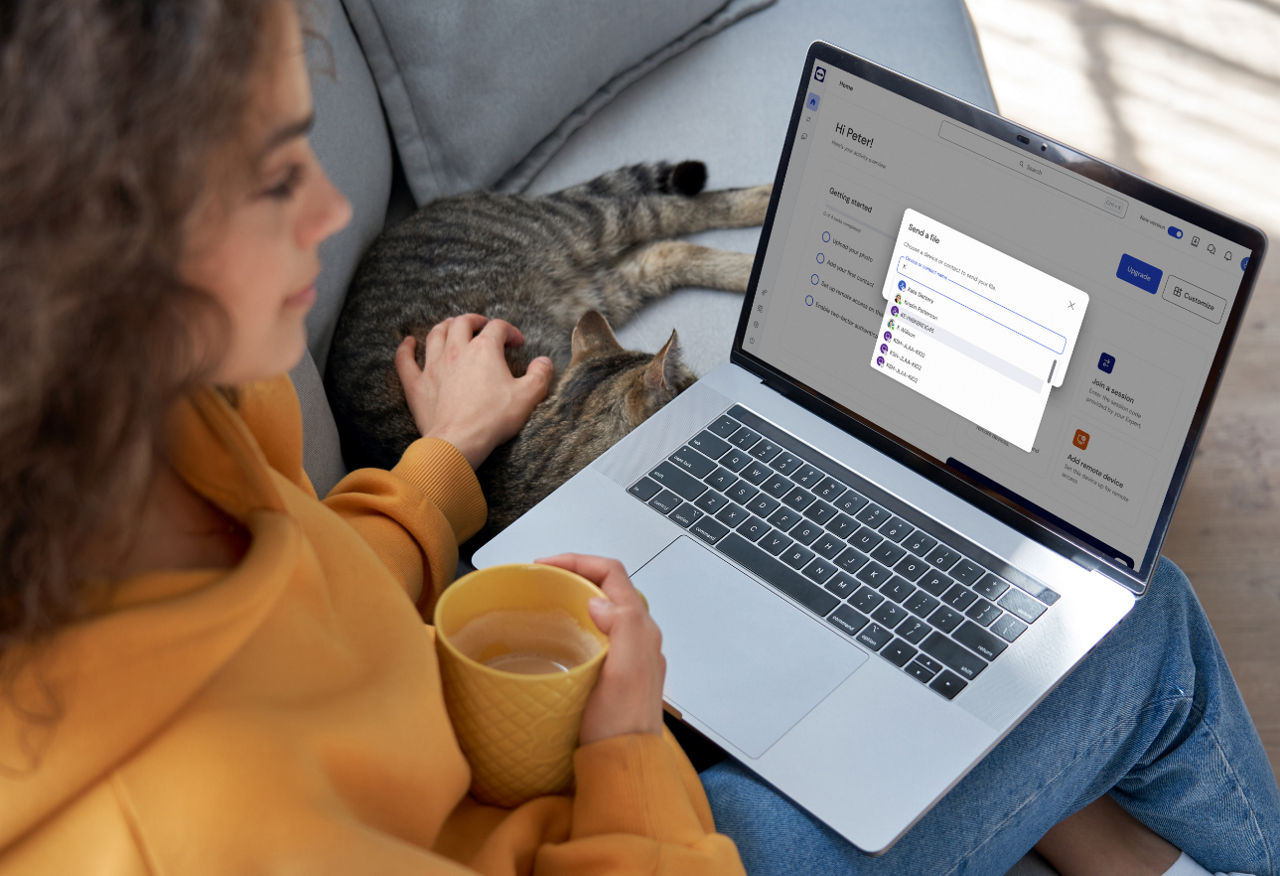
You can send files to a specific device or user from within Computers & Contacts without connection.
A notification will appear once completed, indicating a successful file transfer.
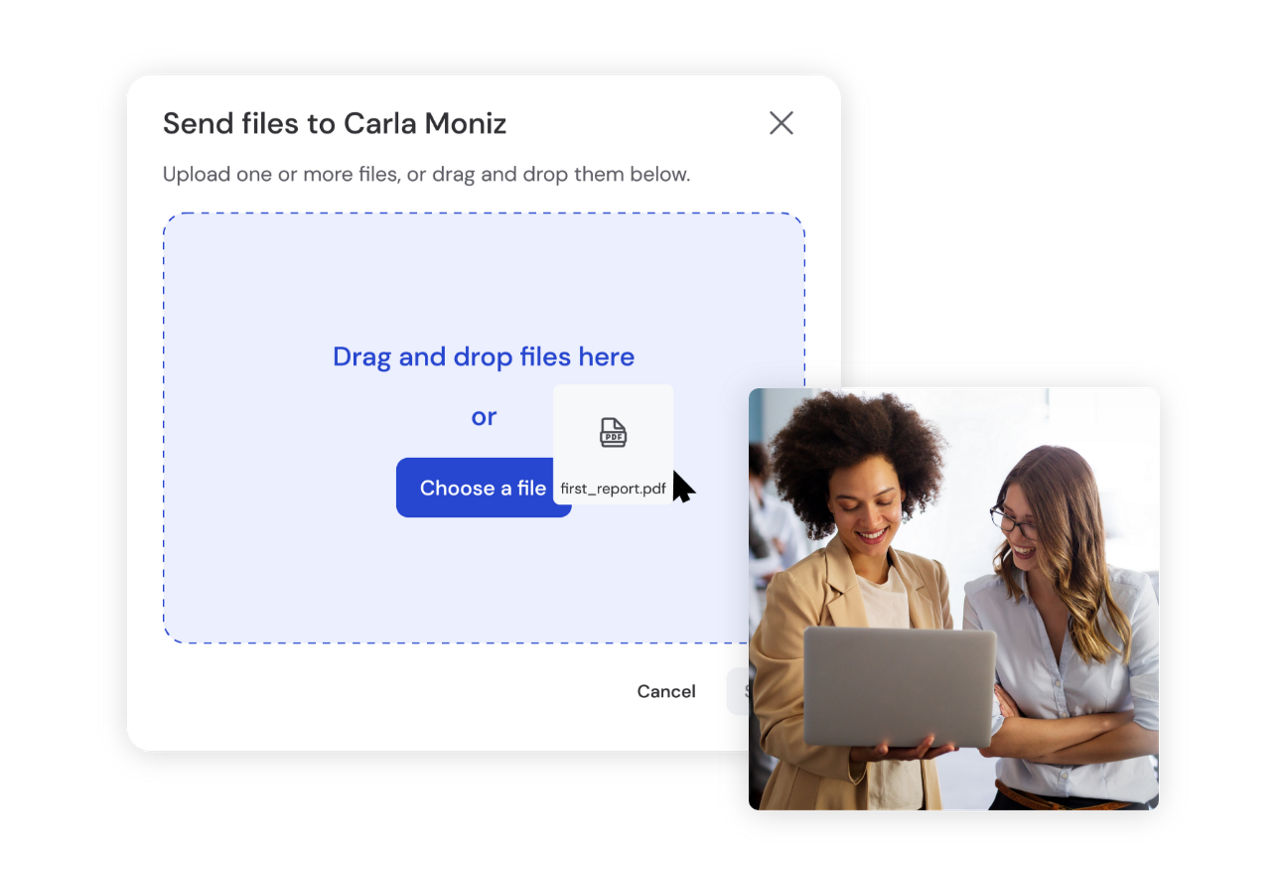
For Windows devices, it is possible to transfer files within a remote control session by dragging and dropping the files from the remote device to your device or vice versa.
To quickly share files with accounts and devices in your Computers & Contacts list, drag and drop a file from your Mac onto the name of the account or device in your list. It is possible to use this feature to send files to both macOS and Windows devices.
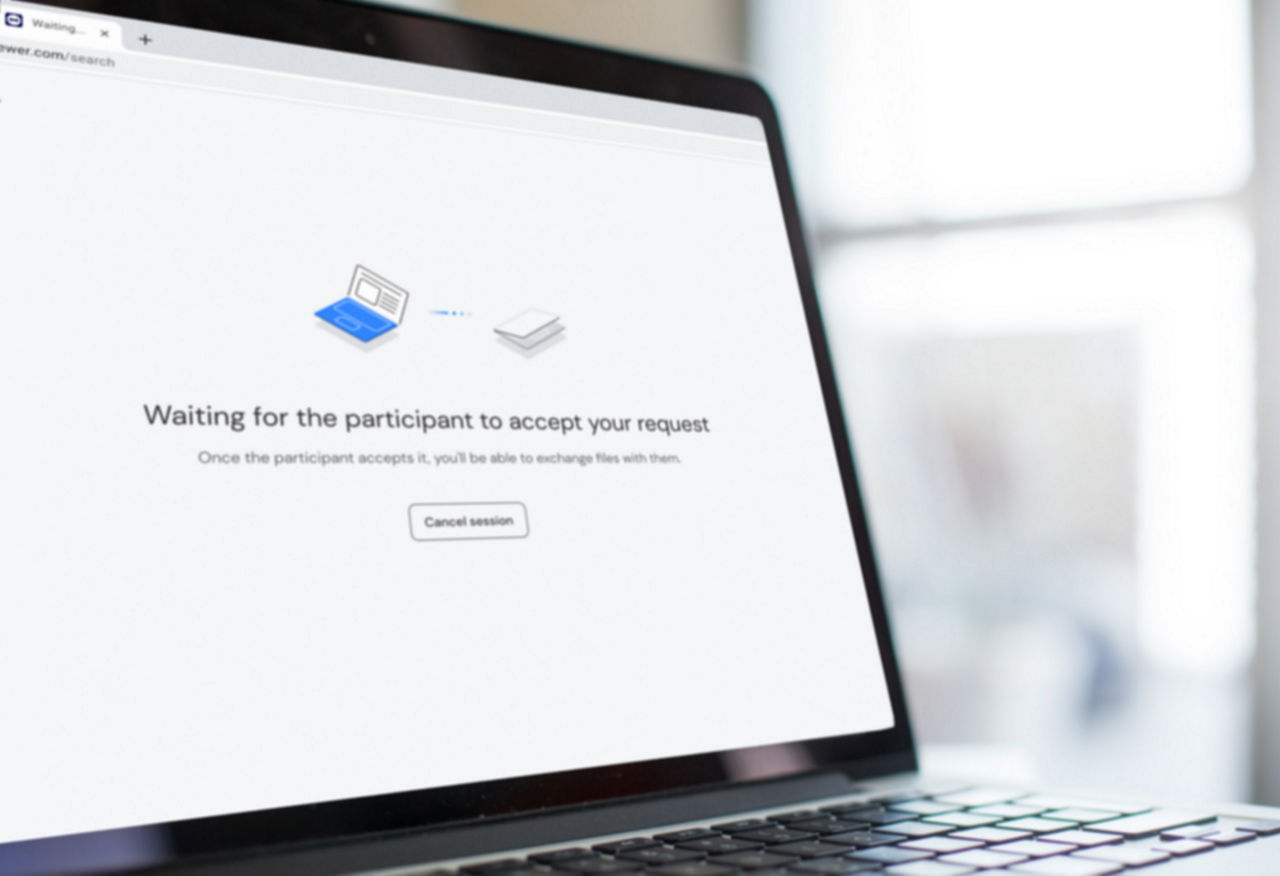
A popup appears on the remote screen, and the remote user needs to click Allow to confirm the file transfer (or Cancel). If the remote user clicks nothing, the request will get rejected automatically after 30 seconds. As always, no unwanted file transfer is possible.
Our free plan gives you instant access to all your personal documents anywhere, anytime. Simply log in to remotely access files on any of your personal devices—phone, tablet, or computer.
Sync with any device and OS—unlike other competitor products.
Start support sessions in seconds—just send a secure invite link.
Connect and add devices directly from the home screen.
Easily and quickly verify connection invitations before accepting.
However, there are often restrictions on the size of attachments that can be sent. This requires the use of workarounds, such as file fragmentation, or the use of separate file compression tools: Something that’s both technically tricky and time-consuming.
TeamViewer allows you to send even your largest files — including large data sets, complex systems files, and multi-GB video files — by simply establishing a remote connection with another device and clicking a button. Files are compressed automatically to ensure speedy, corruption-free transmission, so you never have to worry about big file transfers again.
Our software is based on RSA 2048, RSA private/public key exchange, and AES encryption, delivering the best in enterprise-grade security.
End-to-end encryption ensures that files you transmit to other parties and devices are only received by the intended recipient, and cannot be intercepted or read by unauthorized persons. Conditional access firewalls give you granular control over who can access what. The solution also offers two-factor authentication for connections to secure devices.
You can also encounter compatibility issues when trying to move files between different types of devices and operating systems.
TeamViewer offers compatibility across all platforms. It doesn’t matter whether your contacts work with Windows, macOS, Linux, Chrome OS, iOS, or a host of Android-based operating systems. You can share any file to any device, from any device, using a single solution.
File transfer capabilities go with the platform’s remote desktop and support functionality. This means you can configure the solution to match a wide range of operational and customer-facing uses, including remote working, remote technical support and maintenance, management of unattended devices, as well as customer support.
Geography is no longer a barrier to getting hold of exactly the files you need, right when you need them. For instance, you can set up a remote connection to your office desktop and instantly start transferring files between devices. No time will be wasted in dealing with ad-hoc file transfer tools, reformatting, or waiting for big files to download. This frees up time for your team to focus on what matters.
Use cases
Effective remote, hybrid, and digital nomad working demands access to the right tools for the job at precisely the right time. TeamViewer’s file-sharing capabilities support this, with the ability to transfer and share even the biggest and most complex items (e.g. financial data sets, code repositories, and media files) from anywhere, to anywhere.
Want an easier, safer way to get those latest holiday videos to a loved one on another continent? Need to see that online financial brochure your parents have been worrying about? With TeamViewer, there are no fees, no time limits, and no subscriptions for personal use. And thanks to the solution’s easy-to-use file transfer capabilities, you’re never far away from the information you value most.
With a zero-compromise approach to security, TeamViewer ensures that your critical processes, sensitive information, and patients’ well-being are all in the safest possible hands. Our compression capabilities ensure reliable and rapid file transmission for your most important files, from fluoroscopy footage to detailed patient monitoring logs.
TeamViewer has a formidable track record in supporting government, local authorities, healthcare and emergency services, and education. Areas where there is no room for compromise when it comes to information governance and security. Fine-grained access controls and robust encryption ensure that you can transfer your most sensitive data with confidence.
TeamViewer supports the transfer of your most complex multimedia files and other brand assets, rapidly and without risk of corruption. Fast connection set-up, high transmission speeds, and superior picture quality mean you are all set for real-time editing and collaboration — no matter where your team members happen to be based.
With TeamViewer Remote and TeamViewer Tensor, full file transfer capabilities come as standard. Thanks to industry-leading, end-to-end encryption, and rapid transfer speeds, you can transfer virtually any file from any device to any device. This includes large file transfer (e.g. video and large data sets), and secure, instant transmission of your most sensitive data.
With multiplatform access and multiple transfer methods at your fingertips, TeamViewer supports all your file-sharing needs. This includes the exchange of information between remote workers and scattered branches, delivery of files to customers, distribution of software updates for remote support, automated transmission/retrieval of information from unattended devices, and much more.
Here are two common use cases:
You can use this feature to send files to both macOS and Windows devices.
File transfer performance depends on your network connection and system resources. While TeamViewer does not impose strict file size limits, larger files may take longer to transfer depending on bandwidth and stability.
Yes, you can select and transfer multiple files or entire folders in a single operation. The file transfer interface allows you to queue and manage transfers efficiently between local and remote devices.
With TeamViewer, you can transfer files between local and remote servers using the remote control tab, in-session transfer, or contacts list methods detailed above.
Learn more about remote server access here.
With TeamViewer, you can connect your Android device to a PC and transfer files in either direction. Once connected, open the file transfer feature to browse both file systems and move files as needed, similar to a standard desktop file manager.
Learn more about Android-to-PC file transfer here.
You can initiate a dedicated file transfer session directly from the TeamViewer interface. Enter the remote device’s ID, select File Transfer as the connection mode, and authenticate. This opens a dual-pane file manager, allowing you to move files between devices without starting a full remote control session.
Yes, TeamViewer supports in-session file transfers. While connected to a remote device, open the file transfer option from the toolbar to send or receive files without interrupting your session. You can also use simple drag-and-drop for quick transfers.
Yes. You can send files directly during a session using drag-and-drop or copy and paste. This is useful for quick transfers when you don’t need to open the full file transfer interface.