Work no longer happens from a single device. Employees frequently move between laptops, smartphones, and tablets throughout the day, creating a need for secure access to applications, files, and systems regardless of location. Remote access technology makes it possible to remotely control a laptop from a smartphone, allowing users to interact with their computer even when they are away from their desk. For businesses, it also provides a practical way to support distributed teams, manage devices remotely, and maintain productivity across locations.
What does it mean to control a laptop from a phone?
Controlling a laptop from a phone means using a mobile device to access and interact with a computer remotely.
Depending on the solution being used, this may allow users to:
- Open applications
- Access files and folders
- Manage system settings
- Transfer documents
- Monitor device status
- Provide remote support
Rather than simply viewing information stored on the laptop, remote access tools allow users to work with the device as if they were sitting in front of it.
Common use cases
Remote access serves a variety of personal and business needs. From supporting distributed teams to maintaining business continuity, it helps organizations stay connected and operational from anywhere.
How remote access works
Most remote access solutions establish a secure connection between the smartphone and laptop through the internet.
The laptop shares its desktop environment with the mobile device, allowing users to:
- View the screen
- Control the keyboard and mouse
- Open applications
- Perform administrative tasks
Modern solutions typically use encryption and authentication controls to help protect data during remote sessions.
What should you look for in a remote access solution?
Not all remote access platforms offer the same capabilities. Important considerations include:
Security
Look for solutions that provide encryption, strong authentication, and access controls. Whether you're accessing personal files or managing business devices, protecting remote connections is essential. Security features help prevent unauthorized access and keep sensitive information private.
Cross-platform support
Many organizations operate a mix of Windows, macOS, Linux, Android, and iOS devices. Cross-platform compatibility simplifies management and support. This flexibility allows users to access their devices from almost anywhere without worrying about operating system limitations.
Ease of use
Remote access should be straightforward for both end users and administrators. A simple setup process can make it easier to connect quickly when you need access to files, applications, or another device.
Performance
Responsiveness is particularly important when accessing a laptop from a mobile device over cellular or Wi-Fi networks. A reliable connection and smooth screen updates can make remote sessions feel more natural and productive, even when working away from home or the office.
Device management capabilities
Organizations may benefit from additional features such as monitoring, reporting, asset management, and remote support. While these capabilities are especially useful for organizations, they can also help individuals manage multiple devices more efficiently.
Security considerations
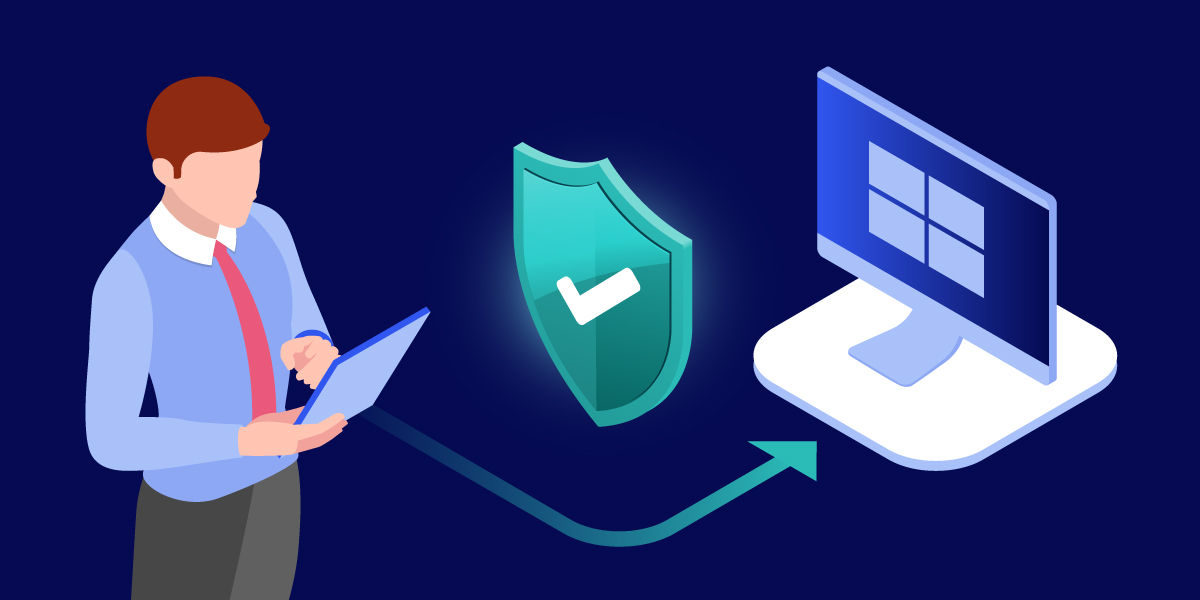
Remote access can provide significant flexibility, but it should be implemented responsibly.
Best practices include:
- Using strong passwords
- Enabling multi-factor authentication
- Restricting access to authorized users
- Keeping devices updated
- Monitoring remote activity
- Following organizational security policies
These measures help reduce risk while maintaining accessibility.
How TeamViewer can help
TeamViewer enables users to securely access and control laptops from smartphones, tablets, and other devices. Whether the goal is retrieving files, supporting employees, or managing endpoints across multiple locations, TeamViewer provides remote connectivity without requiring complex network configurations.
For organizations supporting hybrid workforces, TeamViewer also combines remote access with enterprise-grade security, device management, and remote support capabilities, helping IT teams maintain visibility and control across distributed environments.
Final thoughts
Can I control my laptop from my phone
Remote access from a phone to a laptop helps users stay productive when they are away from their main device. It enables secure access to files, applications, and support workflows from almost anywhere. For businesses and IT teams, solutions like TeamViewer make remote connectivity easier to manage across devices, users, and locations.