Knowledge Base
System Preferences
Last Modified 2025. dec. 4.
This section outlines all available preferences specific to Frontline 4.
Preferences display a list of properties with their distinct values.
Users who have the Administrator role can configure the domain preferences. This allows administrators to control the server and implement changes instantly.
There are different categories in Preferences:
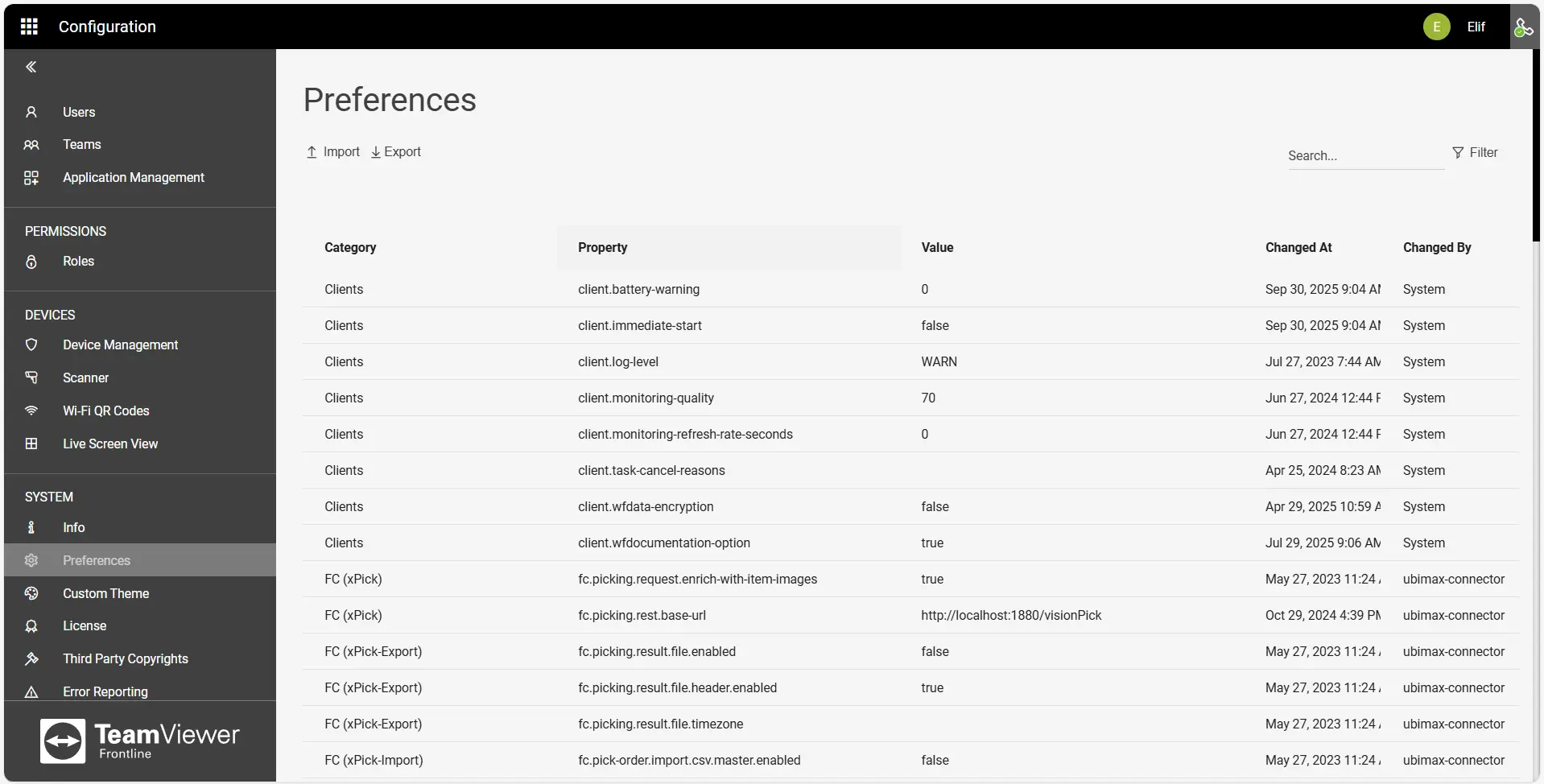
Available values according to the hierarchical level are:
- DEBUG checks the issue via troubleshooting and diagnoses it.
- INFO shows if the information authorization works properly.
- WARN clears if there is an unexpected disturbance, even though the app is not crashed, and it is still working.
- ERROR prevents the app from functioning properly because of critical issues.
- TEXT shows the list of reasons when canceling a task
Frontline Connector category allows configuration of Frontline Connector interface for Pick.
Available values are:
- TRUE enables the property.
- FALSE disables the property.
FCC category allows configuration of the domain with various properties such as; error reporting, log-in mechanism, screenshot consent, license expiration notification, selectable languages, etc.
Available values are:
- TRUE enables the property.
- FALSE disables the property.
- CANCELLED defines multiple statuses of tasks that are removed automatically after a defined time.
- DONE defines multiple statuses of tasks that are removed automatically after a defined time.
- ERROR defines multiple statuses of tasks that are removed automatically after a defined time.
- PARTIAL_DONE defines multiple statuses of tasks that are removed automatically after a defined time.
- PAUSED defines multiple statuses of tasks that are removed automatically after a defined time.
- PROGRESS defines multiple statuses of tasks that are removed automatically after a defined time.
- UNASSIGNED defines multiple statuses of tasks that are removed automatically after a defined time.
- DeviceFlow Defines the preferred login method by using two-factor authentication for smart glasses users, and Single Sign-On for other users.
- Legacy defines the preferred login method (scanning the QR Code or entering the username and password) to be used with smart glasses.
- OfflineToken defines the preferred login method (scanning the QR Code or entering the username and password) for smart glasses. It allows for the activation of Azure Active Directory (Microsoft Entra ID) and can be reworked within one year.
Assist category allows the configuration of xAssist functionalities such as call quality, recording requests, auto-share live feed, mandatory call title, the format of the call title, etc.
Available values are:
- TRUE enables the property.
- FALSE disables the property.
- OPTIMIZED defines the default quality setting of calls.
- PERFORMANCE defines the default quality setting of calls.
- QUALITY defines the default quality setting of calls.
Available values are:
- TRUE defines if a template is selectable in the task list by default.
- FALSE defines if a template is not selectable in the task list by default.
Pick category allows configuration of Pick functionality (e.g., setting WMS credentials).
Available values are:
- TRUE enables the user creation form to allow to set WMS credentials.
- FALSE disables the user creation form to allow to set WMS credentials.
This section outlines all available preferences specific to Frontline 5.
Preferences display a list of properties with their distinct values.
Users who have the Administrator role can configure the domain preferences. This allows administrators to control the server and implement changes instantly.
There are different categories in Preferences:
- client.log-level defines the log levels to be collected. A restart is required.
- client.monitoring-quality defines the quality (0-100) of generated monitoring images.
- client.monitoring-refresh-rate-seconds defines the maximum refresh rate of the client monitoring in seconds, 0 means any UI change will cause a refresh.
- client.task-cancel-reasons enables a list of reasons to select when cancelling a task; it will be empty when there is no reason added.
- client.wf-data-encyription defines if the workflow encryption is enabled/disabled.
- fc.picking.request.enrich-with-item-images enables the article image attachments (if available) to Pick Orders.
- fc.picking.rest.base-url displays the endpoint of the default REST vision picking interface.
- xserver.xpick.wmsuser enables the settings of WMS credentials in a user creation form.
- fc.picking.result.file.enabled enables the generation of a Pick Order result file of the completed orders.
- fc.picking.result.file.header.enabled enables the column headers for the Pick Order CSV exports.
- fc.picking.result.file.timezone defines the time zone used for the Pick Order results file generator.
- fc.picking.import.override-domain enables the automatic override of the domain in the order-import files. When disabled, the import of orders from foreign domains is not possible.
- fc.picking.import.override-existing enables the overriding of existing pick orders by new uploaded pick orders with the same orderID.
- fc.pick-order.import.csv.master.enabled enables the attachment of the master code to pick orders. The master code is provided during server setup.
- fc.picking.delete-all.enabled enables the pick order deletion button based on its status.
- fc.pick-order.cleanup.concurrent-entities defines the number of pick orders to be deleted all at once (Performance Setting).
- fc.pick-order.cleanup.days-kept defines the number of days of the pick order to be deleted permanently.
- fc.pick-order.cleanup.enabled enables a regular cleanup for the old pick orders.
- fcc.auditing.capture.action.reasons enable the reasons for capturing. It displays why certain things were changed. This feature requires the Frontline Auditing feature; please contact your system administrator if you want it activated.
The following two preferences are related to Error Reports. Be aware that error reports may contain sensitive personal or corporate data. By defining email addresses, you acknowledge that you are liable for complying with any applicable national laws and regulations for the sending of electronic communications or similar. Such laws and regulations may require you to obtain, e.g., the prior consent of the recipient in a certain form.
- fcc.errorreporting.sending.enabled activates the general functionality that allows users to send error reports via email to defined service providers.
- fcc.errorreporting.support.mail specifies the actual email address of the service provider to which the error reports will be sent.
- fcc.keycloak.preferred-client-login defines the preferred login method to be used by smart glasses.
- fcc.license.expiration.notice.days defines the notice days of the expiration.
- fcc.locales defines selectable languages for your domain. Please note that if the languages are globally disabled for your server instance, selecting them here will not enable them.
- fcc.monitoring-refresh-rate-seconds defines the number of seconds between each client screenshot refresh in monitoring.
- fcc.screenshot.consent enables a dialog for Frontline Workers to request consent for mirroring the user’s screen to the managing console. Device mirroring is accessible for any user with the device_screenshot permission.
- fcc.session.web.idledetection enables idle detection in the web app. If the user does not interact with the web app for the configured amount of time a logout will be triggered automatically.
- fcc.session.web.idletimeout defines how many seconds after which the idle detection will log out a user who is not actively using the web app.
- fcc.task.persistence.enabled allows you to enable/disable the task persistence. If disabled, the workflows can no longer use the server-side persistence to be resumed when they are left off.
- fcc.tasks.cleanup enables an automatic permanent deletion of tasks after the defined number of days.
- fcc.tasks.cleanup.status configures the deletion of tasks after a defined number of days.
- fcc.workflow.approval.enabled enables workflow approval for the published workflows. It is also possible to set whether a task and template should only be created from an approved workflow.
- fcc.workflow.approval.tasklist.force-approve-workflows enables workflow approval for published workflows. You can also set if a task and template should only be created from an approved workflow.
- fcc.workflow.approval.templates.force-approve-workflows enables workflow approval for published workflows. You can also set if a task and template should only be created from an approved workflow..
- fcc.workflow.report.mode summarizes the steps by default, and tracks them by showing each step entry separately.
- xserver.license.expiration.notice.days defines the notice day of the license expiration notification.
- xserver.locales defines selectable languages for your domain. Please note that if the languages are globally disabled for your server instance, selecting them here will not enable them.
- xserver.tasks.cleanup enables the automatic permanent deletion of tasks after the defined time.
- xserver.tasks.cleanup.days defines the minimum number of days of tasks that are removed automatically.
- xserver.tasks.cleanup.status defines the multiple statuses of tasks that are removed automatically after a defined time.
- fcc.call.cleanup enables the automatic permanent deletion of calls and their media after a defined number of days.
- fcc.call.cleanup.days defines the number of days for the deletion of calls and containing media.
- fcc.xassist.callingTimeout defines the milliseconds of how long a call can ring until it is over.
- fcc.xassist.callQuality defines the default call quality settings.
- fcc.xassist.defaultMobileCamera defines the default camera that is set for a mobile Assist call. The user can change the camera before/during a call.
- fcc.xassist.enableTranscription allows the transcription of calls to be enabled.
- fcc.xassist.enableAutomaticTranscript when enabled with the fcc.xassist.enableTranscription setting, and the transcription feature will automatically start for everyone when the call begins.
- fcc.xassist.enable.COCOTracking enables the Coco Model in the AI Tracker.
- fcc.xassist.enableLiveCaptions allows displaying the live captions button.
- fcc.xassist.enableLocalVideoDefault enables the camera by default for the call organizer.
- fcc.xassist.enableSessionSummary allows you to have autogenerated session summaries of the conversation within the call by AI. The summary is generated from the analysis of the transcript.
- fcc.xassist.forceRelay enforces the usage of transport relays instead of peer-to-peer for 1:1 Assist calls. Should only be enabled if outages during 1:1 calls occur. The preferred route is directed to the remote peer, but if that route is not available, then one or more transport relays can relay traffic. On some networks, peer-to-peer is restricted or causes errors, and the relay needs to be enforced.
- fcc.xassist.forceSFU when enabled, all calls will be done via the SFU.
- fcc.xassist.guest.recordVideos enables the video recording functionality for users that join a call anonymously.
- fcc.xassist.settingAutoLiveShareEnabled enables the default setting of sharing screenshots automatically.
- fcc.xassist.settingConfirmOpenInWhiteboard enables the default setting of opening a screenshot in the whiteboard, which can be adjusted during a call.
- fcc.xassist.settingConfirmSaveSnapshotEnabled enables the default setting of opening a screenshot directly in the whiteboard.
- fcc.xassist.showOpenInAppLink displays the button for mobile browsers to forward calls in the app, which should be disabled if the app usage is unavailable.
- xserver.call.cleanup enables the automatic deletion of permanent calls and the contained media after a defined time.
- xserver.call.cleanup.days defines the number of days for the cleaning of the contained media of the calls.
- xserver.xassist.callingTimeout defines the time, in milliseconds, of how long a call can ring until it is over.
- xserver.xassist.enableLocalVideoDefault enables the camera by default for the call organizer.
- xserver.xassist.forceRelay enforces the usage of transport relays instead of peer-to-peer for 1:1 Assist calls. Should only be enabled if outages during 1:1 calls occur. The preferred route is directed to the remote peer, but if that route is not available, then one or more transport relays can relay traffic. On some networks peer-to-peer is restricted or causes errors and the relay needs to be enforced.
- xserver.xassist.recordingRequest enables the dialogue for Frontline Workers to request consent to record remote videos or screenshots.
- xserver.xassist.settingAutoLiveShareEnabled enables the default setting of opening a screenshot in the whiteboard, which can be adjusted during a call.
- xserver.xassist.settingAutoSaveSnapshotEnabled enables the default setting of opening a screenshot in the whiteboard, which can be adjusted during a call.
- xserver.xassist.settingConfirmOpenInWhiteboard enables the confirmation of opening a screenshot in the whiteboard by default, which can be adjusted during a call.
- xserver.xassist.settingConfirmSaveSnapshotEnabled enables the default setting of saving a snapshot in the whiteboard, which can be adjusted during a call.
- xserver.speech.azure.enabled defines if Azure is used for the voice recognition.
- xserver.task-template.selectable-in-list defines if the template is selectable in the task list by default.
Configuring System Preferences
These properties can be updated by simply double-clicking on an item on this list. This opens the Update Property modal, where the respective values can be modified and the changes can be confirmed by clicking on Save.
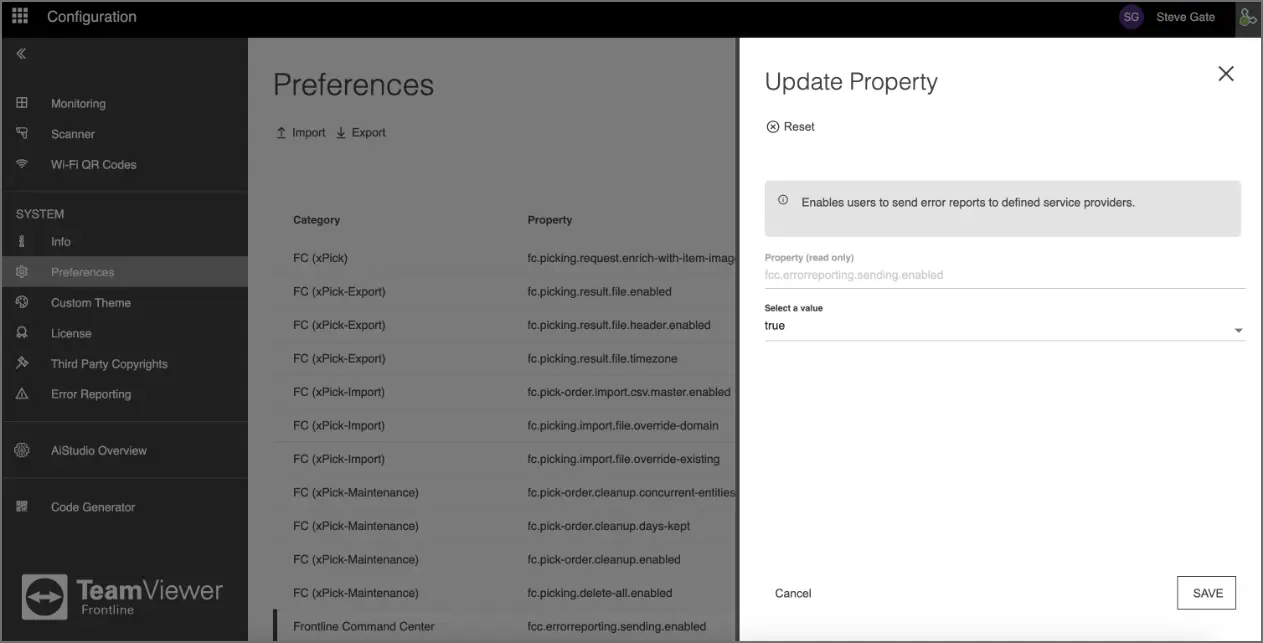
Note: In the case of a multi-domain server, administrators are able to maintain preferences for each domain separately. The set of properties can be quickly enabled for various domains by exporting them from one domain and importing them to another.
Configuring Device Flow for Frontline Workplace
This configuration has the highest security level due to two-factor authentication and does not require scanning any QR code. Instead, the user needs to enter the login code for the respective device after clicking on the ENTER DEVICE LOGIN CODE button displayed on the Frontline Command Center dashboard.
Activating Device Flow:
- Go to Configuration > Preferences.
- Search for "keycloak".
- Double-click on the
fcc.keycloak.preferred-client-loginproperty. - In the Update Property modal, select Device Flow from the drop-down list.
- Click on Save to confirm the changes.
To switch back to sign-in via login QR code, select Legacy in step 4.