
Secure remote access: 7 must-have security features for your business
We get it — in recent years, IT security has grown much more complex. Here's some unmissable features to keep your IT fleet safe.
According to the 2024 Allianz Risk Barometer, security is the number one worry for businesses globally. This position has remained unchanged for the last three years. And it’s only growing in importance with increased ransomware attacks and sophisticated AI.
As a result, a security-first approach should play an important role in choosing a remote access solution. Whatever you choose, it needs flexibility to grow alongside your business while being compatible with a Zero Trust approach.
But what exactly should you be looking out for? Here are some of the key security features you should be using in 2024 to keep you and your business safe.
1. Multi-factor authentication
One sure-fire way of delivering secure remote access is with multi-factor authentication (MFA). Simply put, this is an approach that means you can only access an account, device, or system by submitting multiple types of identification.
Here at TeamViewer, we protect your assets with two-factor authentication (2FA), which — you guessed it — requires two kinds of identification. As the below animation shows, this extra layer of verification prevents unauthorized access and protects your assets.
2. Device security and user management
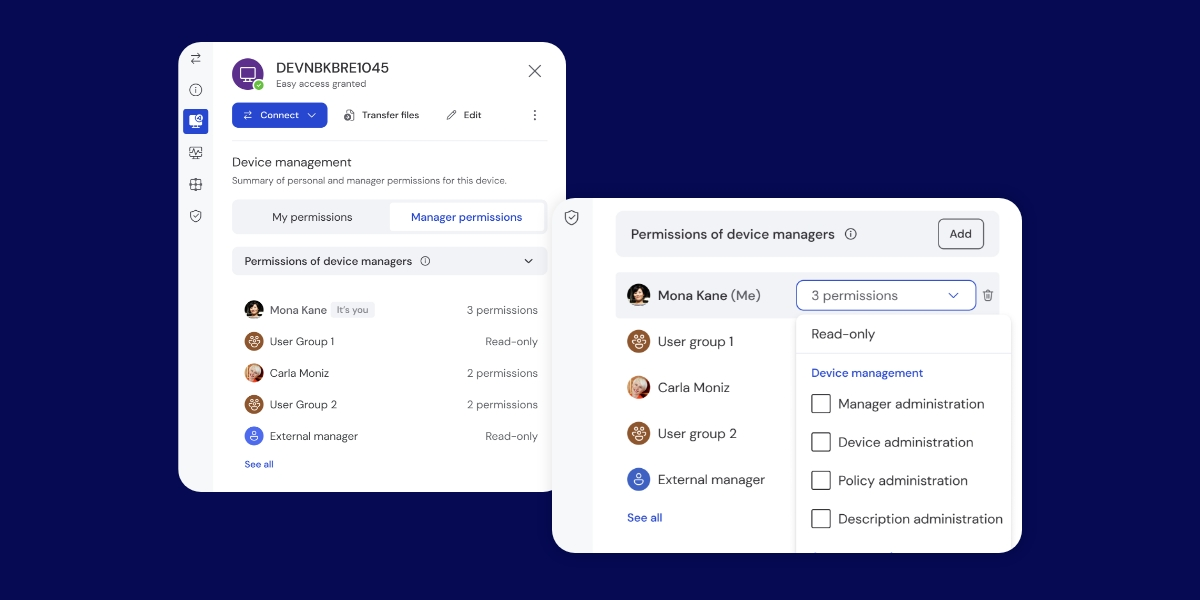
With increased remote work, more people are using more devices than ever. To tackle the security concerns this shift brings, you need full control over who has access to specific devices.
With TeamViewer, you can apply special permissions and licenses and assign settings policies to teams, individuals, and devices. The result? Super granular and secure management of your IT fleet.
3. Black screen

No secure remote access solution is complete without black screen functionality. With TeamViewer, this means that you can set your remote device’s screen to turn black as you access it. This ensures total privacy and security as you access your files.
This function is particularly important if you’re accessing sensitive data — working from your home office, for example, when you need to be sure no one else is looking at your remote screen.
4. Disable remote input
Further boosting your security, you now also have the option of disabling all remote input. Doing this protects the remote device from any manual disruption of your remote session. Meaning you can access your remote devices confident that no accidental touches will break your flow.
Addressing enterprise-level security concerns
If your IT fleet is larger and more heterogenous, you might need even more security features from your remote access solution. Here are some of the premium features to look out for enterprise.
5. Conditional access

Conditional access is an automated security approach. With it, you can allow connections within a session by defining rules based on specific conditions or criteria like user credentials, time, devices, device groups, and so on.
Say for example you have a user who usually works on a particular office computer, and they try to connect with an unknown personal device. In this case, conditional access policies will block the connection since there is no rule for allowing connections from private devices.
6. BYOC
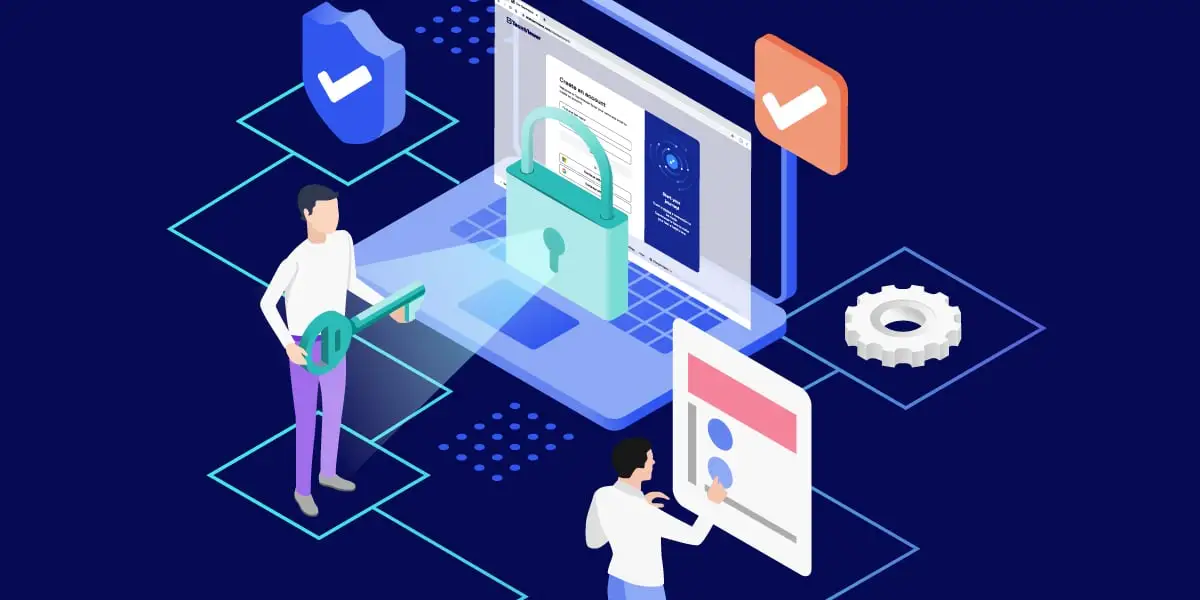
Bring Your Own Certificate (BYOC) policies allow companies to use their own additional digital certificates to secure cloud services and applications. This approach gives companies more control over security standards. It also helps them stay compliant and consistent while using cloud-based resources.
With TeamViewer’s bring your own certificate (BYOC) feature, you can use additional personal certificates to authenticate the devices involved in all TeamViewer connections. In effect, this feature supercharges the authentication of existing TeamViewer certificates — meaning you’re always doubly safe!
7. Single Sign-on (SSO)


Speak to one of our experts
See how TeamViewer can provide a customized solution to keep you and your business safe.