If you manage devices at scale, you’ll know how quickly simple tasks can turn into extra clicks, extra tabs, and extra admin work. Our latest TeamViewer ONE UI updates focus on making that day-to-day work easier. They give you a new navigation following real workflows, a more unified device view, simpler admin settings, and less manual setup.
A navigation that follows the way you work
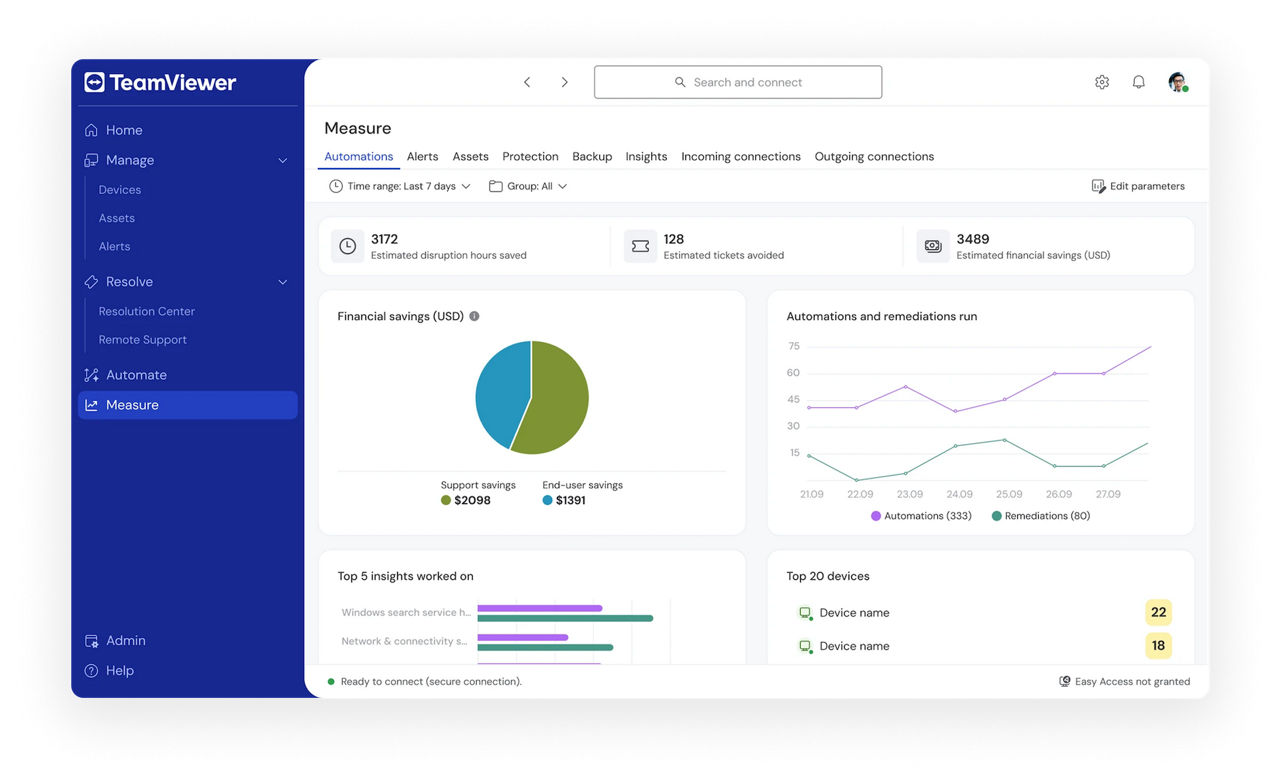
First up, our TeamViewer ONE’s updated use-case-based navigation, so you can move through tasks in a way that feels more natural with a clearer journey that minimizes context switching.
The top-level sections are:
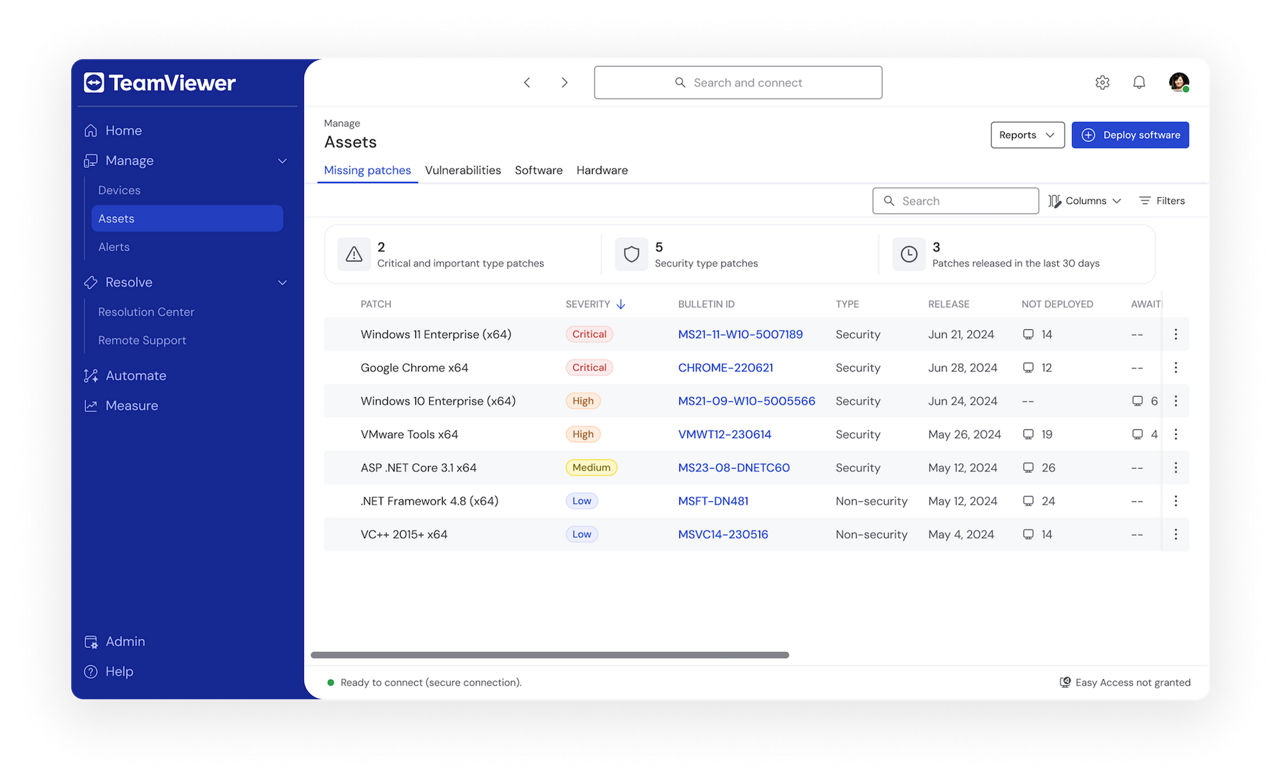
Manage for day-to-day device operations. Here, you can access the unified device view and Assets, check patch status, spot vulnerabilities, and review active Alerts so you can investigate and act.
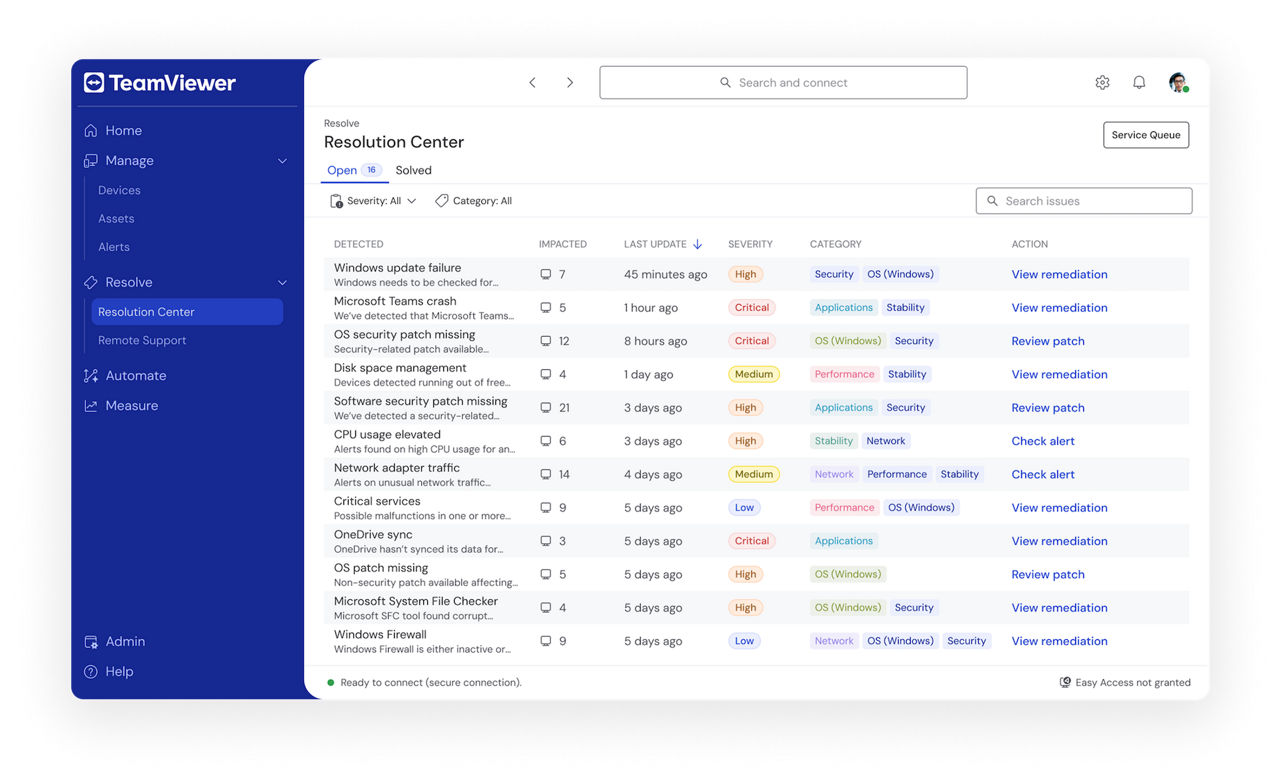
Resolve for support and issue resolution. This section brings together Resolution Center and Remote Support, so you can handle requests and track open issues in one place.
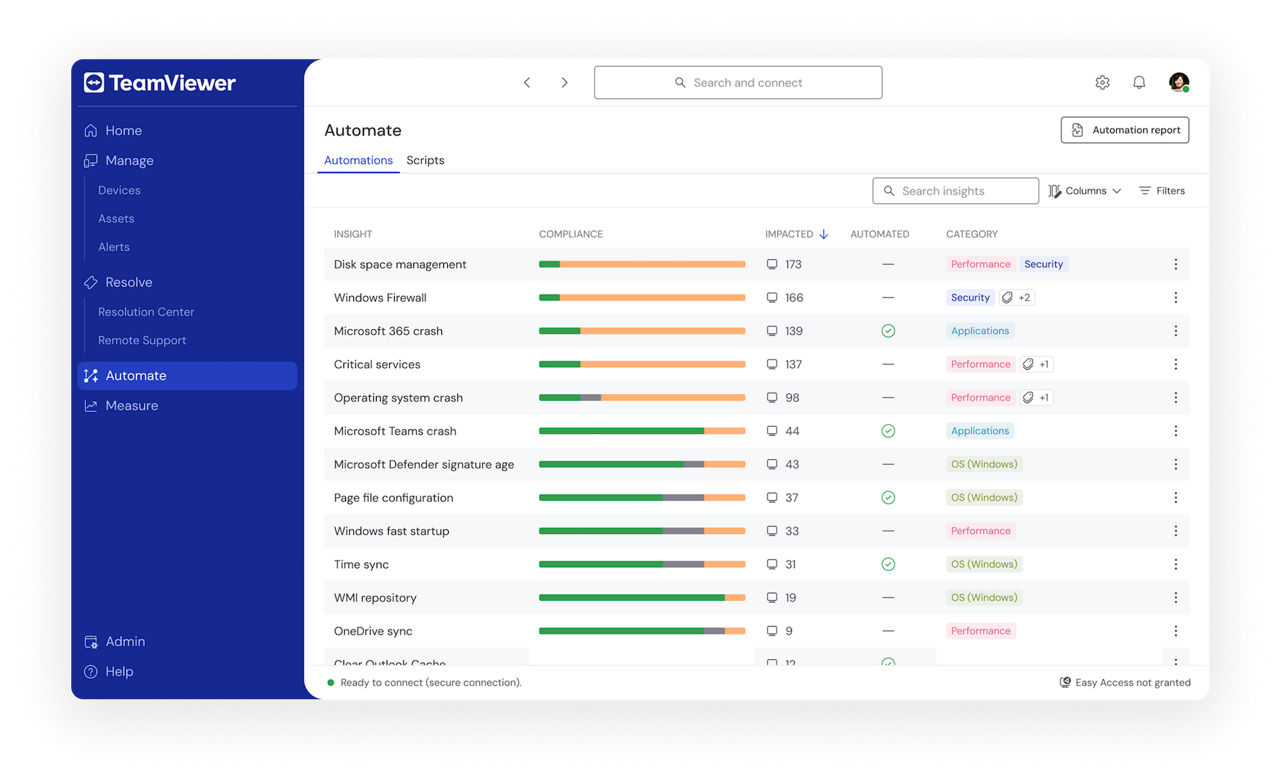
Automate for workflow automation. Here, you can manage Automations and Scripts without jumping between different sections.
Measure for performance and health across your environment. This section brings together Automations, Alerts, Assets, Protection, Backup, Insights, and Incoming and Outgoing connections so you can review what is happening across the platform.
One place to manage your devices
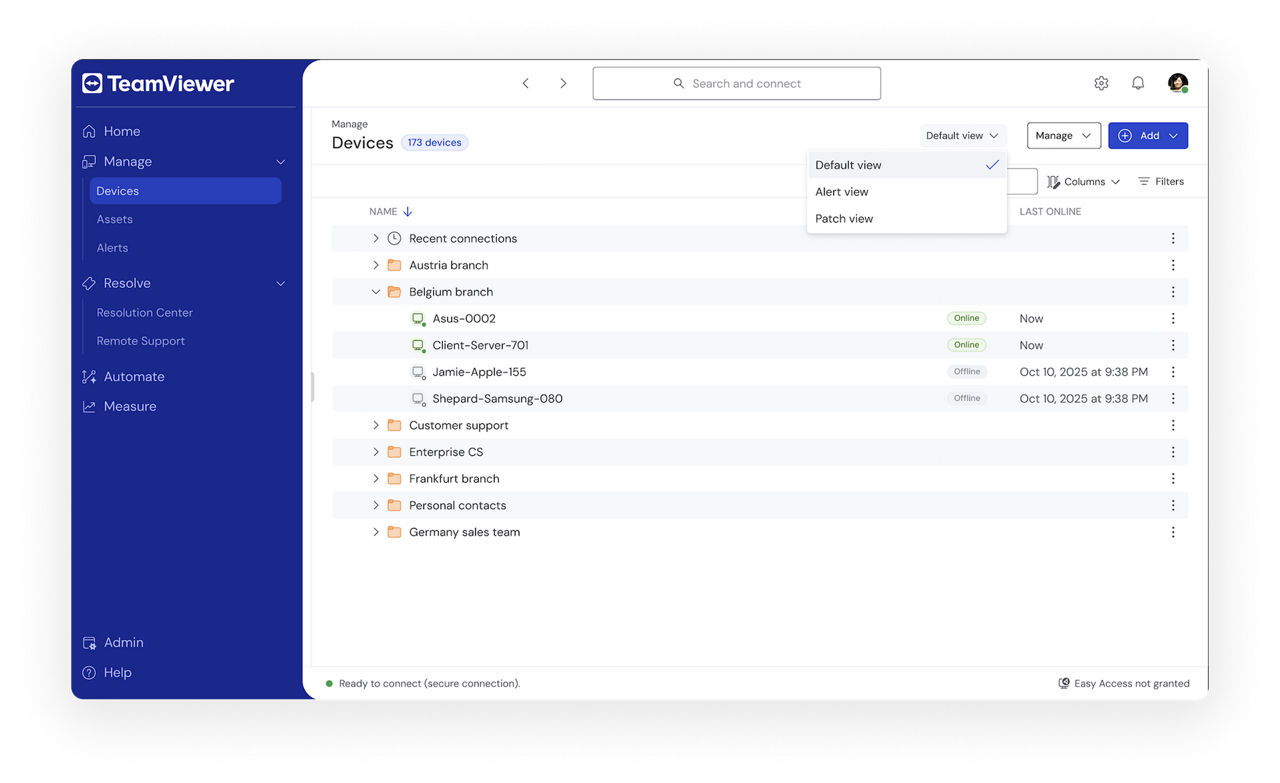
The new Unified Device View consolidates device information on a single page, so you don’t have to jump between sections to check alerts, patches, endpoint protection status, or backup coverage. You can now find all of that under Manage > Devices.
From the Devices page, you can switch between focused views with a dropdown selector. Each view keeps the functionality you already use, including columns, filters, search, the side panel, and command bar options.
A simpler TeamViewer ONE experience
These updates make TeamViewer ONE easier to navigate, easier to manage, and easier to set up. You can move through everyday workflows with less friction, keep device information in one place, and spend less time on configuration overhead.

Explore TeamViewer ONE
Want to see how TeamViewer ONE can help you manage devices, reduce admin effort, and keep everyday IT work moving?
Explore more insights
-
5 simple steps you should consider to stay compliant.
-
Password safety is central to protecting your business from bad actors. Read on to stay ahead of cyberattacks.
-
The TeamViewer integration with Microsoft Teams brings world-class remote control and support to collaboration workflows with just a few clicks.