Smartphones have become essential tools for communication, productivity, and business operations. As users increasingly work across multiple devices, there are many situations where accessing and controlling a phone from a PC can improve efficiency and simplify everyday tasks. Whether responding to messages, managing files, troubleshooting a device, or supporting mobile users remotely, controlling a phone from a computer can help create a more seamless workflow between devices.
What does controlling a phone from a PC mean?
Controlling a phone from a PC allows a user to interact with a mobile device through a computer. Depending on the solution being used, this may include:
- Viewing the phone screen
- Using the keyboard and mouse to control the device
- Sending messages
- Managing files
- Running mobile applications
- Providing remote support
- Performing troubleshooting tasks
The available features vary depending on the operating system, device type, and remote access solution.
Common use cases
Phone-to-PC control supports a variety of personal and business scenarios. Whether you're working remotely, accessing personal files, or helping someone troubleshoot an issue, remote connectivity offers greater flexibility.
Improving productivity
Users can interact with mobile applications and notifications without constantly switching between devices. This helps streamline everyday tasks and reduces interruptions when working across multiple screens.
Managing files
Files, photos, and documents can be accessed and transferred more efficiently from a larger screen. This makes it easier to organize content, edit documents, or move files between devices when needed.
Providing technical support
IT teams can assist users with device configuration, troubleshooting, and application issues. Remote access allows support staff to diagnose problems more quickly and guide users through solutions without requiring an in-person visit.
Managing business devices
Organizations can support employees and maintain visibility into mobile devices used across distributed environments. Centralized remote access also helps simplify device administration and improve support for hybrid and remote workforces.
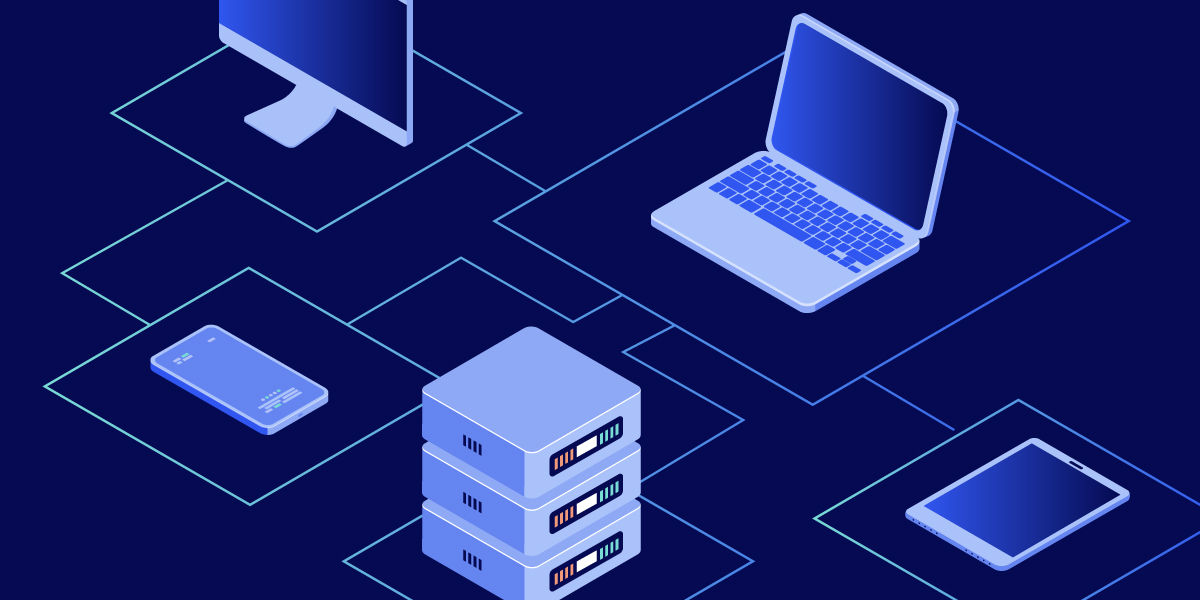
Methods for controlling a phone from a PC
Several approaches are available depending on the level of control required.
Built-in device integration features
Many operating systems offer features that connect phones and computers. These tools may allow users to:
-
View notifications
-
Send messages
-
Access photos
-
Transfer files
While convenient, they often provide limited device control.
Screen mirroring
Screen mirroring displays the phone screen on a computer. This can be useful for presentations, demonstrations, and monitoring activity, but it may not always provide full interactive control.
Remote access tools
Dedicated remote access solutions provide more advanced capabilities, including screen sharing, device interaction, file transfer, and support workflows. These tools are commonly used in business environments where users or administrators need greater visibility and control over mobile devices.
Android vs. iPhone remote control
The level of control available depends heavily on the mobile operating system.
Android devices
Android generally provides greater flexibility for remote access and device interaction. Depending on the device manufacturer and software configuration, users may be able to remotely view and control the device from a computer.
iPhone devices
Apple prioritizes privacy and security controls within iOS. As a result, remote support solutions often focus on screen sharing and guided assistance rather than unrestricted device control. The exact capabilities depend on the application and Apple's platform requirements.
Security considerations
Remote access to mobile devices should be protected carefully.
Organizations should consider:
- Multi-factor authentication
- Access controls
- Device approval policies
- Session encryption
- User consent requirements
- Mobile device management policies
Strong security controls help protect sensitive business and personal information.
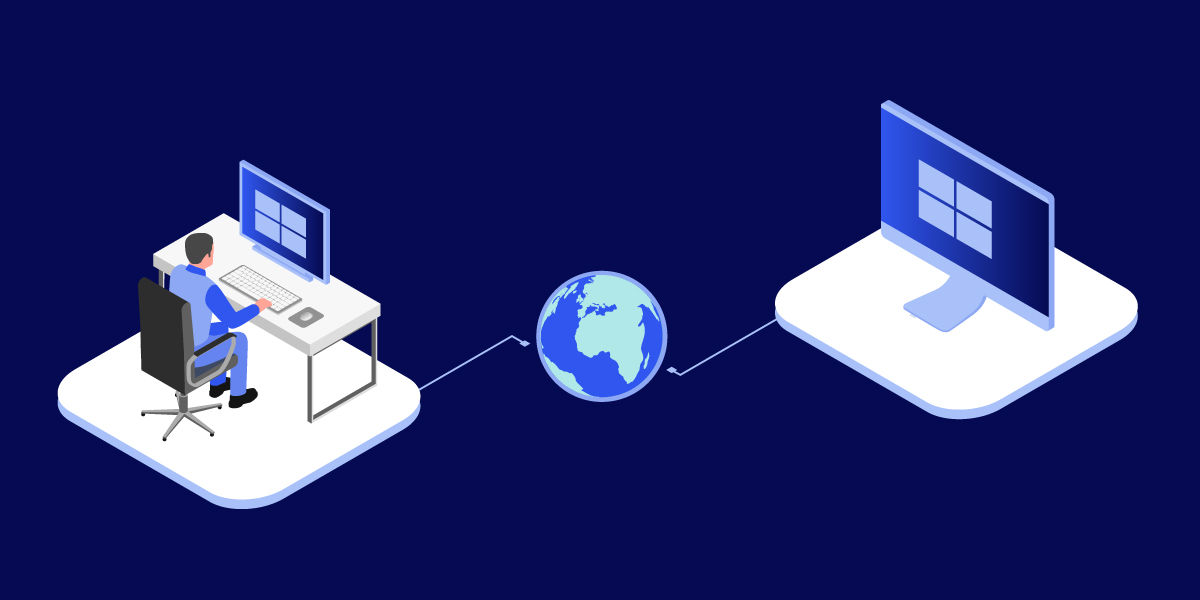
How TeamViewer can help
For organizations that need to support mobile devices remotely, TeamViewer provides secure remote access and support capabilities for Android and iOS devices. Depending on the device platform, administrators can view screens, troubleshoot issues, transfer files, and assist users without requiring physical access to the device. This can help IT teams reduce support delays, improve user experiences, and maintain productivity across distributed workforces and mobile environments.
Best practices for phone-to-PC access
To use remote mobile access effectively:
- Grant access only to authorized users
- Use strong authentication methods
- Keep devices updated
- Follow organizational security policies
- Document support activities where required
- Review permissions regularly
A structured approach helps balance accessibility with security.
Common issues and troubleshooting
If phone control is not working as expected, check:
- Network connectivity
- Device permissions
- Software compatibility
- Operating system restrictions
- Security settings
- Application updates
Many issues can be resolved by reviewing permissions and ensuring both devices are running current software versions.
Final thoughts
How to control my phone from my PC
Controlling a phone from a PC can improve productivity, simplify device management, and make remote support more efficient. The best approach depends on the operating system, security requirements, and level of interaction needed. If built-in features don't meet your needs, dedicated remote access solutions such as TeamViewer may offer greater flexibility.