Is your computer running slower than it used to? Are you experiencing unexpected crashes or seeing hardware, like your camera or display adapter, behave erratically? Before you assume the worst, the solution could be simpler than you think. Outdated device drivers are a common cause of performance issues, security vulnerabilities, and hardware conflicts that can disrupt your workflow.
Keeping these drivers updated is a basic but critical part of system maintenance. It ensures that all your components, from the most complex graphics card to the simplest mouse, are supported and optimized. Updated drivers can unlock new features, patch security holes, and provide significant performance boosts.
Learn here how to update drivers on your PC to maintain a healthy and efficient IT environment for you and your team.
In this article
- Why keeping your drivers updated is critical for performance
- How to update drivers on your PC using Windows Update
- Manually updating drivers from manufacturer websites
- Best practices for enterprise driver management
- Summary: a simple path to perfect hardware performance
Why keeping your drivers updated is critical for performance
Maintaining updated drivers is one of the most effective ways to ensure your computer hardware runs smoothly and securely. Drivers are the bridge between your hardware components and your Windows operating system. When this bridge is outdated, you can experience a range of problems from minor glitches to major system instability.
Performance improvements from updated drivers
One of the primary benefits of updating is performance improvement. Manufacturers constantly refine their drivers to optimize how hardware components use system resources like memory and processing power. A new display driver, for example, can significantly increase frame rates in demanding applications, while an updated network adapter driver can improve connection stability and speed.
Security benefits of driver updates
Security is another vital reason to keep your drivers updated. Like any software, drivers can have vulnerabilities that malicious actors can exploit. Manufacturers regularly release updates to patch these security flaws, protecting your computer and your company’s network from potential threats. Ignoring these updates leaves your systems exposed to unnecessary risks.
Fixing bugs and ensuring compatibility
Finally, updates often fix bugs and add support for new hardware and software features. If you've recently installed a new camera or are using the latest creative studio software, updated drivers ensure compatibility and prevent crashes. By regularly updating, you ensure all your hardware is fully supported and functioning as intended.
How to update drivers on your PC using Windows Update
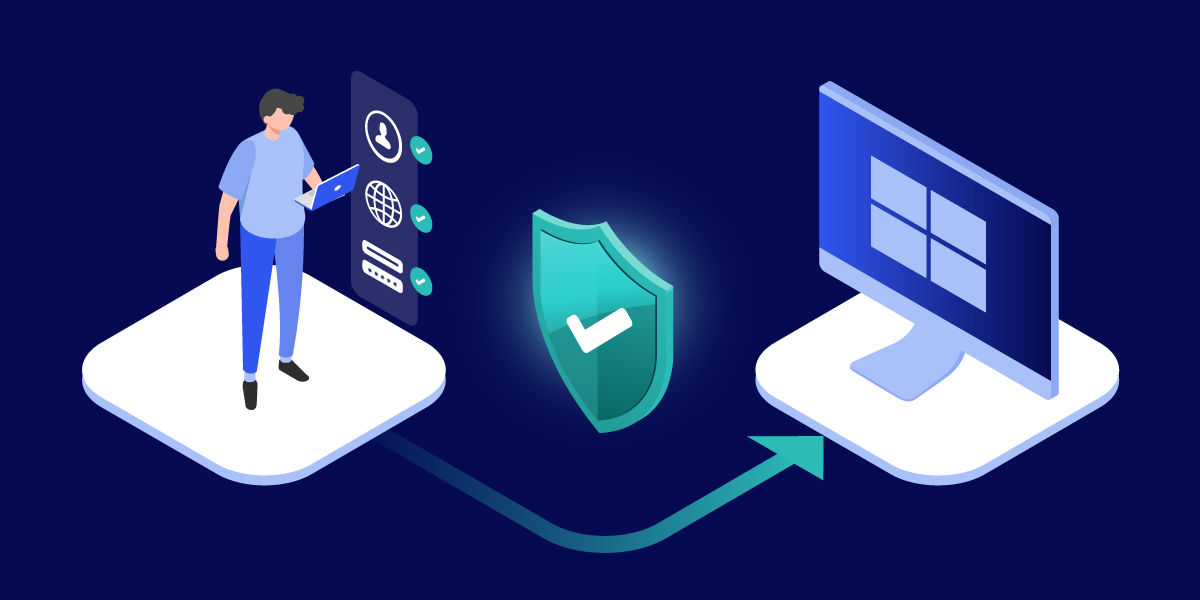
For most users and common hardware, the most straightforward method for updating drivers is through Windows Update. Microsoft automatically tests and distributes many manufacturer-approved drivers through this service, making it a reliable first stop. This process is built directly into the operating system and requires just a few clicks.
Updating drivers in Windows 11
In Windows 11, you can start by opening the settings window. Go to 'Windows Update' and then select 'Advanced options'. From there, click on 'Optional updates'. Here, you will find a section for 'Driver updates'. If any new drivers for your hardware are available, they will be listed here for you to select and install.
Updating drivers in Windows 10
The process is very similar for Windows 10. Navigate to 'Settings', then 'Update & Security', and finally 'Windows Update'. Click 'View optional updates' if the option is available. This is where you will find any driver updates that Windows has identified for your computer. It is a simple and integrated way to keep your basic components updated.
Scaling driver updates across multiple systems
For IT professionals managing multiple systems, learning how to update drivers on PCs across an entire network is a different challenge, often requiring robust remote support tools. Centralized management solutions allow you to deploy, update, and remove drivers on remote computers without needing physical access, ensuring consistency and security across the organization.
Manually updating drivers from manufacturer websites

While Windows Update is convenient, it doesn't always have the very latest drivers, especially for specialized hardware like high-end graphics cards or specific peripherals. In these cases, the best approach is to get the driver directly from the hardware manufacturer's support website. This ensures you have the most recent version with all the latest features and performance optimizations.
In a corporate environment, managing drivers across dozens or hundreds of computers requires a more structured approach than on a single PC. A haphazard approach can lead to instability, security gaps, and increased support tickets. Establishing clear best practices is essential for maintaining a reliable and secure IT infrastructure.
Test new drivers in a controlled environment
First, always test new drivers in a controlled environment before deploying them company-wide. Deploy the updated driver to a small group of test machines or a lab environment to ensure it doesn't cause conflicts with your specific hardware profiles or critical business applications. This step helps you catch potential issues before they impact productivity.
Automate deployment with centralized management tools
Use centralized management tools to automate deployment. Solutions like Microsoft Endpoint Manager or dedicated remote management platforms allow IT teams to push driver updates to all supported devices from a single console. This not only saves time but also ensures that every computer is running the same approved driver version, reducing inconsistencies.
Keep a detailed inventory of hardware and driver versions
Maintain a clear inventory of hardware and driver versions. Knowing exactly what hardware is in use across your organization makes it easier to track necessary updates and manage device lifecycles. This documentation is invaluable for troubleshooting and planning future hardware refreshes. A proactive driver management strategy is a key part of modern, efficient IT operations.
Summary: A simple path to perfect hardware performance
Keeping your PC’s drivers updated is a fundamental task for ensuring optimal performance, security, and stability. Whether you are managing a single computer or an entire enterprise network, a proactive approach to driver updates prevents common hardware issues and keeps your systems running at their peak.
We have explored the two primary methods for this task. The first is using the built-in Windows Update feature, which is the easiest and most reliable way to get basic drivers for common components. The second is manually downloading drivers from manufacturer websites, which is ideal for specialized hardware or for users who need the absolute latest updates.
For IT professionals, a strategic approach involving testing, centralized deployment, and diligent inventory management is key to success. By implementing these practices, you can reduce support requests, minimize downtime, and ensure that your organization's hardware is always ready to perform. Ultimately, knowing how to update drivers on your PC is an essential skill for a seamless and productive digital experience.