For your IT infrastructure

Secure remote monitoring and management

Server control features in the TeamViewer Remote client

TeamViewer RMM

With full remote access, remote control, and device management capabilities at your fingertips, TeamViewer turns your RMM strategy into a reality. This includes enterprise-wide visibility across your network, automated responses, and scheduling of routine tasks. Additionally, with remote access software, IT professionals can gain direct access to devices, liaise with end users, and troubleshoot issues remotely.

The end-result? Supercharged productivity for IT professionals, fast and cost-effective resolution of issues, and happier end users. All of this is underpinned by the levels of security and stability you’d expect from a trusted remote connectivity platform.

Trustpilot logo
118,115 отзывов
G2 logo
3,649 отзывов
TrustRadius logo
2,714 отзывов
Capterra logo
11,513 отзывов

Remote monitoring and management

TeamViewer RMM: Fix problems faster, reduce overheads, and boost network security

TeamViewer’s flexibility and cross-compatible design make it a suitable RMM software solution for a wide range of environments, including in-house IT teams, and managed service providers (MSPs), servicing both business users, and external customers. Key capabilities and features include:

Maintaining stability of IT systems

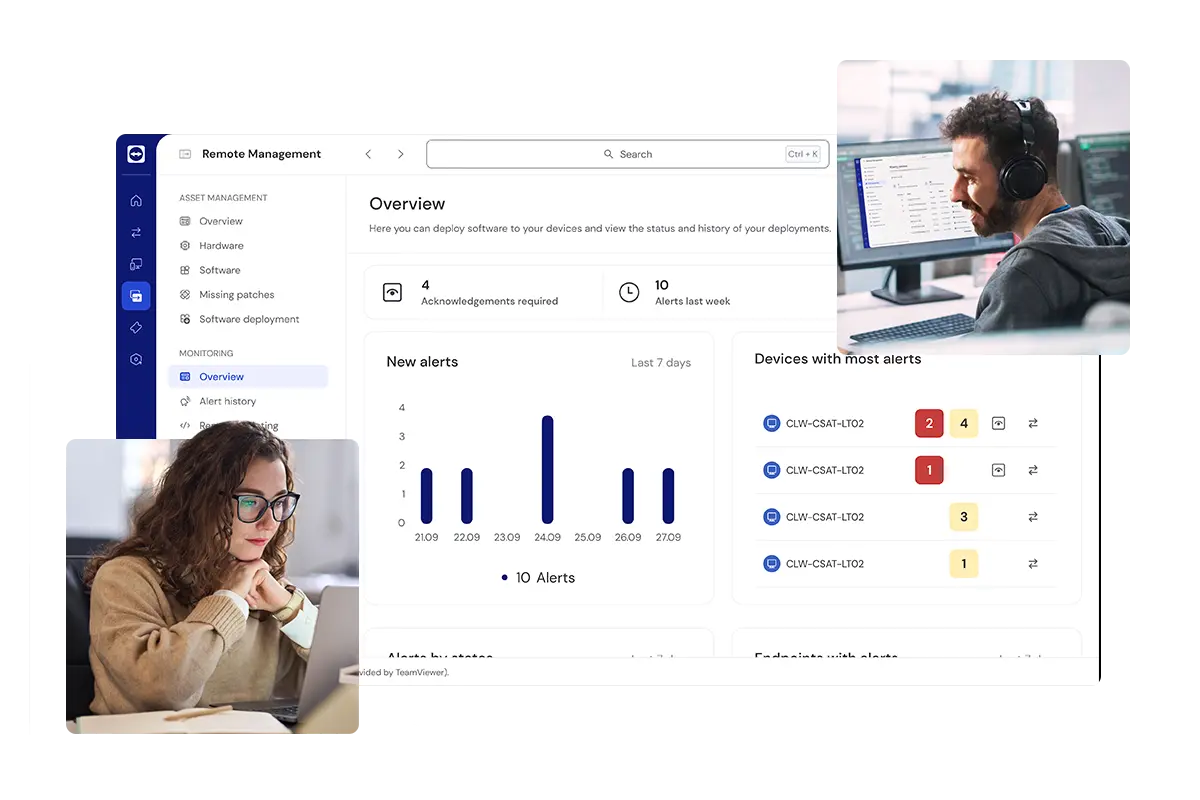
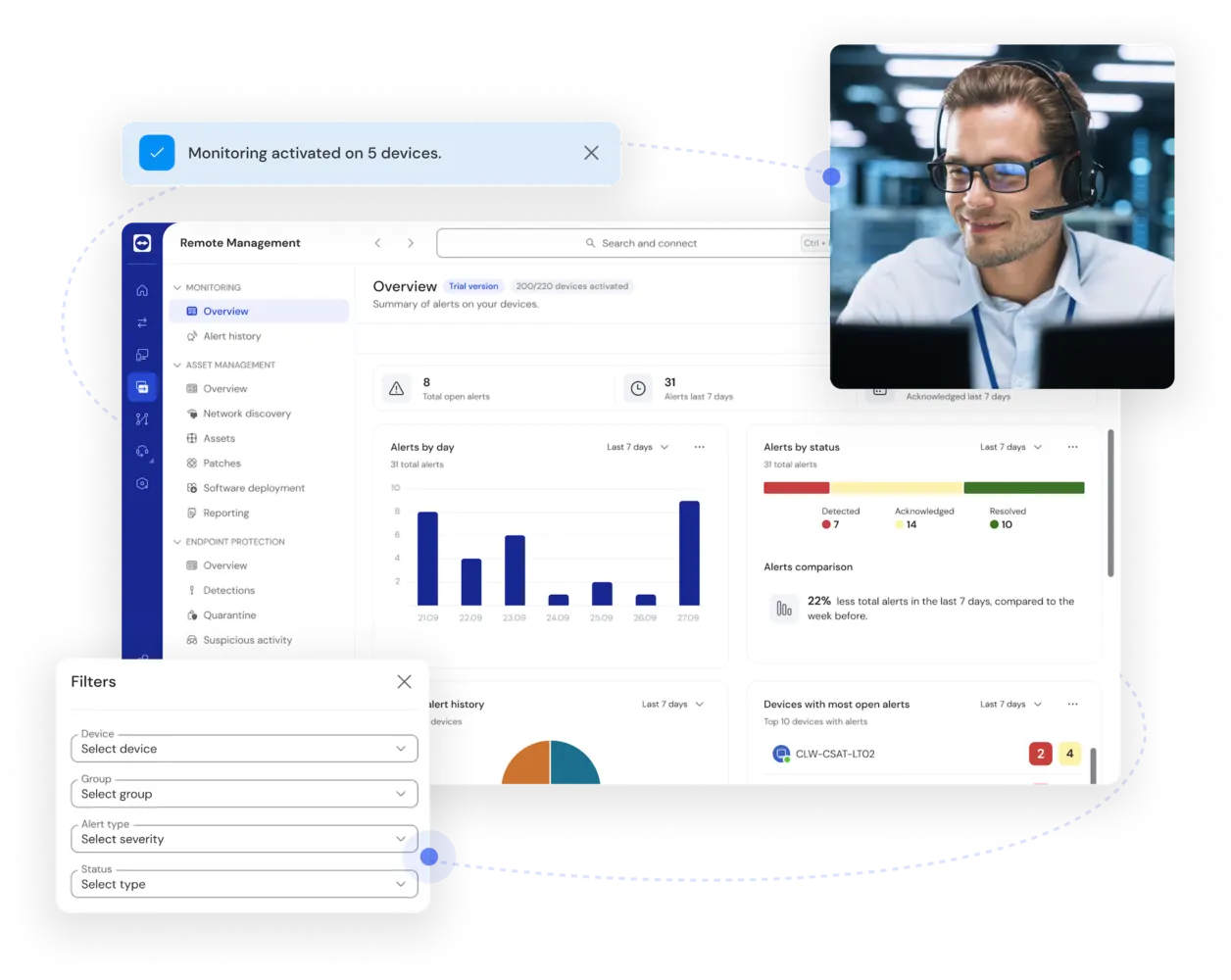
With TeamViewer Device Monitoring, you can continuously monitor the performance of all devices, no matter where they are located, keeping your IT infrastructure stable, secure, and running smoothly. Identify the checks you need — such as disk space and health, CPU and memory usage, status updates, event logs, and online status — and receive instant notifications if a check fails.
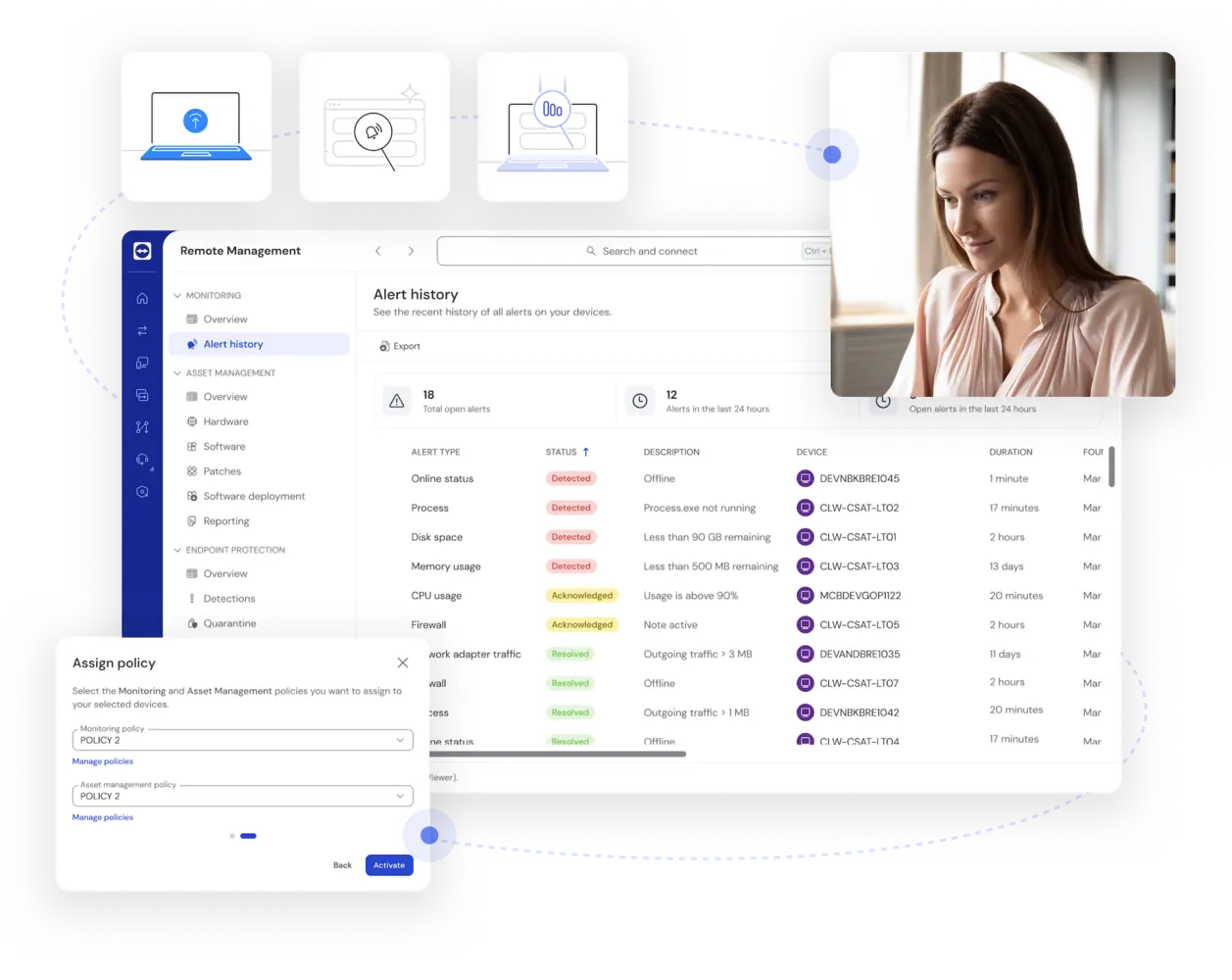
Setting up Device Monitoring with TeamViewer

Centralized control of devices

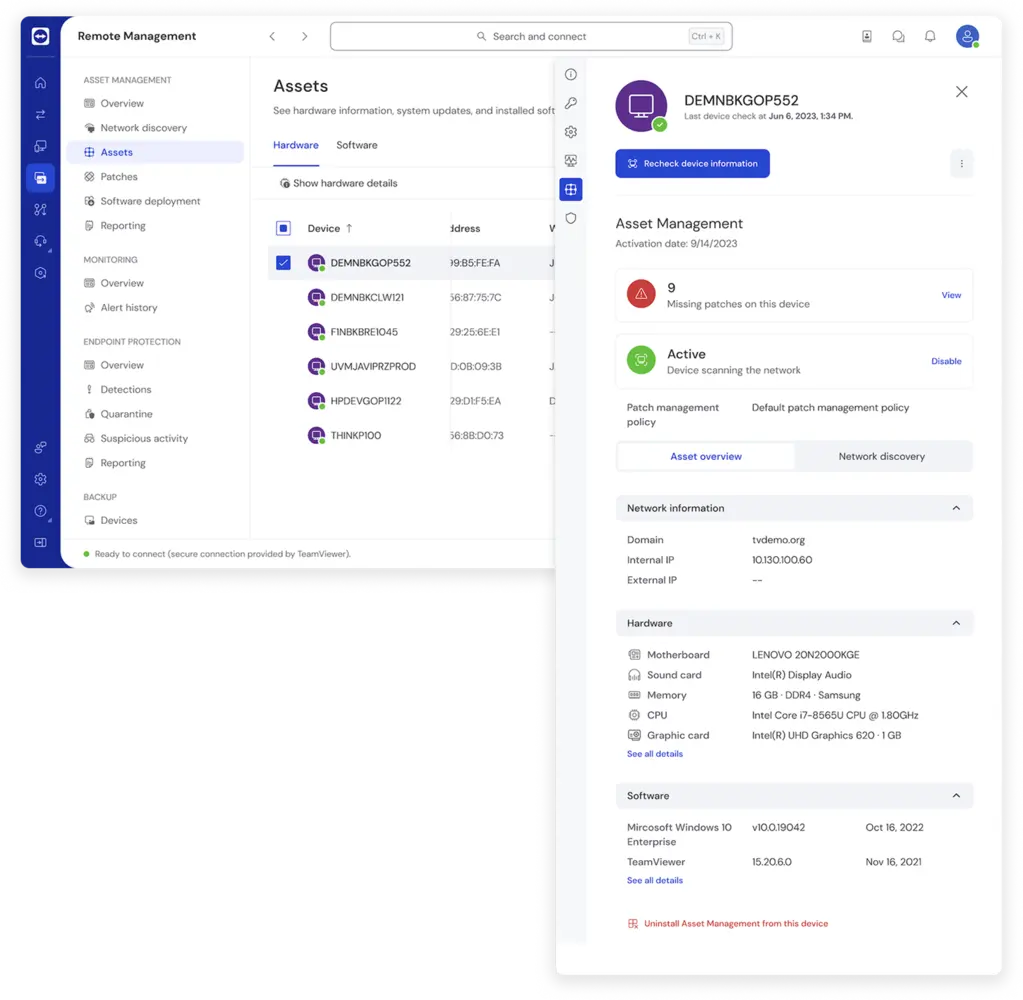
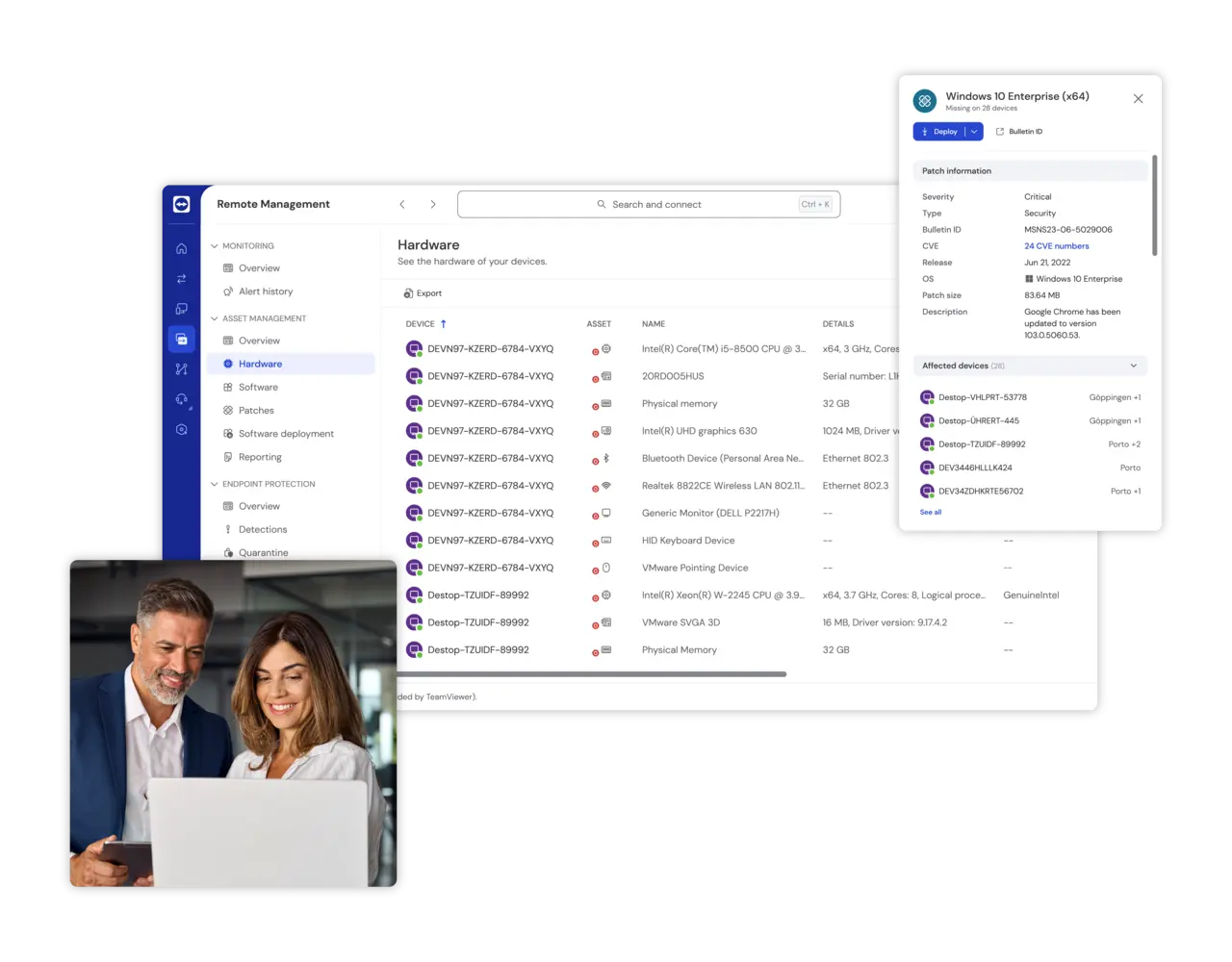
Hardware management as seen in TeamViewer client

Management of distributed network

TeamViewer Asset Management gives you a detailed view of all network assets across your own or your customer’s entire IT estate. Scan for all connected devices (including hidden devices) to monitor the status and performance of your entire network. This includes computers, mobile devices, printers and other peripherals, routers and switches, uninterruptible power supplies, and network attached storage. With Asset Management you can also manage a dispersed fleet of devices, schedule and roll out updates, and manage patch deployments, software installations, upgrades, and reconfigurations from anywhere.

TeamViewer Remote UI screenshot with hardware asset maintenance

Remote hands-on support

With full remote control and a range of see-what-I-see capabilities, TeamViewer enables you to take user-focused, proactive RMM to the next level. Technicians can securely connect to any device across your managed environment. With full support for video, chat, screen sharing, and dynamic assistance, technicians get an instant view of problems and can diagnose and reconfigure as needed. At the same time, they can provide the user with real-time, hyper-relevant guidance and support.

Omni-channel support processes

Remote cloud backup

TeamViewer Backup is an essential part of RMM that ensures business continuity and resiliency. TeamViewer Backup lets you design and implement a reliable, easy-to-manage backup and recovery strategy, suitable for even the most complex and widely distributed IT environments. Using the TeamViewer management console, you can specify what should be backed up, when, and how often. You can also monitor adherence, and intervene remotely if necessary.

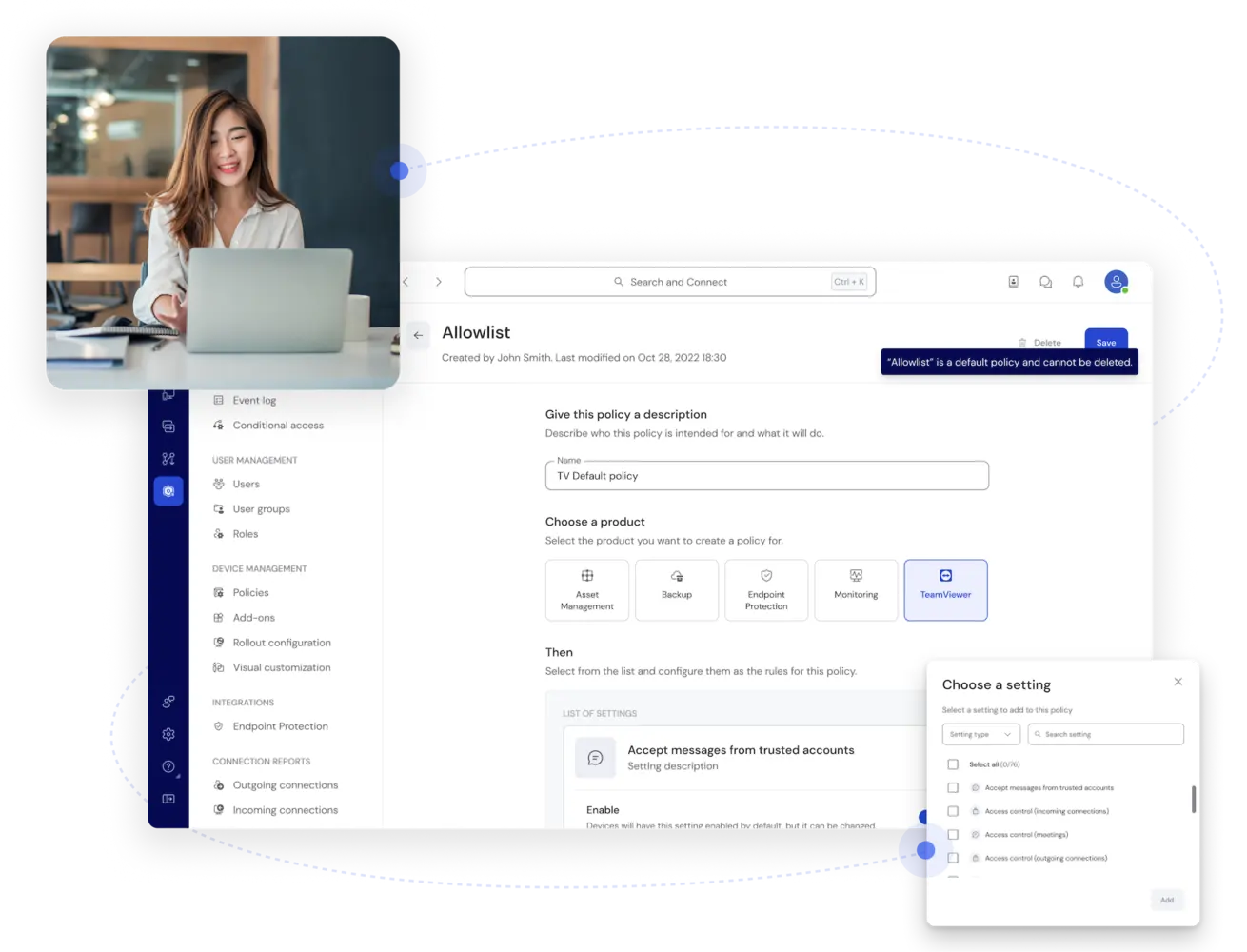
Allowlist and settings as seen in the TeamViewer client

What sets TeamViewer’s solution for remote management apart?

Customizable RMM software
Reliable alerting
Behind-the-scenes support

Программное обеспечение для обычных пользователей и компаний, отмеченное множеством наград

G2 Award: Leader
G2 Award: Momentum Leader
G2 Award: Fastest Implementation, Mid-Market (MDM, SAP Store)
G2 Award: Best Meets Requirements, Enterprise (SAP Store)
G2 Award: Top 50 IT Infrastructure Products
G2 Award: Users Love Us

How to set up RMM software

Windows, Mac, and Chrome

To set up TeamViewer’s remote management solution on your Windows PC, laptop, ChromeBook, iMac, or MacBook, download TeamViewer from our website. Sign up for a TeamViewer account and navigate to the ‘Remote Management’ tab. From there, you can begin the setup process for monitoring and managing your devices.

TeamViewer license holders can skip the download and connect directly from a browser.

Android and iOS

Setting up TeamViewer’s remote monitoring and management software is simple: 

  1. Install the TeamViewer app on your iOS or Android device. 

  2. Install or start the TeamViewer program on your desktop computer and make a note of its TeamViewer ID. 

  3. Enter this ID into the Partner ID field on the ‘Remote Control’ panel on your iPhone, iPad, or Android tablet (any manufacturer). 

  4. Click ‘connect’ and you’re ready to go. 

Access and start using TeamViewer Remote for your iPhone, iPad, Android phone, or Android tablet (any manufacturer) by following the download link for your device from our website.

Linux
  • Click on the TeamViewer for Linux icon on the TeamViewer download page. 

  • Select the download option most appropriate for your version of Linux. If in doubt, select the 64-bit DEB package. 

Follow the installation and desktop session options on our Linux Remote Desktop Session information page.

Remote managament software feature hightlights

Apps icon
Integrated
Connect icon
Customizable
Scale icon
Scalabe
Activity icon
Automated
Key icon
Security

RMM for managed service providers (MSPs)

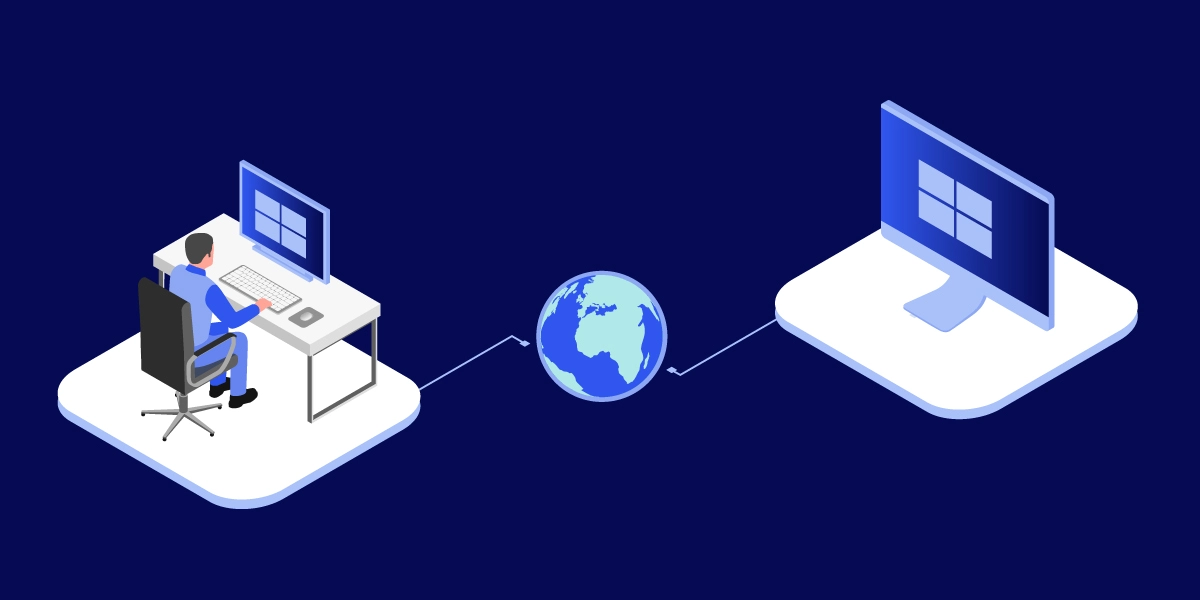
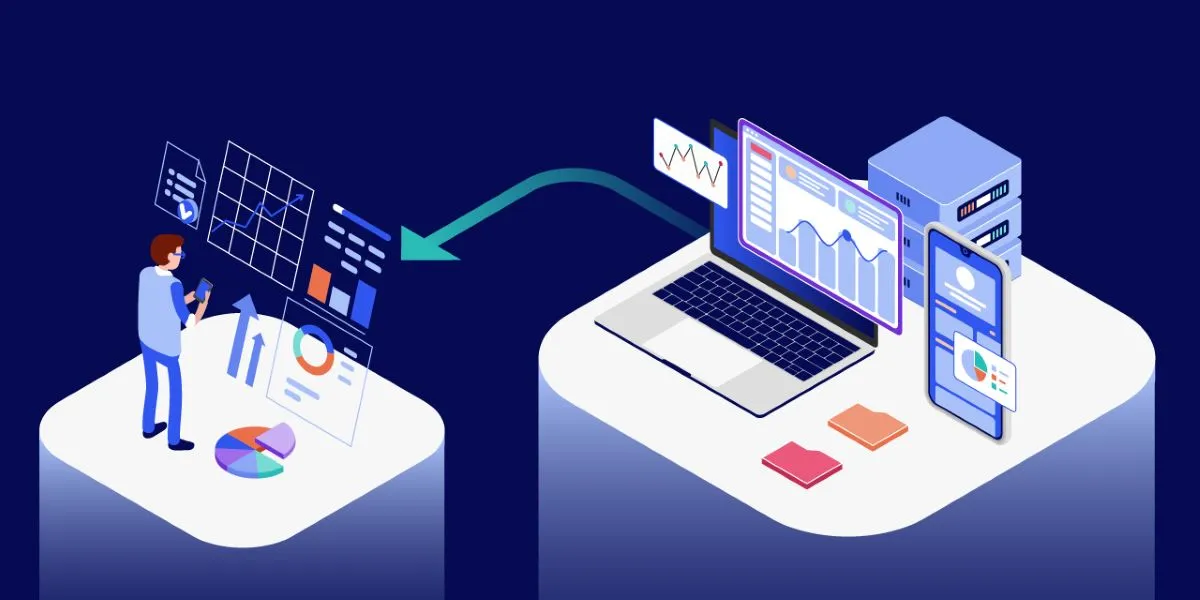
Illustration: Remote monitoring system

RMM for IT teams

Remote management software

Spotlight

Customer success

FAQs