Keep every detail in view
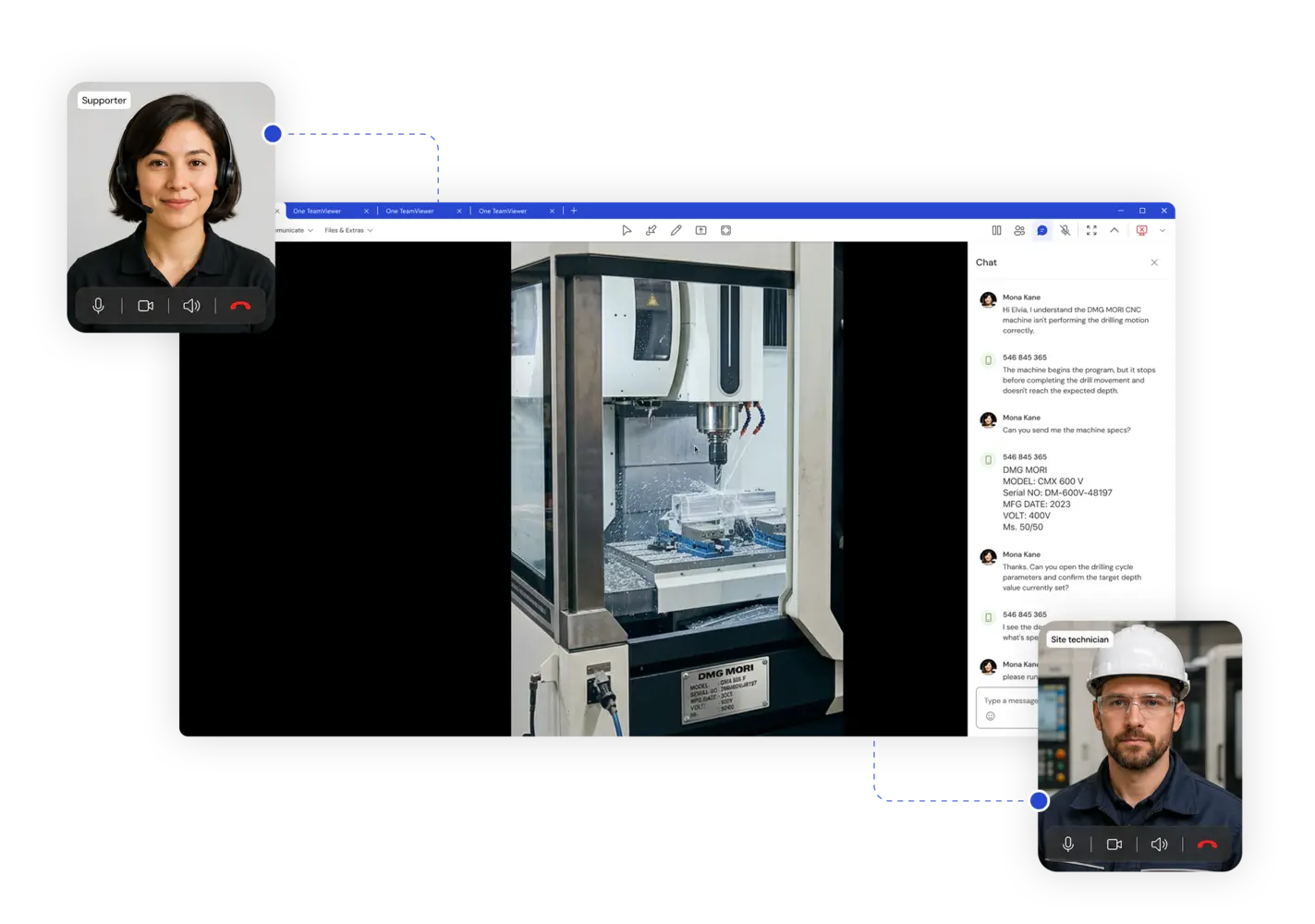
Exchange messages in the chat during a session and navigate through the participant list. Access messages after a call ends to ensure no details are missed.

See what frontline workers see, resolve issues remotely, and turn every support session into reusable knowledge for future troubleshooting.
TeamViewer Assist AR
Provide frontline workers with real-time AR guidance, while capturing findings and using past session knowledge for faster issue resolution.

Automatically capture session insights, expert guidance, and resolutions—enabling your teams to reuse knowledge instead of solving the same issue twice.

Give remote supporters instant access to past sessions and expert insights to diagnose and resolve issues more efficiently.

Reduce repetitive support requests by making knowledge accessible to frontline workers—allowing experts to focus on complex problems.

Resolve issues faster and minimize downtime with immediate access to the right information.

Avoid unnecessary site visits by guiding workers remotely using captured expertise—saving time, cost, and CO₂ emissions.

Eliminate manual reporting with automatically generated session summaries and captured knowledge.


TeamViewer Assist AR
Fix problems remotely: TeamViewer Assist AR lets you identify and solve problems in the real world—from anywhere. Experts and on-site workers can easily communicate through real-time video calls, 3D annotations, markers, chat, and much more.
Exchange messages in the chat during a session and navigate through the participant list. Access messages after a call ends to ensure no details are missed.
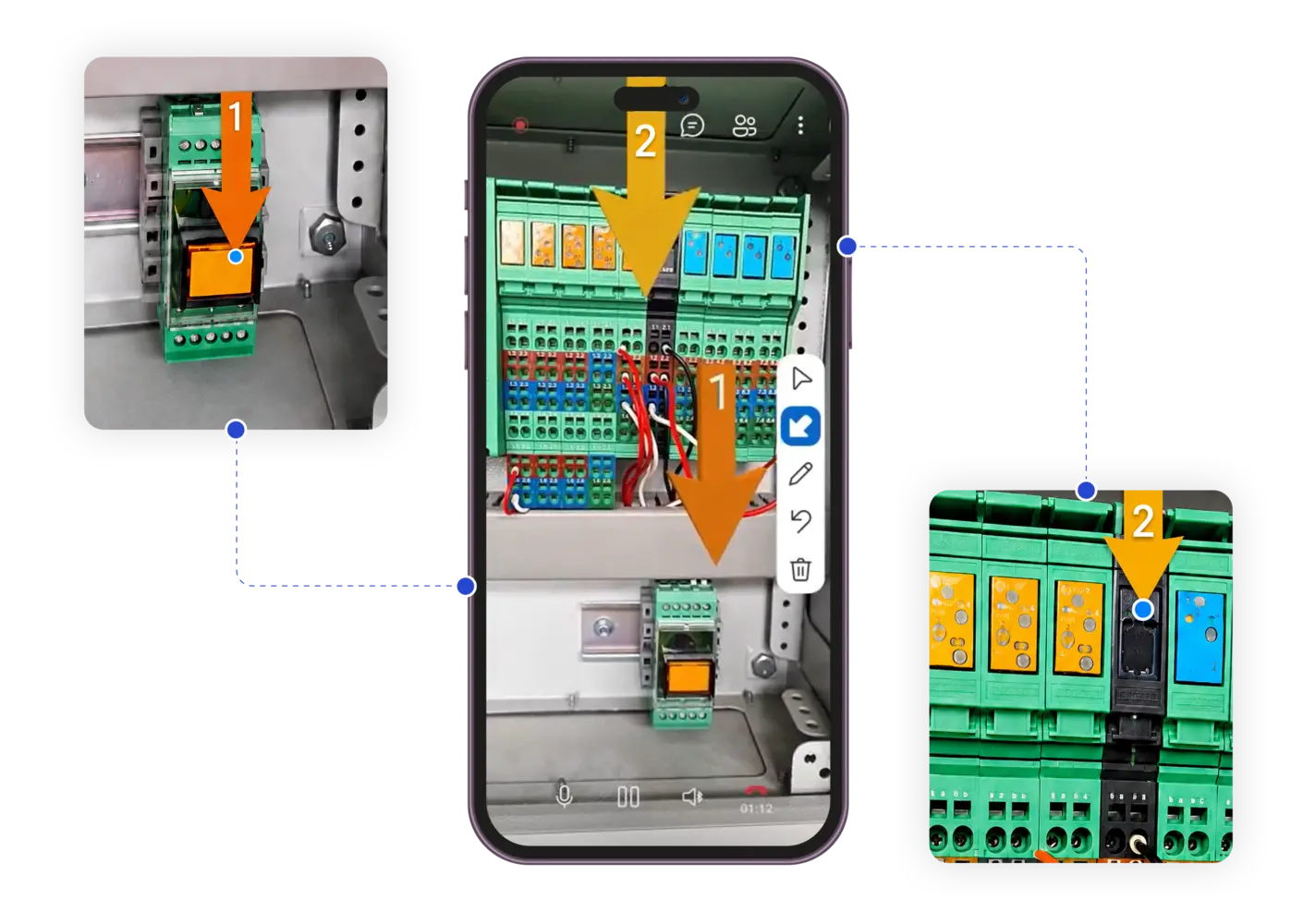
Guide users visually with annotations and markers that stay anchored to real-world objects, even as the camera moves. This helps frontline workers follow expert instructions more clearly during live troubleshooting.
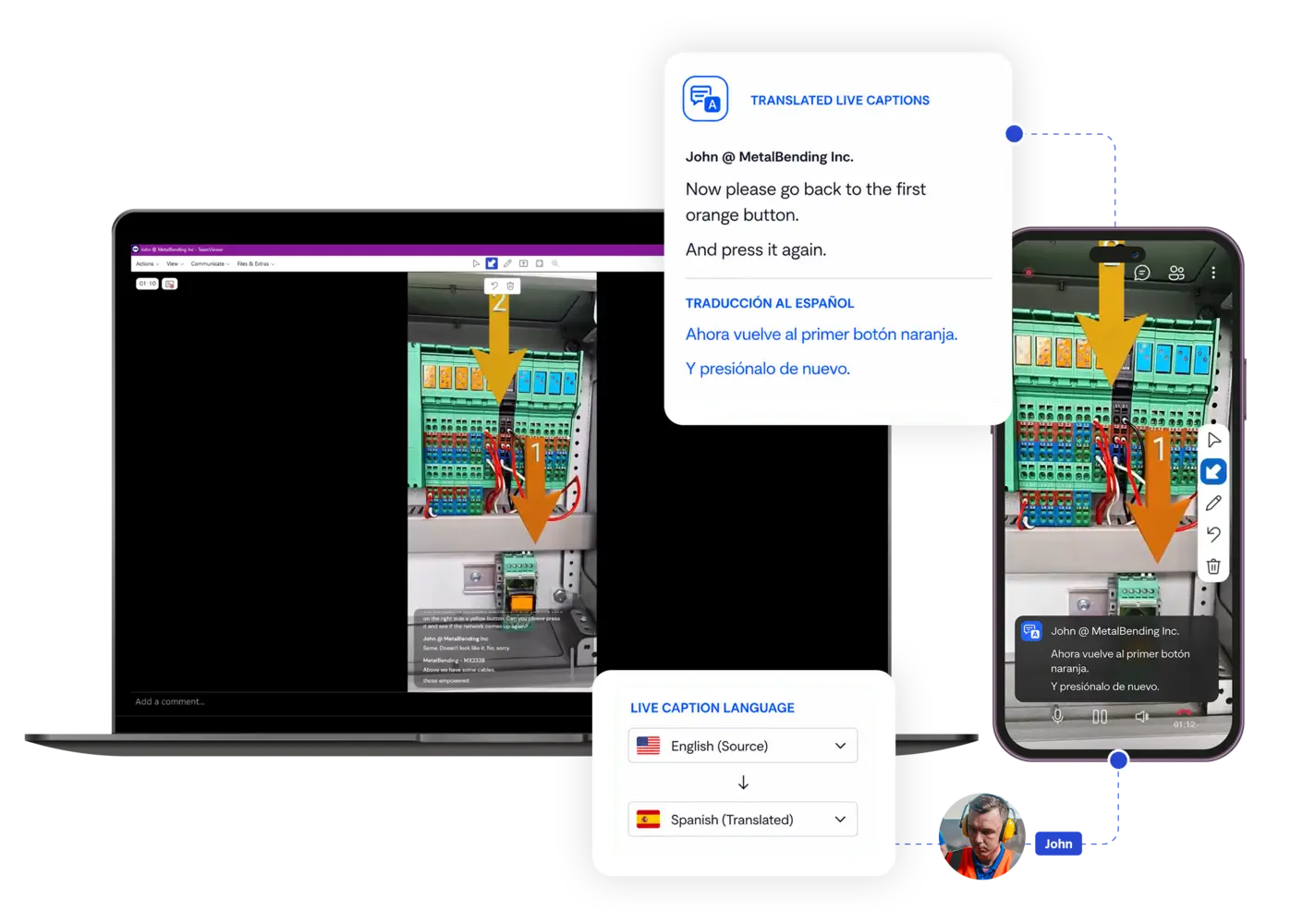
Support users across languages and noisy environments with translated live captions. This helps global teams collaborate more effectively during remote assistance sessions.
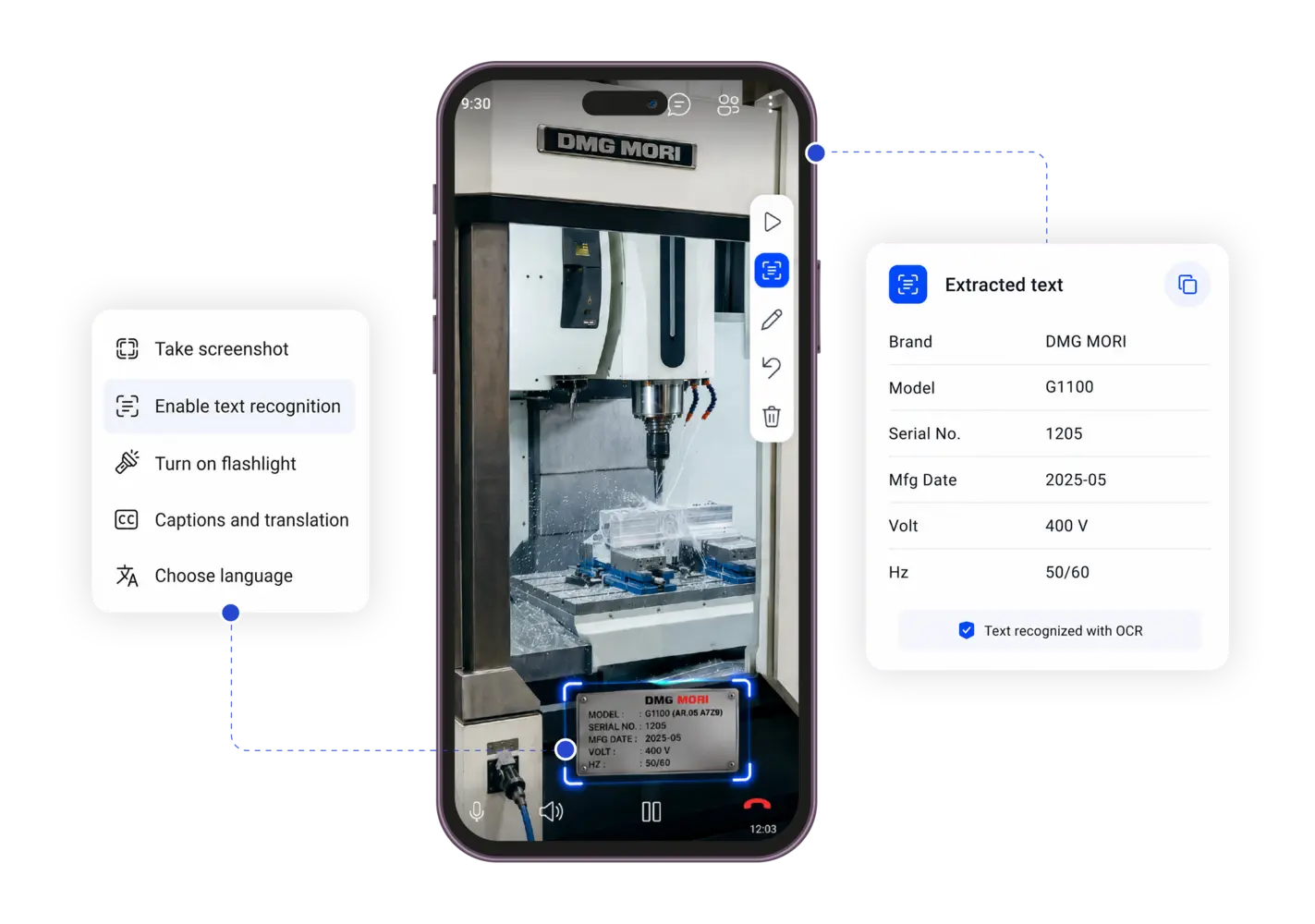
Recognize printed text on machines, tools, and equipment with text recognition OCR, then copy and use it during the support workflow. This helps teams capture important identifiers, codes, or labels more easily.
Improve expert productivity, transparency, and handover by using AI session summaries to transcribe service calls and creating concise summaries.

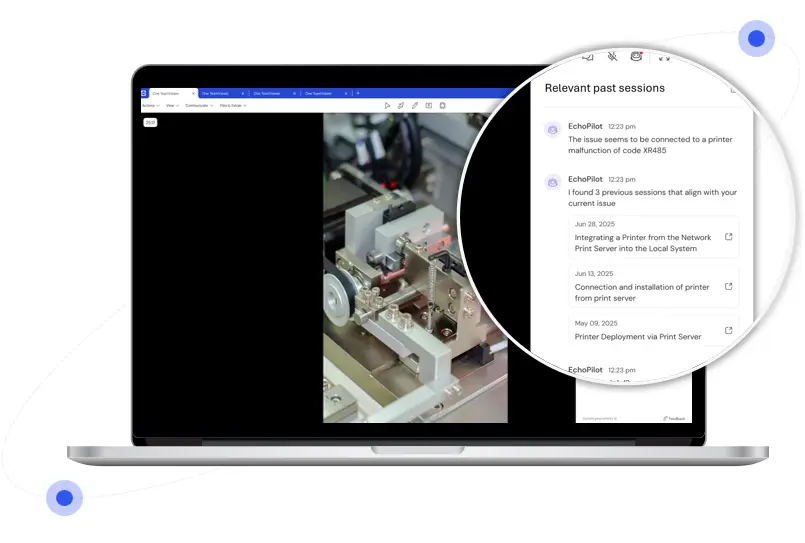
Resolve recurring issues faster during remote assistance calls with in-session AI suggestions based on past session insights.




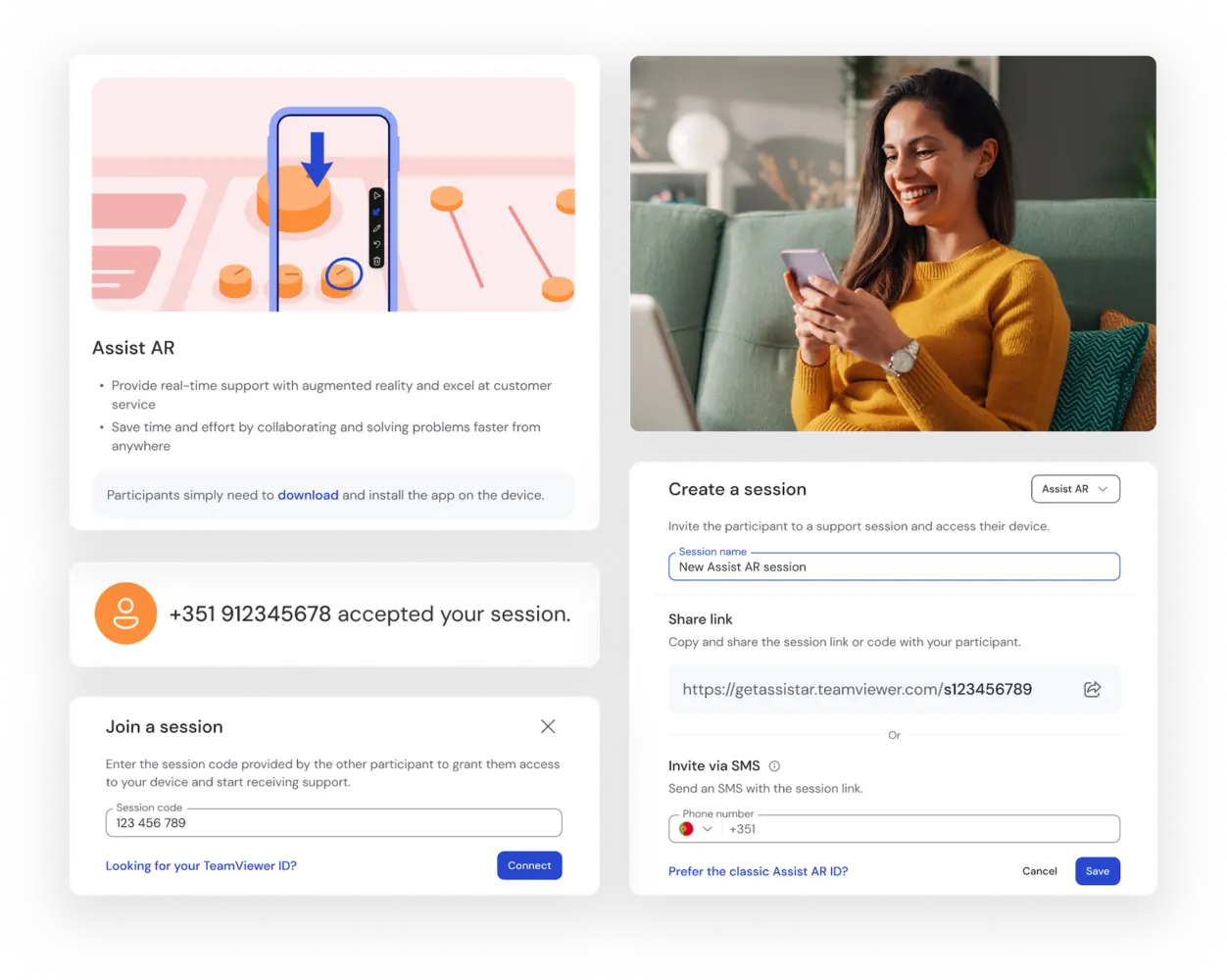
Open the TeamViewer Remote desktop client or web app, click on the Create a session tab under Remote Support, and select Assist AR in the drop-down menu.

Copy the link to your clipboard and share it via email, WhatsApp, or other messaging platforms. Save the session.

On the mobile device, click on the session link, install the free Assist AR app for iOS or Android, and open the app.

Start a session in the desktop client or web app and accept the call on the mobile device.
Easy, fast, and free
With just a few clicks, you can get started with our premium AR remote support features.
Simply open the TeamViewer desktop client or web app, start your first remote support session with Assist AR, and your trial period will begin automatically.
If you’re unsure about any step in the process of starting a remote session, check out this video. You can also find a detailed step-by-step guide in our Knowledge Base.
Spotlight
See how teams use Assist AR to diagnose and resolve issues faster with real-time AR remote assistance.
Let our experts show you exactly how TeamViewer Assist AR works and help you find the right set-up for your company.