Knowledge Base
Provide in-session chat transcripts for integrations
Last Modified: Nov 25, 2024
Providing in-session chat transcripts for integrations allows you to maintain a detailed record of all communications during remote control sessions. This feature is essential for auditing purposes, ensuring compliance with company policies, and enhancing transparency.
This article applies to all Tensor license holders.
Requirements
Audit log must be enabled on the company level.
- Sign in to your TeamViewer account within the TeamViewer client or via https://web.teamviewer.com/.
- Go to Admin settings.
- Within the Organization management section, go to General.
- Enable Event logging by clicking the respective toggle.
- Enable In-session chat logs by clicking the respective toggle.
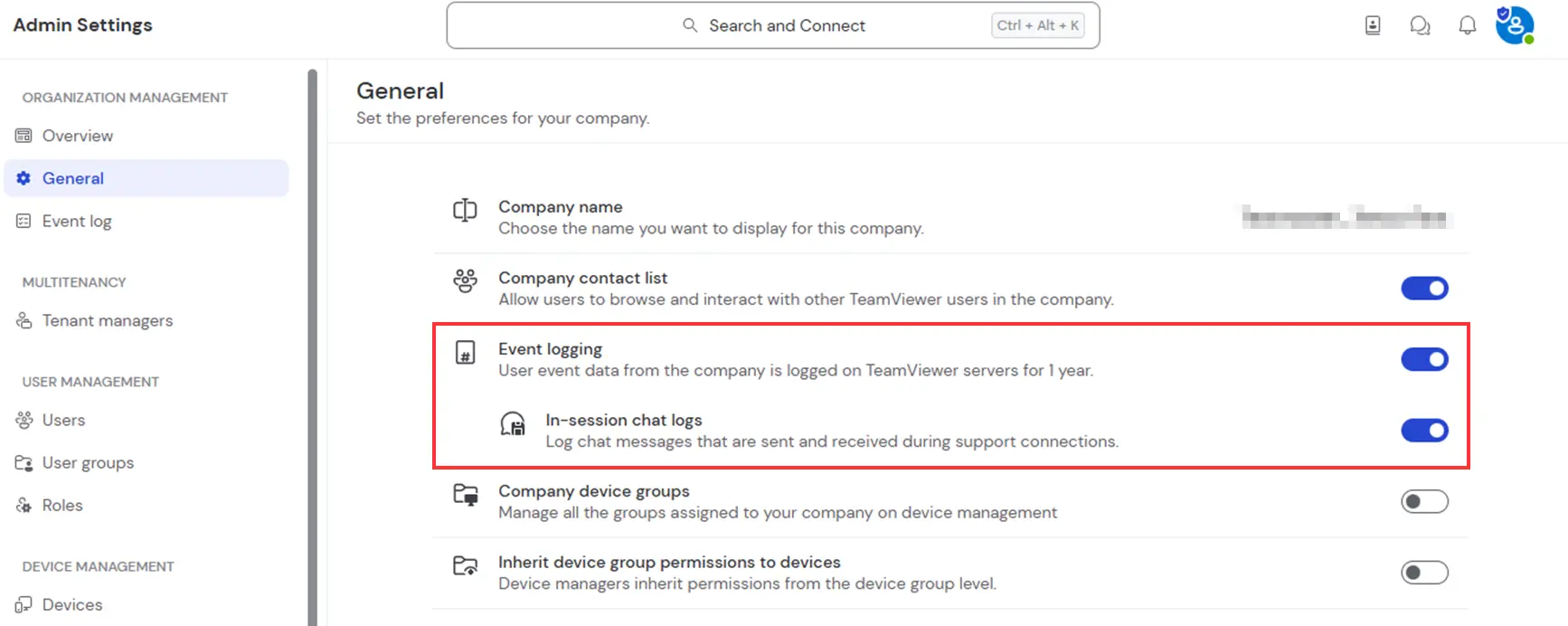
Connection reporting must be enabled
- Automatically enabled for outgoing connections.
- Must be enabled via policy for incoming connections.
Supported clients
Chat transcript is currently supported for sessions between TeamViewer clients on Windows and macOS devices.
How Chat transcript works
Logging during the session will automatically start on the local and/or remote side.
All chat messages posted during the remote session will be uploaded.
When the chat window is opened, a message will notify that the chat will be logged according to the company’s privacy policy.
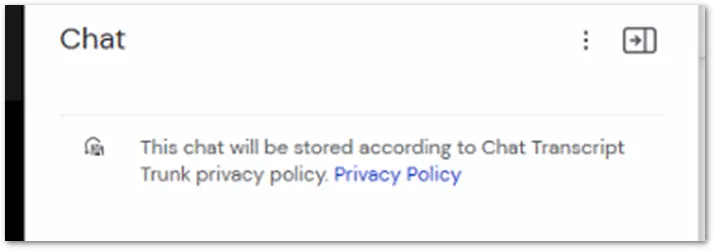
Each message is uploaded encrypted to a cloud storage.
An audit log event is sent to indicate that logging has started or if the chat transcript failed.
How to access the chat transcript
To access the chat transcript, please follow the instructions below:
Access to the chat transcript is currently possible via the API as part of the audit logs.
For an outgoing connection, make a GET request to the URL:
GET http://webapi.teamviewer.com/api/v1/reports/connections/<sessionid>/chat-transcript
For an incoming connection, make a GET request to the URL:
GET http://webapi.teamviewer.com/api/v1/reports/devices/<sessionid>/chat-transcript
Replace <sessionid> with the ID of the session. A bearer token is required to make the request.