
Knowledge Base
New navigation experience in TeamViewer ONE
Last Modified 14 июл. 2026 г.
TeamViewer ONE introduces a redesigned navigation experience for both Standard and Advanced users. The new navigation replaces a fragmented, feature-centric structure with a use-case-based navigation, organizing the product around the key tasks you perform every day. This optimization makes it faster and more intuitive to manage your IT environment from end to end.
This article applies to all Standard and Advanced TeamViewer ONE customers.
What has changed?
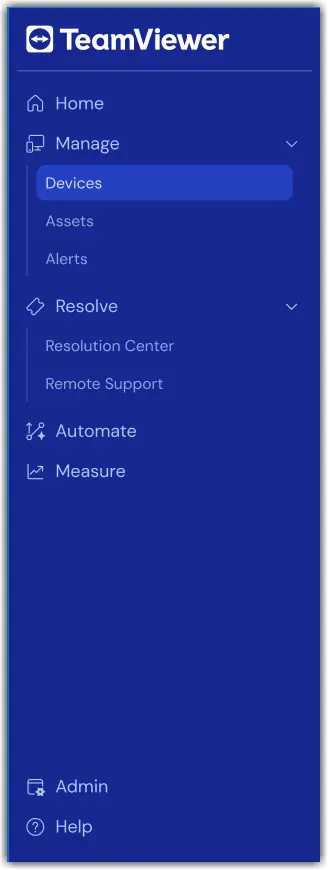
The new sidebar navigation organizes TeamViewer ONE around four clearly defined sections, each focused on a specific part of your IT workflow. Instead of hunting across separate menu items, everything you need for a given task is grouped in one place.
The sidebar remembers its collapsed or expanded state between sessions. When collapsed, hovering over a section reveals its sub-items without requiring you to expand the full menu.
The new navigation sections
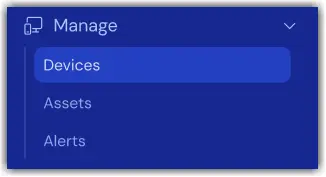
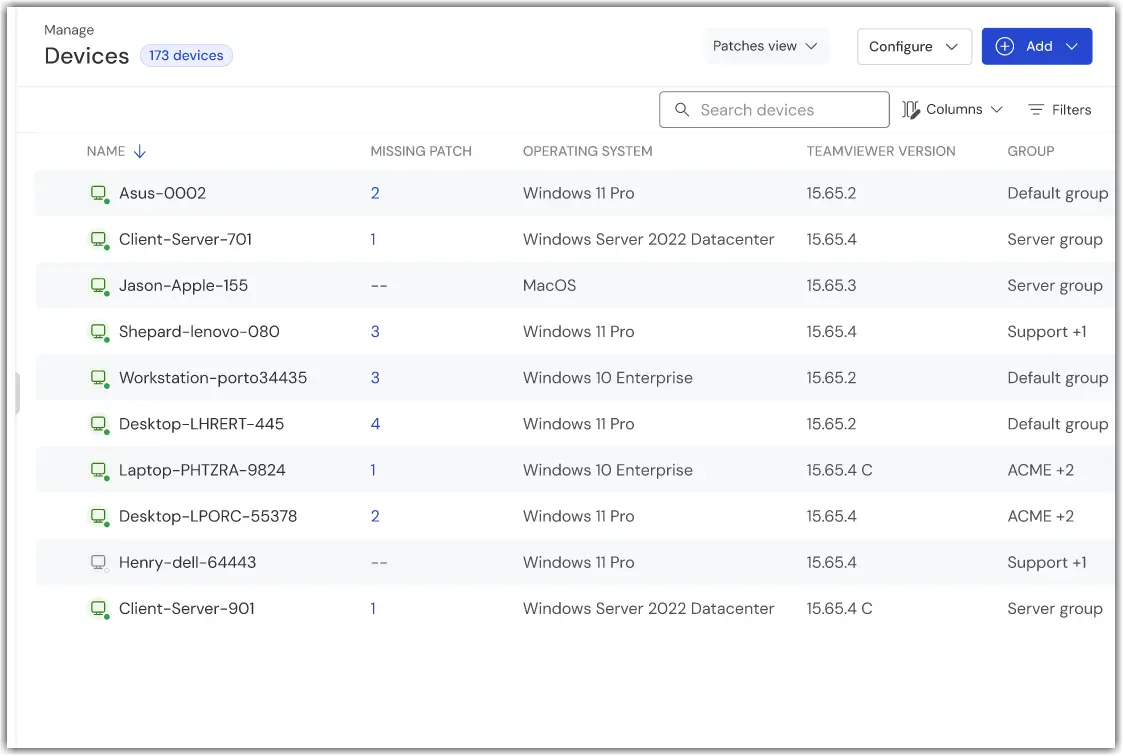
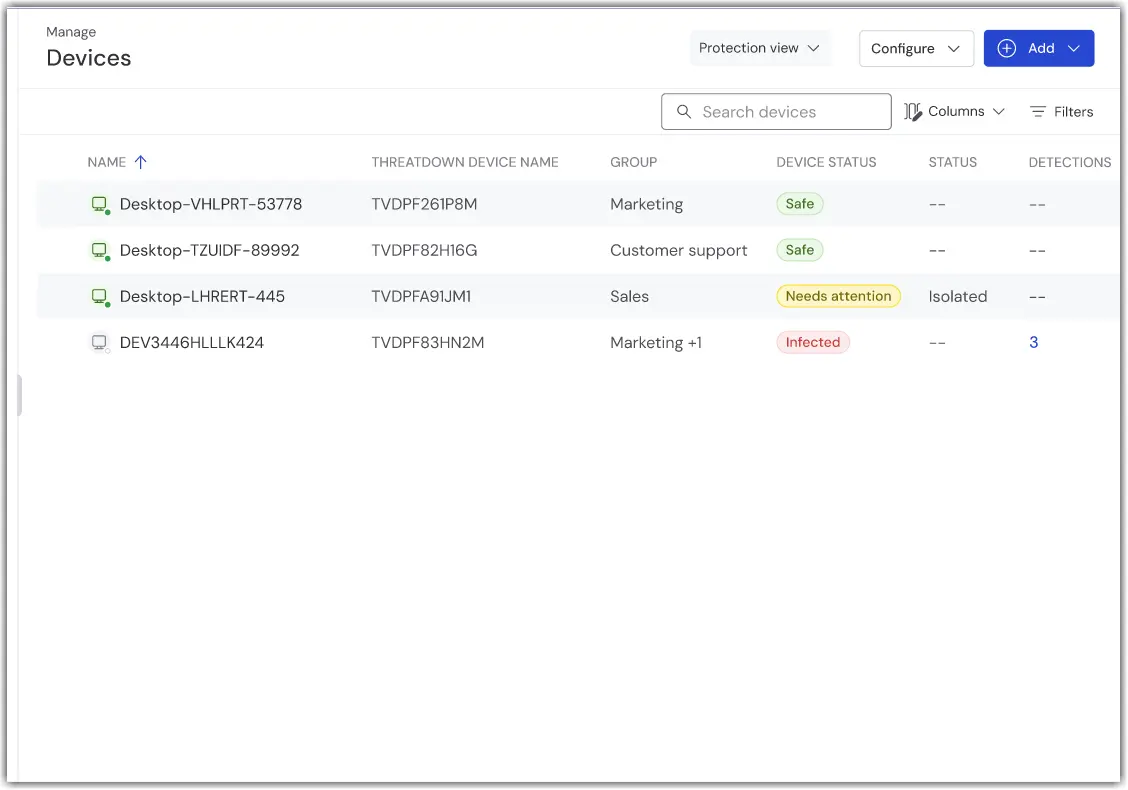
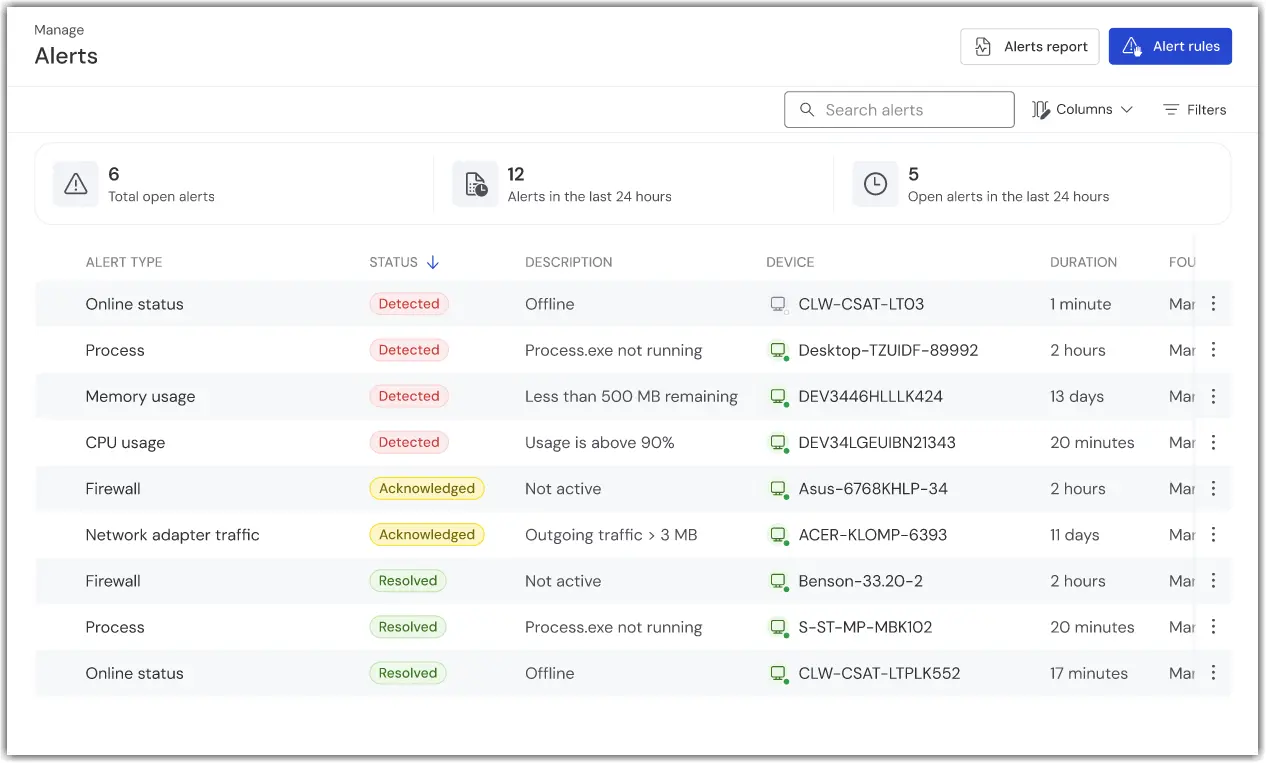
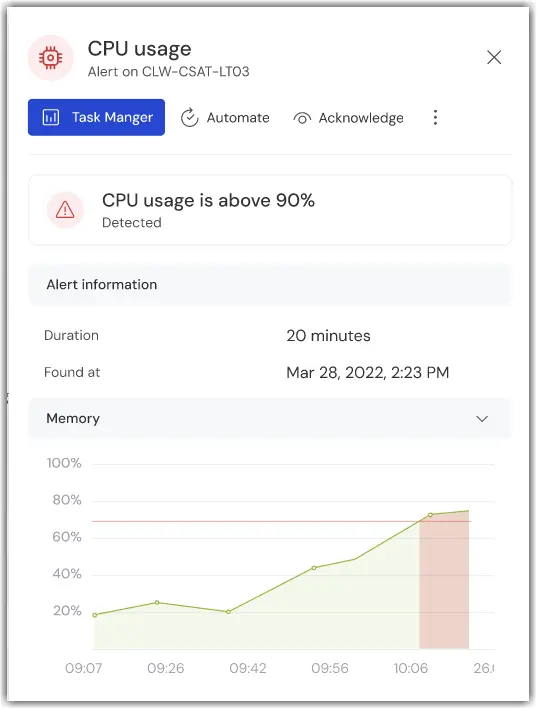
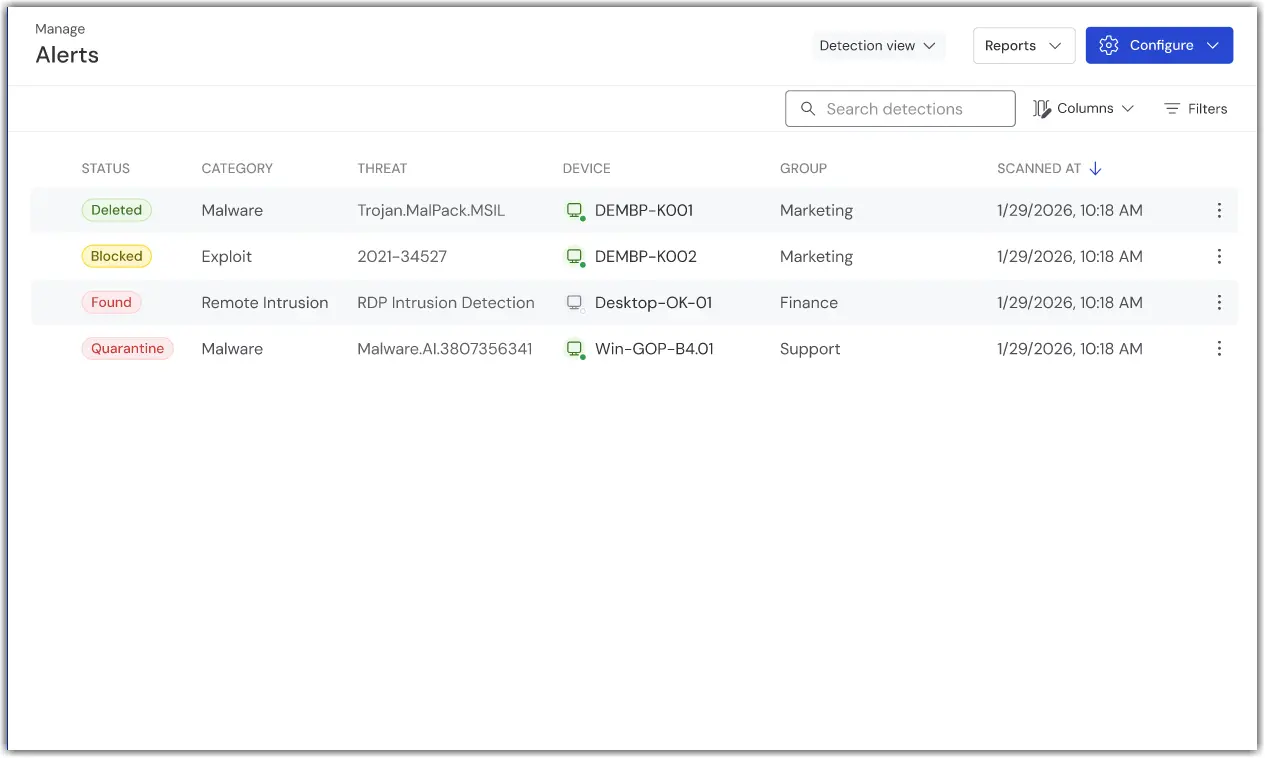
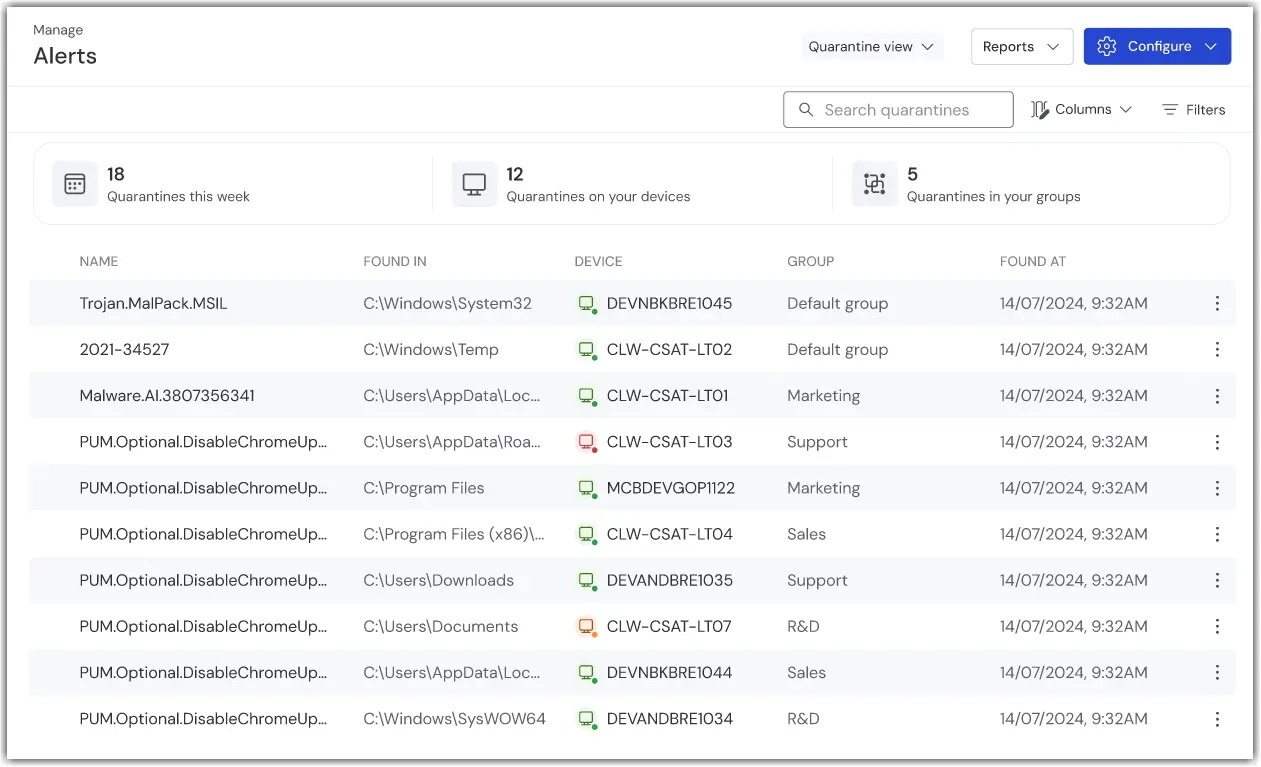
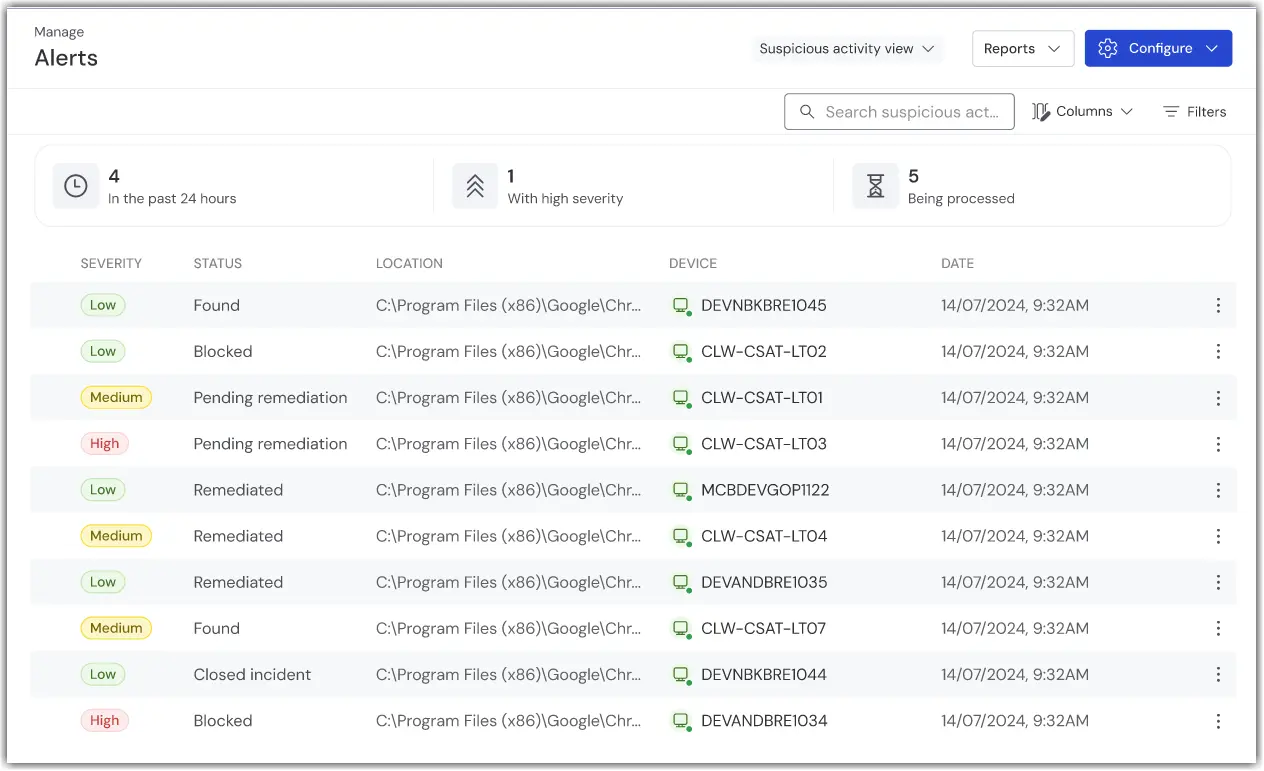
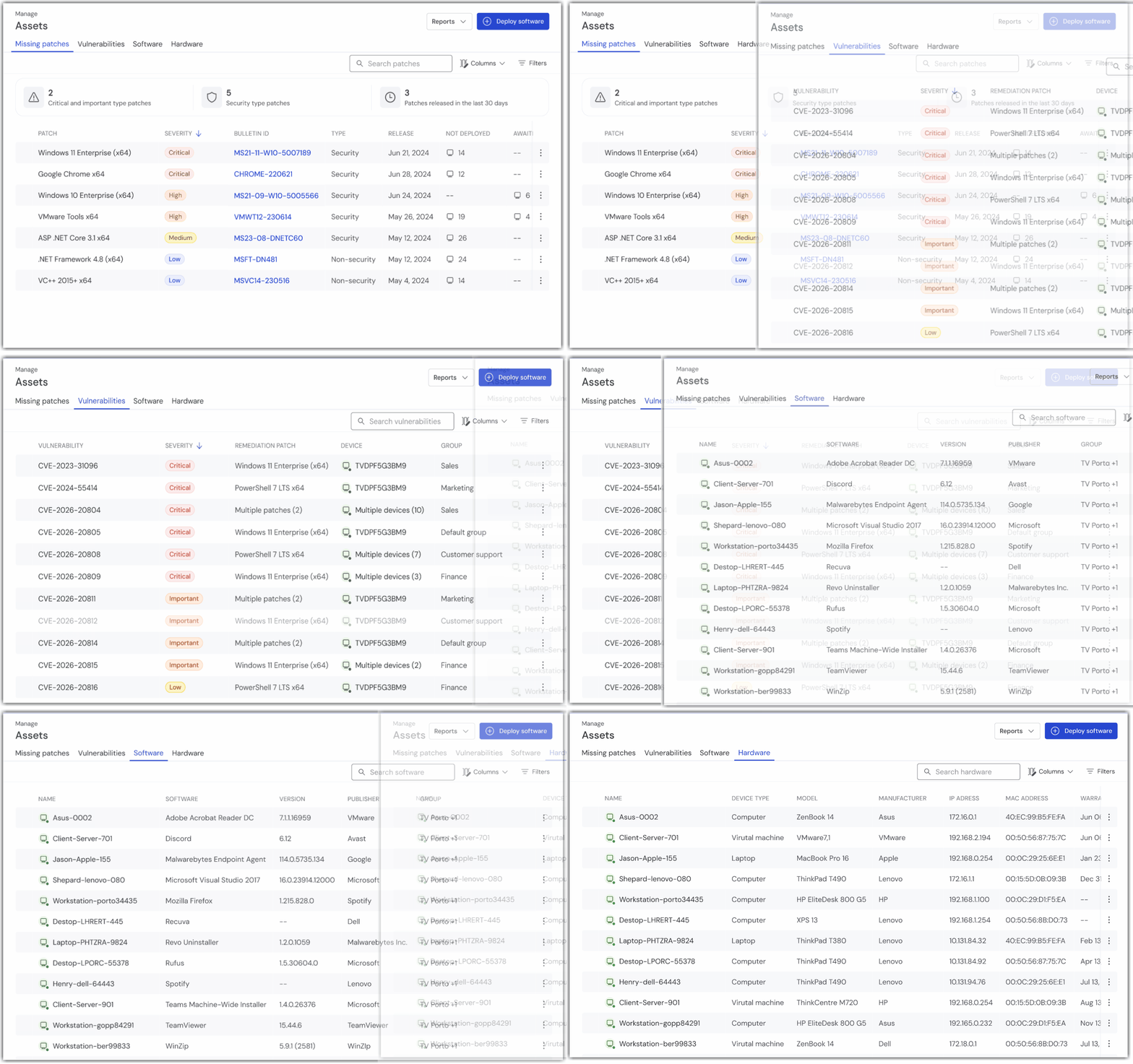
TeamViewer ONE's new navigation experience is broken down into four sections: Manage, Resolve, Measure, and Automate.

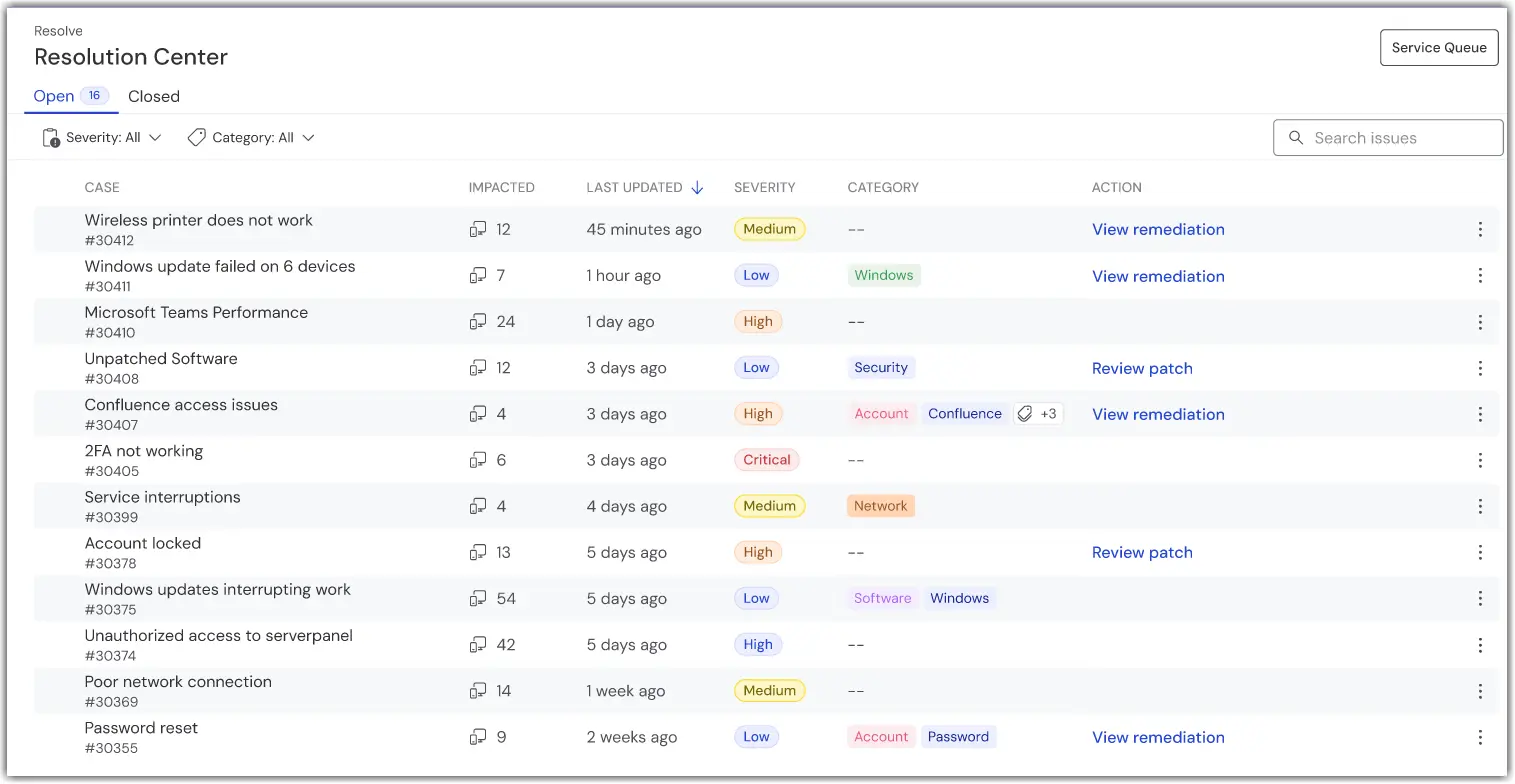
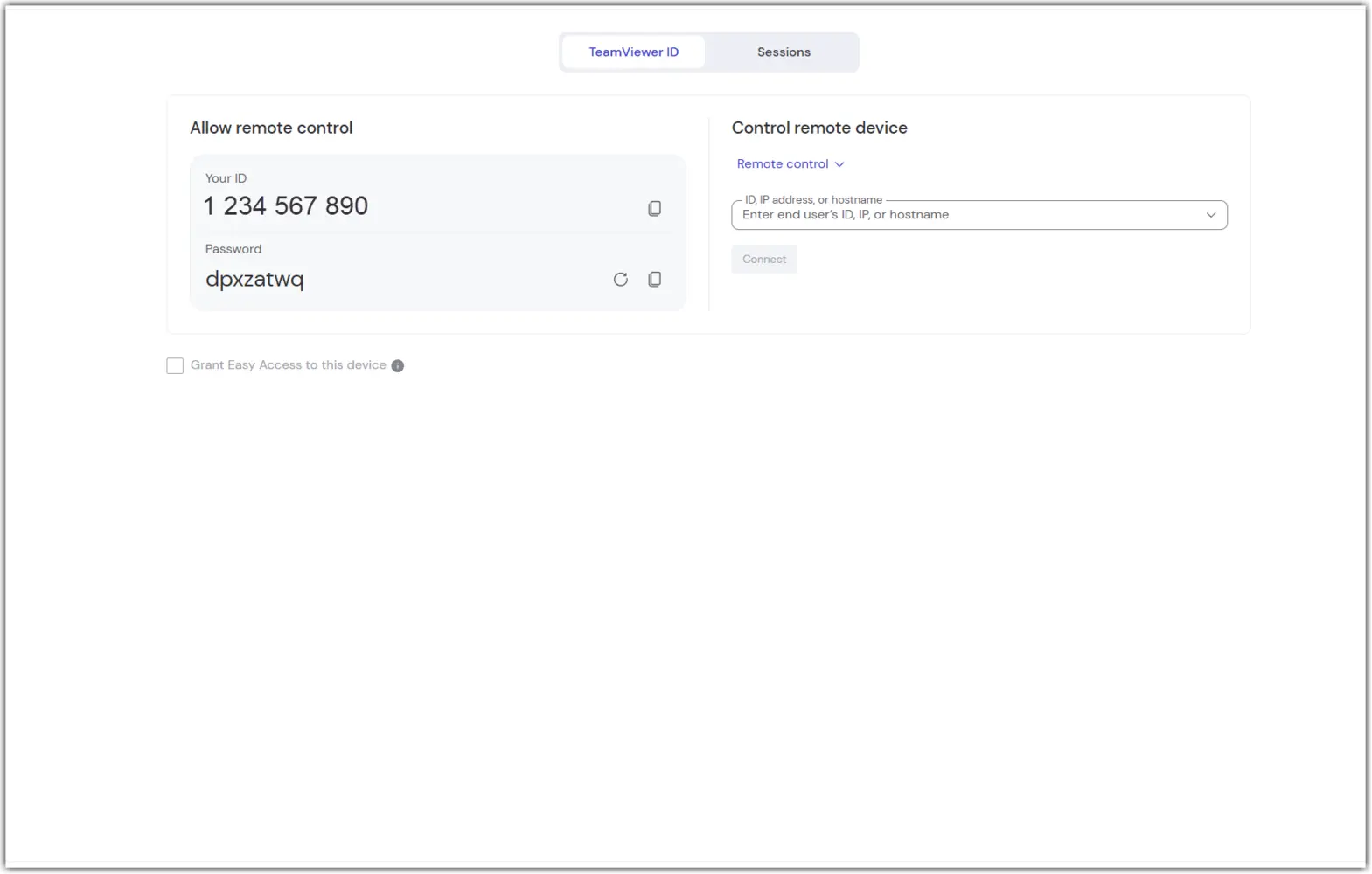
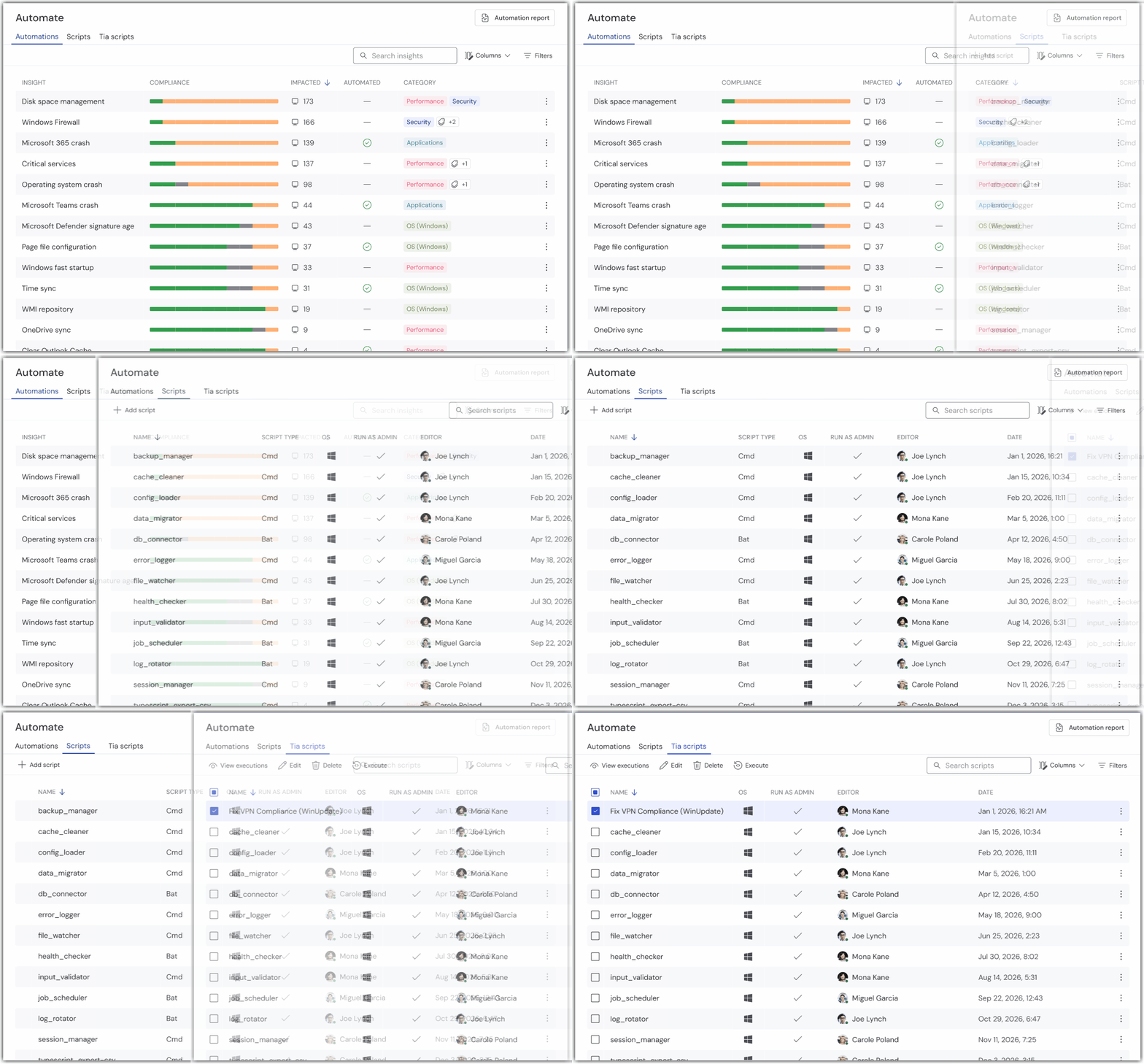
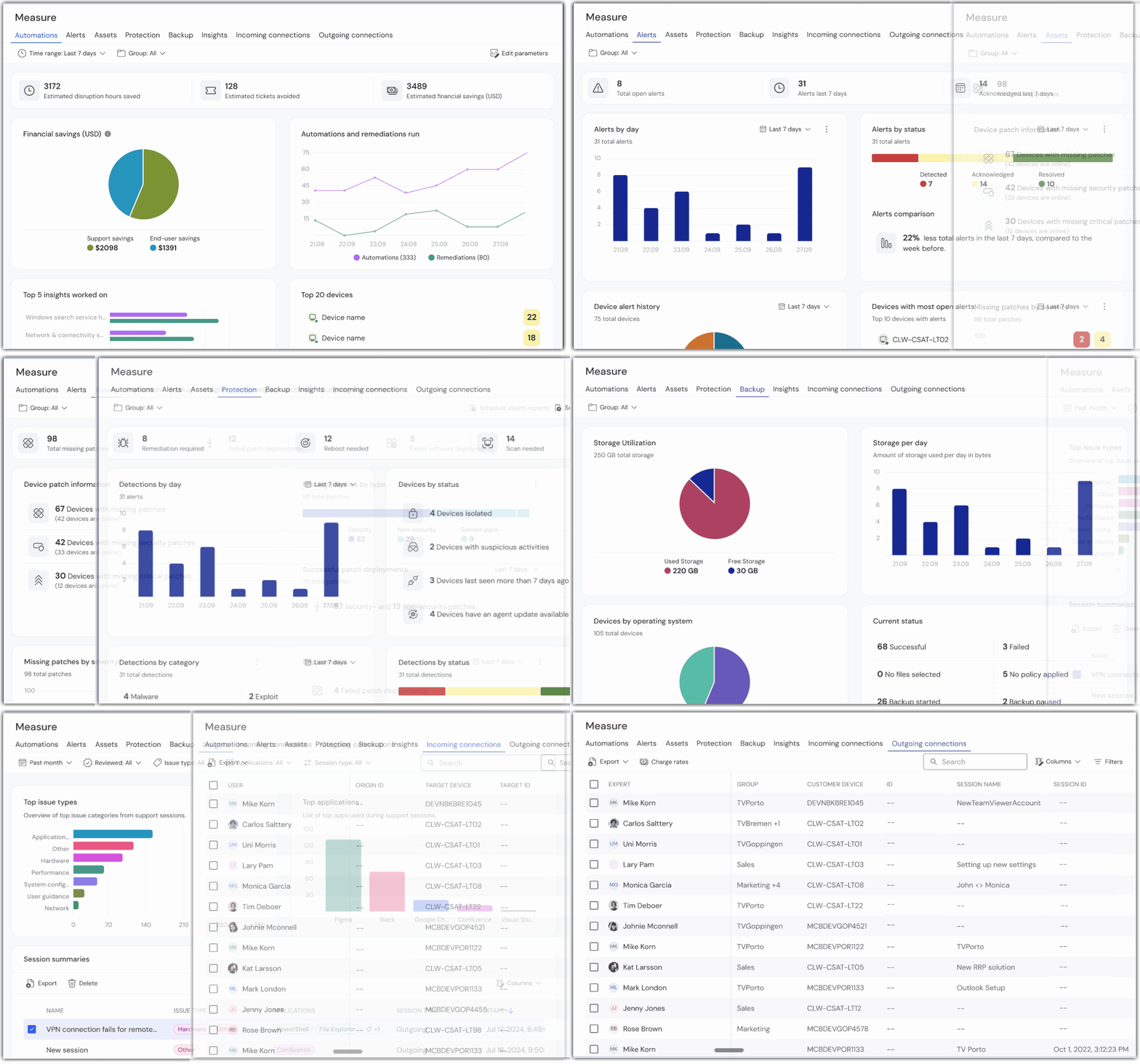
Benefits for you
Less time navigating, more time acting
Use‑case‑based navigation groups the actions most relevant to a task into one place, allowing you to move through your daily workflows with fewer clicks and less friction. Instead of switching between menus to find what you need, each section is organized around a clear purpose, helping you take action faster and stay focused on resolving issues and managing your environment.
This streamlined navigation model helps you stay focused on what matters most: taking action quickly and keeping your environment running smoothly.
A complete picture of your devices
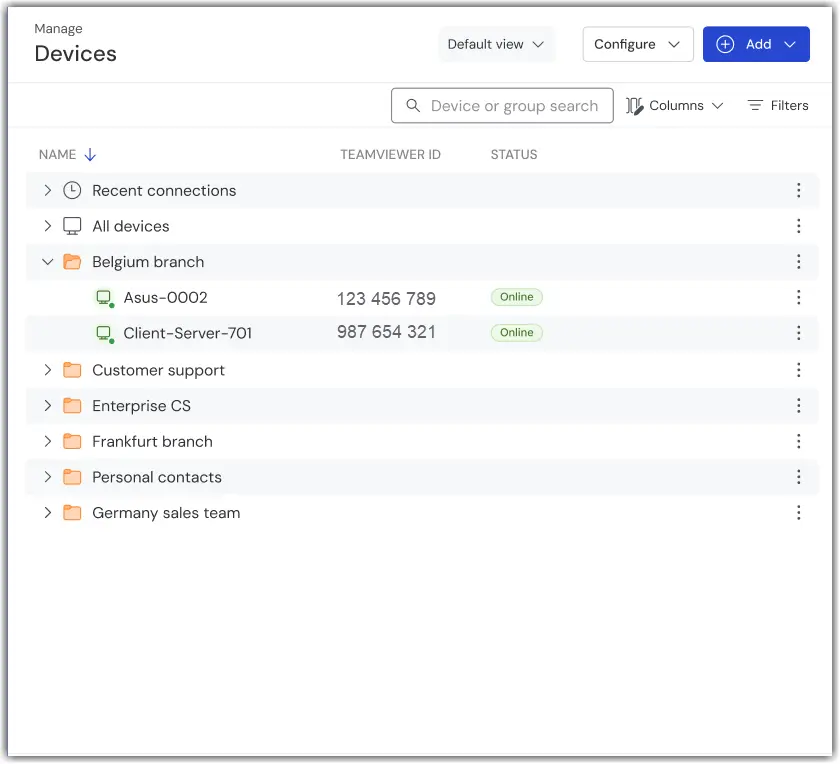
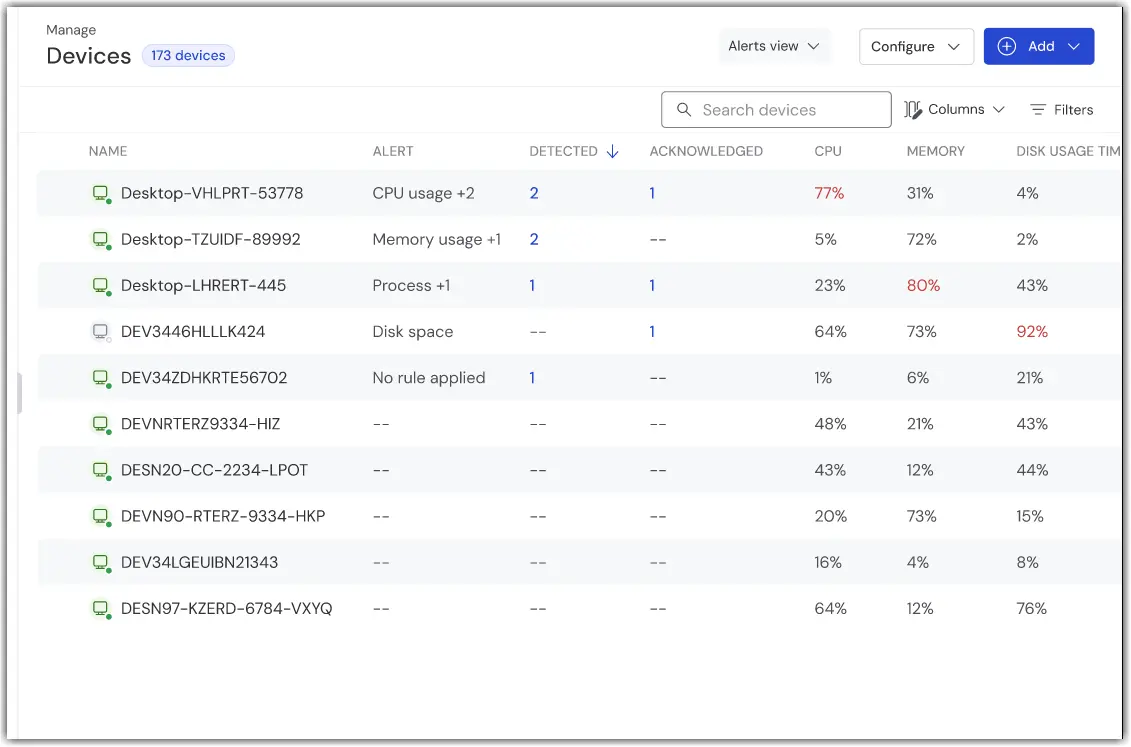
The unified Devices page provides a comprehensive view of each device’s overall health, eliminating the need to jump between multiple areas to understand its status. A single page displays patch levels, alerts, backup coverage, and other key details, and a simple view selector lets you switch perspectives as needed.
This makes it easier to assess device readiness, spot issues quickly, and maintain consistency across your fleet.
Consistent and intuitive language
The updated terminology for Alerts and Alert rules aligns feature names with the way IT teams naturally describe monitoring and detection workflows. This clearer, more intuitive language reduces ambiguity for new users and shortens onboarding time.
With terminology that matches industry expectations, users can understand capabilities at a glance and find what they need without second‑guessing which feature performs which function.