Knowledge Base
The Resolution Center in TeamViewer ONE
Last Modified 16 июл. 2026 г.
TeamViewer ONE's Resolution Center provides a centralized view of issues that need attention within your organization. Using Cases, teams can track progress, assign ownership, and manage resolution activities from a single location. Each Case contains the information, actions, and history related to a specific issue, helping teams stay organized and work more effectively throughout the resolution process. All activities logged are automatically captured, providing a complete record of investigation and remediation efforts.
Note: The Resolution Center is currently only accessible via the web app.
This article applies to all TeamViewer ONE Standard and Advanced license holders.
What's new
Case Management
The Resolution Center provides structured visibility into all cases raised across your organization, separating open and closed cases into dedicated views. Each case includes key details such as status, severity, impact, and category, allowing your support team to gauge urgency and understand the nature of the issue at a glance. This layout helps streamline triage, track case progression, and ensure that nothing falls through the cracks.
New permissions
The Resolution Center provides four new permissions:
- View Permission: Allows users to access the Resolution Center and view Cases/related information.
- Create Permission: Allows users to create new Cases.
- Edit Permission: Allows users to modify existing Cases and their properties.
- Delete Permission: Allows users to delete Cases permanently.
Cases
Cases are the foundation of the Resolution Center. They provide a structured way to organize, track, and manage work related to a specific issue from initial investigation through resolution. By centralizing relevant information, activities, ownership, and impacted devices in a single location, Cases help teams collaborate effectively, maintain visibility, and keep a complete record of the actions taken throughout the resolution process.
Note: One device can be associated with multiple Cases. Similarly, multiple Cases can be associated with one device.
Manual Case creation
Manual Case creation provides a structured way to track and manage work throughout its lifecycle. Each Case serves as a central location for the information, ownership, and activities related to a specific issue. Teams can use Cases to define severity, assign responsibility, track progress, and document investigation and remediation efforts.
When creating a Case, users can define:
- Title
- Description
- Assignee
- Status
- Severity
- Impact
The Impact field helps identify the devices affected by the issue. Impacted devices can be added or removed at any time after the Case is created, allowing the Case to evolve as business needs change.
How to create a Case
- Navigate to Resolve in the left sidebar of TeamViewer ONE or the web app.
- Select the Resolution Center.
- Click +Add Case in the upper right corner.
The tabs below break down Cases into their individual sections. Click each tab for more information.
Quick Actions
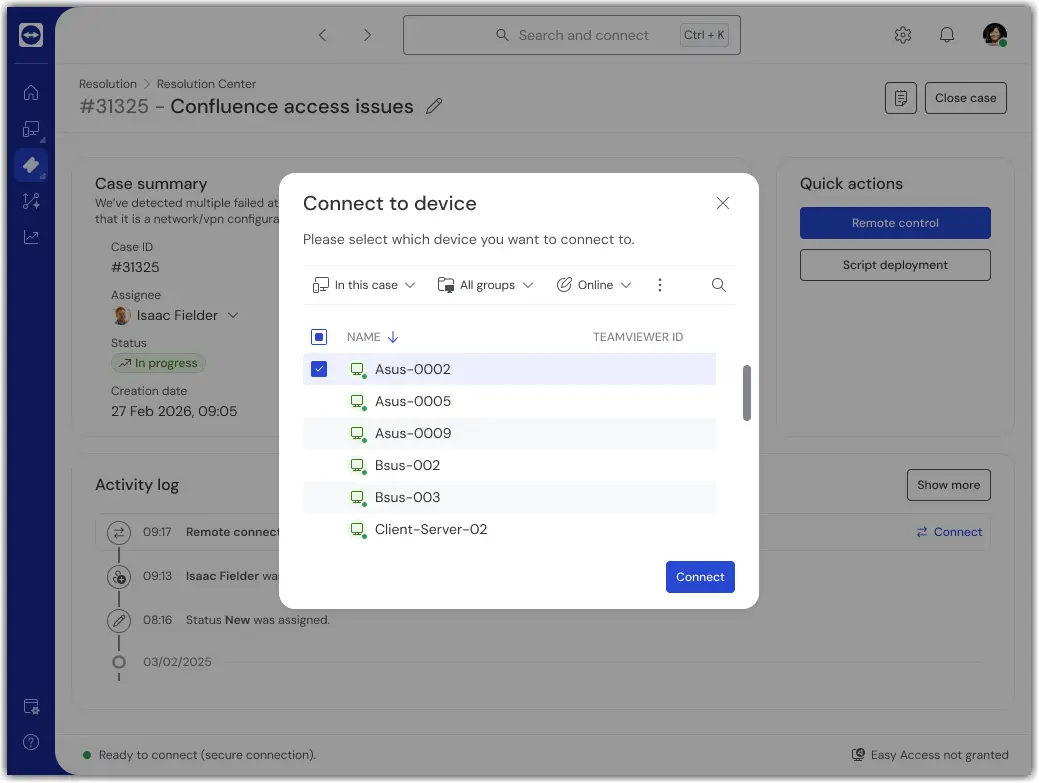
Quick Actions allow users to leverage TeamViewer capabilities directly from within a Case. By providing access to key tools without leaving the Resolution Center workflow, Quick Actions help streamline investigation and remediation efforts while keeping all related activity connected to the Case.
Actions initiated through Quick Actions are automatically recorded in the Activity Log, creating a complete history of the work performed and helping teams maintain visibility throughout the resolution process.
By making commonly used capabilities available within the Case, Quick Actions help reduce context switching, improve efficiency, and ensure that investigation and remediation activities remain closely tied to the issue being addressed.
Currently supported Quick Actions include:
- Remote Control
- Script Deployment