Hero highlight: Gradient

TeamViewer remote desktop for Linux

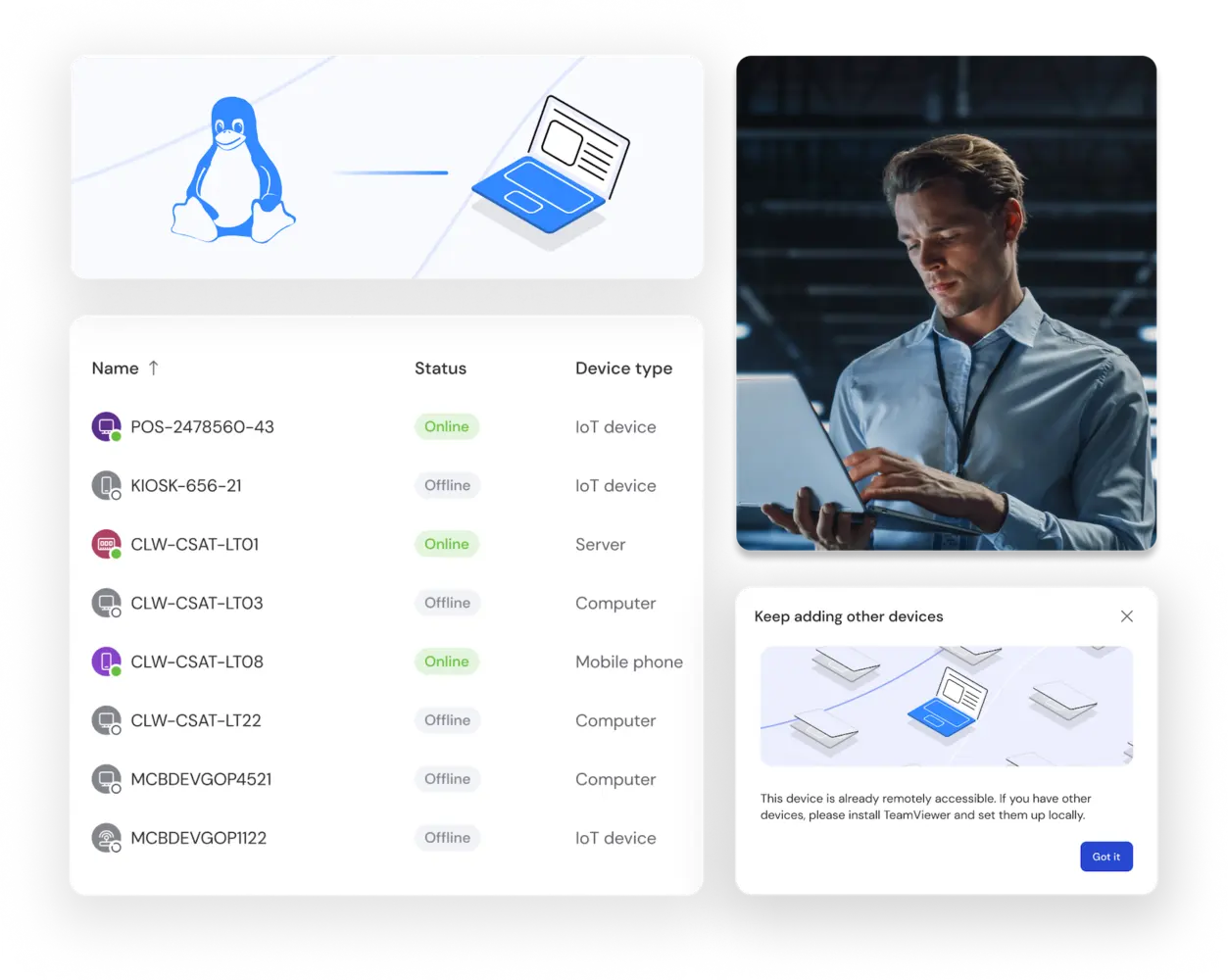
Remote device support as seen in the TeamViewer Remote client

Why use a remote desktop solution for Linux?

Here's how remote support for Linux and Ubuntu devices can improve your IT management.

Seamless remote control

Access Linux desktops and servers from any location with fast, reliable remote connections. Troubleshoot issues, guide users, or manage applications just as if you were sitting in front of the device, keeping your systems running smoothly with minimal disruption.

File transfer

Move files between devices quickly and safely with encrypted file transfer. Whether you're deploying updates, sharing documents, or backing up data, TeamViewer lets you transfer files of any size to your Linux systems from anywhere. No need for FTP setup or complex file-sharing protocols.

Remote monitoring

Monitor your Linux devices from any location to verify they're running smoothly. Check CPU usage, memory, and storage in real time. Receive alerts when attention is needed and address concerns before they escalate—all without being on-site.

Unattended access

Connect to your Linux PCs and servers anytime with unattended remote access. Perform maintenance, install updates, or troubleshoot issues outside business hours. This gives you the flexibility to manage your systems on your schedule, even when your team is offline.

TeamViewer key advantages

Reliable remote desktop experience for Linux

Compliance health care security icon
Support for embedded Linux

TeamViewer supports embedded systems including Yocto, Wayland, and other distributions for enhanced compatibility across modern Linux environments.

Secure unattended access icon
Stable connections

Enjoy stable remote connections with Linux and high transmission quality, even in environments with low internet bandwidth.

Secure attended access icon
Encrypted access

All Linux remote access sessions run with an end-to-end encryption. Only authorized users can see what’s happening during the remote session.

Scripting icon
In-session automation

Use pre-defined scripts during your Linux remote connection to automate routine tasks and save time.

Airbus logo
Chyron logo
Sharp logo
Aesop logo
Nadro logo

How to access Linux computer remotely with TeamViewer

Securely connect to and manage Linux devices with remote access software. Follow these simple steps to get started in minutes.

Step 1 icon
Download TeamViewer for your Linux distribution

Choose between our web client (works with Chrome, Firefox, Opera, and Edge) or download the desktop application for Linux desktop experience. We support Debian (including Raspberry Pi OS), Ubuntu and derivatives (like Kubuntu), Red Hat, CentOS, Fedora, and SUSE. Check our documentation for current minimum operating system versions for your distribution.

Step 2 icon
Install and configure TeamViewer

Install the application on your Linux device following the standard package installation process for your distribution. Sign in with your TeamViewer account or create a free one. Enable unattended remote access if you want to connect to your device anytime without manual approval.

Step 3 icon
Connect to your Linux devices

Enter your device ID or select from your saved connections. You'll have secure, encrypted access to your Linux systems and from Linux systems to Windows, macOS, and other devices. Now you can monitor performance, transfer files, troubleshoot issues, and manage your devices from anywhere.

Remote control for Linux desktop environments

TeamViewer Remote works seamlessly with all major Linux desktop environments, giving you full access and control over your graphical interface from anywhere.

Support for all desktop environments

Whether you're running GNOME, KDE Plasma, XFCE, Cinnamon, or any other desktop environment, TeamViewer connects to your Linux systems with complete visual fidelity. Access your familiar interface remotely and work as if you're sitting at your desk.

Manage headless systems when needed

TeamViewer can also remotely connect to systems without a graphical desktop environment (Xorg, Wayland). Using our Linux remote desktop software, users can connect to the foreground console, the virtual terminal that would be visible if a screen was attached. This gives you flexibility for server management and headless configurations.
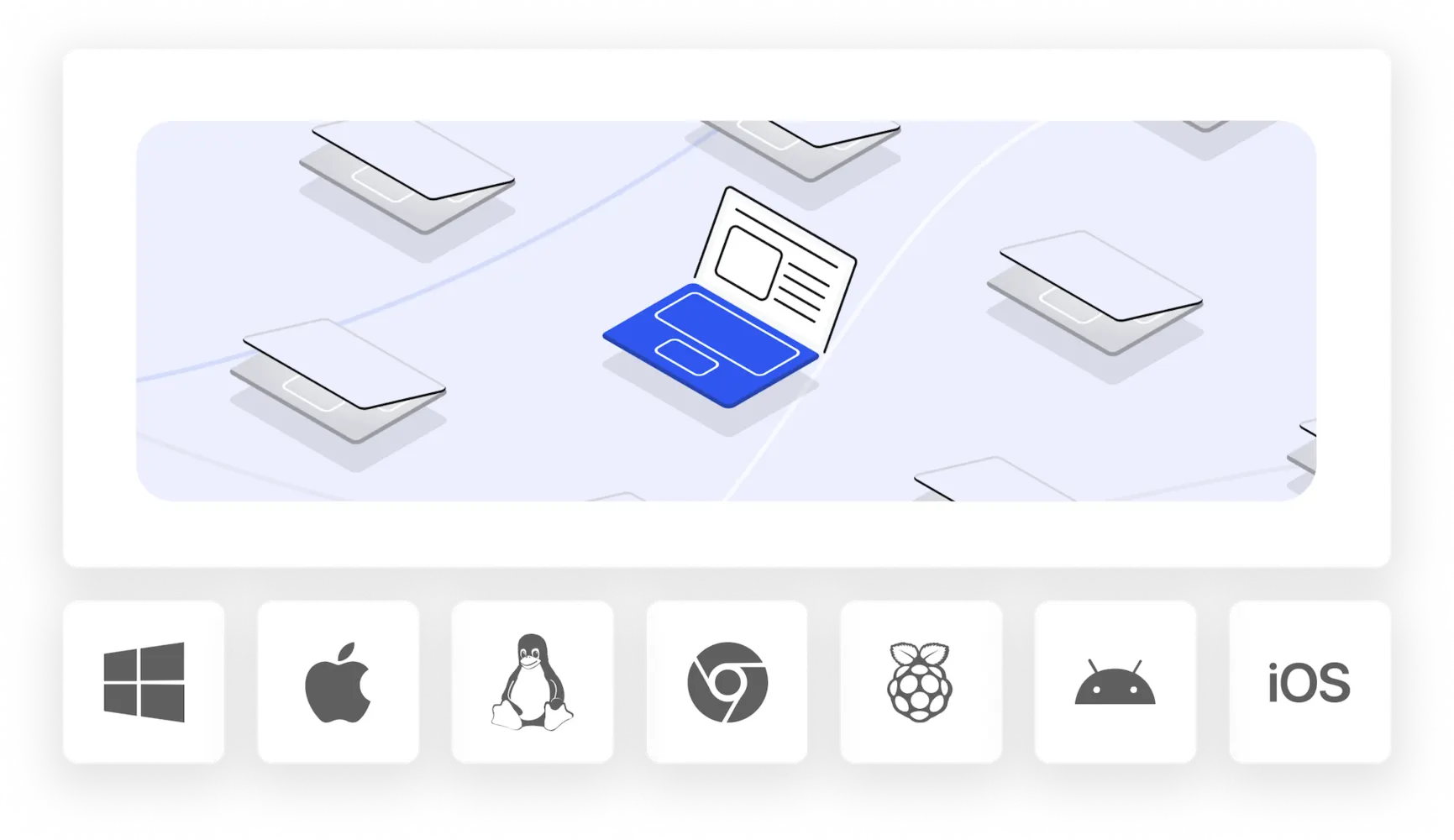
Enable remote access setup as seen in the TeamViewer client

Remote desktop Linux FAQ

Remote desktop software allows you to connect to and manage a Linux PC from any location. Access your files, run programs, move data between systems, and perform administrative tasks—on all Linux systems and without the need for VPN.

Absolutely, Linux remote access tools are safe when the right security measures are in place. TeamViewer secures all connections using AES-256 encryption and supports two-factor authentication. We comply with GDPR and HIPAA standards, ensuring your Linux systems stay protected during remote sessions from any location.

Yes, TeamViewer provides seamless connectivity across all major Linux distributions. Access your Ubuntu machine from Fedora, connect to SUSE from Debian, or any other combination. You can also reach your Linux devices from Windows, macOS, or Android systems.

Install TeamViewer for your specific Linux distribution and log in to your account. Type in the device ID of the system you want to reach, and your connection is established. There's no need for complicated settings, port configuration, or VPN infrastructure.

Start using TeamViewer Remote for Linux and Ubuntu today

TeamViewer Remote gives you secure remote access and support for Linux devices. Use our web client or download the software for your specific distribution, including support for headless systems. Enjoy high-quality connections, end-to-end encryption, and in-session automation.