
Connect to any device, not just Windows PCs
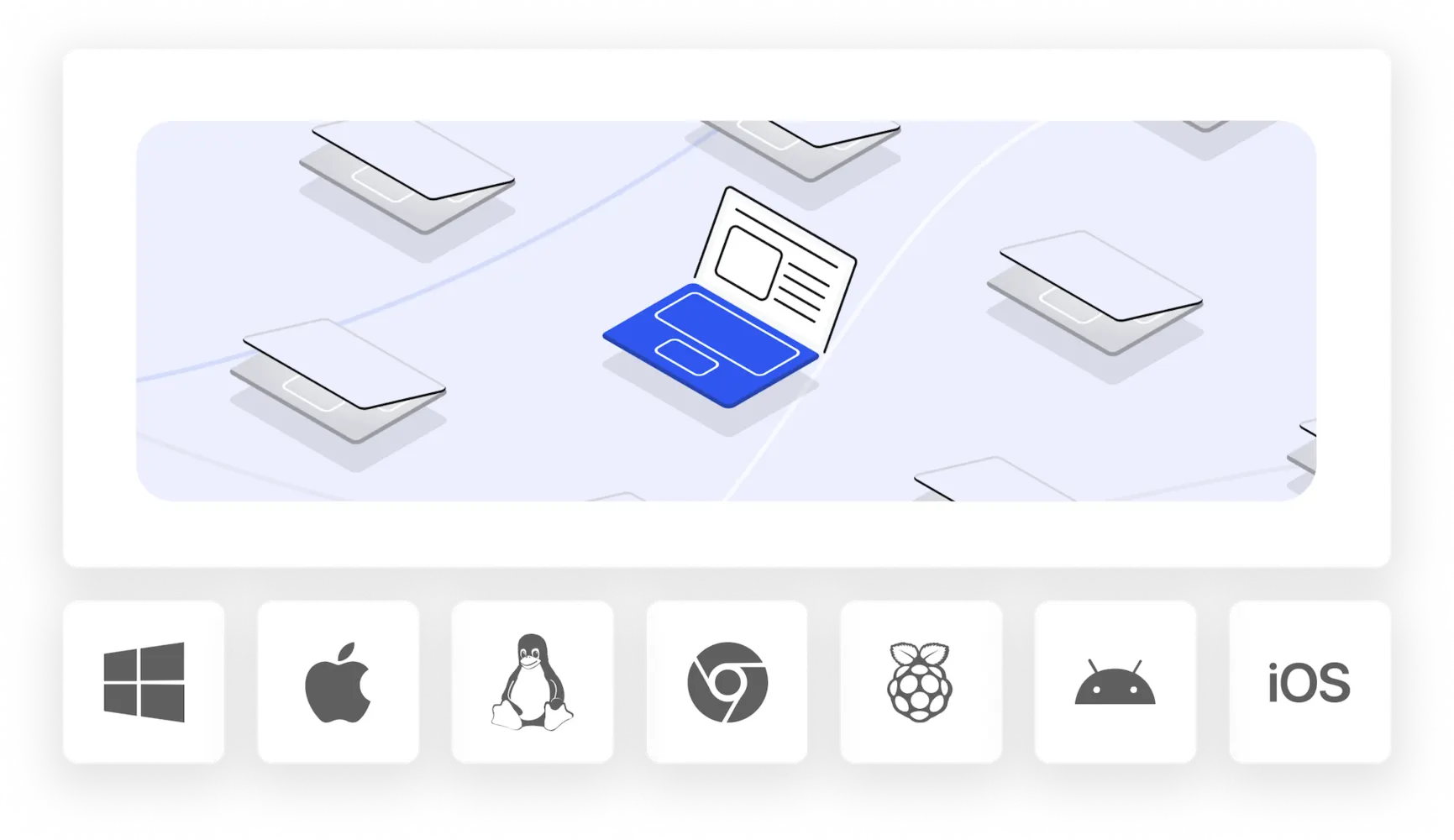

Connect and control Windows PCs from anywhere in the world with TeamViewer's remote control software. Resolve technical issues, provide support, or collaborate on a project with a team. All with one tool.
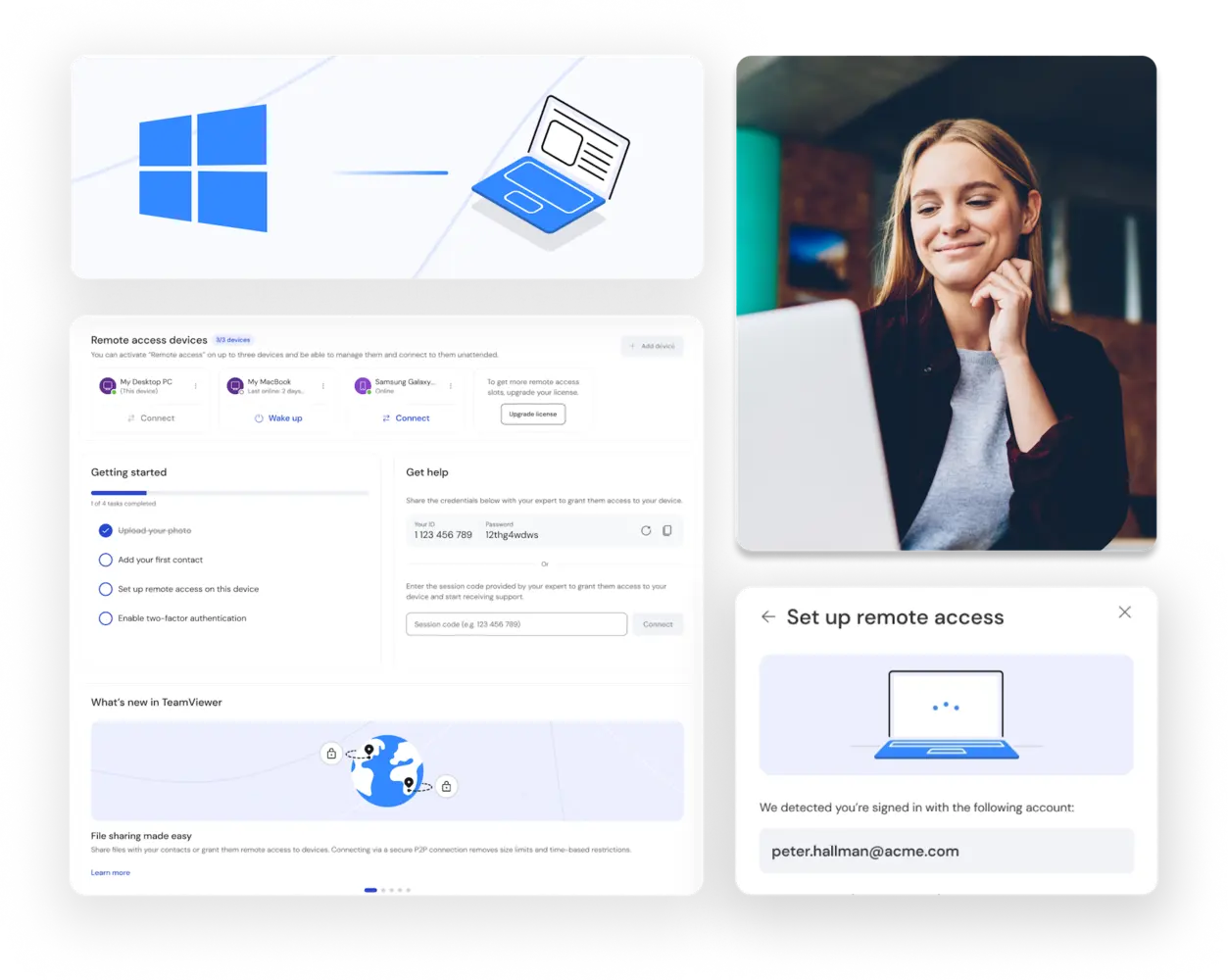

TeamViewer Remote lets you connect to and control Windows devices from anywhere. With our remote computer app, you can access PCs or mobile devices. Perfect for IT support, remote desktop software for secure connections, and collaboration.
Here's how TeamViewer’s remote desktop software for Windows can improve your digital experience.
Access remote computers and other Windows devices from anywhere, on any device, whether you're using a PC, smartphone, or tablet. With cross-platform compatibility, you're no longer tied to your desk. Work flexibly, respond to urgent tasks on the go, and stay productive wherever you are.
Troubleshoot technical issues without being physically present. Remote access lets you diagnose problems, install updates, and configure settings directly on Windows devices. You'll resolve issues faster, reduce downtime, and provide efficient IT support, all while saving time and travel costs for your team.
Monitor your Windows computers proactively and identify potential threats before they become problems. Track system performance, receive alerts about security risks, and maintain device health remotely. You'll prevent costly disruptions and keep your infrastructure running smoothly with continuous oversight.
Connect with colleagues and clients seamlessly, regardless of location. Share screens, transfer files, and work together on Windows devices in real time. You'll improve communication, accelerate project timelines, and deliver better technical support experiences through TeamViewer's secure, reliable remote connections.
TEAMVIEWER KEY ADVANTAGES

TeamViewer Remote works across your entire technology stack, connecting Windows PCs to macOS, Linux, iOS, and Android devices without limitations.

Connect to unattended Windows devices 24/7, even when no one's at the computer.

Track system performance metrics including storage capacity, processor usage, and memory across all your Windows devices.

Provide remote assistance for Windows devices from any computer, smartphone, or tablet, or connect to a Windows PC from your mobile device when you're away from your desk.


Get started with our remote access software on your Windows PC in just a few simple steps. Here's how to connect to devices and start providing remote support.

Visit the TeamViewer website and download the software for your Windows device. Select the correct version (32- or 64-bit) for your system. Alternatively, enjoy remote access to Windows devices straight from your browser through the TeamViewer web client.

Open the app and log in with your TeamViewer credentials. If you're new, choose create a new account. It's completely free to get started.

Enter the device ID or select from your saved connections. You'll have secure, encrypted access to your Windows PCs and other devices within seconds.

Once connected, you can troubleshoot issues, access files, monitor system performance, and provide support.

no port forwarding or firewall configuration required

share files seamlessly between devices

connect to devices 24/7 without user intervention

support any device, regardless of operating system
Manage any Windows PC from any other device or browser using TeamViewer Remote. Access devices across all operating systems with fast, stable connections and secure data transfers.