• ติดต่อทีมขาย
    • เปิดแอปเว็บ
    • คอนโซลการบริหารจัดการ
    • ใบแจ้งปัญหา
    • พอร์ทัลลูกค้า
TeamViewer
  • การใช้ส่วนบุคคลและ SMB TeamViewer Remote

    การเข้าถึงและการสนับสนุนไอทีระยะไกลอย่างรวดเร็วและปลอดภัย

    เรียนรู้เพิ่มเติม

    • การสนับสนุนระยะไกล ให้การสนับสนุนได้อย่างปลอดภัยในทันที
    • การจัดการระยะไกล ควบคุมและจัดการอุปกรณ์
    ดูแผนและราคา

    องค์กร TeamViewer Tensor

    การเชื่อมต่อระยะไกลที่สร้างขึ้นเพื่อการดำเนินงานที่ปลอดภัย

    เรียนรู้เพิ่มเติม

    • สนับสนุนด้านไอทีระยะไกล ปลอดภัย อิสระ รวมในตัว
    • เทคโนโลยีเพื่อการดำเนินงาน การเข้าถึงชั้นร้านค้าที่อยู่ไกล

    การแก้ไขปัญหาแบบเรียลไทม์ TeamViewer DEX

    แก้ไขปัญหาก่อนที่จะส่งผลกระทบต่อผู้ใช้

    เรียนรู้เพิ่มเติม

    • การแก้ไขอุปกรณ์ปลายทาง ระบุและแก้ไขปัญหา
    • การทำให้อุปกรณ์ปลายทางทำงานโดยอัตโนมัติ ทำให้งานไอทีประจำวันทำงานโดยอัตโนมัติ

    เชื่อมต่อผู้คน TeamViewer Frontline

    ขับเคลื่อนประสิทธิภาพด้วยเทคโนโลยีความจริงเสริมทางอุตสาหกรรม

    เรียนรู้เพิ่มเติม

    • โลจิสติกส์และคลังสินค้า การจัดการวัสดุแบบแฮนด์ฟรี
    • การฝึกอบรมและการฝึกเริ่มต้นทำงาน การแนะนำวิธีทำงานและการเพิ่มทักษะอย่างรวดเร็ว
    ขุมพลังแห่ง AI ที่เห็นในไคลเอนต์ของ TeamViewer

    TeamViewer ONE

    รับพลังของ TeamViewer เต็มรูปแบบ รวมทั้งหมดไว้ในแพลตฟอร์มเดียว

    • เรียนรู้เพิ่มเติม

    การผสานรวมที่สำคัญ

    • Microsoft Intune

    • ServiceNow

    • Freshworks

    • Jira

    • Salesforce

    • Slack

    • Microsoft Teams

    ดูการผสานรวมทั้งหมด
  • TeamViewer ONE Platform

    จัดการและเพิ่มประสิทธิภาพสถานที่ทำงานดิจิทัลของคุณอย่างรอบด้านโดยรวมอยู่ในแพลตฟอร์มเดียว

    • สำหรับทีมไอทีแบบคล่องตัว การจัดการอุปกรณ์เชิงรุก
    • ประสบการณ์ที่ไม่สะดุด ประสบการณ์ดิจิทัลที่ราบรื่นและไม่หยุดชะงัก
    • การทำงานด้านไอทีอย่างไร้รอยต่อ การแก้ไขเชิงรุกและบริการเหนือชั้น
    • พูดคุยกับทีมของเรา พร้อมจะเปลี่ยนหรือยัง
    สำรวจแพลตฟอร์ม

    ความสามารถหลัก

    • TeamViewer AI
    • Digital Employee Experience
    • การสนับสนุนและควบคุมจากระยะไกล
    • การจัดการสินทรัพย์และแพตช์
    ดูความสามารถทั้งหมด

    รายงาน Gartner 2026

    TeamViewer ได้รับการเสนอชื่อให้เป็นผู้นำใน DEX

    TeamViewer ได้รับการเสนอชื่อให้เป็นผู้นำในเครื่องมือ Gartner® Magic Quadrant™ DEX ปี 2026

    การผสานรวมที่สำคัญ

    • Microsoft Intune

    • ServiceNow

    • Freshworks

    • Jira

    • Salesforce

    • Zendesk

    • Slack

    • Microsoft Teams

    ดูการผสานรวมทั้งหมด
  • กรณีการใช้งานยอดนิยม

    • การเข้าถึงและการสนับสนุนจากระยะไกล จัดการผู้คน อุปกรณ์ และแอปพลิเคชันต่างๆ ได้จากทุกที่
    • Digital employee experience (DEX) แก้ไขปัญหาไอทีในเชิงรุกได้ก่อนที่จะส่งผลกระทบต่อประสิทธิภาพ

    กรณีการใช้งานอื่นๆ

    • การเข้าถึงระยะไกล ปรับปรุงการเข้าถึงระยะไกลด้วยการเชื่อมต่อที่ปลอดภัย
    • การควบคุมระยะไกล ควบคุมอุปกรณ์ที่ไม่ต้องพึ่งพาแพลตฟอร์ม
    • เดสก์ท็อประยะไกล เพิ่มประสิทธิภาพการทำงานได้จากทุกที่
    • Wake-on-LAN เปิดใช้งานอุปกรณ์ได้จากระยะไกล
    • การแชร์หน้าจอ การสื่อสารด้วยภาพแบบเรียลไทม์
    • บริการ Smart Service ทำให้งานบริการหลังการขายคล่องตัว

    ตามความต้องการ โซลูชันยอดนิยมสำหรับทีมต่างๆ

    • การใช้ส่วนบุคคล เข้าถึงอุปกรณ์ได้จากทุกที่
    • ธุรกิจขนาดเล็ก ทำให้การเข้าถึงและการสนับสนุนระยะไกลง่ายขึ้น
    • ธุรกิจขนาดใหญ่ ปรับขนาดไอทีระดับองค์กรและทำให้ปลอดภัย
    • ฟรีแลนซ์และผู้ใช้ดิจิทัลทำงานได้จากทุกที่ ทำงานอย่างปลอดภัยจากที่ใดก็ได้
    • ผู้ให้บริการที่มีการจัดการ จัดการและรักษาไอทีของไคลเอ็นต์
    • OEM ปรับปรุงการสนับสนุนและการดำเนินการ
    • องค์กรไม่แสวงหากำไรและการศึกษา ส่วนลด 30% สำหรับเทคโนโลยี TeamViewer

    ตามอุตสาหกรรม โซลูชันยอดนิยมที่จัดเรียงตามอุตสาหกรรม

    • ยานยนต์
    • เกษตรกรรม
    • โลจิสติกส์
    • อุตสาหกรรมการผลิต
    • การค้าปลีก
    • สุขภาพ
    • การธนาคารและการเงิน
    • ภาครัฐ

    พูดคุยกับทีมขายของเรา

    ต้องการความช่วยเหลือในการเลือกโซลูชันที่เหมาะสม การสั่งซื้อ หรือการอัปเกรดใบอนุญาตของคุณหรือไม่

    • พูดคุยกับเรา
  • สำหรับองค์กร
  • ดูข้อมูลเพิ่มเติมเกี่ยวกับ TeamViewer

    • เกี่ยวกับ TeamViewer เชื่อมต่อผู้คน สถานที่ และสิ่งต่างๆ ได้อย่างปลอดภัย
    • ติดต่อฝ่ายสนับสนุน เรียกดูบทความสนับสนุนหรือติดต่อทีมงานของเรา
    • มาเป็นพาร์ทเนอร์ เข้าร่วมโปรแกรมพาร์ทเนอร์ระดับโลกของเรา TeamUP
    • เรื่องราวความสำเร็จ สำรวจผลลัพธ์ที่ลูกค้า TeamViewer ได้รับ
    ข่าวสาร

    TeamViewer รายงานว่าลูกค้ามีการนำข้อเสนอ Al ไปใช้อย่างรวดเร็ว

    ทรัพยากร

    • บล็อก
    • เรื่องราวความสำเร็จ
    • กิจกรรมและเว็บสัมมนา
    • ศูนย์ความน่าเชื่อถือ

    พันธมิตร

    • มาเป็นพาร์ทเนอร์
    • ค้นหาพาร์ทเนอร์
    • พันธมิตรด้านการบูรณาการ

    การสนับสนุน

    • ติดต่อฝ่ายสนับสนุน
    • คำแนะนำและคู่มือ
    • ฐานความรู้
    • สถานะระบบ
    • โมดูลที่กำหนดเอง
    • สำหรับนักพัฒนา
    • ชุมชน

    บริษัท

    • เกี่ยวกับ TeamViewer
    • อาชีพ
    • นักลงทุน
    • ห้องข่าวสาร
    • ความเป็นผู้นำ
    • พาร์ทเนอร์ด้านกีฬา
    • ความยั่งยืนและ CSR
    • การกำกับดูแลกิจการ
  • ราคา
  • ดาวน์โหลดฟรี

Knowledge Base

  • TeamViewer ONE
  • TeamViewer Remote
  • TeamViewer (Classic)
  • TeamViewer Tensor
  • TeamViewer Tensor (Classic)
  • TeamViewer Frontline
  • Other products
Back to support overview
  • What is TeamViewer Tensor?
  • Get started
    • Activate your Tensor license
    • Activate your Tensor Access license
    • Activate a license or an add-on as a tenant manager
    • Enable the new UI for your company
    • Customize the navigation for user groups in TeamViewer Tensor
  • Company, device and user management
    • Control the user interface
    • Multitenancy
    • Distribute your Tensor license
    • Assign a device manually to your company
    • User groups
    • Manage device groups on company level
    • Custom QuickSupport for mobile
    • Audio and video forwarding
  • Conditional Access
    • Get started with Conditional Access
    • Conditional Access in a Multitenancy organization
    • Hybrid Conditional Access
    • Approval option: Enforce approval for devices receiving a connection
    • Feature option: Define in-session permissions
    • Time option: Restrict or allow access for a specific time slot
    • Pre-approved access
    • Best practices for network configuration in a Conditional Access environment
  • Security
    • Auditability / Event Log
    • Provide in-session chat transcripts for integrations
    • Bring your own certificate
    • Security key redirection
    • Record TeamViewer sessions and upload them to your cloud storage
  • SSO
    • Single Sign-On (SSO)
    • Single Sign-On for Microsoft Entra ID
    • Single Sign-On for Active Directory Federation Services (ADFS)
    • Single Sign-On for Centrify
    • Single Sign-On for Google Workspace
    • Single Sign-On for Okta
    • Single Sign-On for OneLogin
    • Add users to SSO exclusion list
    • Set up your SSO inclusion list
    • Enable account activation emails for Single Sign-On
  • Integrations
    • Microsoft Entra ID Integration - SCIM Configuration
    • Microsoft Teams Integration - Installation and User Guide
    • Okta Integration - SCIM Configuration
    • Getting started with the Windows LAPS integration in TeamViewer Tensor
    • Launch remote access directly from Intune with the TeamViewer Intune Connect integration
    • Synchronize your Intune environment in TeamViewer with the Intune Device Sync integration
  • Agentless Access
    • Set up an access gateway in TeamViewer
    • Create an access endpoint in TeamViewer
  • Audio and video forwarding

    Last Modified: 28 ก.ค. 2026

TeamViewer Tensor's audio and video forwarding feature lets you use your local microphone and camera during a remote session. By forwarding your selected audio and video devices to the remote computer, you can join meetings and use communication applications as if you were sitting at the remote device.

This article applies to TeamViewer ONE users and TeamViewer Tensor users on the following licenses: Tensor, Tensor Light Agent, Tensor Support & Tensor Support Concurrent, and TeamViewer ONE.

Requirements

Before utilizing audio and video forwarding, make sure the following conditions are met:

  • The device is associated with your TeamViewer Tensor license.
  • The remote device is running the full version of TeamViewer or TeamViewer Host.
  • Connection to the remote device is made via Easy Access.
  • A microphone and/or camera is available and functioning on your local device.

How audio and video forwarding works

When activated, TeamViewer Tensor checks the remote device to verify whether the appropriate virtual drivers are installed. If they are not found, TeamViewer Tensor automatically installs the required virtual devices. This allows your selected audio and video devices to be used by the remote machine in meetings or other communication applications. By default, the pre-selected audio and video devices in TeamViewer Tensors settings (LOCATION) are shared. If different audio or video devices should be used instead, you can change the configuration in the Configure audio/Configure video menus provided.

How to enable audio and video forwarding

  1. Start a remote connection to a supported device via Easy Access.
  2. In the session toolbar, enable audio forwarding, video forwarding, or both.
  3. If TeamViewer does not detect the required virtual drivers on the remote device, allow the installation to complete.
  4. To change the microphone forwarded by TeamViewer, select the Configure Microphone option, and choose the desired input device.
  5. To change the camera forwarded by TeamViewer, select the Configure Camera option and choose the desired video device.
  6. Open the desired meeting or communication application on the remote device.
  7. Select the TeamViewer virtual microphone and/or TeamViewer virtual camera in the application's audio and video settings.
  8. Verify that the remote application receives audio and video from your local devices.
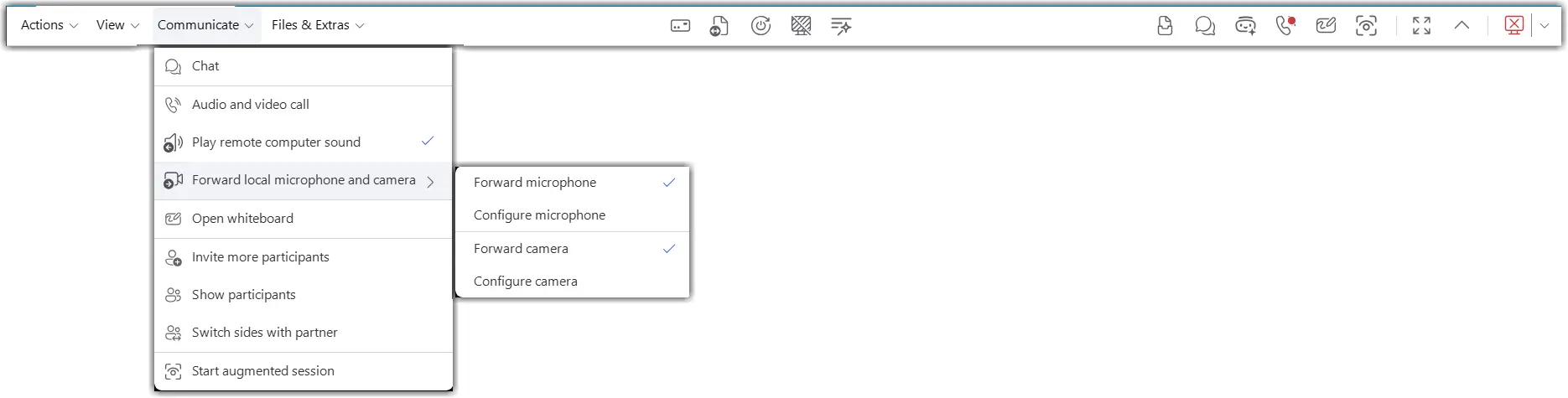
How to change the forwarded audio/camera devices

  1. While in the remote session, open the audio or video forwarding settings from the session toolbar.
  2. Select a different local microphone or camera.
  3. Confirm the selection.
  4. Test the device in the remote application.
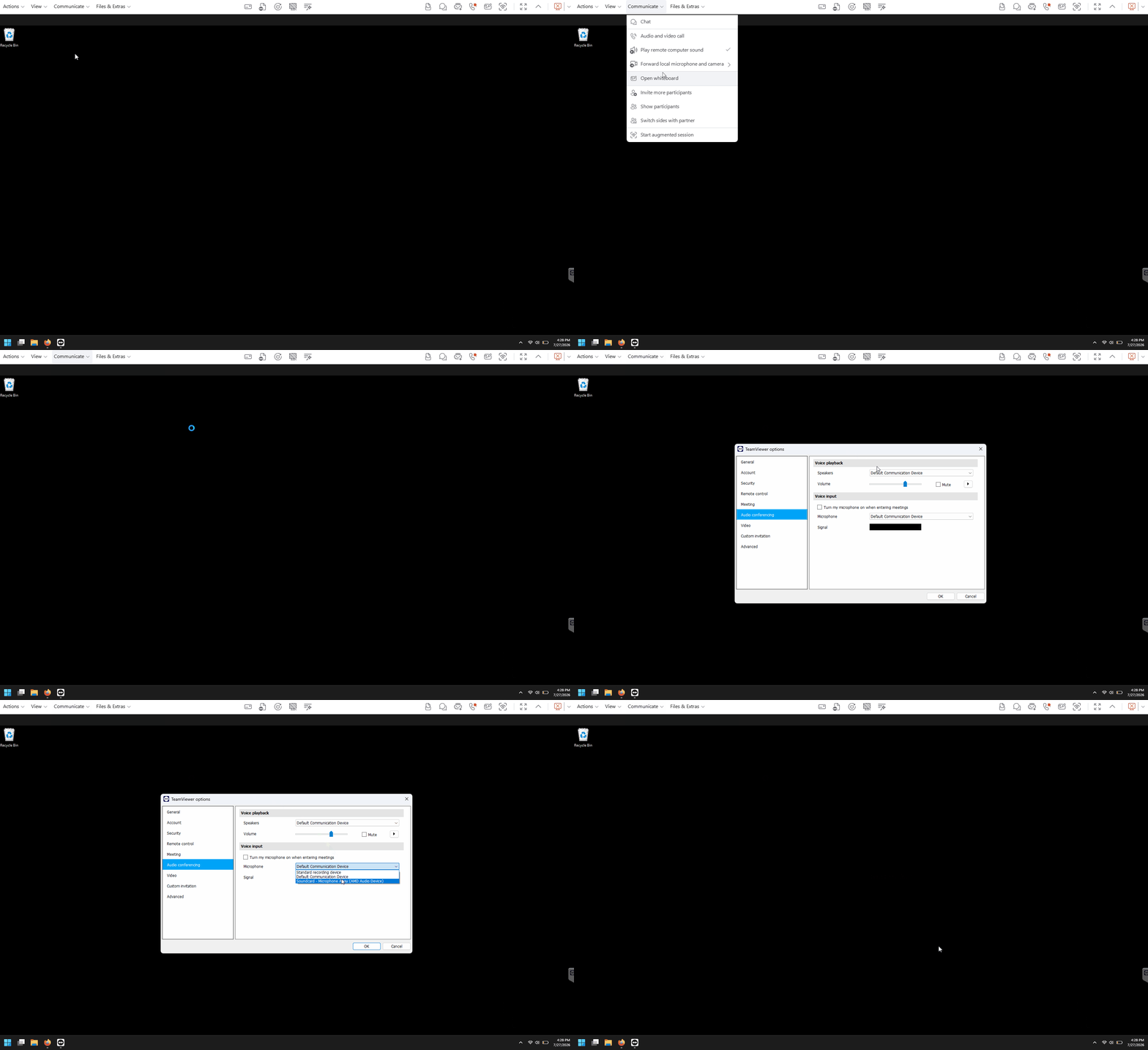
How to manually install or uninstall the forwarding drivers

In TeamViewer Remote:

  1. Open TeamViewer settings on the remote device.
  2. Navigate to the audio and video forwarding driver section.
  3. Install or uninstall the virtual audio and camera drivers as needed.
  4. Confirm the change.
  5. Restart the remote session if required.
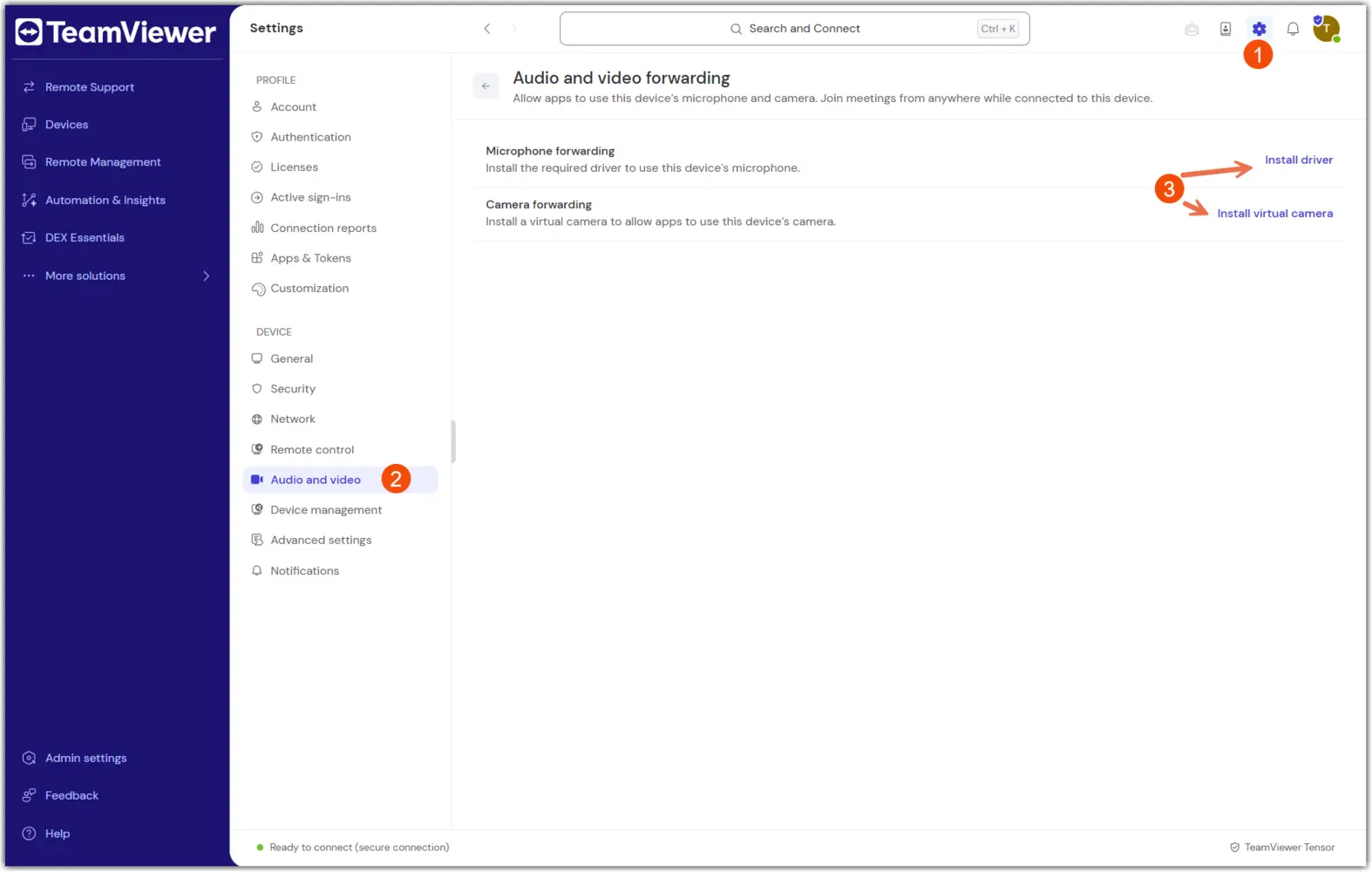
In TeamViewer (Classic):

  1. Open TeamViewer Advanced settings: Extras → Options → Advanced → Show advanced.
  2. Navigate to the Audio and video forwarding section.
  3. Install or uninstall the virtual audio and camera drivers as needed.
  4. Confirm the change.
  5. Restart the remote session if required.
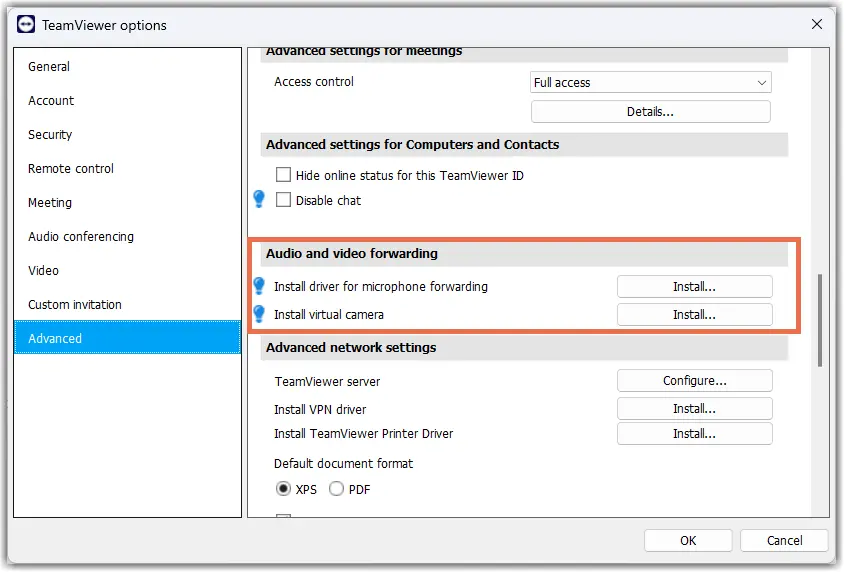
How to install the forwarding audio driver via MSI

The forwarding drivers can also be installed via MSI, using the following commands:

msiexec /i TeamViewer_Full.msi INSTALLVIRTUALAUDIO=1
msiexec /i TeamViewer_Host.msi INSTALLVIRTUALAUDIO=1

โปรดเลือกภูมิภาคของคุณ

การเลือกภูมิภาคจะเปลี่ยนภาษาและ/หรือเนื้อหาใน teamviewer.com


ภูมิภาคที่แนะนํา

  • Americas

    • Americas - English
    • América Latina - Español
    • Brasil - Português
    • Canada - English
    • Canada - Français
    • United States - English
  • Asia Pacific

    • Asia Pacific - English
    • Australia - English
    • 中国 - 中⽂(简体)
    • 香港 - 繁體中文
    • India - English
    • 日本 - ⽇本語
    • New Zealand - English
    • 대한민국 - 한국어
    • 台灣-繁體中文
    • ประเทศไทย - ภาษาไทย
  • Commonwealth of Independent States

    • CIS - English
    • СНГ - Русский
  • Europe

    • Europe - English
    • Belgique - Français
    • België - Nederlands
    • Bulgaria - English
    • Croatia - English
    • Cyprus - English
    • Czechia - Čeština
    • Denmark - English
    • Deutschland - Deutsch
    • España - Español
    • Estonia - English
    • Finland - English
    • France - Français
    • Greece - English
    • Ireland - English
    • Italia - Italiano
    • Latvia - English
    • Liechtenstein - Deutsch
    • Liechtenstein - Français
    • Liechtenstein - Italiano
    • Lithuania - English
    • Luxembourg - Français
    • Magyarország - Magyar
    • Malta - English
    • Nederland - Nederlands
    • Norway - English
    • Österreich - Deutsch
    • Polska - Polski
    • Portugal - Português
    • Romania - English
    • Schweiz - Deutsch
    • Suisse - Français
    • Svizzera - Italiano
    • Slovakia - English
    • Slovenia - English
    • Sweden - English
    • Türkiye - Türkçe
    • United Kingdom - English
  • Middle East Africa

    • Middle East Africa - English
    • Middle East Africa - Français
  • ผลิตภัณฑ์
    • TeamViewer Remote
    • TeamViewer Tensor
    • TeamViewer DEX
    • TeamViewer Frontline
    • ราคา
  • แพลตฟอร์ม ONE
    • TeamViewer ONE
  • โซลูชัน
    • ตามอุตสาหกรรม
    • ตามกรณีการใช้งาน
    • ตามบทบาท
    • สำหรับองค์กร
  • พันธมิตร
    • มาเป็นพาร์ทเนอร์
    • ค้นหาพาร์ทเนอร์
    • พันธมิตรด้านการบูรณาการ
  • ทรัพยากร
    • บล็อก
    • เรื่องราวความสำเร็จ
    • ศูนย์ความน่าเชื่อถือ
  • การสนับสนุน
    • ติดต่อฝ่ายสนับสนุน
    • คำแนะนำและคู่มือ
    • ฐานความรู้
    • สถานะระบบ
    • โมดูลที่กำหนดเอง
    • สำหรับนักพัฒนา
    • ชุมชน
  • บริษัท
    • เกี่ยวกับ TeamViewer
    • อาชีพ
    • นักลงทุน
    • ห้องข่าวสาร
    • ความเป็นผู้นำ
    • พาร์ทเนอร์ด้านกีฬา
    • ความยั่งยืนและ CSR
    • การกำกับดูแลกิจการ
  • ลิงก์เพิ่มเติม
    • ติดต่อทีมขาย
    • TeamViewer User Focus Program
    • Make work work better
    • จดหมายข่าว
  • ข้อตกลงการใช้งาน (EN)
  • Product Descriptions
  • ประทับ
  • นโยบายความเป็นส่วนตัว (EN)
  • ติดต่อ
การตั้งค่าคุกกี้