Knowledge Base
Session reporting
Last Modified: Aug 1, 2025
Available exclusively for Assist AR Pro license holders
Assist AR Pro users have access to cloud session logging capabilities that help record and review the details of every support session. This includes:
- In-session chat logs
- Voice transcripts (if enabled during session)
- Screenshots
- AI Session Summaries (if enabled)
These logs offer valuable insights for:
- Auditing and compliance: Maintain traceability of support activities.
- User behaviour analysis: Identify common issues and improve user support strategies.
- Internal training: Use real sessions as learning material for new agents.
- Transparency and accountability: Gain visibility into remote interactions.
How to Enable Event Logging
To activate this feature for your organization:
- Navigate to Admin Settings ➜ General ➜ Event Logging.
- Toggle the switch to enable event logging for all users.
Note: Even when enabled by the admin, users can choose whether to upload screenshots locally or online during each session. Online uploads allow other users with viewing permissions to access them later.
Accessing Session Details
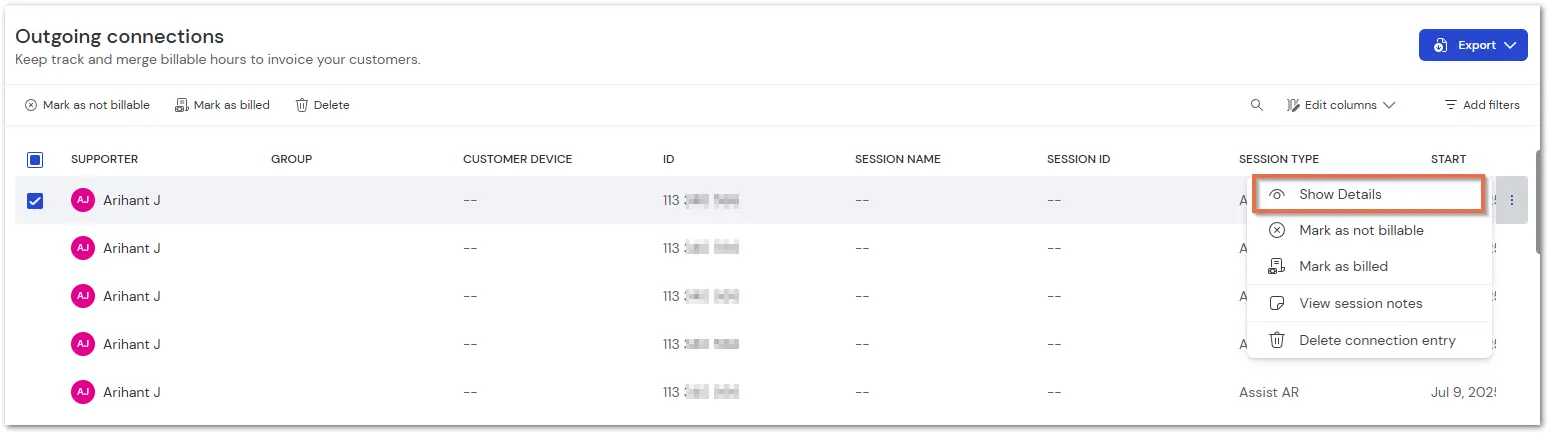
Users can view session history and logs via the Outgoing Connections section:
- Go to Admin Settings ➜ Outgoing Connections.
- Locate the session of interest.
- Click on the three-dot menu (⋮) on the right.
- Select Show Details.
Session Details: Tabs Overview
When you open session details, you will find three main tabs:
1. Info
Displays general session information, such as:
- AI summary (if enabled) – Provides a concise, AI-generated recap of the session. To learn more about the AI session summary, click here.
- Session details
- Participants
- Notes
2. Screenshots
Lists all in-session screenshots saved online. You can view or download them for records, audits, or training purposes.
3. Voice Transcripts (Coming Soon)
This tab will display automatically generated transcripts of all voice conversations during the session.
Connection protocol
The connection protocol stores a detailed history of a TeamViewer Assist AR connection between an expert and a technician for review.
TeamViewer automatically generates the file at the end of an Assist AR connection if the "Connection reporting" setting is enabled. Some examples of data stored in the JSON file include the device type and name, Assist AR ID, Expert ID, and the date, time, and duration of the connection.
Where can I find my connection protocols?
After the first connection, the expert is prompted to choose the path where the files will be stored. The default folder where the connection protocols are saved is C:\Documents. Another path can also be specified.
How do I open a connection protocol?
You can open TPSR files with the desktop version of TeamViewer (version 15.11 and later) installed on your computer. Simply double-click the TPSR file, and TeamViewer prompts your default web browser to display its contents. You can then save the protocol as a PDF file or print it.
More info about .tpsr files: https://fileinfo.com/extension/tpsr
Note: The connection protocol has been deprecated to begin its gradual phase-out.