Knowledge Base
Create and run remediation scripts from Session Insights with SCALE
Last Modified 2 июл. 2026 г.
Session Insights connects directly to the SCALE Code Builder to help you turn real support session data into ready‑to‑use remediation scripts. This connection removes the need to manually copy information or rebuild logic from scratch. By using insights as inputs, you can create accurate, reusable scripts that improve response time and reduce manual work.
This article applies to all TeamViewer ONE Standard or Advanced and Remote / Tensor with DEX Essentials license holders.
Prerequisites
Before you can create or run remediation scripts from Session Insights, make sure the following prerequisites are met:
- Tia (TeamViewer Intelligent Agent) is activated for your company
- DEX Essentials is available for your environment
- Your user account has the Manage company scripts permission
Benefits
Turn session insights into immediate action
Reduce manual steps between detecting and resolving issues
Create consistent, repeatable workflows across teams
Build a scalable automation library directly from real support scenarios
How to create a remediation script from a session summary
Open a session summary
Open TeamViewer.
Select Measure.
Select Insights from the top menu.
Open a session summary by clicking on the name of the session summary itself.
Start script creation
1. In the session summary, select Create a script.
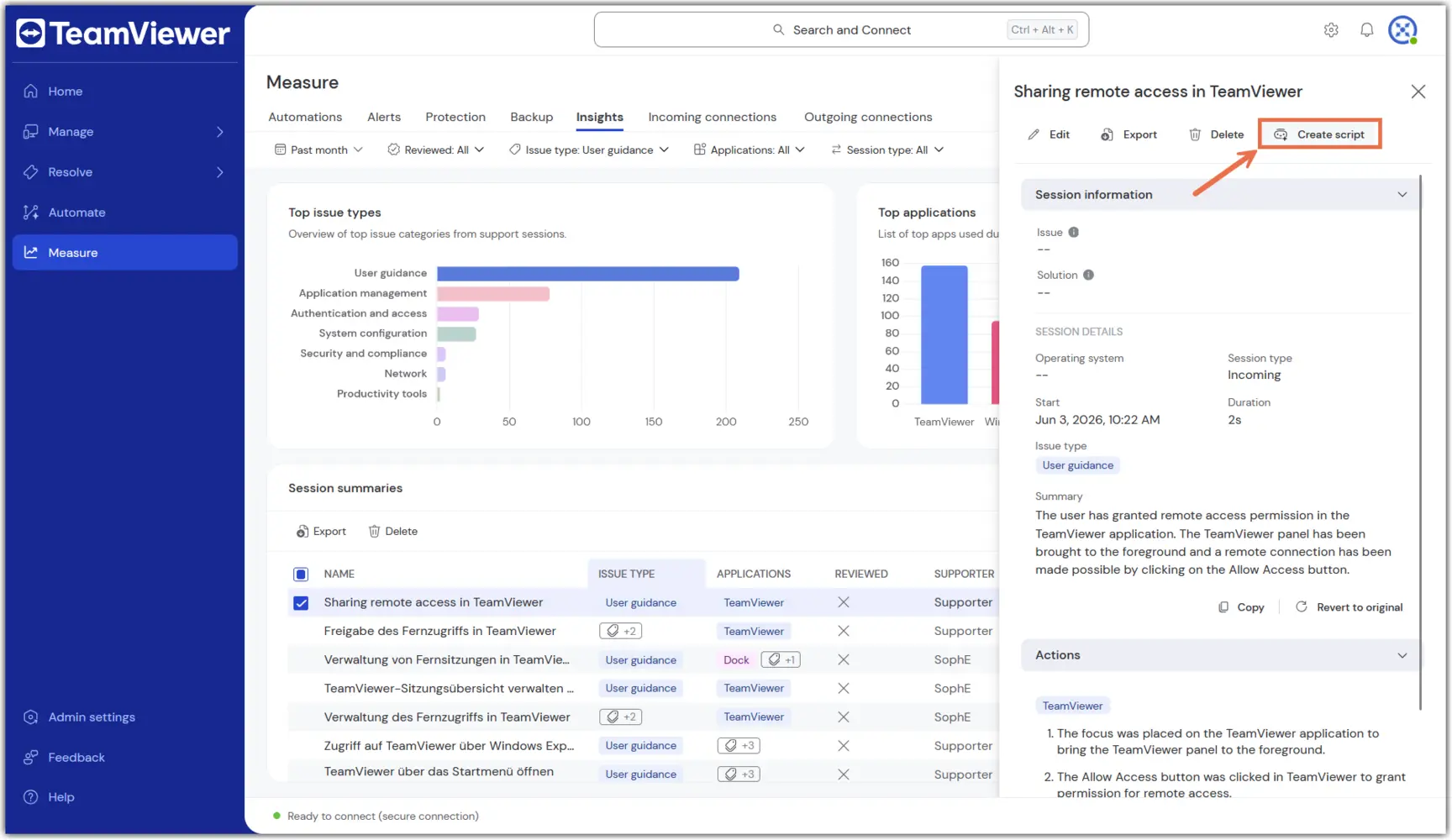
2. Once the script is generated, a new pop-up will appear with a button labeled Go to script. Clicking this redirects you to Tia scripts, located under Automate.
3. A SCALE script is generated automatically based on the session details.
Review the generated script
When the Script management page loads, you see two panels:
Left: The generated SCALE script
Right: A readable summary in the Tia editor
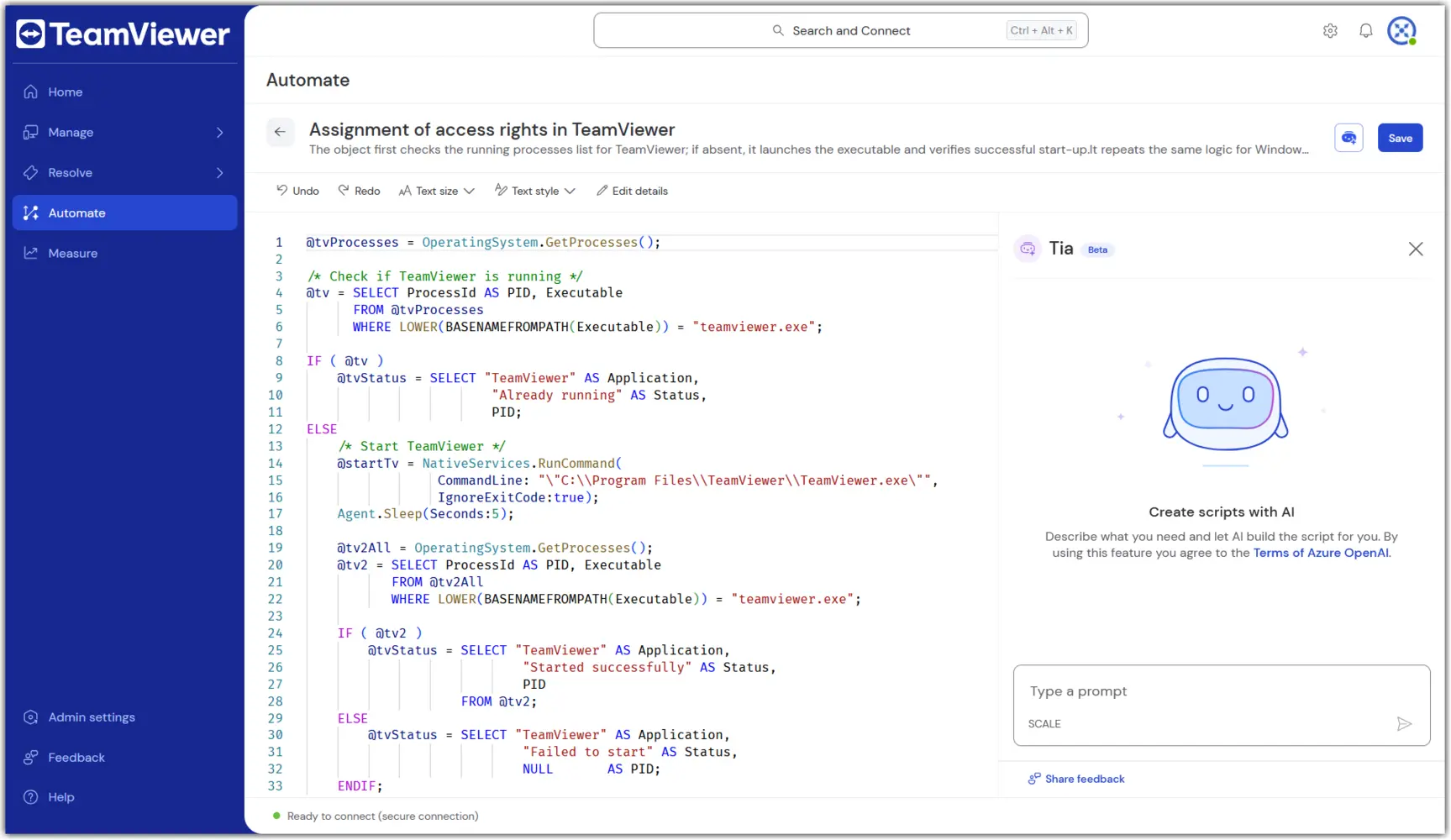
Edit the script (optional)
Once the script is opened in Automate, you can update the script in two ways:
Option A: Manual editing
The generated script can be manually edited via the standard SCALE editor. Select the desired line of the script, and add/remove/alter the script directly in the editor.
Note: When you manually edit a script, the system adds a user‑edited tag to the script metadata when you save it. This helps identify scripts created entirely by AI versus scripts that include user changes.
Option B: Tia‑assisted editing
Alternatively, you can use Tia to help edit the script toward your desired outcomes. To do this, simply enter your desired changes in the prompt field on the right of the script and press Enter. Tia will update the script based on your requests.
Save the script
Scripts generated from Session summaries are automatically saved under Tia scripts in Automate. Any edits that are made to the scripts, including description and title, must be saved manually.
Once the desired edits are completed, click Save in the upper-right corner.
How to run a saved script
Select and execute the script
Go to Automate on the left-hand menu.
Select Tia scripts.
Click the checkbox to the left of the desired script. Select Execute from the top menu.
Select one device or a device group.
Note: You can target up to 10 devices at once.Confirm the execution.
View execution details
- Click the checkbox to the left of the desired script. Select View executions from the top menu.
- The details of the script's execution will appear on-screen.
Note: Execution details are available only for a limited retention period.
AI credit-based payment model
Scale script generation is part of the AI‑powered TeamViewer Intelligence services and uses an AI credit‑based payment model.
For details about the AI credit‑based payment model, see here