
知识库
Provide remote support with Assist AR
Last Modified 2026年5月27日
TeamViewer’s remote support app Assist AR (formerly TeamViewer Pilot) enables you to fix issues on-site by remotely assisting on-site staff or clients through troubleshooting, problem resolution, product setup, and more.
With TeamViewer Assist AR, it is possible to connect to the camera image of a mobile device and get its image transmitted to a computer in real-time whilst being able to talk to each other via VoIP and interacting with 3D annotations to help the user on the mobile device fix issues in the real world by drawing and highlighting on the screen onto real-world objects.
Hint: You can now start remote support sessions via our web app via https://web.teamviewer.com/
This article applies to all TeamViewer Assist AR (formerly TeamViewer Pilot) users.
Requirements
- The supporter is signed in at https://web.teamviewer.com/ or within the TeamViewer Remote client.
- The end user has installed the TeamViewer Assist AR app on their smartphone.
Provide remote support with Assist AR via ID
To provide remote support with Assist AR via ID, please follow the instructions below:
- The end user opens the Assist AR app and shares the ID displayed on the main interface with the supporter.
- The supporter clicks on the Assist AR button from the menu on the left.
- The supporter enters the ID/IP address or the hostname of the end user into the Provide support using ID bar at the top.
- The supporter clicks on Connect.
- The end user receives the call and must accept the incoming support request.
The remote session is successfully established. The supporter can now support the end user remotely.
Provide remote support with Assist AR via SMS invite
To provide remote support with Assist AR via SMS invite, please follow the instructions below:
- The supporter clicks on the Assist AR button on the left menu.
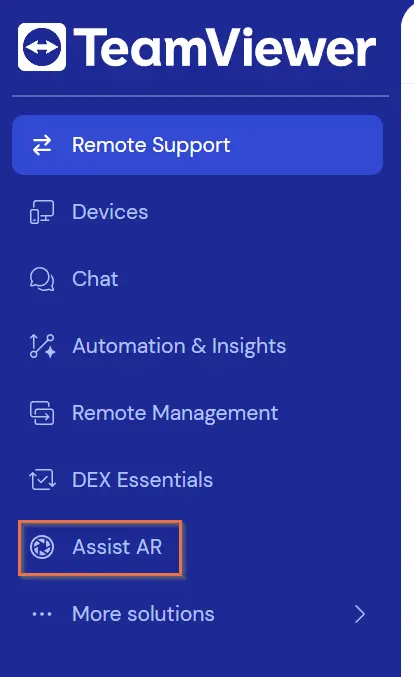
2. The supporter continues by clicking on the + New Session button on the right.
3. In the pop-up, the supporter enters the phone number of the end user with the country code.
4. The supporter clicks on Send.
5. The session is now listed under Your AR sessions with session details on the supporter's desktop.
6. Here, moving onto the Three dots on the right, the supporter clicks on Edit name and enters a name for the session, then clicks on Save.
7. The end user opens the SMS sent by the supporter and clicks on the session link. This automatically opens the Assist AR app.
- If an end user does not have the app installed, they will be prompted to join the session via a web browser or download the app.
8. The session status will change to Ready. The supporter can click on Start Session.
9. The end user will be prompted to accept the remote session. Once the end user accepts the request, the remote session will begin.
The remote session is successfully established. The supporter can now support the end user remotely.
Note: The SMS invitation feature is only available to Assist AR Pro license holders.