知识库
Add users to SSO exclusion list
Last Modified 2026年2月12日
Learn how to add users to the TeamViewer Single Sign-On exclusion list. You can exclude individual email addresses or user groups, or import multiple users from a CSV file.
For CSV imports, the script provided, Add-SsoExclusionsFromCSV.ps1, simplifies CSV-based imports and helps you manage SSO exclusions efficiently.
This article applies to TeamViewer Tensor license holders.
How to set up the exclusion list for SSO
To set up the exclusion list for SSO, please follow the instructions below:
- Sign in to your TeamViewer account within the TeamViewer client or the web app and go to the Admin settings.
- Within the Authentication section, click Single Sign-On.
- Select your domain and click Edit.
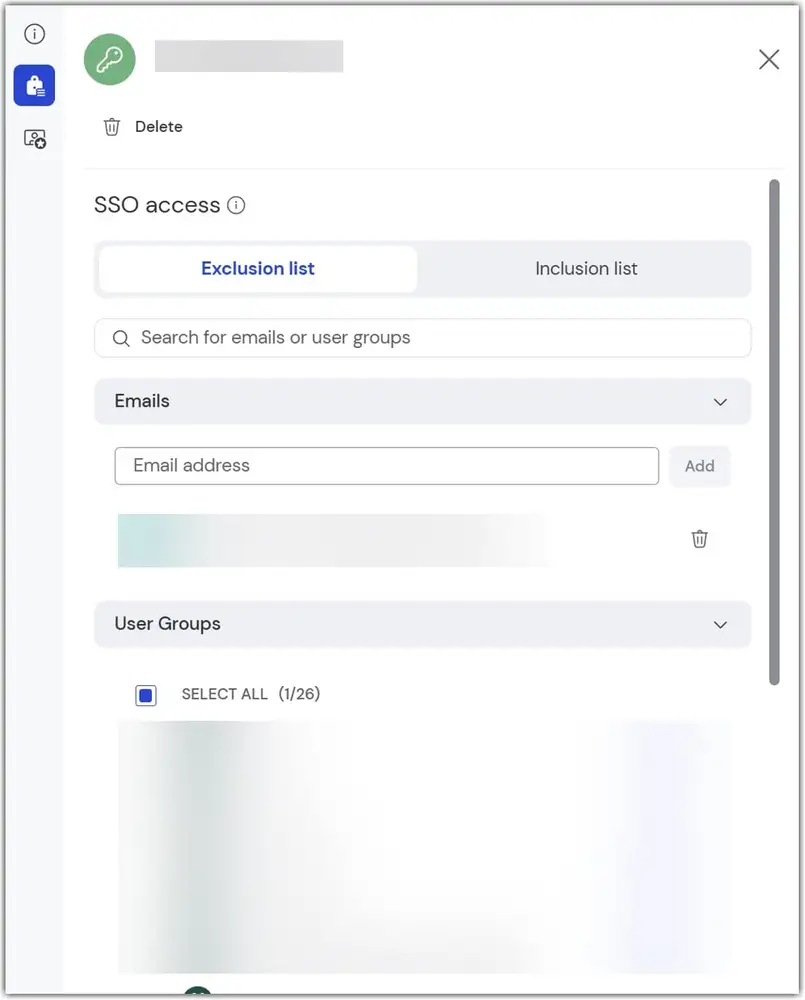
- Click the locker icon called Exclusions and Inclusions, and click the Exclusion list.
- Define the exclusion list by adding the email addresses or user groups you want to deactivate SSO for.
- Click Save to apply the exclusion list.
Prerequisites
Before you start, make sure you have the TeamViewerPS PowerShell module installed.
This script relies on the TeamViewerPS PowerShell module. If you haven't already installed it, you can do so using the following command:
Install-Module TeamViewerPS
Adding Users from a CSV File
Now that you have the TeamViewerPS PowerShell module installed, you can proceed to add users from a CSV file to the TeamViewer SSO exclusion list:
- Prepare Your CSV File: Create a CSV file that contains the list of users you want to exclude. Ensure that the CSV file has a column with the header name 'Email' (or as per your requirement) which contains the email addresses of the users you want to exclude.
- Run the Script: Open your PowerShell console and navigate to the directory where the
Add-SsoExclusionsFromCSV.ps1script is located. Use the following command to import users from the CSV file:
.\Add-SsoExclusionsFromCSV -Path 'c:\Example.csv' -HeaderName 'Email'
Replace 'c:\Example.csv' with the actual path to your CSV file if it's located in a different directory.
This command will read the CSV file and add the specified users to the TeamViewer SSO exclusion list.
Using an API Token (Optional)
If you wish to use an API token for authentication, you can provide it as follows:
Generate an API Token: Create a secure API token and convert it to a secure string. For example:
$apiToken = 'SecretToken123' | ConvertTo-SecureString -AsPlainText -Force
Run the Script with API Token: Run the script with the -ApiToken parameter:
.\Add-SsoExclusionsFromCSV -Path 'c:\Example.csv' -HeaderName 'Email' -ApiToken $apiToken
This will ensure that the script uses the provided API token for authentication.
Testing in "Test Mode"
You can run the import script in "Test Mode" to preview the changes that would be made without actually applying them. This is useful for ensuring that the CSV file and script parameters are set correctly:
.\Add-SsoExclusionsFromCSV -Path 'c:\Example.csv' -HeaderName 'Email' -WhatIf
This command will display a simulation of the changes without making any actual modifications.
Further Help
If you need additional information about the script and its parameters, you can use the Get-Help PowerShell cmdlet:
Get-Help -Detailed .\Add-SsoExclusionsFromCSV.ps1
This command will provide detailed information about how to use the script and its available parameters.
By following these instructions, you can easily add users to the TeamViewer SSO exclusion list via CSV import, helping you manage user access more efficiently.