EXE files are executable programs designed for Microsoft Windows. They are commonly used to install software, launch applications, and run system tools. If you've recently switched to a Chromebook, you may be surprised to discover that EXE files don't work the same way they do on a Windows PC. This limitation exists because ChromeOS and Windows are fundamentally different operating systems. Chromebooks are not designed to run Windows applications natively, which means most EXE files cannot be opened directly. Fortunately, there are several alternatives that can help you access the software you need. Depending on the application, you may be able to use a web version, Android app, Linux alternative, or Windows environment.
This guide explains your options and when each approach makes sense.
Why EXE files don't work on Chromebooks
An EXE file is built specifically for the Windows operating system. ChromeOS uses a different architecture and application ecosystem, so it cannot execute Windows programs in the same way that a Windows computer can. As a result, trying to open an EXE file on a Chromebook will usually result in an error or no action at all. This doesn't necessarily mean the file is damaged. It simply means the operating system doesn't support that file type natively.
Option 1: Use a web version of the application
The first step is checking whether the software you're trying to use has a browser-based version.
Many popular applications now offer web access, including:
- Productivity suites.
- Project management platforms.
- Communication tools.
- Customer relationship management software.
- Document editing applications.
Because Chromebooks are designed around cloud-based workflows, web applications often provide the simplest and most reliable experience.
In many cases, there's no need to install software at all.
Option 2: Install the Android version
Many Chromebooks support Android applications through the Google Play Store. Before looking for workarounds, search for the application you're trying to run.
Steps
- Open the Google Play Store.
- Search for the application's name.
- Install the Android version if available.
Many software vendors provide Android applications that deliver similar functionality to their Windows versions. This is often the easiest solution for Chromebook users.
Option 3: Use Linux applications
Many newer Chromebooks support Linux development environments. After enabling Linux, users can install compatible Linux software directly on the device.
Enable Linux on Chromebook
- Open Settings.
- Select Advanced.
- Open Developers.
- Enable Linux Development Environment.
Once Linux is enabled, you can install a variety of Linux-compatible applications. While this doesn't allow most EXE files to run directly, it may provide access to alternative software that accomplishes the same tasks.
Option 4: Use a Windows virtual machine
Some users choose to run Windows inside a virtual machine. A virtual machine creates a Windows environment that operates separately from ChromeOS. This approach may allow Windows applications to run, but it also comes with additional requirements:
- More storage space.
- Additional processing power.
- Windows licensing.
- Advanced configuration.
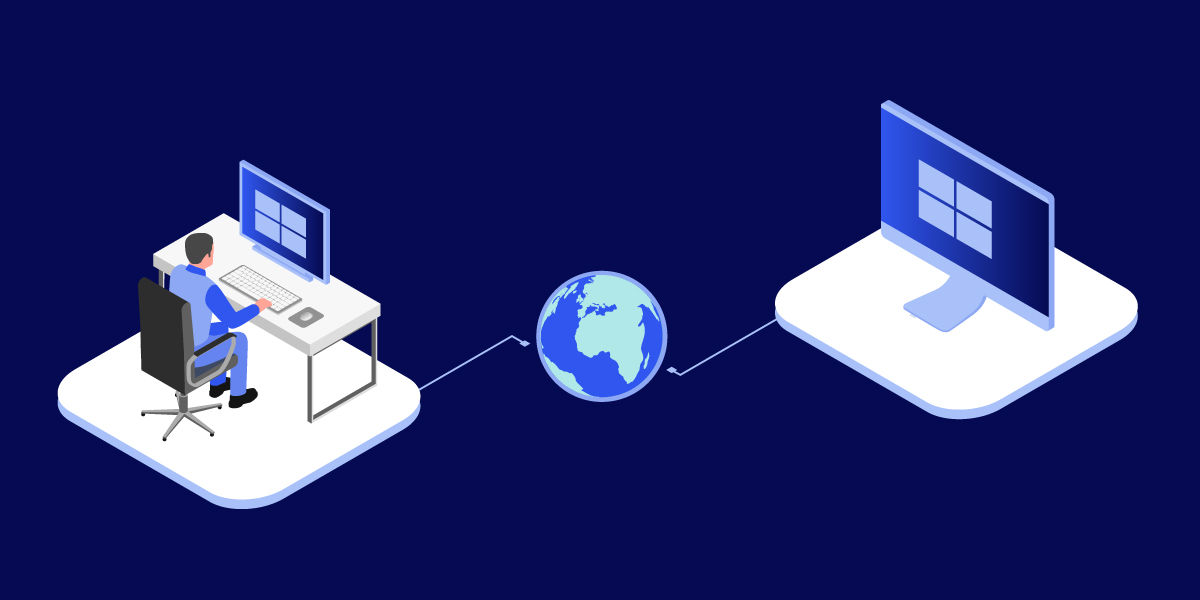
Because many Chromebooks are designed for lightweight computing, virtualization isn't always practical. In environments where users regularly need access to Windows-only applications, remote access solutions can provide an alternative to running software directly on a Chromebook. For example, platforms such as TeamViewer allow users to securely access a Windows device from a Chromebook and use applications that aren't natively available on ChromeOS.
Option 5: Look for Chromebook-compatible alternatives
In some situations, the best solution is replacing the Windows application altogether.
Many tools now offer:
- Web-based alternatives.
- Android versions.
- Linux counterparts.
- Cross-platform applications.
If you're starting fresh on a Chromebook, exploring software designed specifically for ChromeOS often provides a smoother experience than trying to adapt Windows applications.

Common issues when working with EXE files on Chromebooks
The file won't open
This is expected behavior for most EXE files because ChromeOS does not support Windows executables natively.
The software doesn't have a Chromebook version
Check whether a web application, Android app, or Linux alternative is available. Many popular applications now support multiple platforms.
The application only works on Windows
Some software depends on Windows-specific components and features. In these situations, a Windows environment may be required to access the application.
Installation fails
If you're following unofficial methods to run Windows applications, compatibility limitations may prevent certain programs from functioning correctly. This is especially common with specialized business software and applications that rely on Windows system services.
Best practices
When working with Windows applications on a Chromebook:
- Check for a web version first.
- Search for an Android alternative.
- Explore Linux-compatible options.
- Verify system requirements before attempting advanced installations.
- Download software only from trusted sources.
- Use Chromebook-native applications whenever possible.
Choosing a supported solution is usually easier and more reliable than forcing a Windows application to run on unsupported hardware.
Final thoughts
How to use EXE files on Chromebook
EXE files are designed for Windows and generally cannot run directly on ChromeOS. However, Chromebook users still have several options for accessing the software they need. Depending on the application, a web app, Android version, Linux alternative, or Windows environment may provide a practical solution. As more software moves to the cloud, many Chromebook users find they can accomplish most tasks without relying on traditional Windows executables at all. Understanding the available alternatives can help you choose the most efficient way to access your applications while getting the most out of your Chromebook.