Knowledge Base
Freshservice Enterprise manual
Last Modified 15 янв. 2025 г.
Freshservice by Freshworks is an IT service management tool designed for team collaboration and IT operations management. The TeamViewer Enterprise Integration allows you to provide remote support directly from Freshservice.
Please keep in mind that integrations are not included in basic license packages. They have to be purchased separately as add-ons. For more information, please visit our website: http://www.teamviewer.com/integrations
How to set up the integration
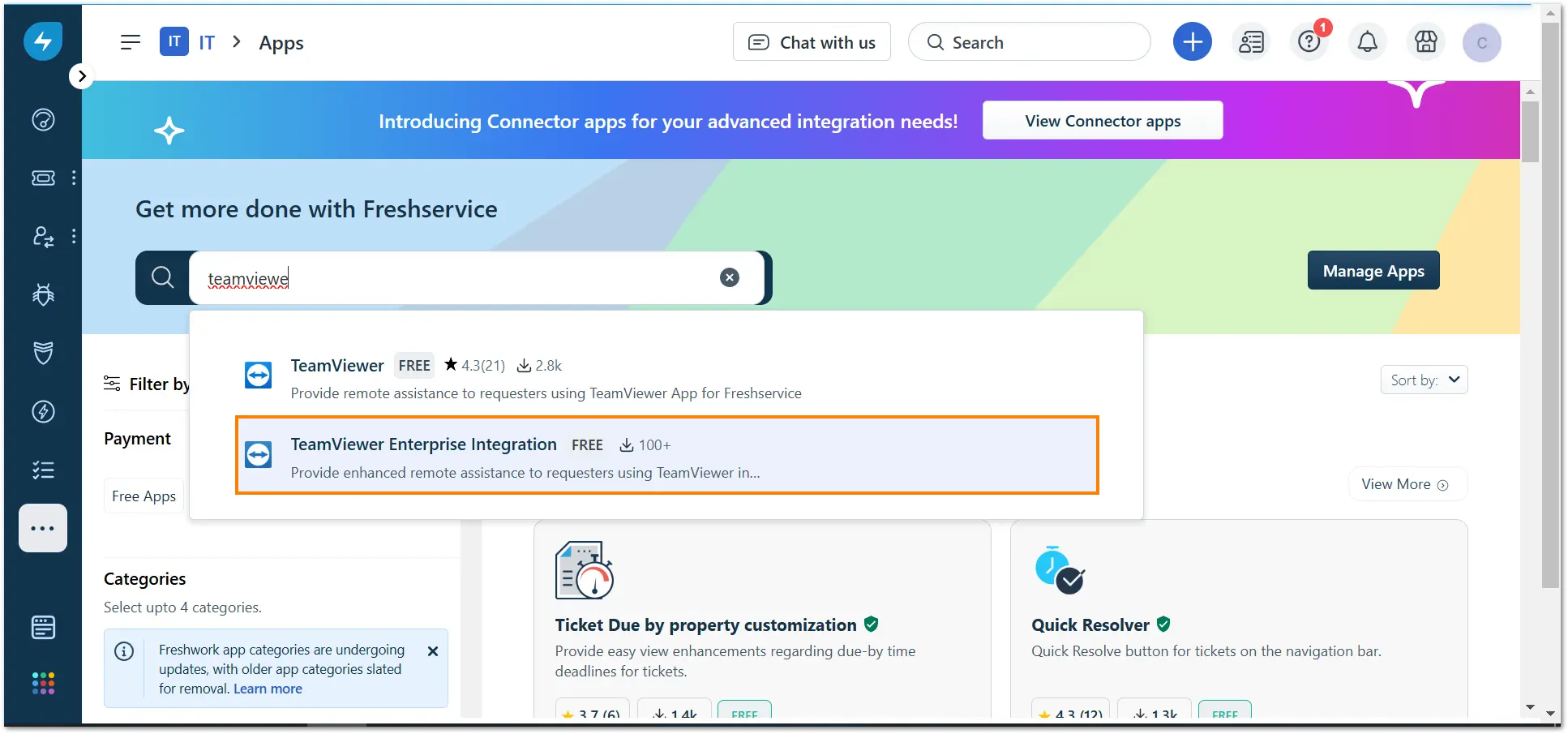
1. From the Marketplace in Freshservice, search for the TeamViewer Enterprise Integration app.
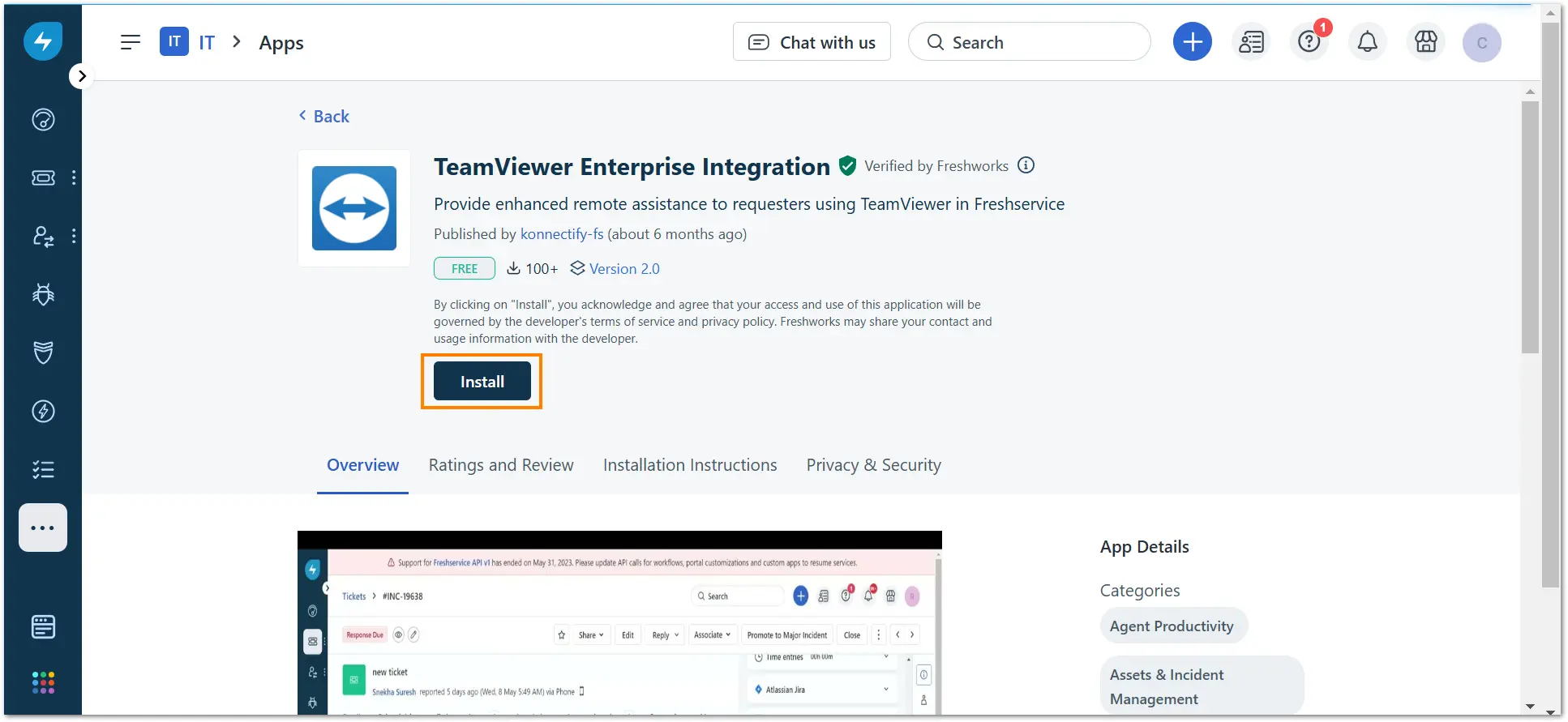
2. Click Install.
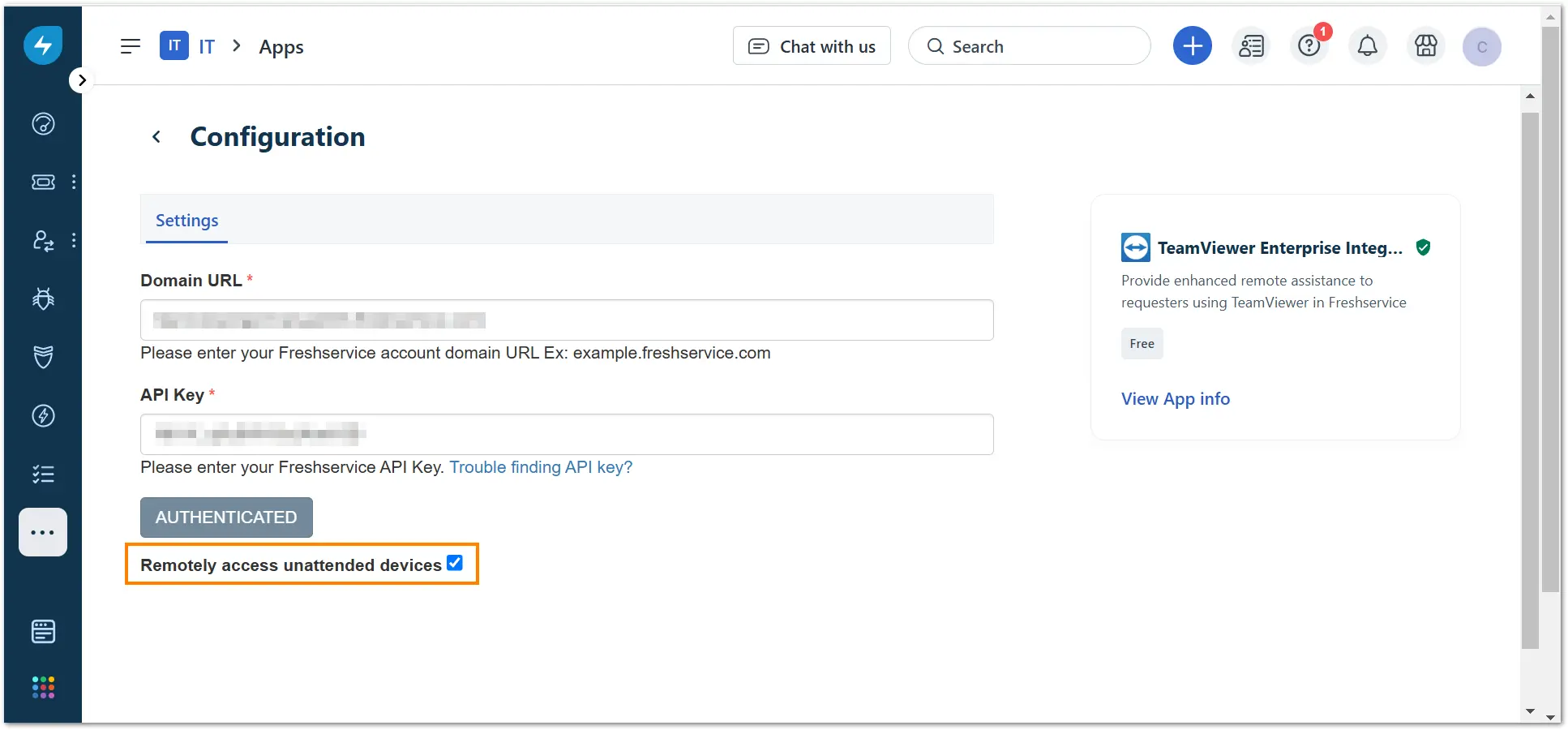
3. In the following configuration page, insert your Domain URL and API Key and click Authenticate.
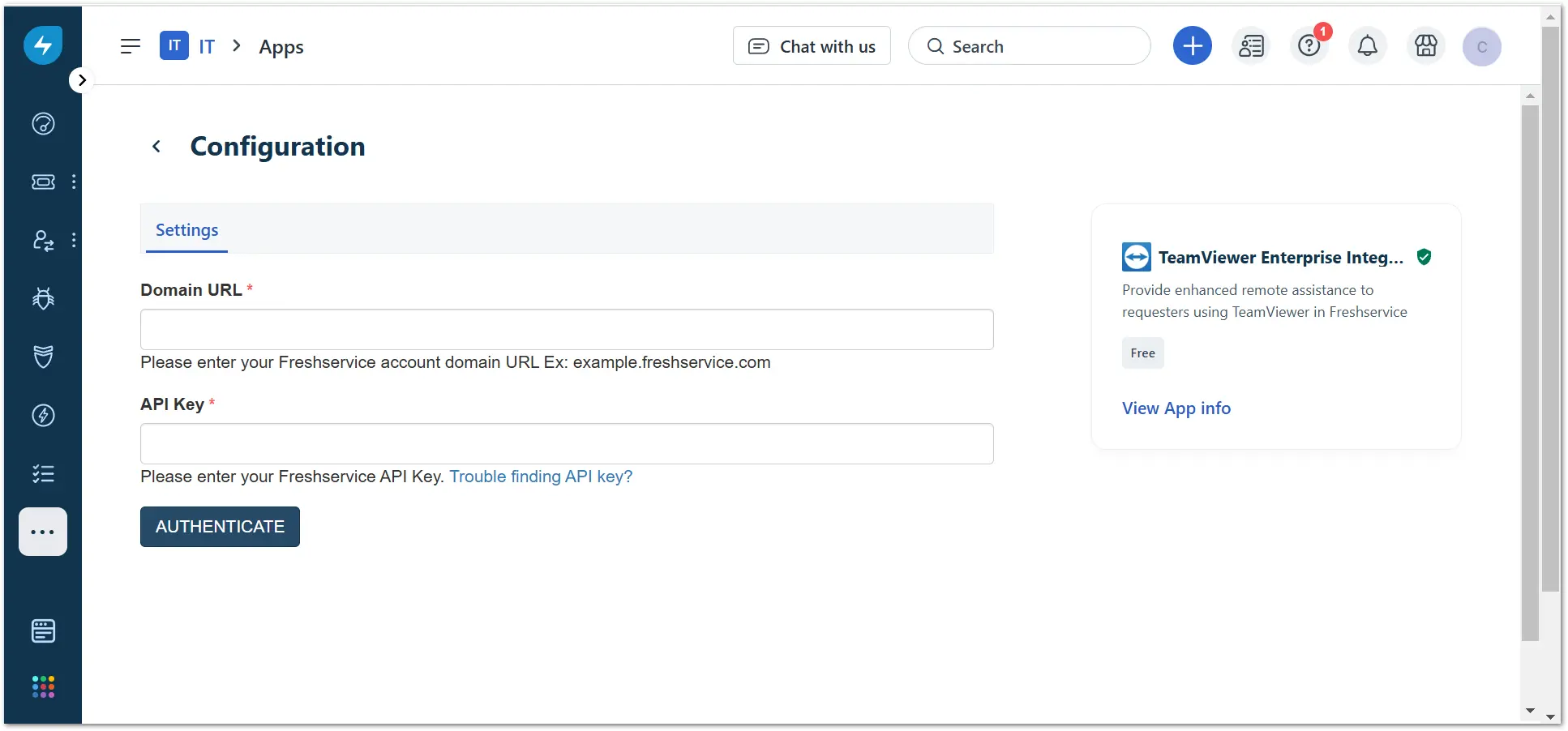
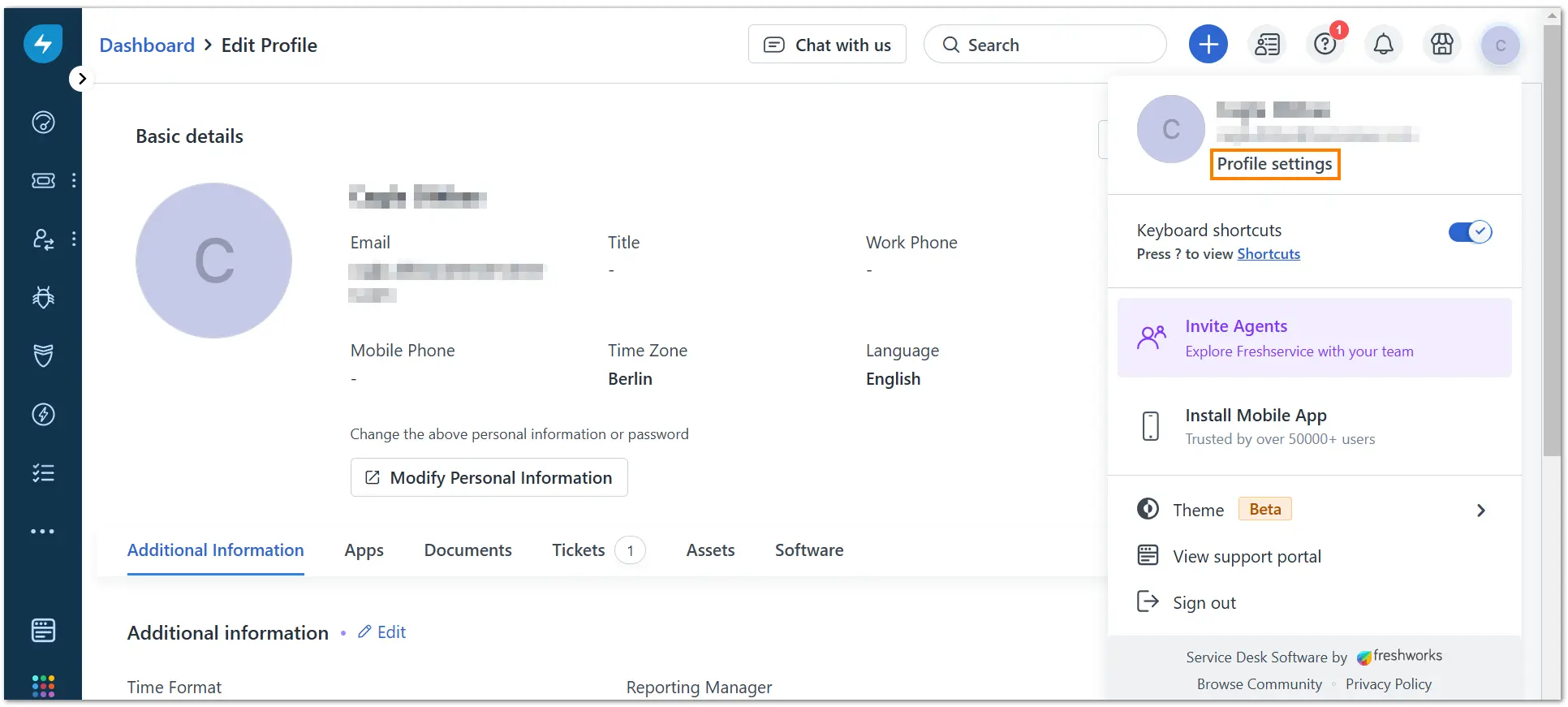
Note: You can access your API key by clicking on your profile icon on the top-right corner and then Profile settings.
4. Tick the box Remotely access unattended devices.
How to authorize the integration
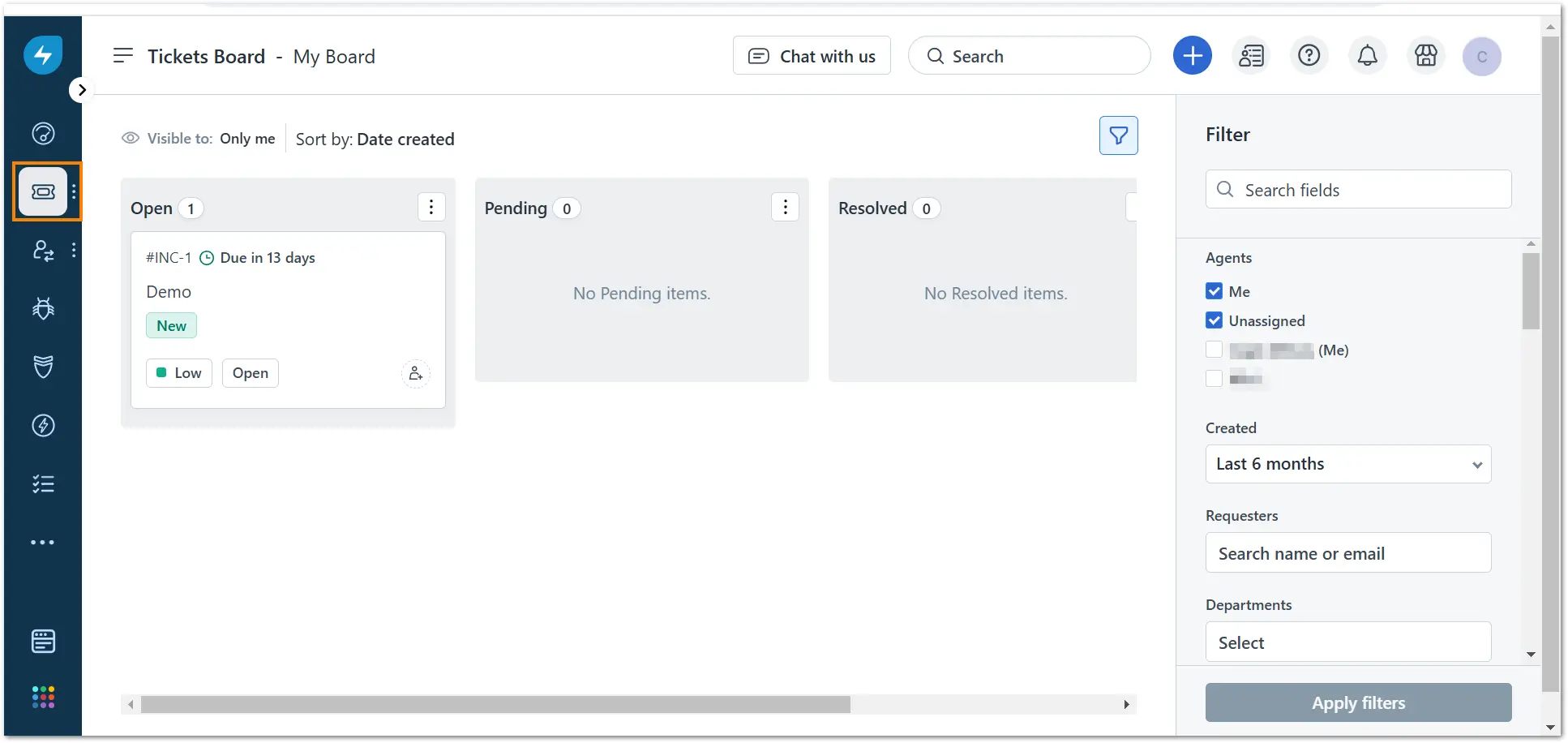
1. Click the Tickets button and access your Tickets Board.
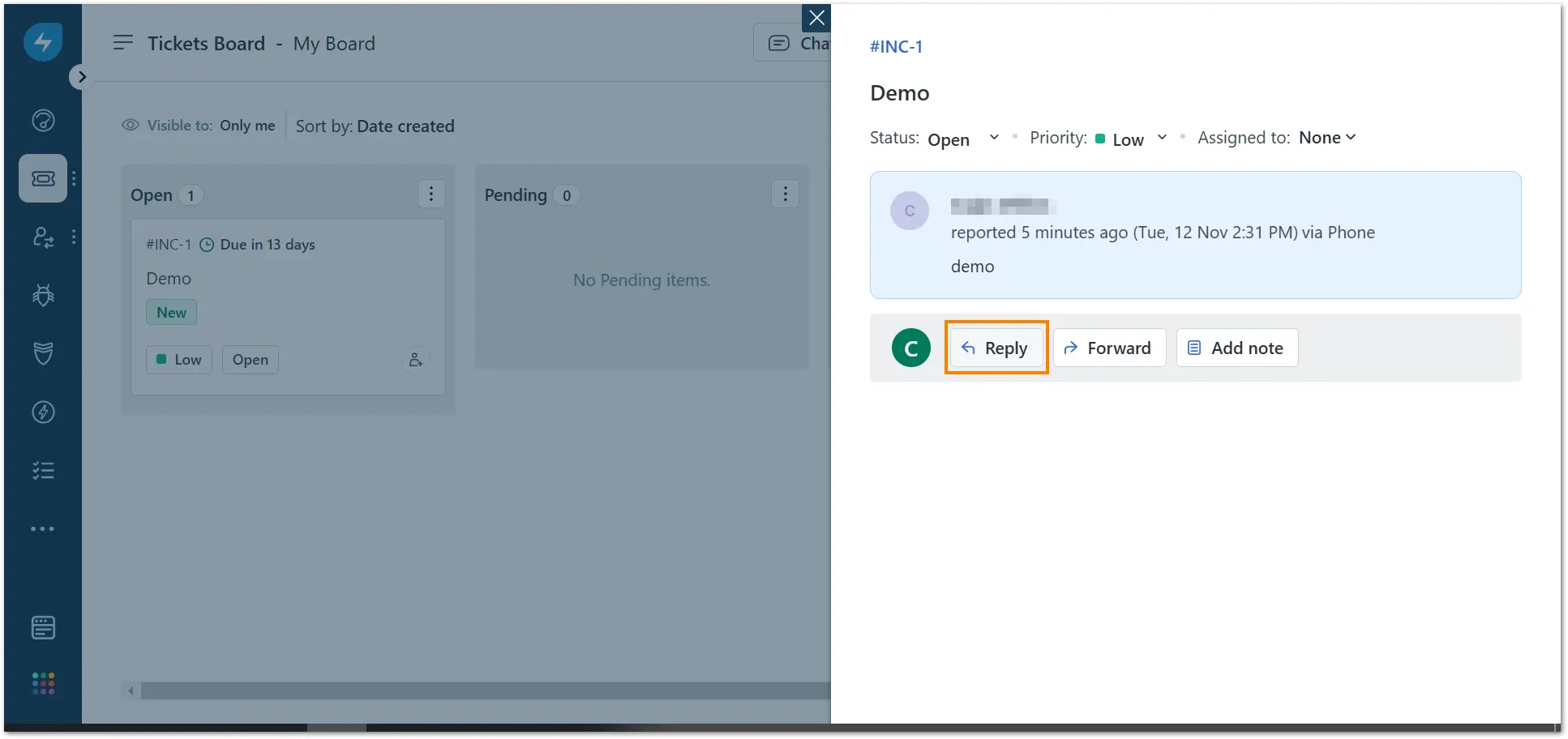
2. Select the open ticket and click Reply.
3. Scroll down until you see the TeamViewer Enterprise Integration section.
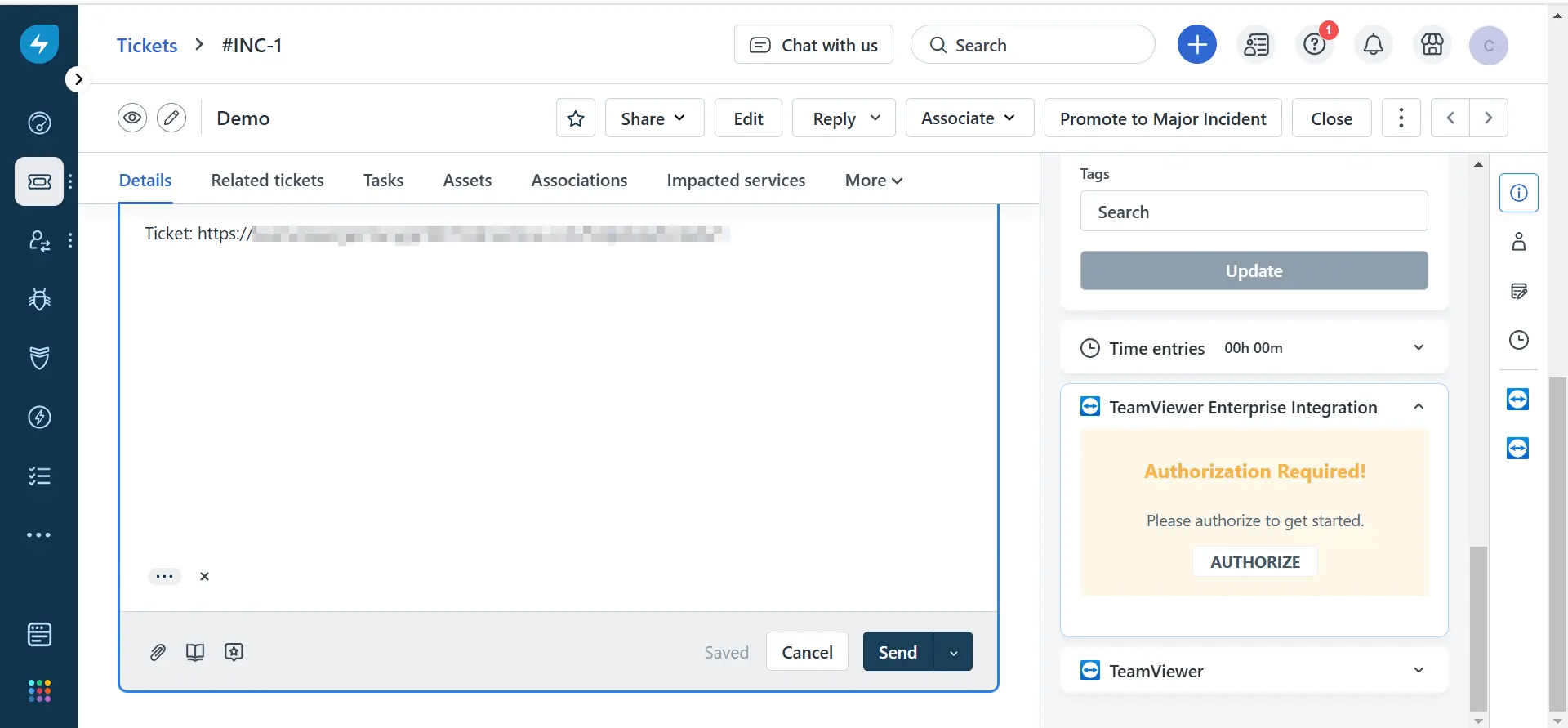
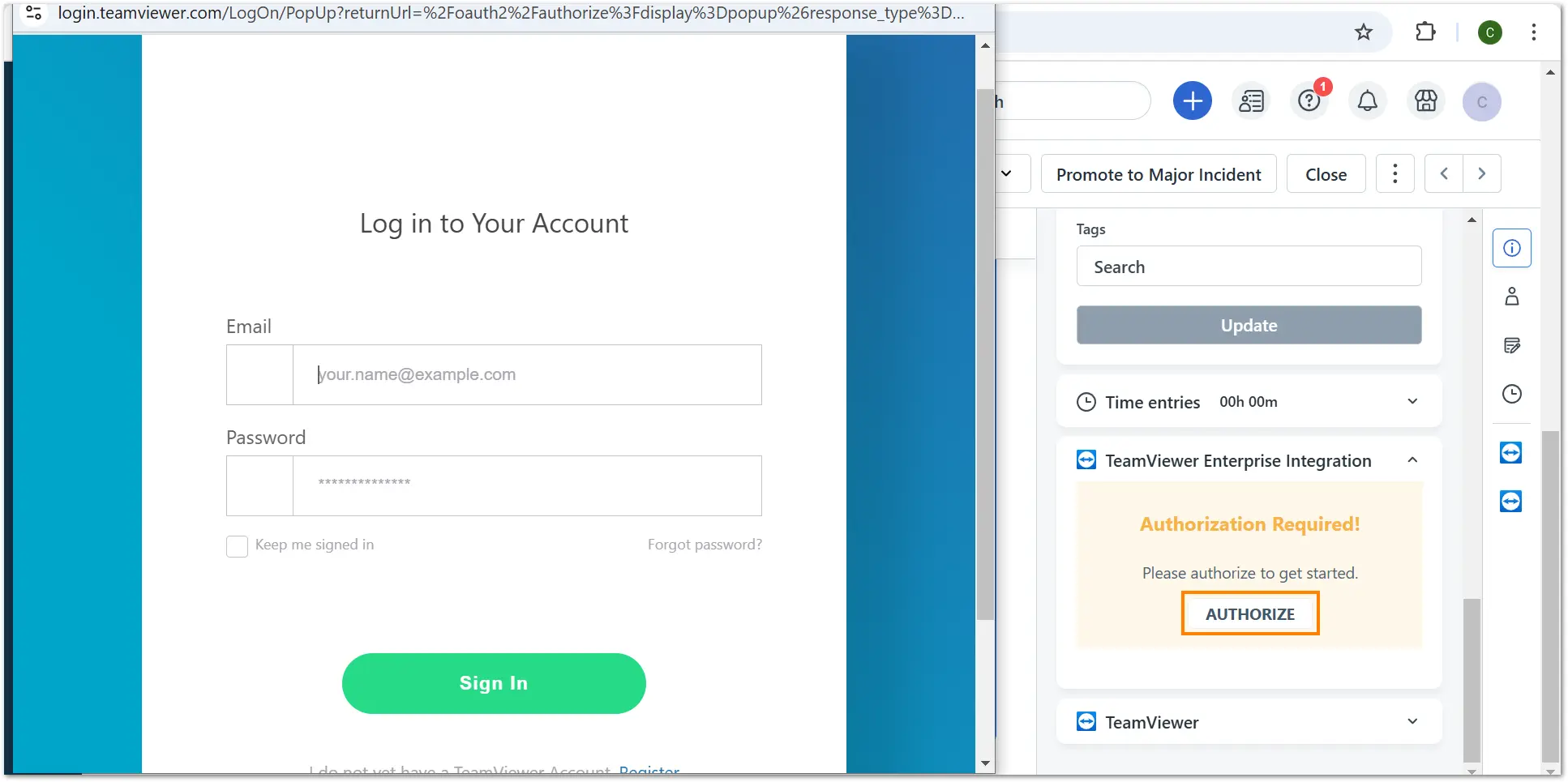
4. Click Authorize and sign in to your TeamViewer account. After signing in successfully, you need to allow the permissions on the pop-up.
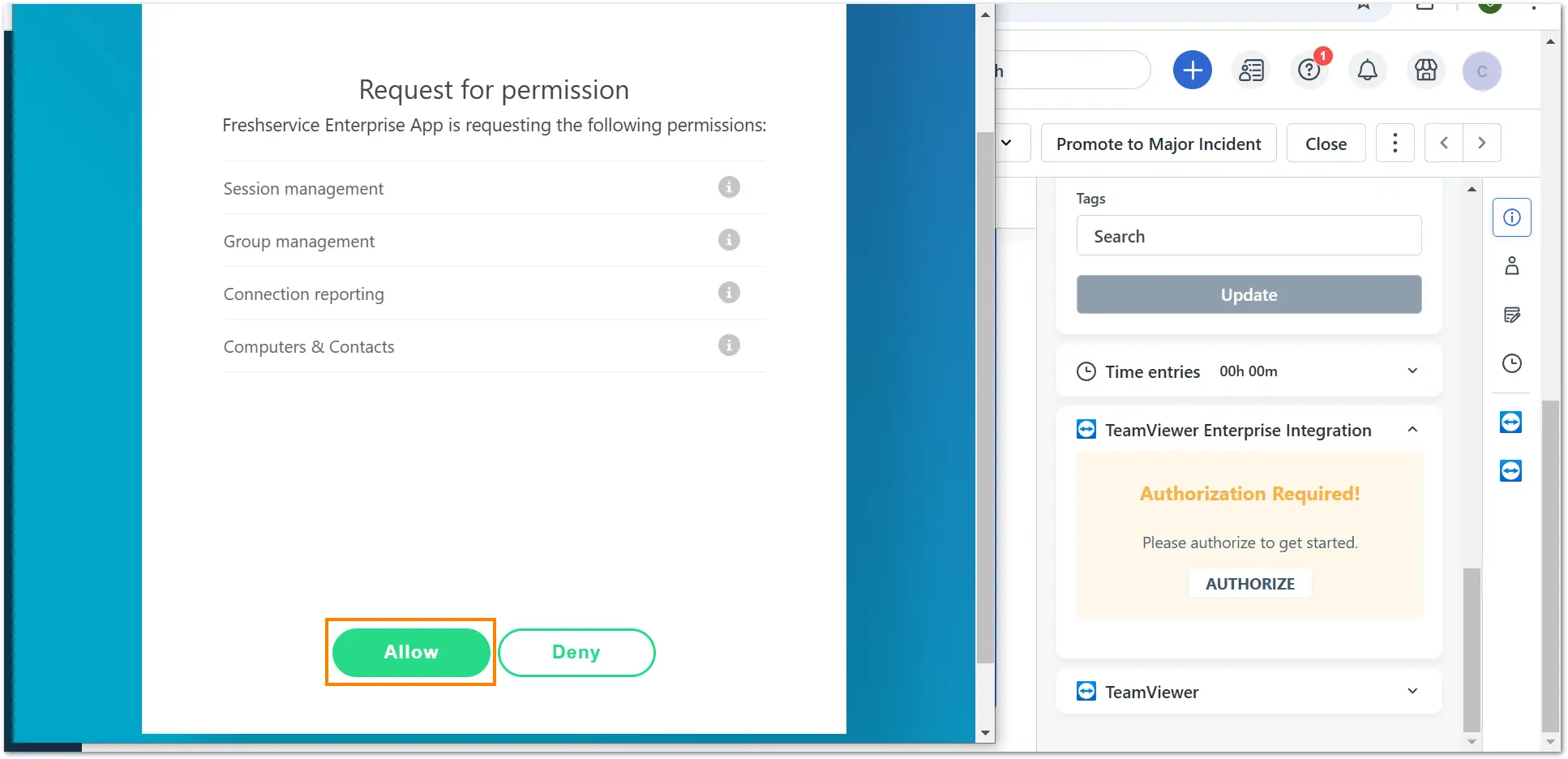
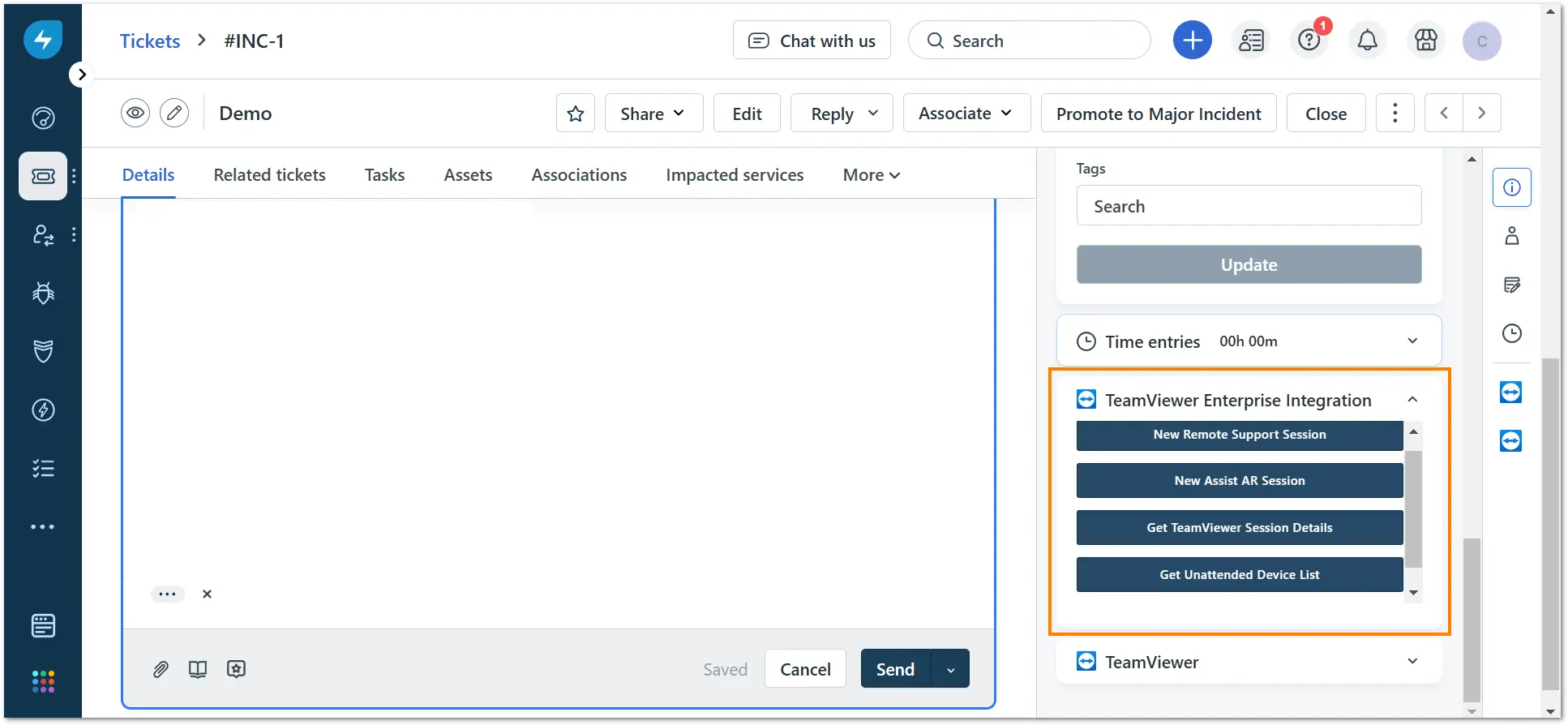
5. After allowing the permissions, the TeamViewer products will be displayed on the right side.
How to create a remote session
Connect to an attended device
- To create a remote support session, click the New Remote Support Session button. The session code and the link of the remote session will be visible within the ticket.

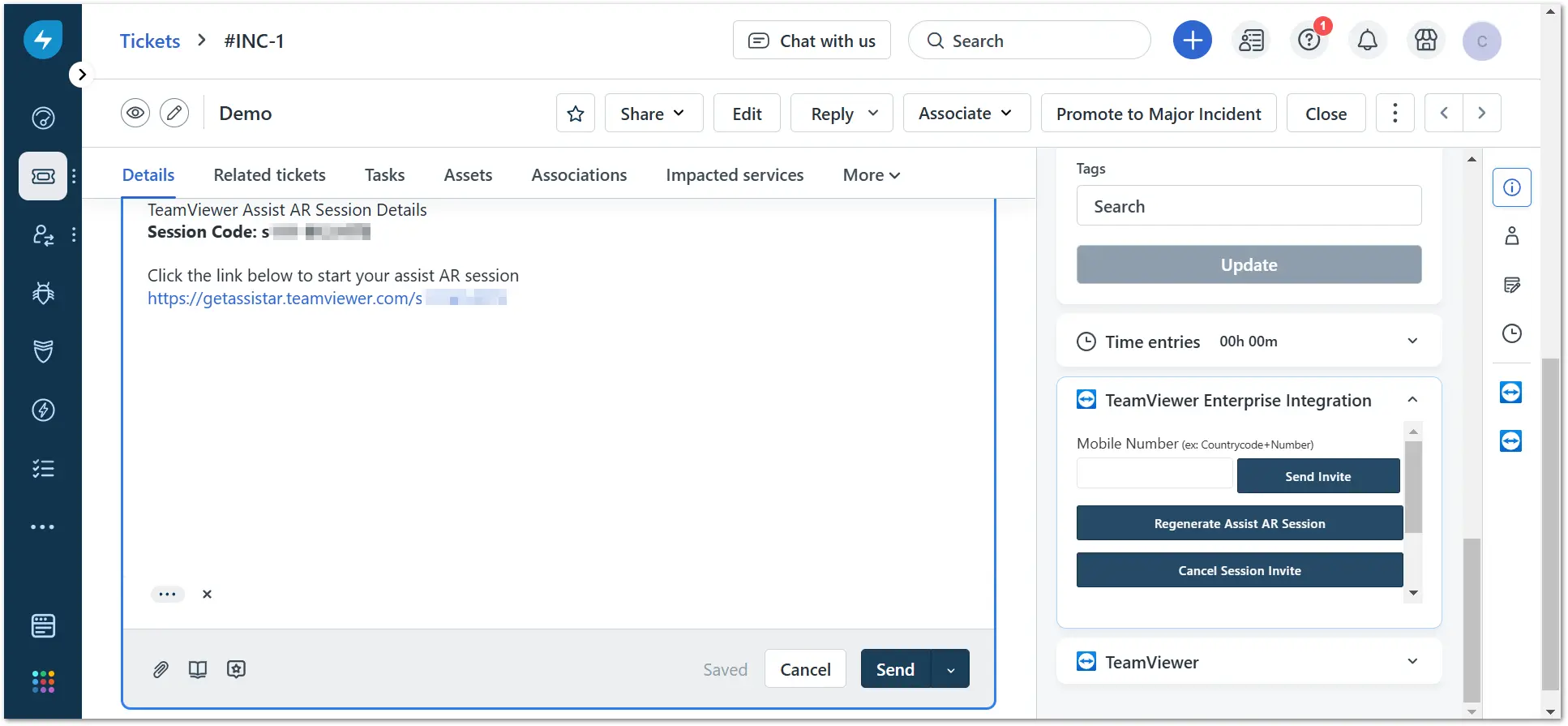
- To create an Assist AR session, click the New Assist AR Session button. The session code and the link of the Assist AR session will be visible within the ticket.
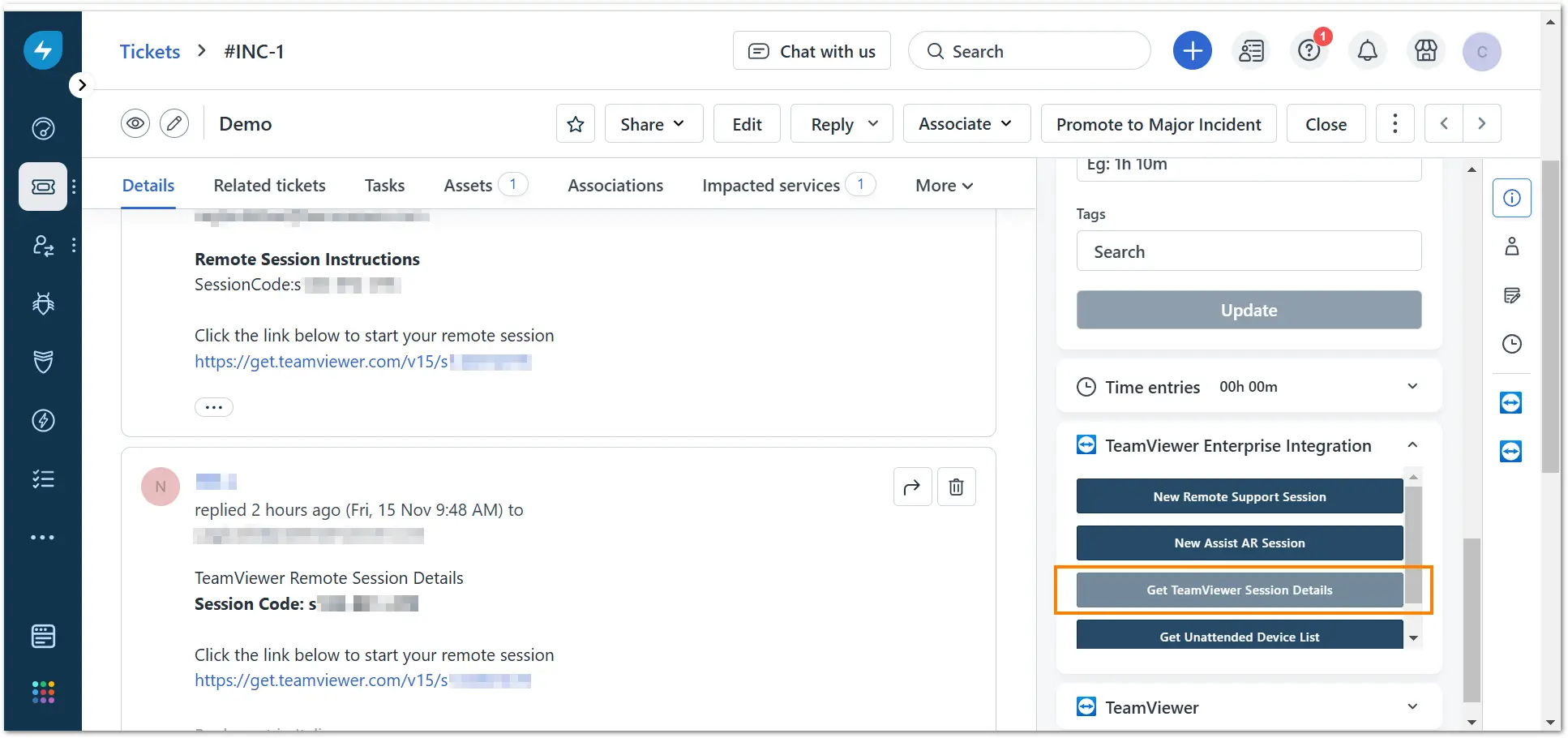
After joining and ending the session, you can click the Get TeamViewer Session Details button to see the details of your session.
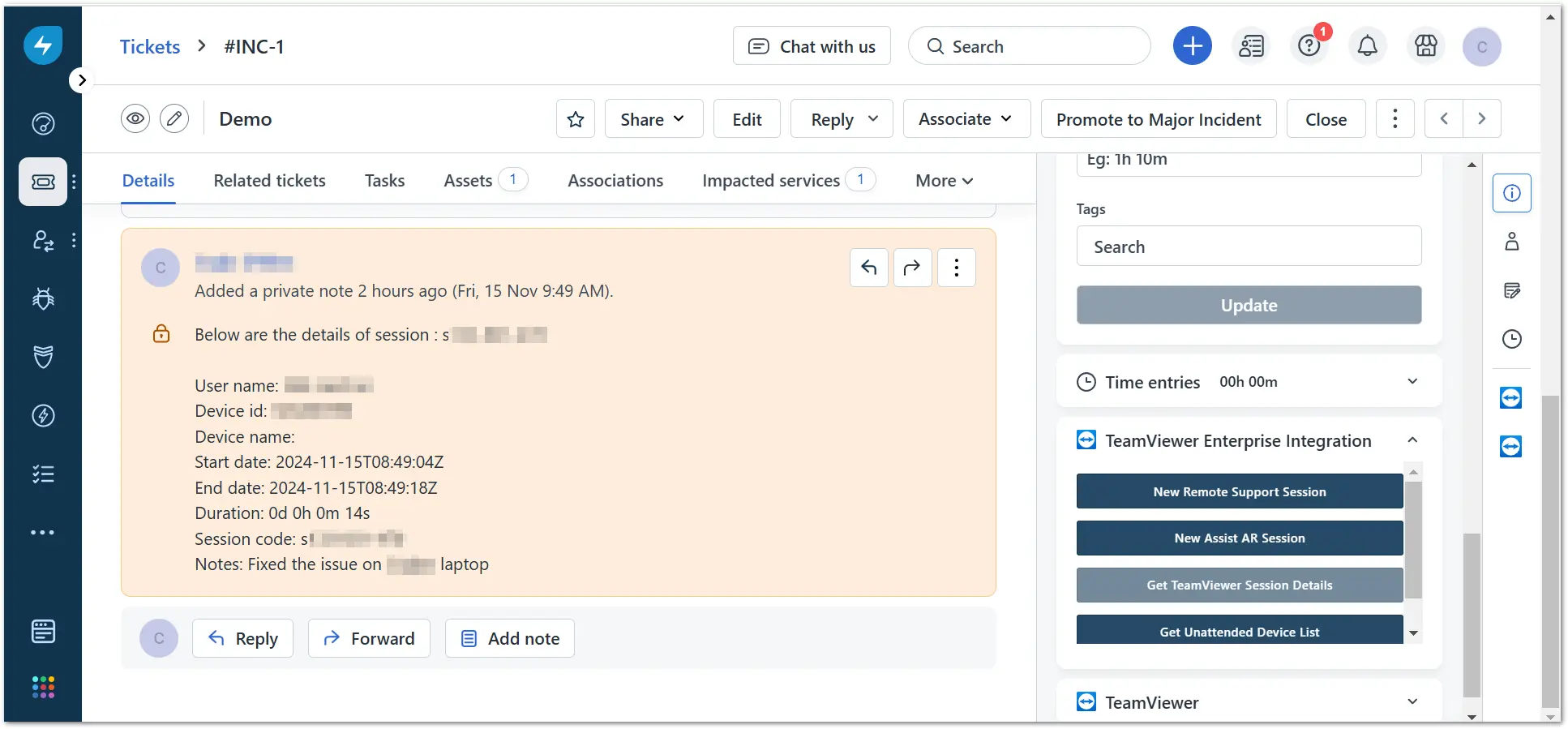
You will see the session details in the comment section.
Connect to an unattended device
1. To connect to an unattended device, you need to enter a new asset in the Assets tab. After entering the corresponding asset, click the Get Unattended Device List button.
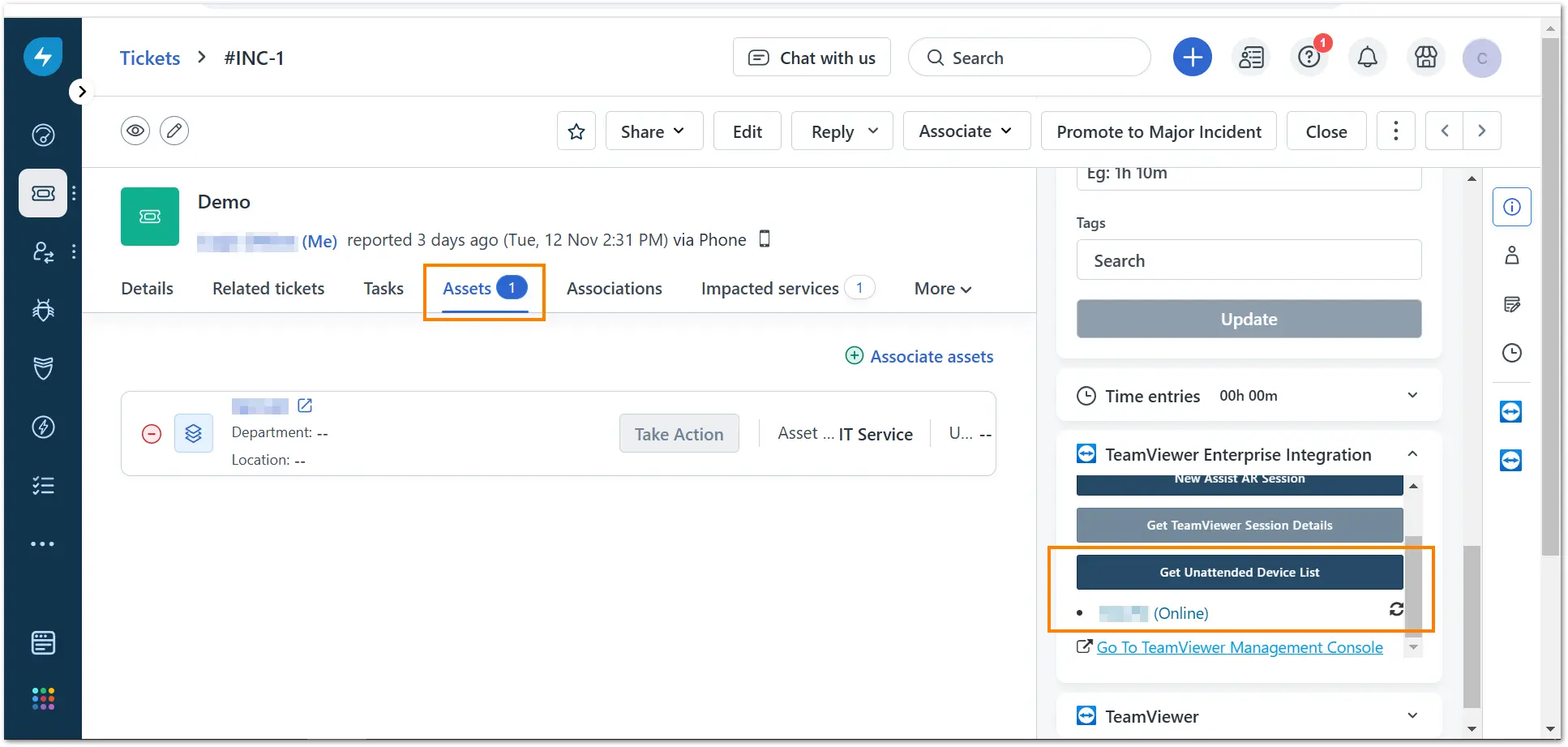
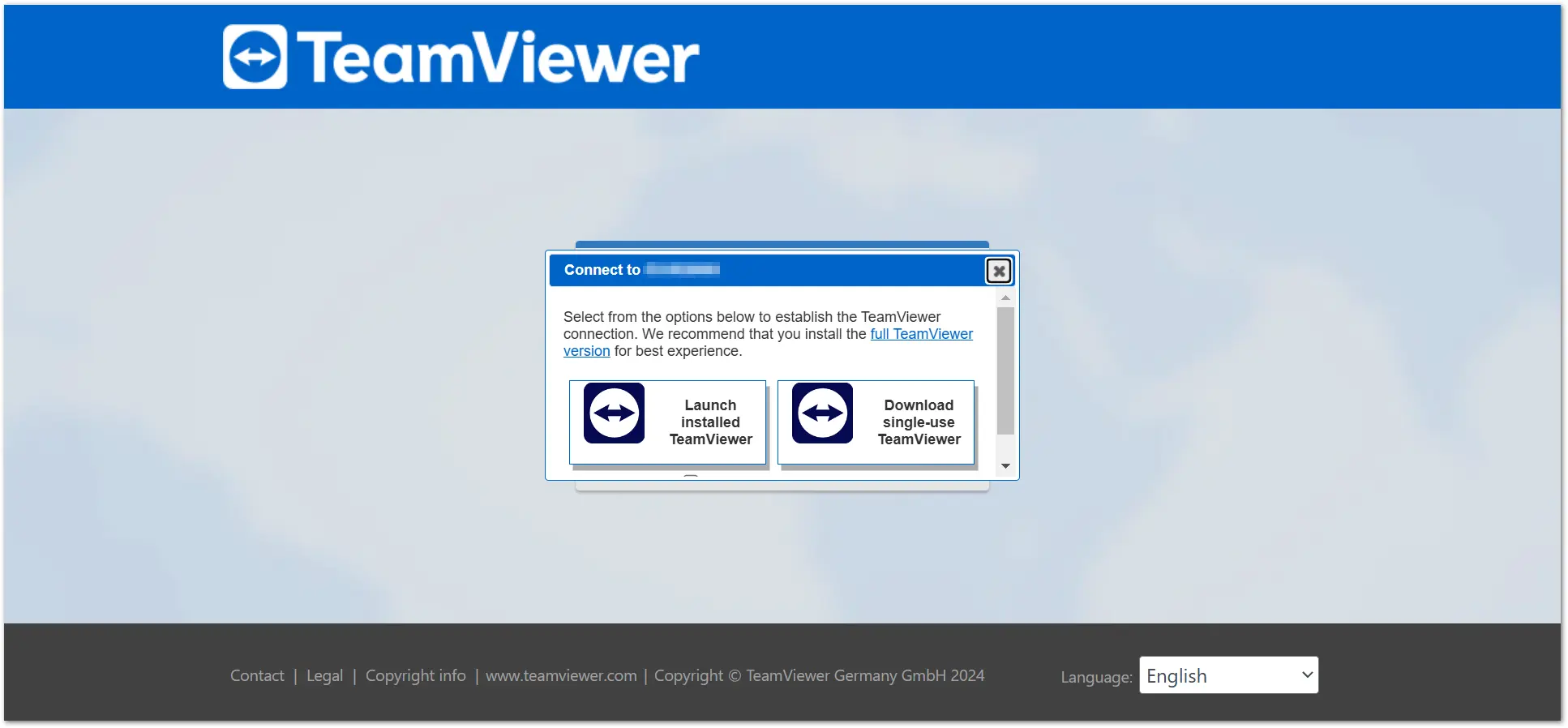
2. Once you click on the device displayed in the list, you will be automatically directed to the TeamViewer connection website and be able to connect to the selected device.