
Knowledge Base
Set up a web page on the Edge Device
Last Modified 13 мар. 2024 г.
The Remote AppControl lets you access a custom user interface for any device or system that comes without a native graphical user interface. You’ll need to create a user interface as an HTML page that is stored directly on the device.
In this task, you’ll need to install a web server to access the web page.
This setup uses a Raspberry Pi with the operating system Raspbian OS. Apache is used as the web server.
The example below is a web page of a digital twin of a pump. So, you can control and read data from the pump directly with TeamViewer Remote AppControl.

What you will need
Make sure that you have prepared the following points:
- Access the Edge Device via Remote Terminal.
- Basic knowledge of how to configure a web server.
- Basic knowledge of how to create web pages (for example see https://www.w3schools.com/html/).
Web servers
A web server can be installed and configured on the Edge Device. Various web servers are available, with different advantages for usage. Below are listed several guides for different web servers installations.
- Apache Web Server setup guide: https://www.raspberrypi.org/documentation/remote-access/web-server/apache.md
- NGINX Web Server setup guide: https://www.raspberrypi.org/documentation/remote-access/web-server/nginx.md
- Python Web Server setup guide: https://projects.raspberrypi.org/en/projects/python-web-server-with-flask
- Node.JS Web Server setup guide: https://tutorials-raspberrypi.com/setup-raspberry-pi-node-js-webserver-control-gpios/
Install the web server
1. Access the edge device remotely (Access the Edge Device via Remote Terminal).
2. Update your software list and install the web server. In the terminal type in the following command and press return.
sudo apt update && sudo apt install apache2 -y
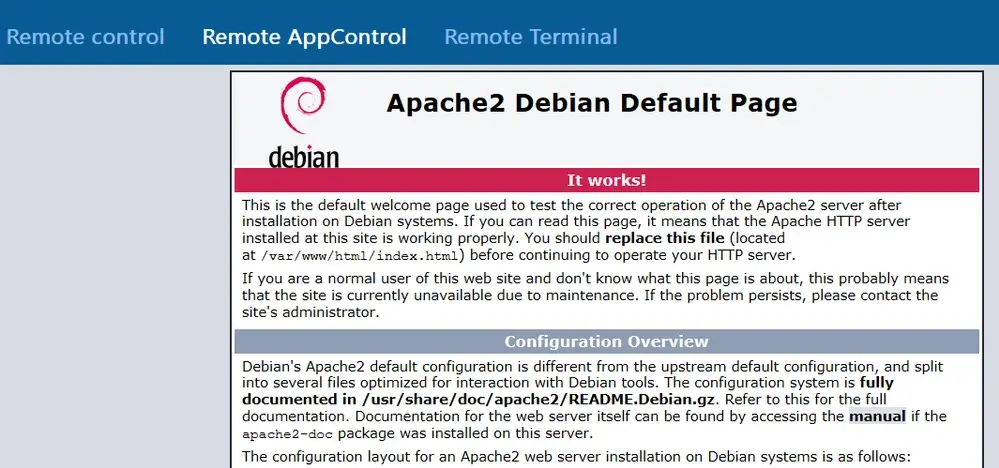
3. To verify the correct installation use Access the Edge Device via Remote AppControl.
The window shows the default web page of the Apache Web Server. You need to create your web page or put your HTML files on the device depending on your requirements.
For example, see https://www.w3schools.com/html/ and learn how to create web pages for your Edge Device.