Knowledge Base
Restrict/allow access for a specific time slot
Last Modified 2 янв. 2025 г.
There are numerous scenarios where companies want to enable (a specific type of) access only during certain times.
- External 3rd party support providers are only allowed to connect during a specific time slot.
- Internal IT help desk allowed to connect in attended mode during business hours, but also allowed to connect in an unattended mode outside of business hours
- Remote Workers are only allowed to connect during business hours
The Time option has been added to Conditional Access for these scenarios.
This article applies to all TeamViewer customers with a TeamViewer Enterprise/Tensor license and Conditional Access AddOn or Tensor Pro or Unlimited licenses.
Restrict access to a specific time slot
To restrict access for a specific time slot, please follow the instructions below:
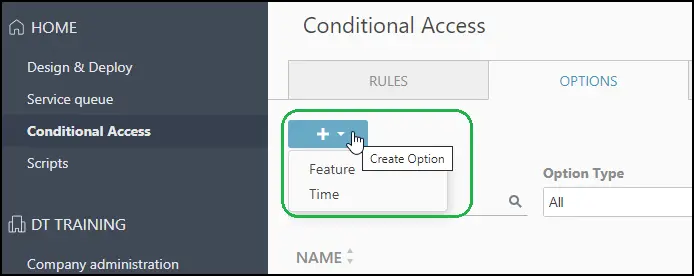
1) Navigate to Conditional Access, click the + button to create a new option and select Time.
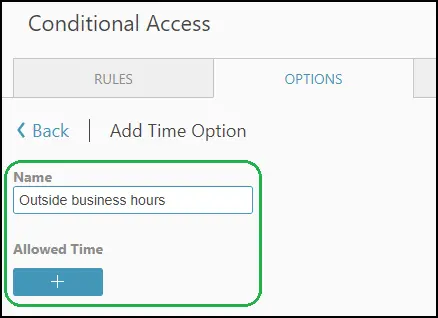
2) Enter a name and click the + button to add the first time slot.
3) Select when access should be possible and click Add.
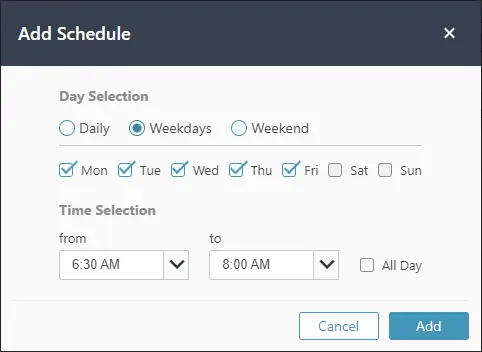
Note: You can add a maximum of 10 timeframes to one option.
In the scenario shown below, access is only allowed on weekdays outside of business hours for a few hours.
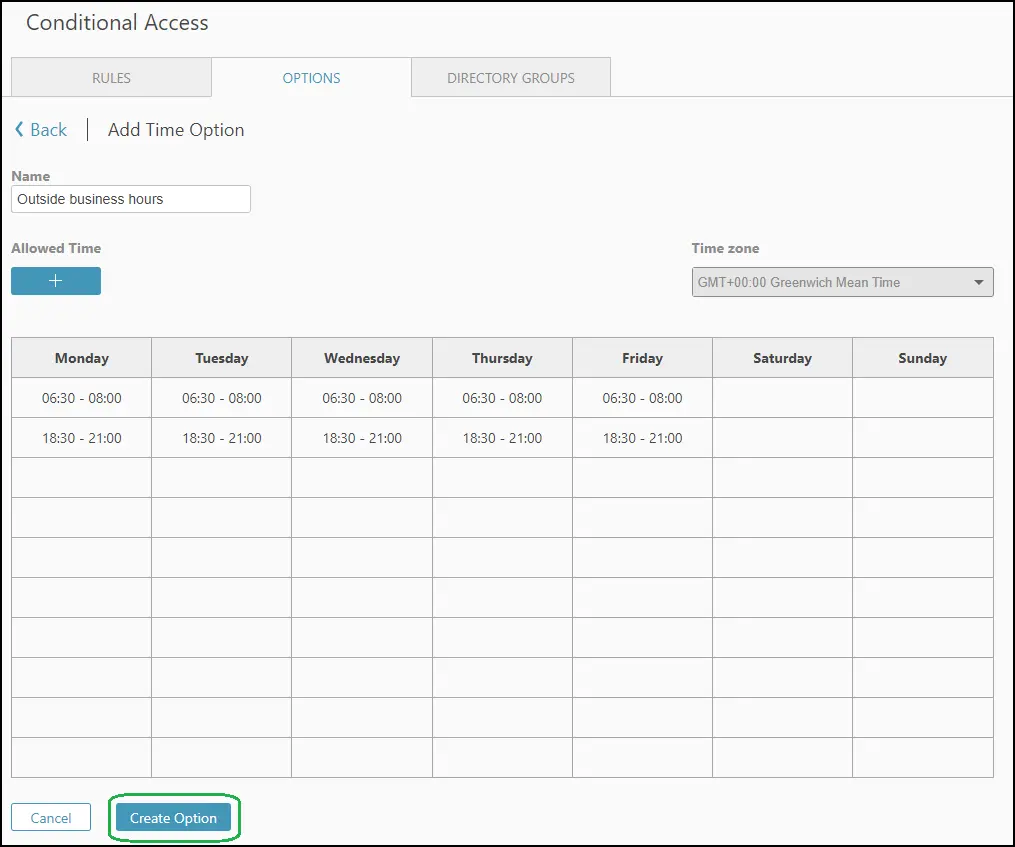
The Time zone is UTC. Changing the time zone is currently not possible.
4) Click Create Option to finish.
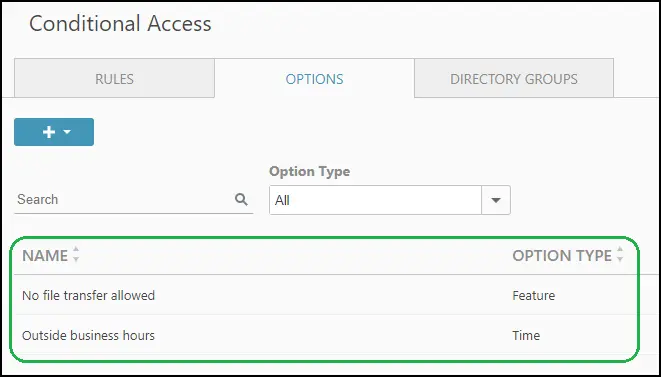
The Time option will appear in the overview of available options, as shown below:
Add options to Conditional Access rules
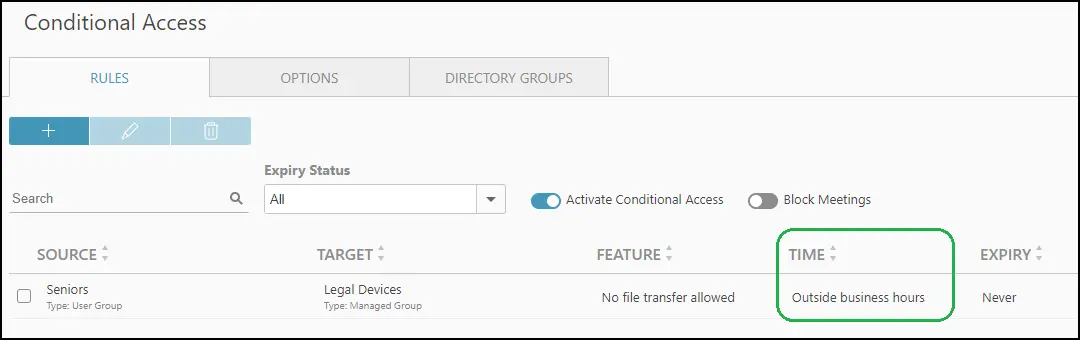
When creating a Conditional Access rule, the admin can select one of the previously created Time options from the dropdown menu.
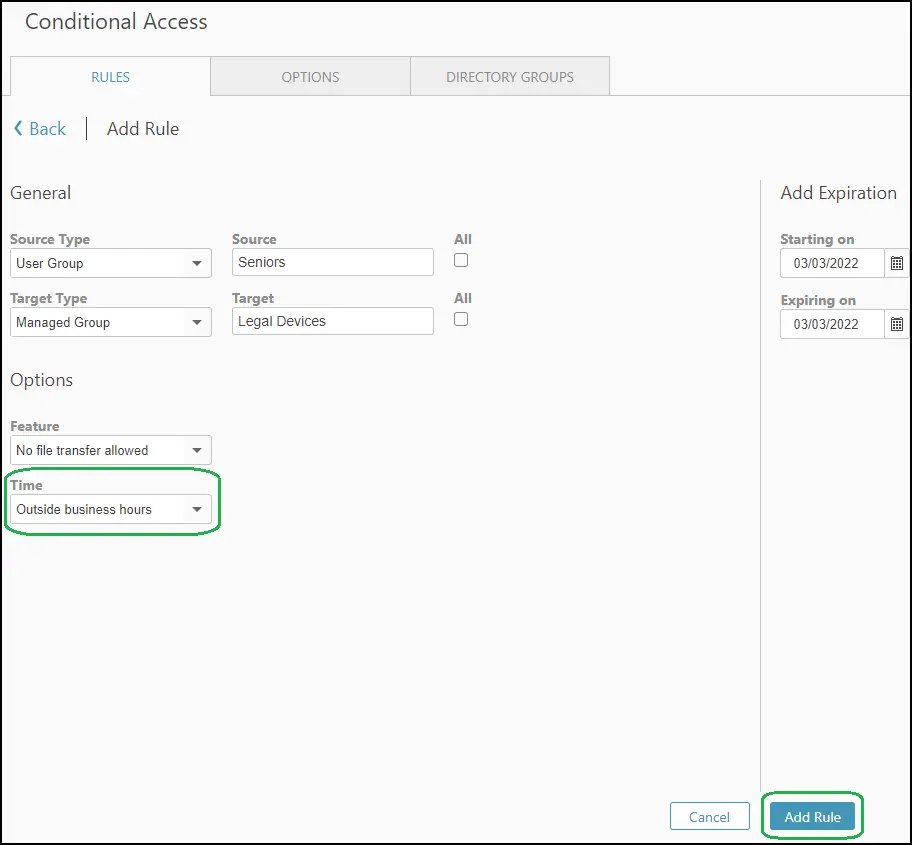
In the overview of Conditional Access rules, admins can see whether a rule has an option assigned to it.