
Knowledge Base
Customize the navigation for user groups in TeamViewer Tensor
Last Modified 4 мар. 2026 г.
TeamViewer Tensor allows administrators to tailor the navigation experience for different user groups. By customizing which menu items are shown, hidden, or reordered, admins can ensure users see only the tools they need. These settings apply consistently across platforms, whether users work on Windows, macOS, or sign in via the browser.
This article applies to all TeamViewer Tensor license holders.
Prerequisites
Before you apply customized navigation settings to user groups, ensure you have completed the following:
You have created user groups for the different roles in your organization (for example, End users, Helpdesk, Admins).
You have assigned users to their appropriate user groups.
You are familiar with which navigation items are relevant for each role.
How to customize the navigation for user groups
To customize the navigation for user groups in TeamViewer Tensor, please follow the instructions below:
1. Sign in to your TeamViewer account within the TeamViewer client or via https://web.teamviewer.com/.
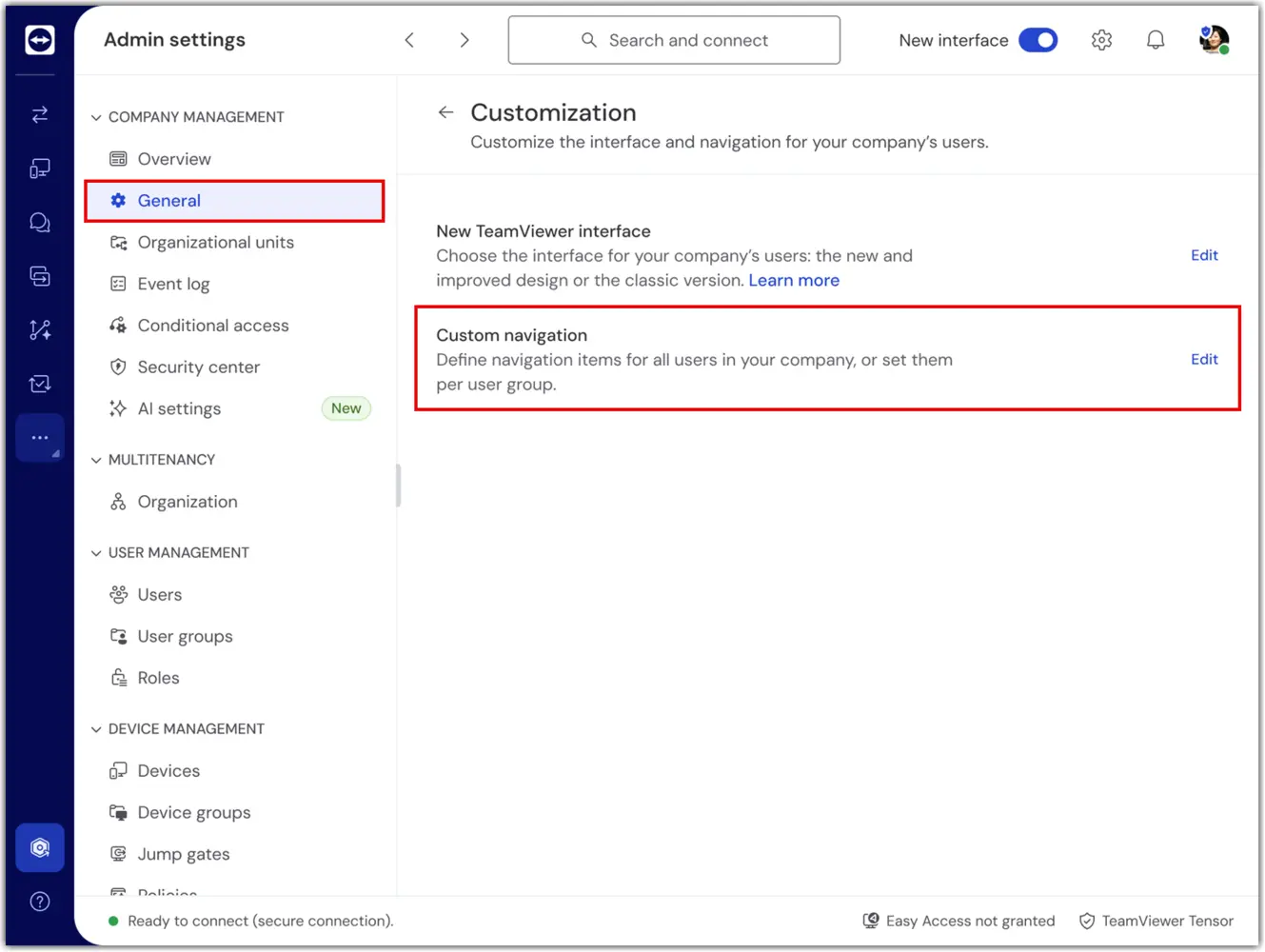
2. Go to Admin settings and within the Company management section, go to Customization and go to General.
3. In Custom navigation, click Edit.
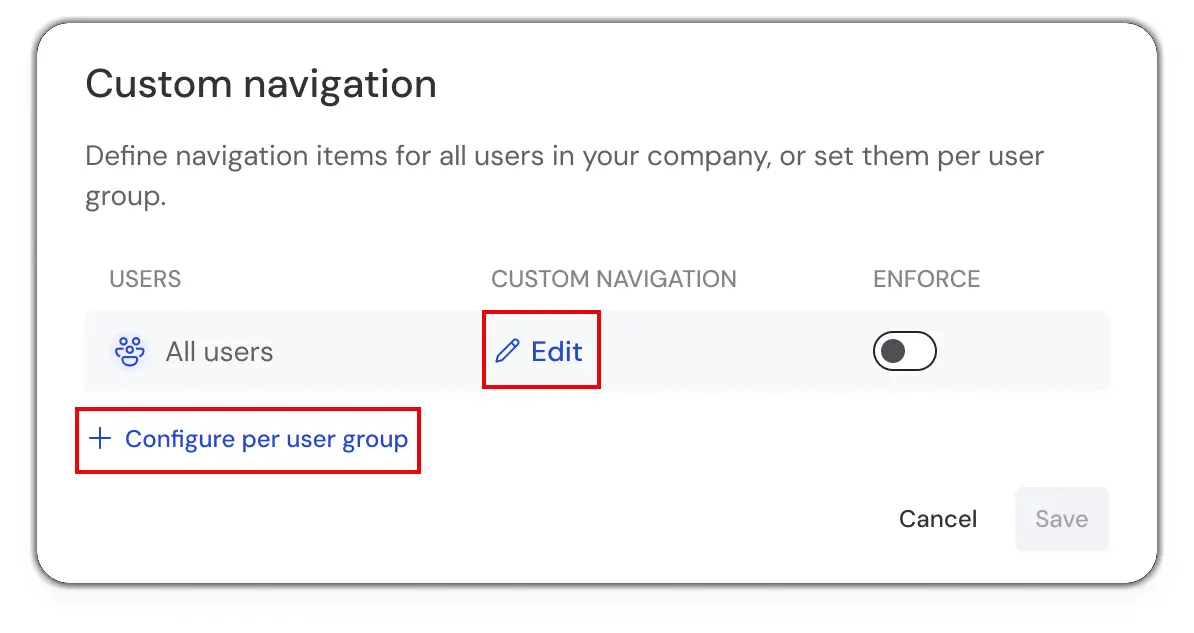
4. You can either edit the navigation for all users, by editing the group All users, or you can do this for a specific user group by clicking Configure per user group.
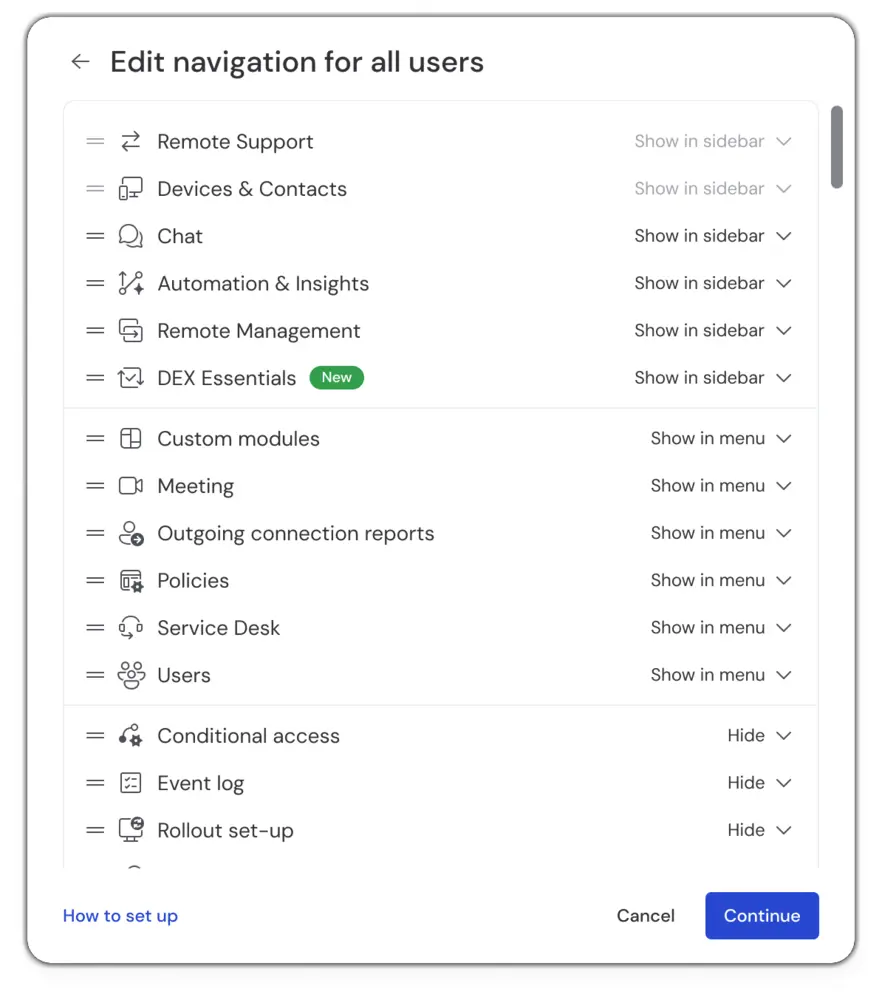
5. Configure the navigation as desired and click Continue.
6. (Optional) You can decide whether you want to enforce the setting or not and click Save.
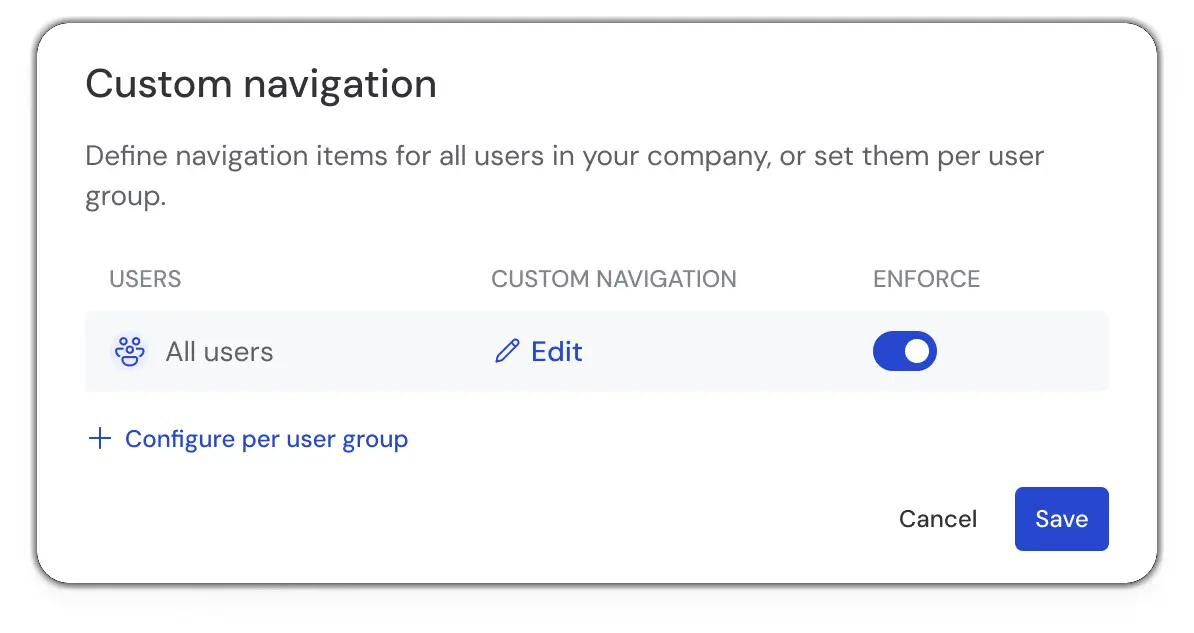
If enforced, the respective users won’t be able to change their navigation themselves.
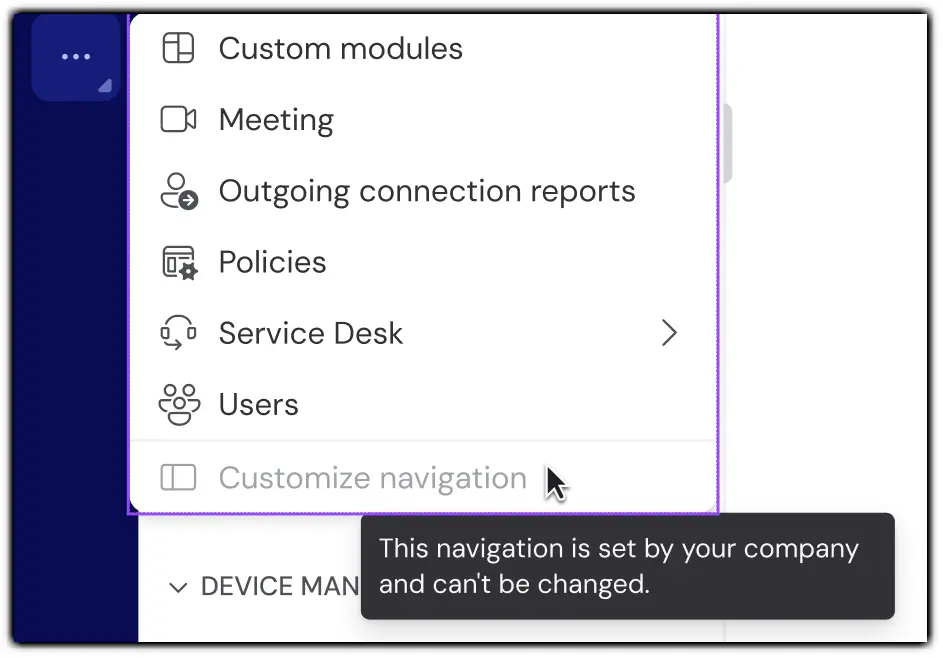
You have successfully customized the navigation for your users.
Note: If the admin sets a custom navigation without enforcing it, each user’s own custom navigation stays active. If the admin enforces the custom navigation, it overrides any navigation settings individual users have set.
Common customization scenarios
Below are recommended navigation configurations for common user roles in TeamViewer environments:
End-users (receiving support only)
Show in sidebar:
Remote Support
Hide:
All other navigation items
This configuration ensures end-users only see the Remote Support feature, allowing them, if needed, to share their ID and password to receive support without being distracted by other features.
Helpdesk supporters (providing support)
Show in sidebar:
Remote Support
Devices
Service Desk
Show in menu or Hide:
All other navigation items are based on your organization's needs.
This configuration gives helpdesk agents access to the tools they need to provide efficient support, manage devices, and track session activity.
Administrators (full access)
Show in sidebar:
All navigation items.
Administrators typically need access to all features, including admin settings, users, policies, and outgoing connections reports for complete system oversight.