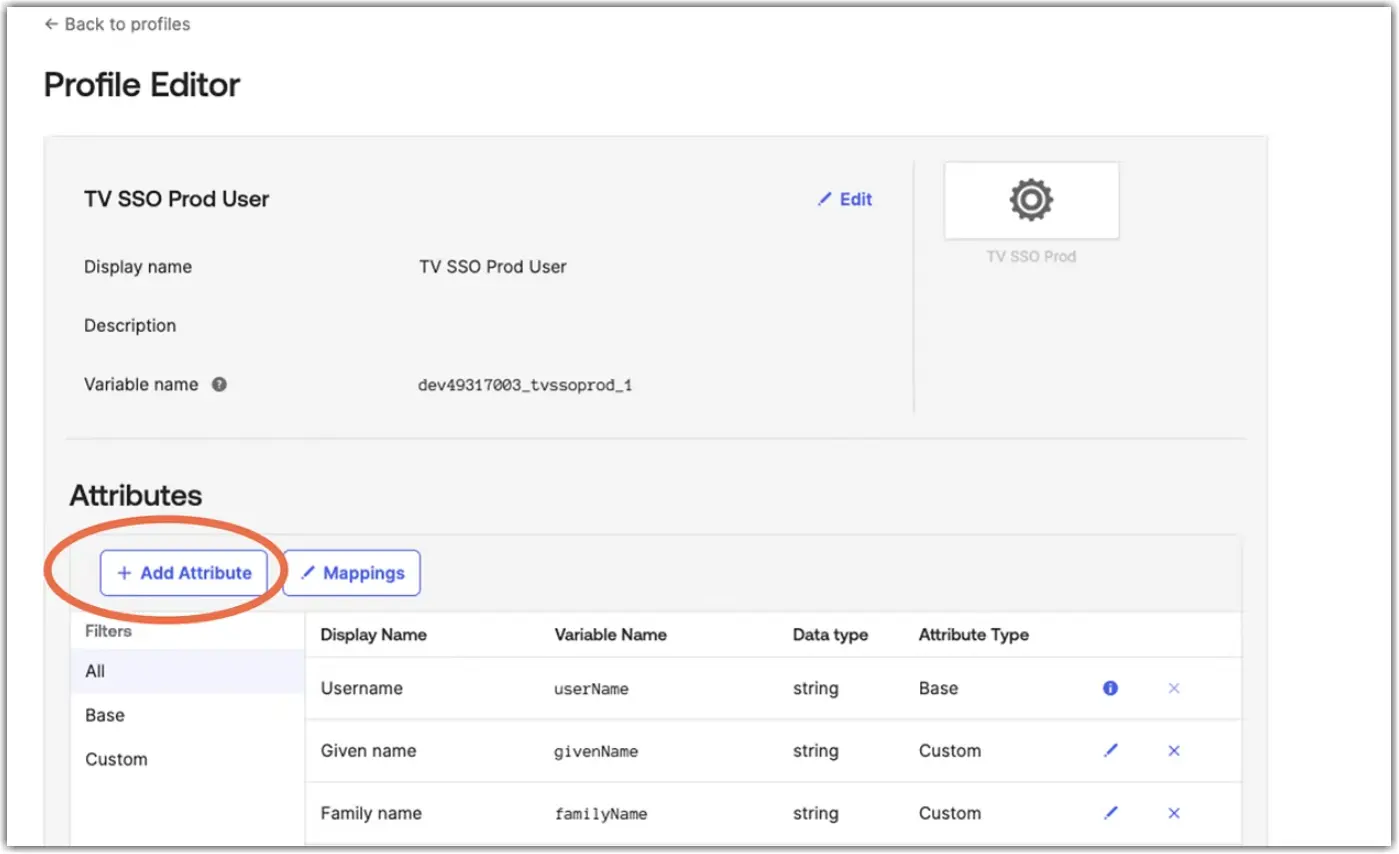
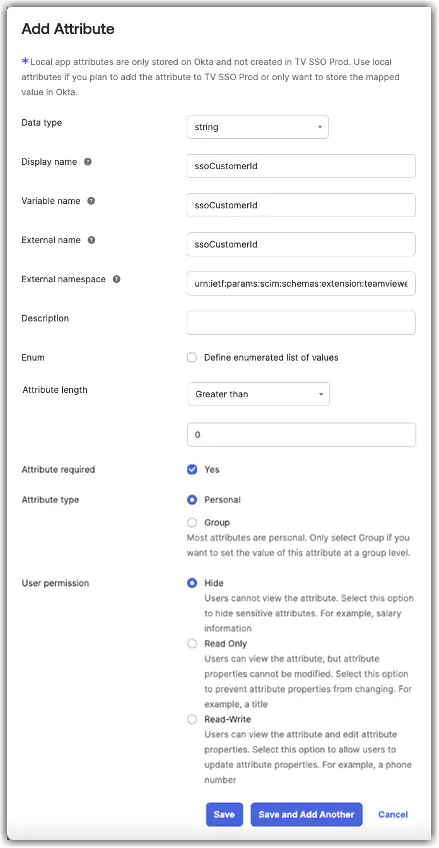
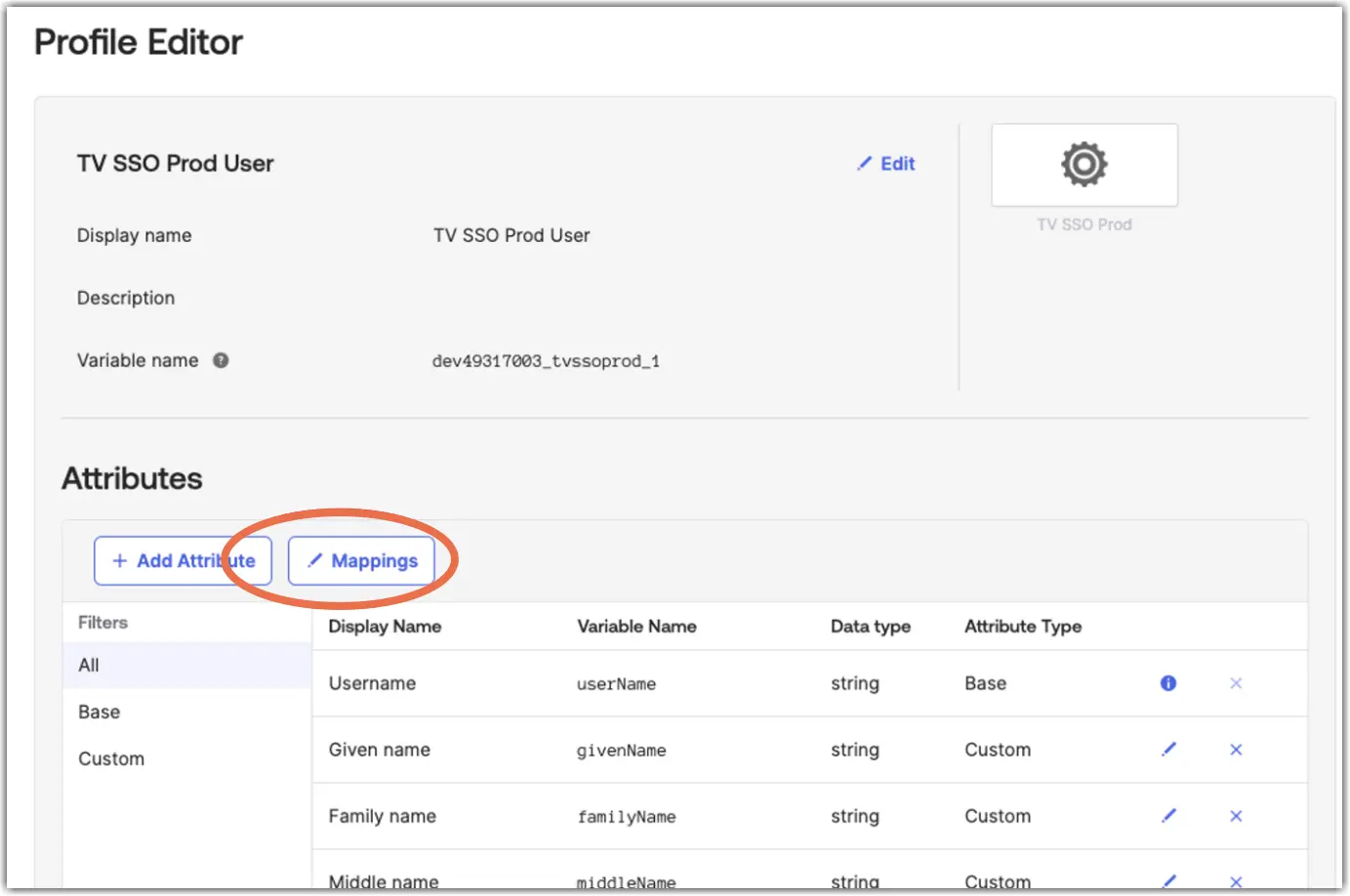
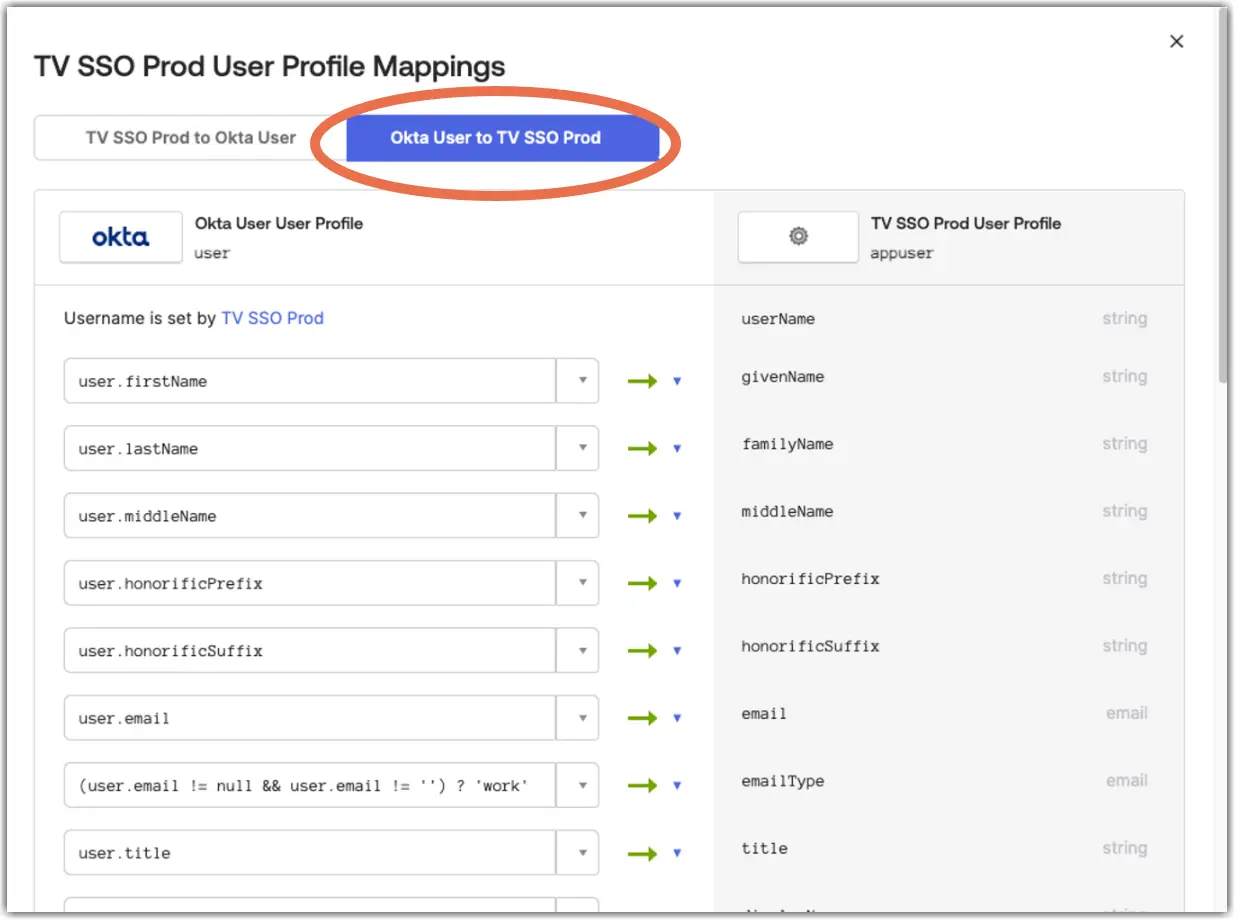
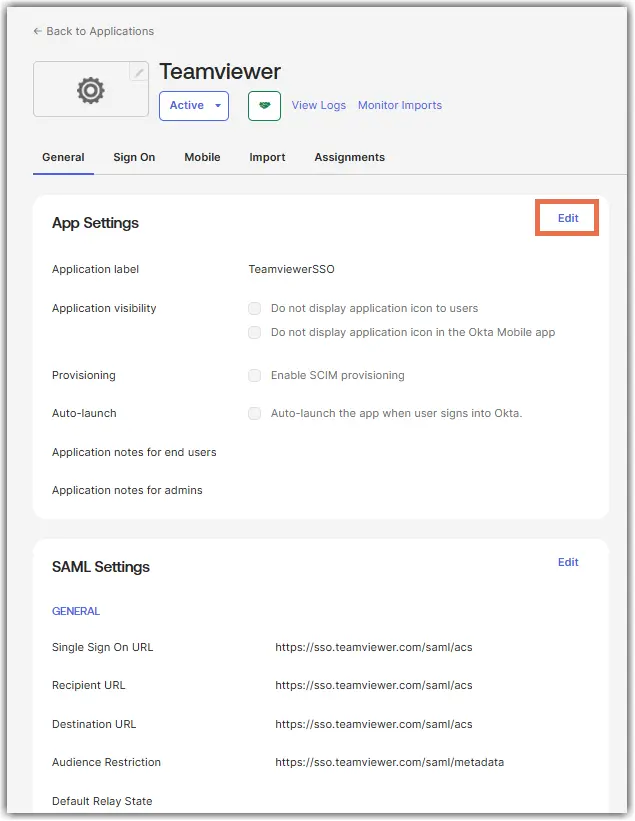
1. Open your OKTA app.
2. Go to the General tab.
3. Click to Edit the App Settings.
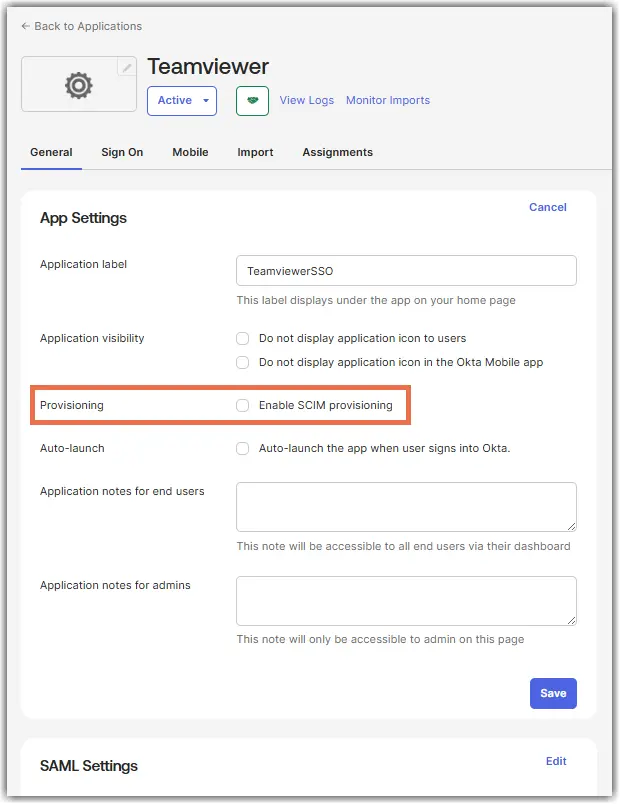
4. Enable SCIM next to the Provisioning section, then click Save.
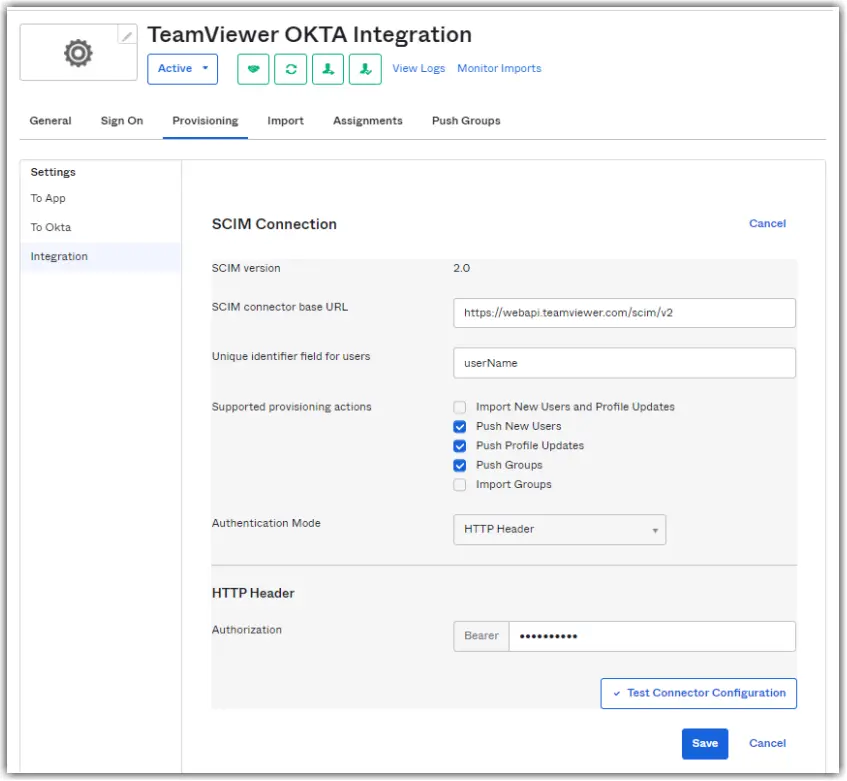
5. On the Provisioning tab, select Edit, and enter the following information into the fields:
| Fields | Information to be entered |
|---|---|
SCIM connector base URL | |
Unique identifier field for users | userName |
6. Select Push New Users, Push Profile Updates, and Push Groups.
7. Change Authentication Mode to HTTP Header.
8. Enter your SCRIPT Token you created above in the TeamViewer Management Console next to Authorization.
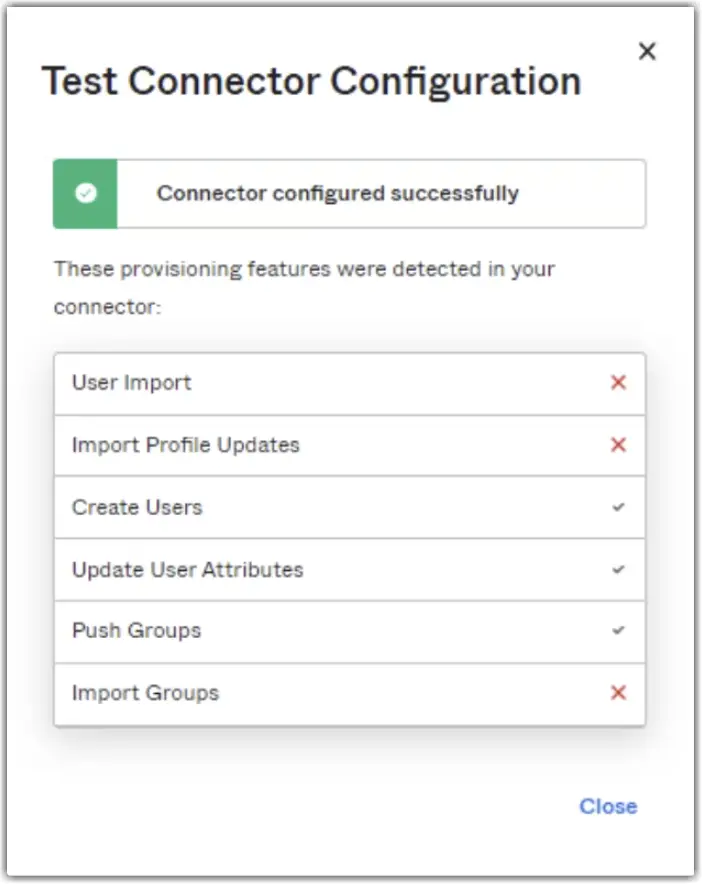
9. Once complete, you can click on Test Connector Configuration, then click Save.
Your completed config should look like this:
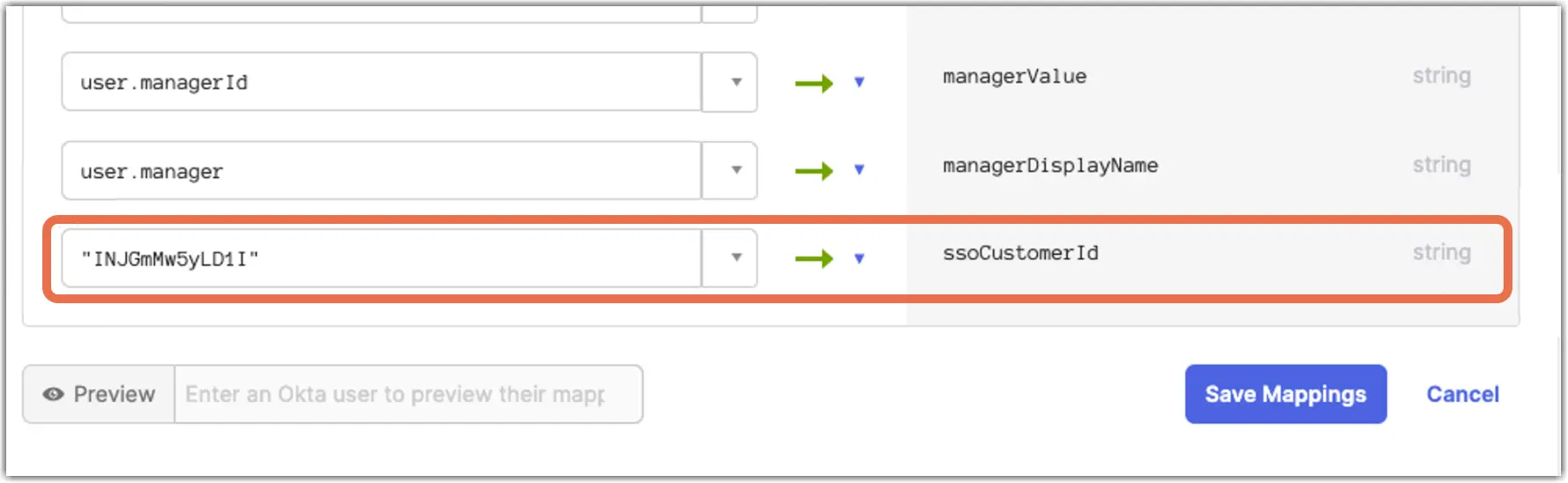
10. Edit your Provisioning again and tick the Create Users, Update User Attributes, Deactivate Users, and Sync Password checkbox, then click Save.