Trustpilot logo
118,115 отзывов
G2 logo
3,649 отзывов
TrustRadius logo
2,714 отзывов
Capterra logo
11,513 отзывов

TeamViewer Remote

Remote access software for every workplace

Supporting distributed teams done efficiently. TeamViewer’s software provides secure, instant access to employee devices across your business, letting your IT team solve problems and provide support from anywhere.

A complete remote access solution

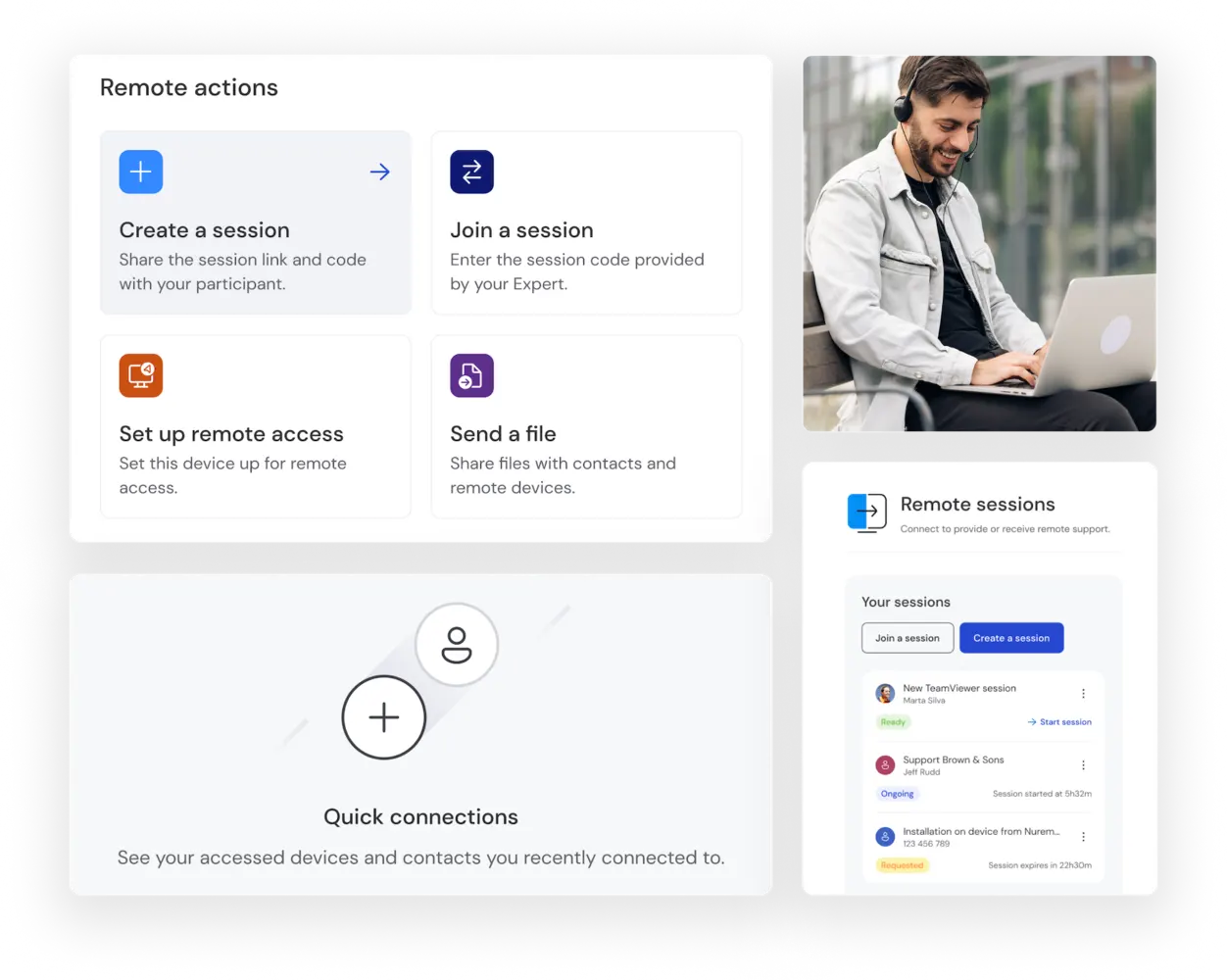
TeamViewer is designed for a variety of use cases, including IT support, remote work, customer service, and embedded device management. Whether you're troubleshooting technical issues or managing business operations remotely, our software provides a seamless and secure connection.
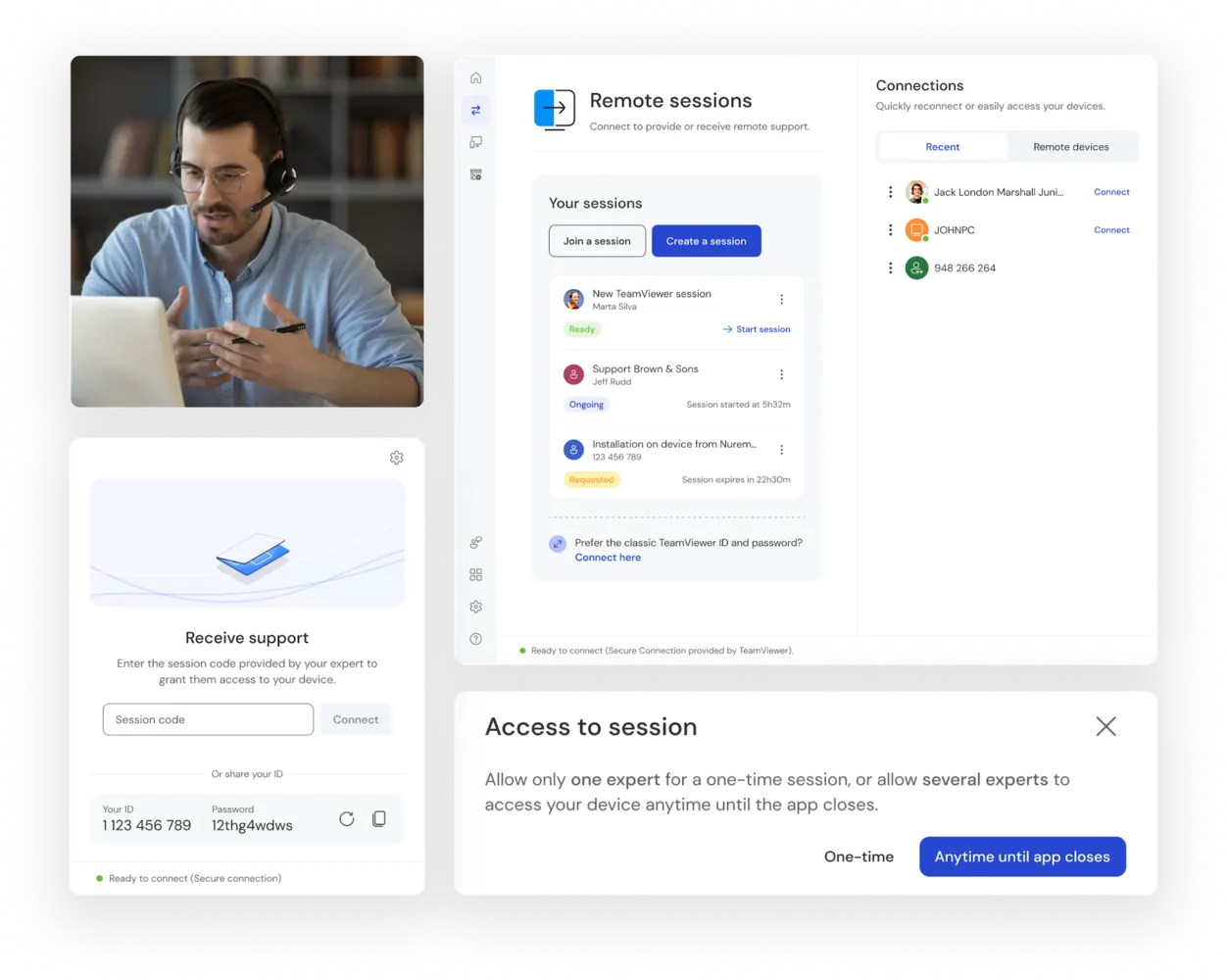
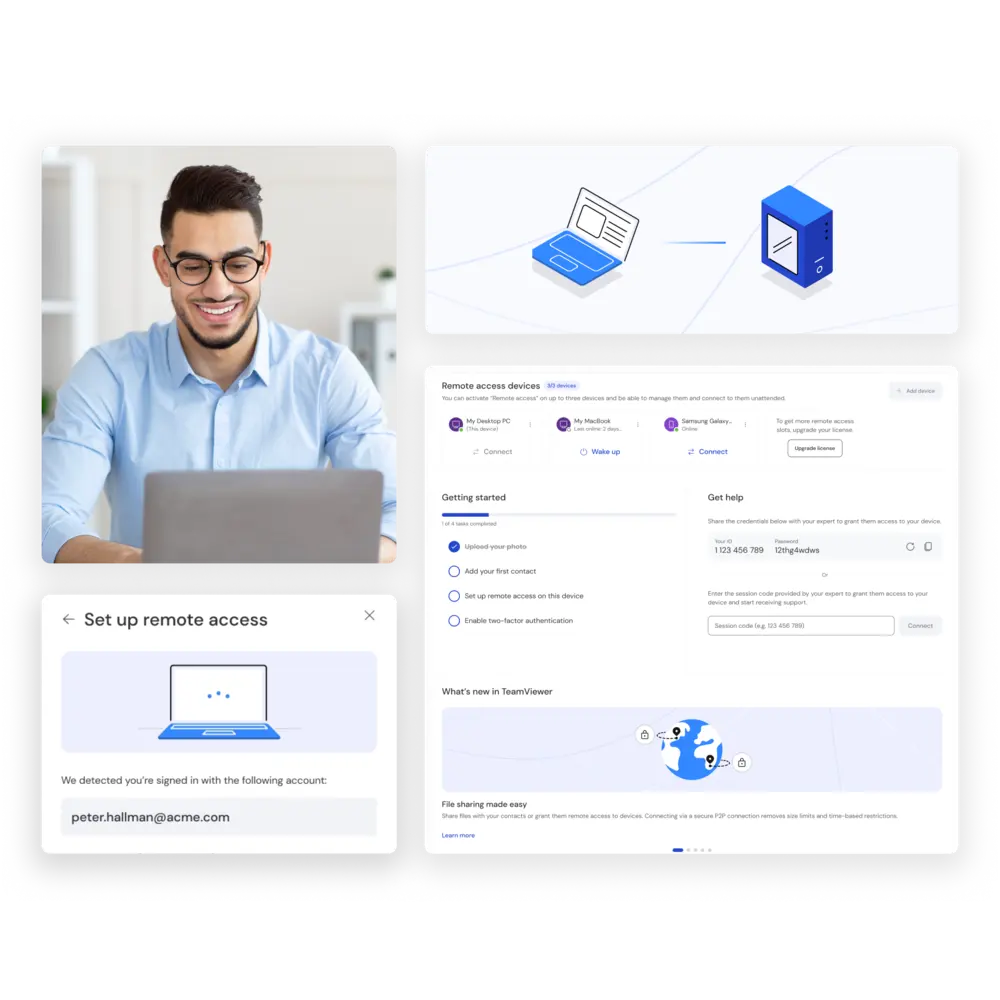
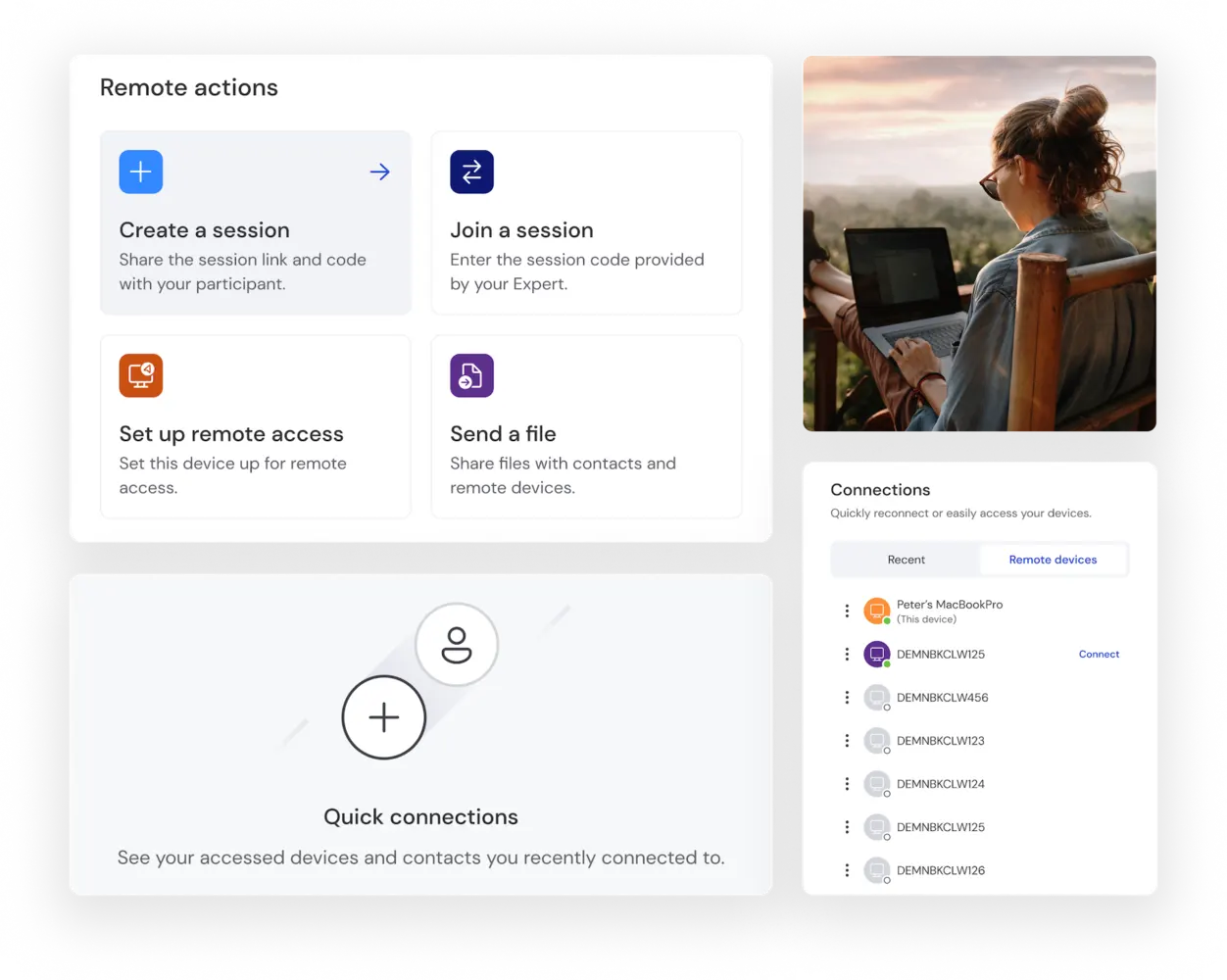
Remote access features and functionalities in the TeamViewer client

Cross-platform compatibility

Deliver a fast, effective fix for IT service issues without having to leave your desk.

TeamViewer enables secure access across all major operating systems, including Windows, Mac, Linux, iOS, and Android. With full cross-platform connections, you can work from any device, ensuring productivity remains uninterrupted.

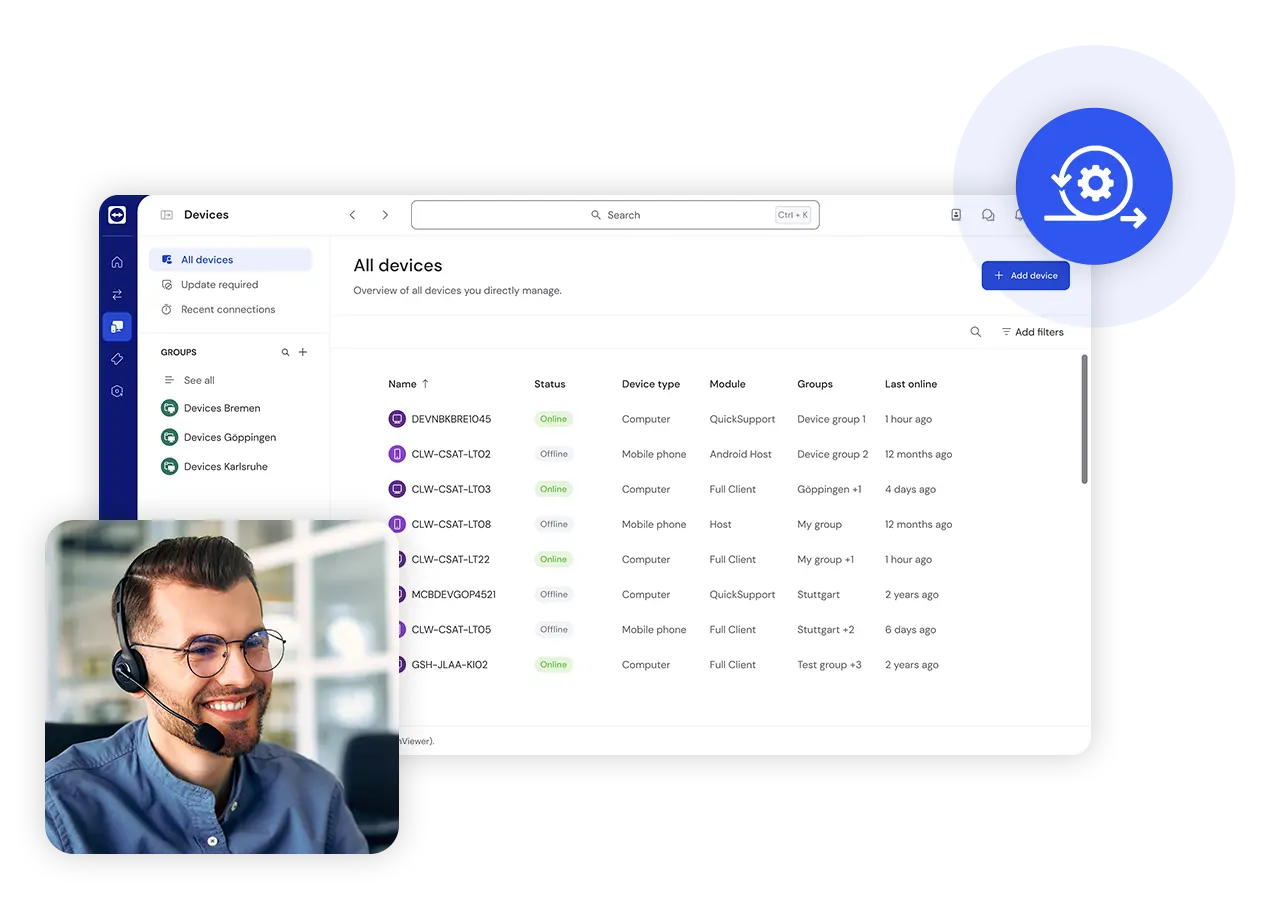
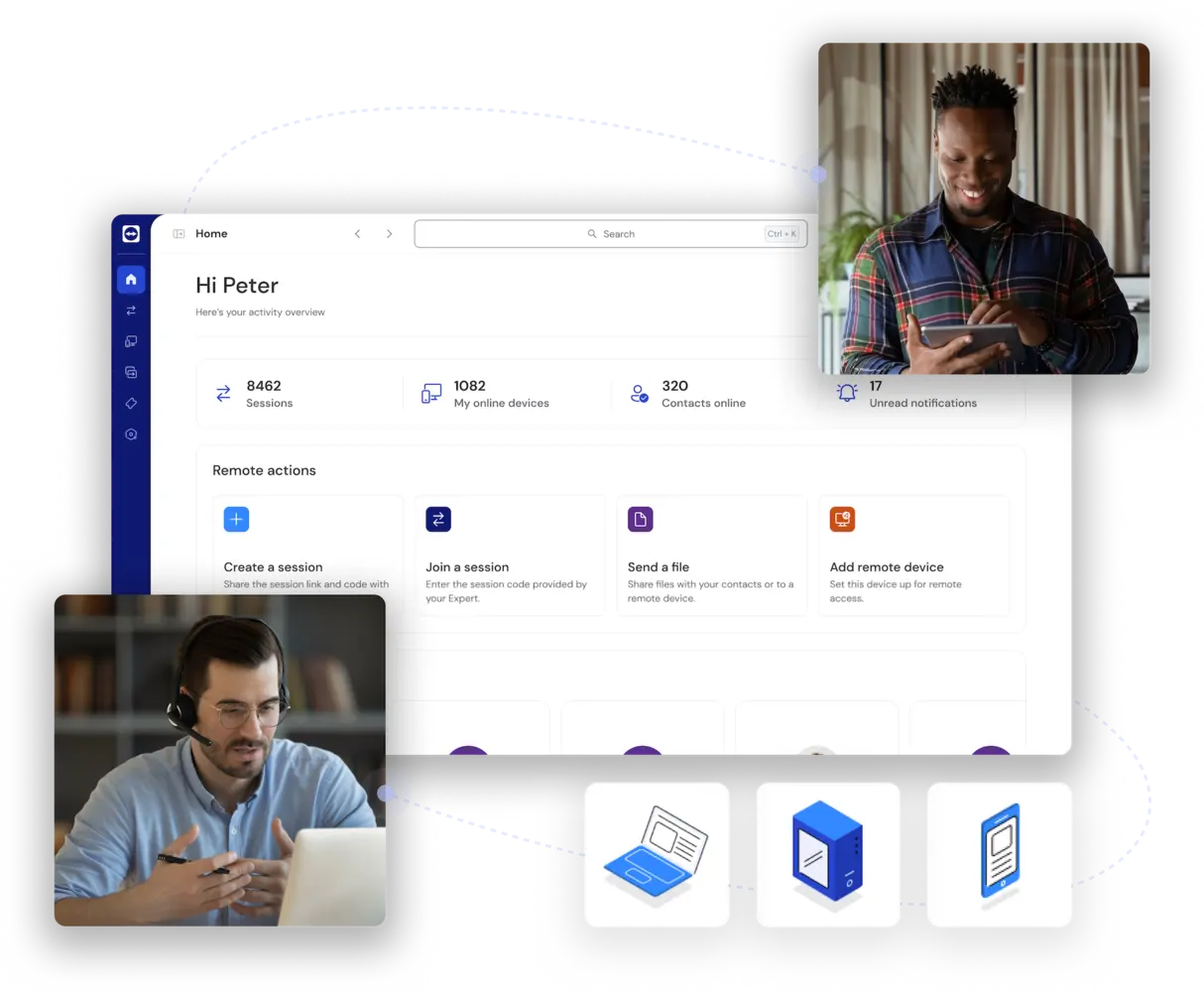
Remote support features and functionalities in the TeamViewer client

System deployment in minutes

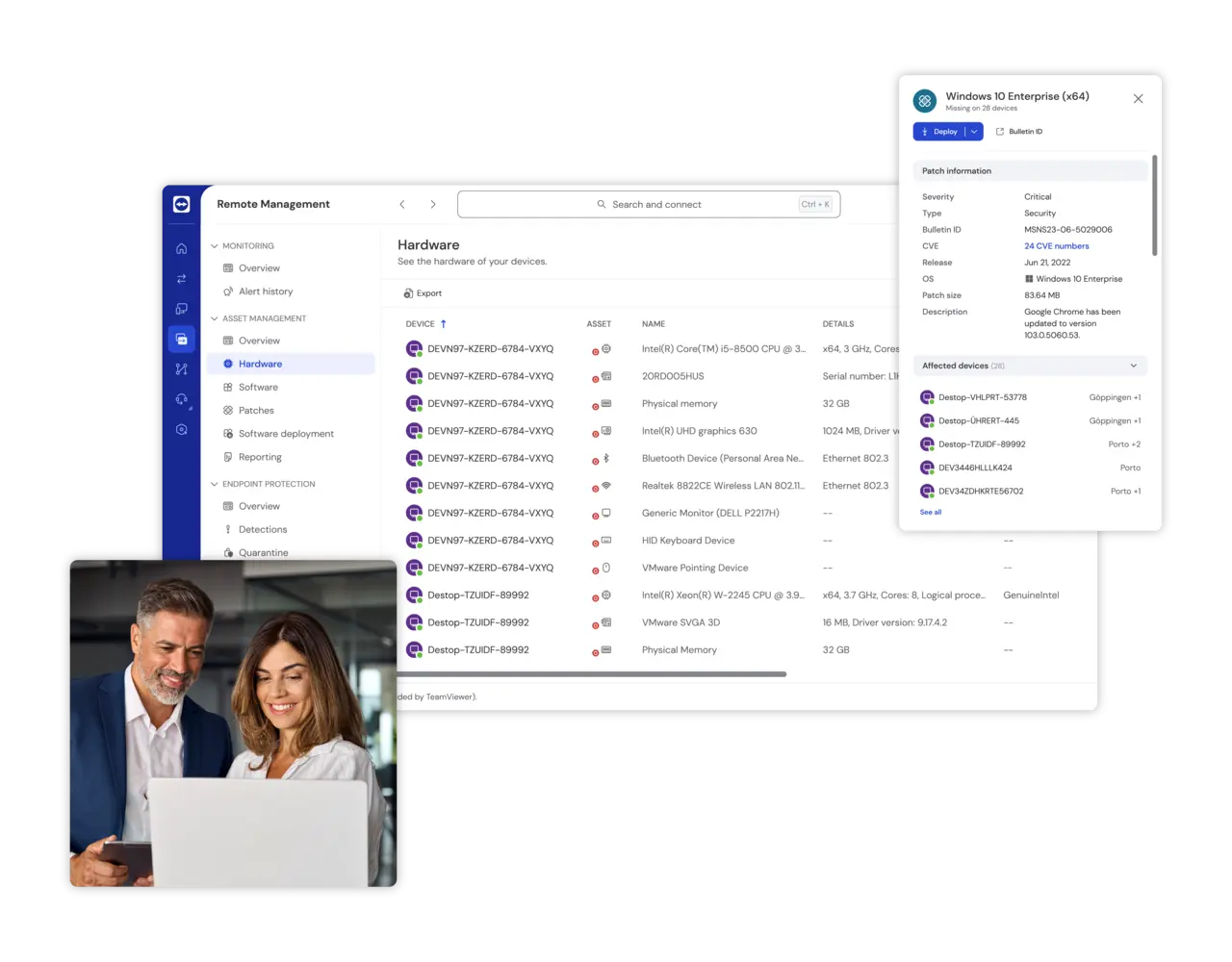
TeamViewer Remote offers a simple, efficient way to monitor, maintain, update, and optimize delocalized computers, devices, and applications. Deploy TeamViewer’s software for remote access across hundreds or thousands of devices simultaneously.

With centralized installation, IT teams can save time and effort while ensuring consistent access across their organization.

Hardware management as seen in TeamViewer client

Premium-grade security

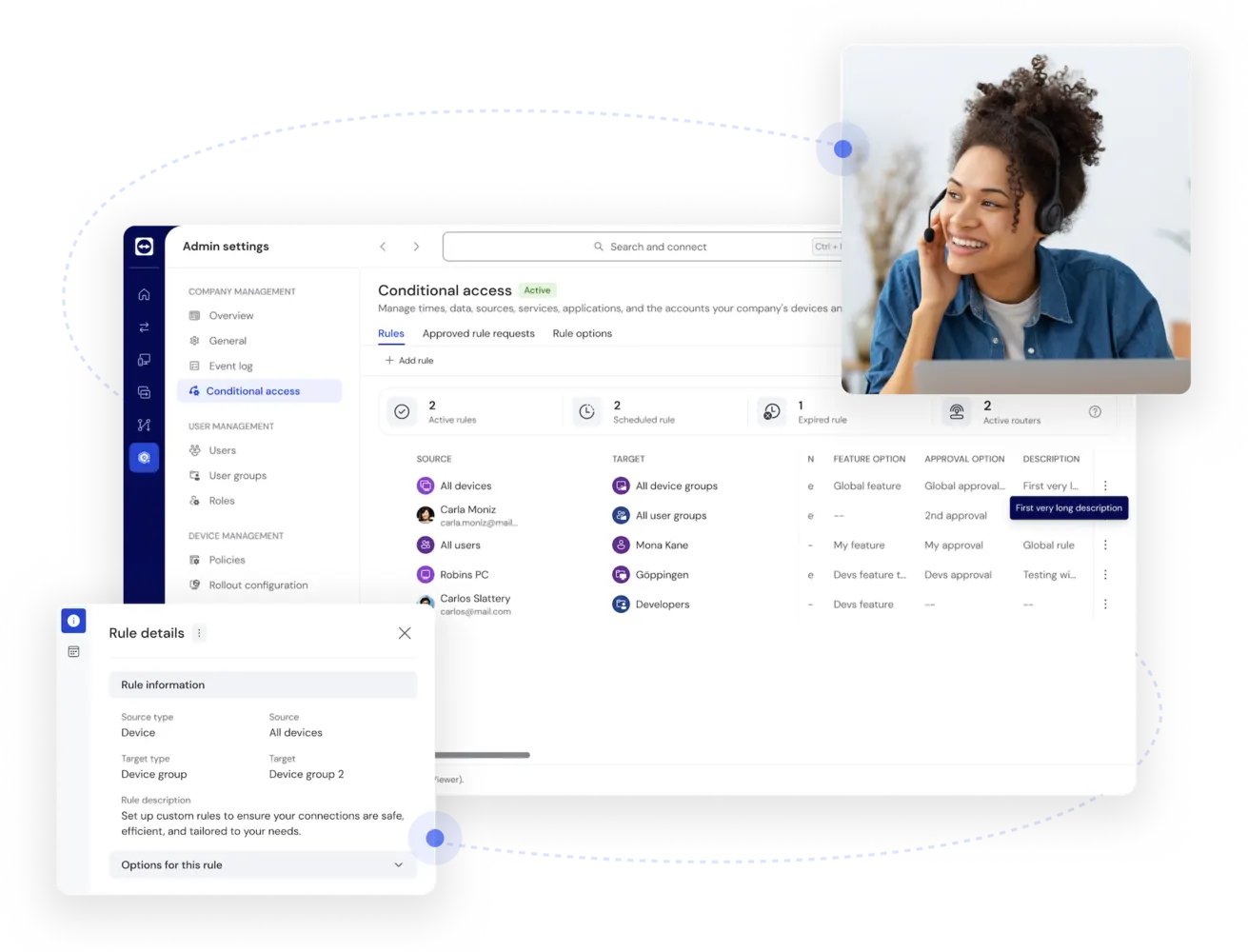
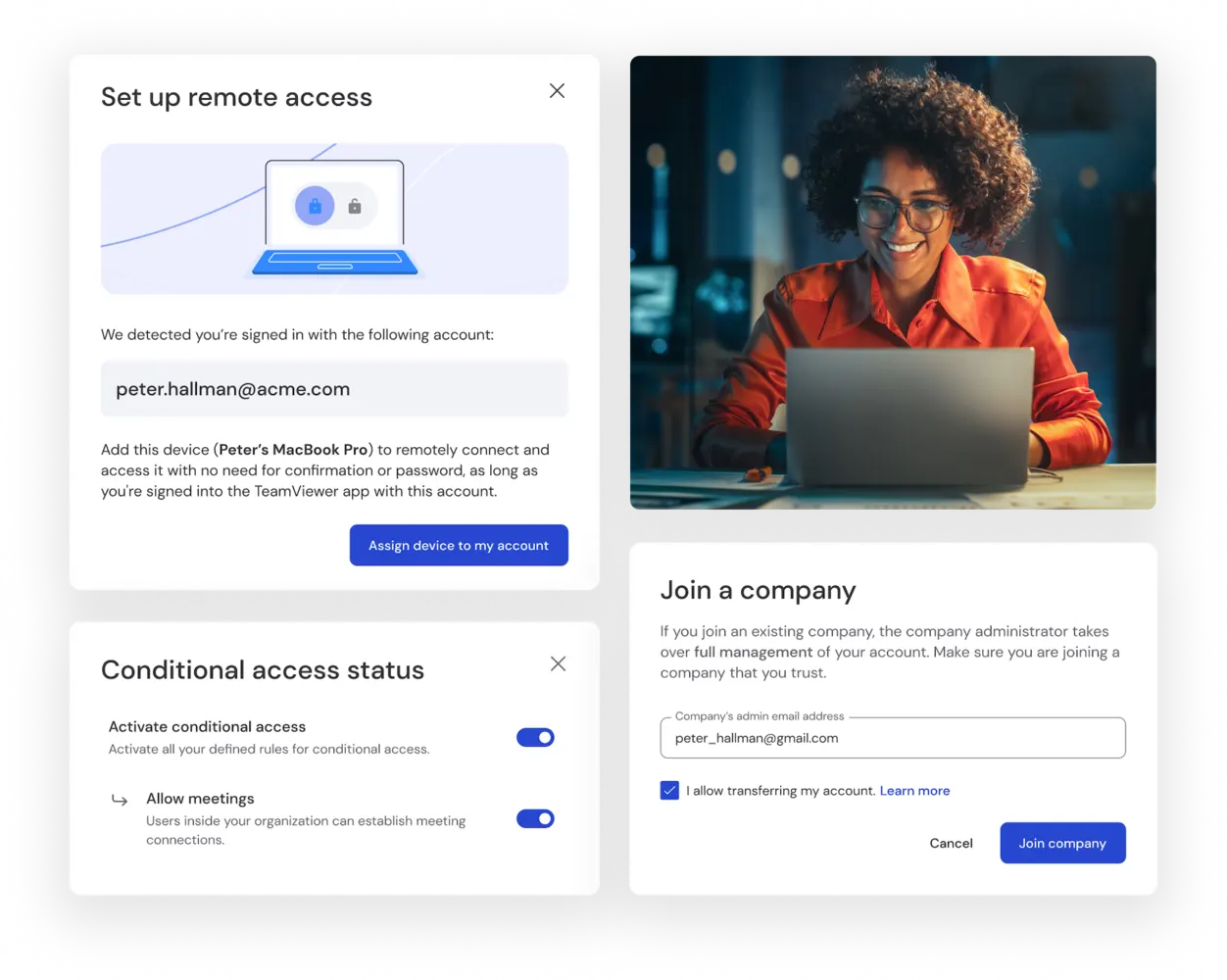
Manage access rights across your company with conditional access settings (requires a Tensor license). Define permissions and ensure only authorized users can establish remote connections, enhancing security for businesses of all sizes.

Conditional access and role details as seen in the TeamViewer client

Wake-on-LAN functionality

Remotely wake up and restart devices in sleep mode to keep operations running smoothly.

With Wake-on-LAN, you can ensure devices are accessible whenever needed, even if they're powered off.

Wake-on-LAN functionality seen in the TeamViewer client

Integrations with all your favorite tools

Enhance your workflow by integrating TeamViewer with key business tools, including CRM, IT service management, and productivity platforms.

Streamline remote support while maintaining compatibility with your existing software ecosystem.

Service integration and ITOM

AI-powered support and automation

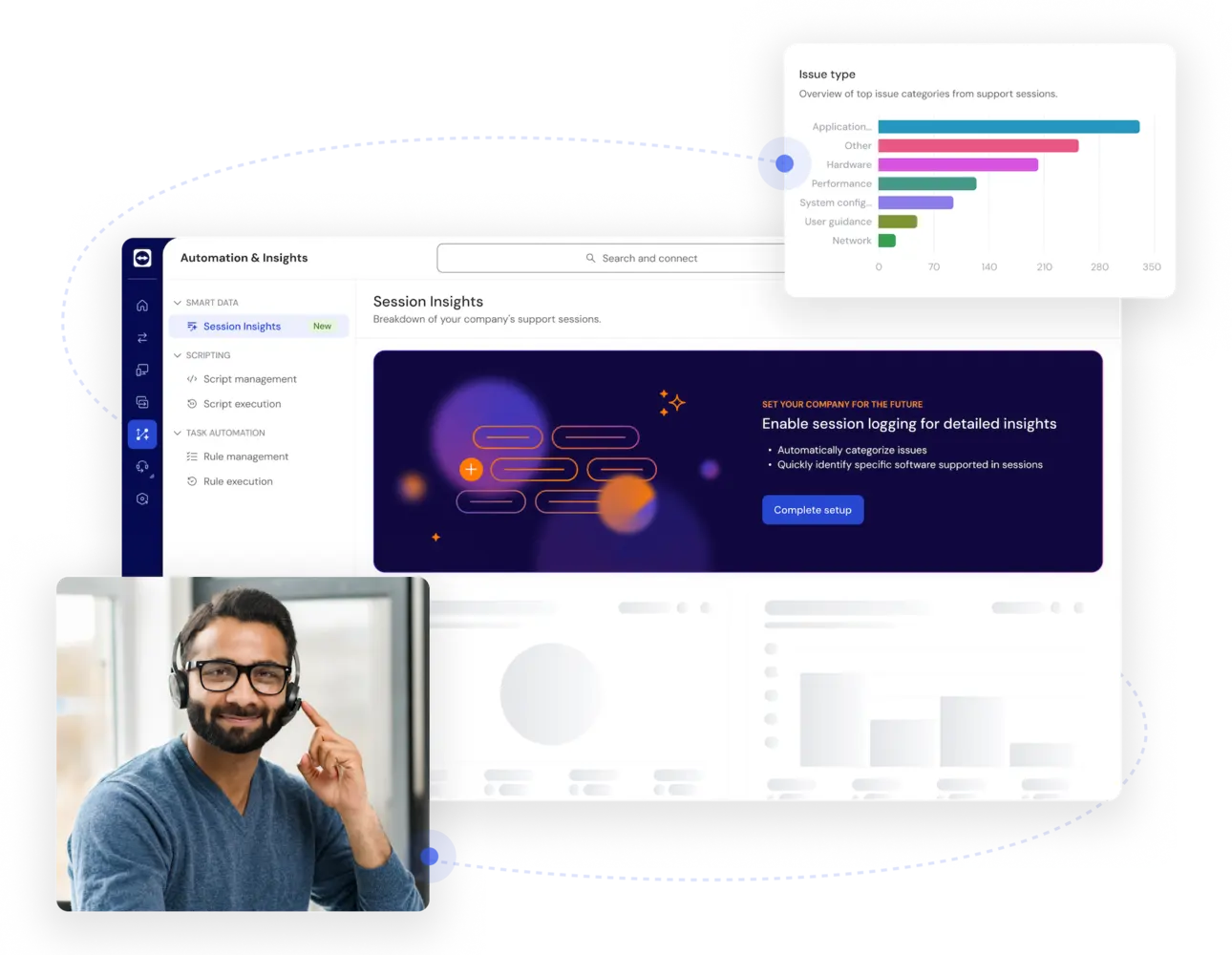
Leverage smart assistance and actionable insights with TeamViewer AI, combining Tia and Session Insights.

Reduce manual effort, resolve issues faster, optimize IT workflows, and keep your workforce productive with AI-driven recommendations and analytics.

Setup of Automation and Insights as seen in the TeamViewer client

Why choose TeamViewer’s remote access software?

Video security icon
Enterprise-grade security

TeamViewer is built for secure remote access. Your data is safeguarded with market-leading security features, including end-to-end encryption, multi-factor authentication, and advanced access controls.

Connected device complexity icon
Device coverage

Access a wide range of devices, from desktops and servers to mobile phones and industrial machines, ensuring seamless connectivity across your entire digital infrastructure.

Puzzle piece icon
Scalability

Whether you're an individual user or managing a global enterprise, TeamViewer scales to meet your needs. Deploy remote desktop software for small teams or thousands of employees with ease.

Wand icon
Simplicity

User-friendly and intuitive, TeamViewer requires minimal setup and training. Connect instantly with just a few clicks, without the need for complex configurations.

Integration icon
Integrations

Integrate TeamViewer with leading business applications to improve efficiency and streamline workflows, making remote support a seamless part of your daily operations.

Ai assistant icon
Built-in AI capabilities

Enhance your remote access with powerful features from TeamViewer AI. Resolve issues faster and boost IT efficiency through real-time remote control, AI-assisted troubleshooting, and automated session summaries.

Free remote access with TeamViewer

TeamViewer's remote access software is free for personal, non-commercial use. Use it to help family with tech issues, access files on your home computer while traveling, or stay connected to personal devices across Windows, macOS, Linux, Android, iOS, Raspberry Pi, and more.

Using TeamViewer for work? Business plans add scalable unattended access, user management, and enterprise-grade security and control features. Get started with a free trial.

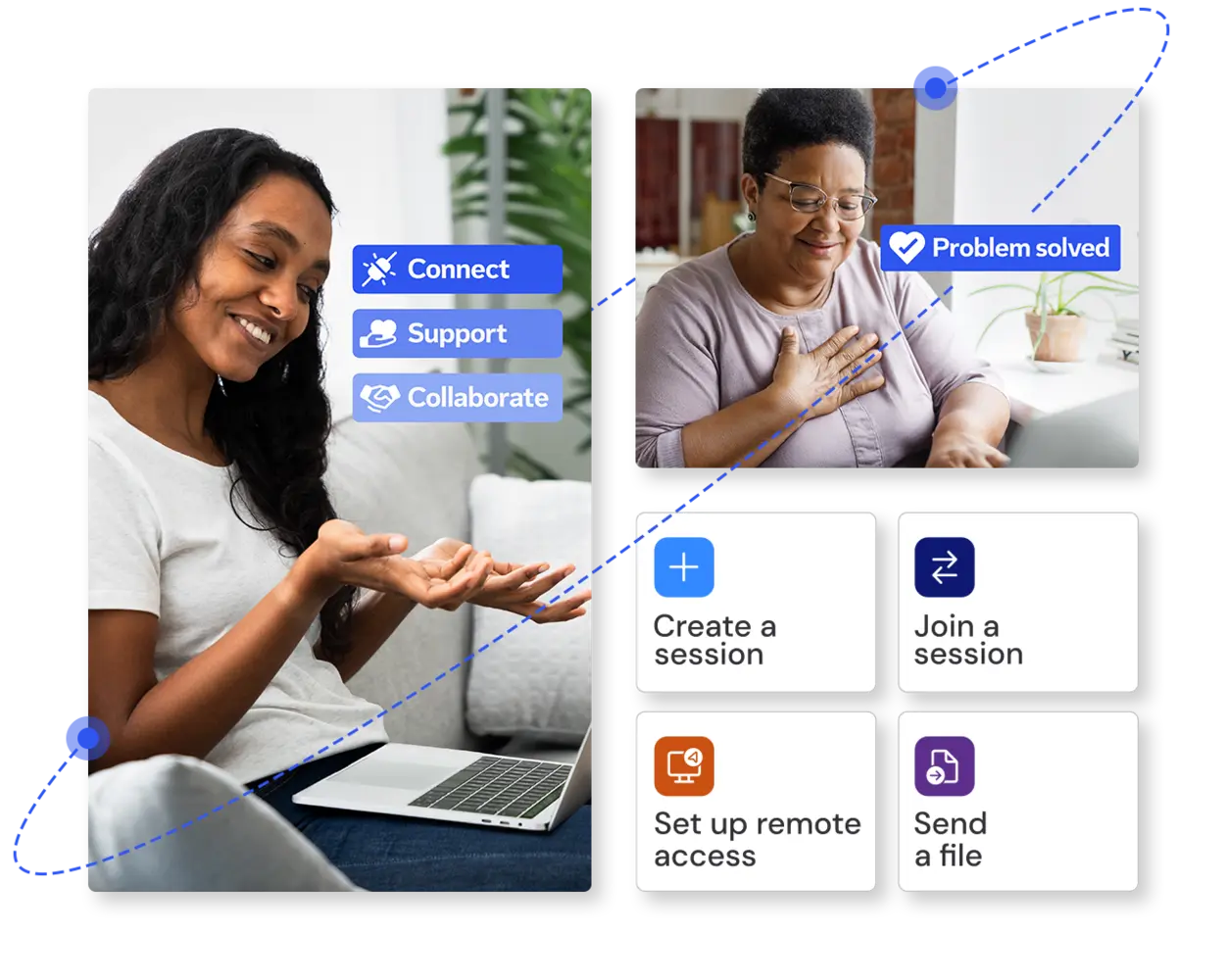
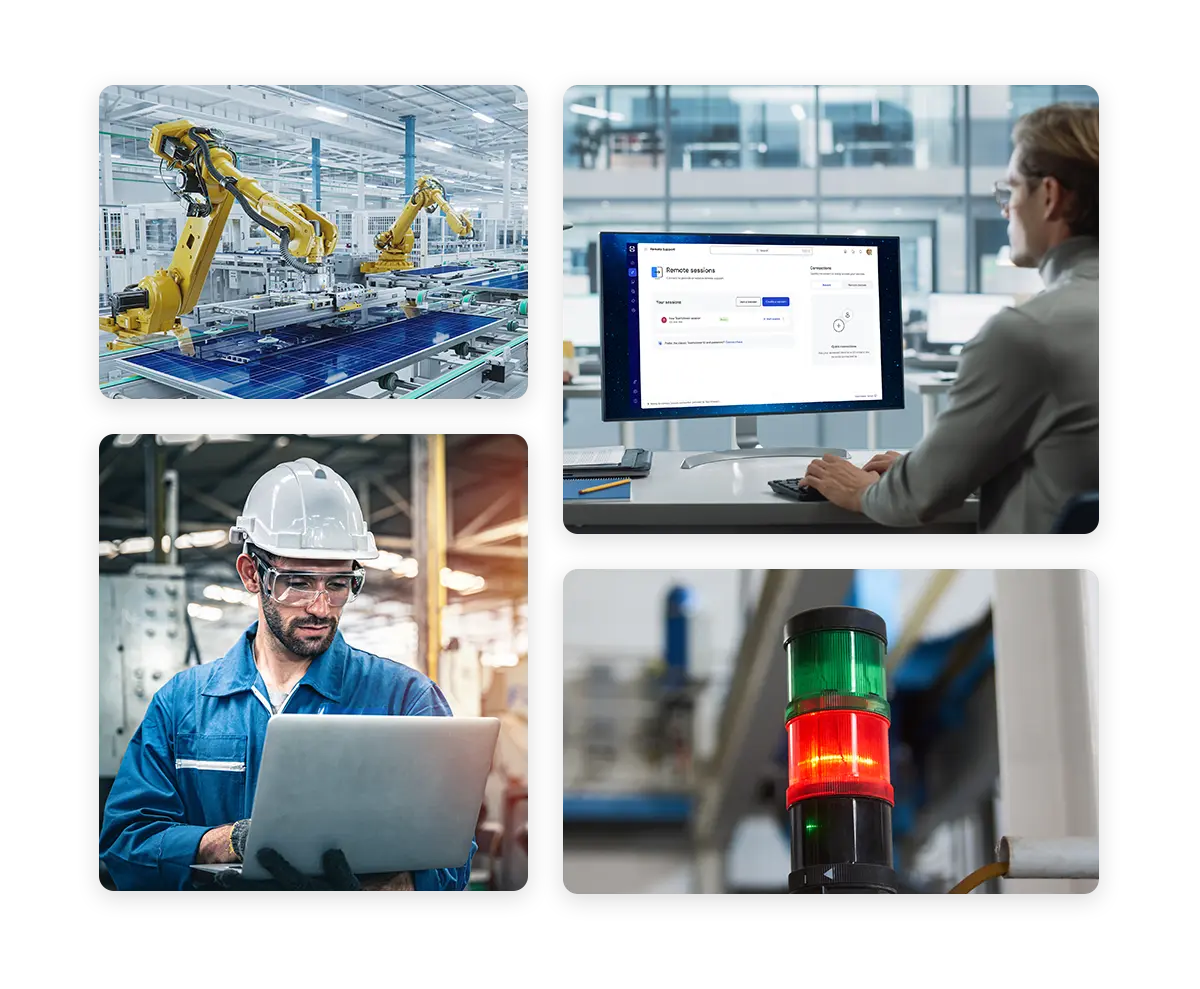
Remote work features as seen in the TeamViewer Remote client

Find the license that’s right for you

Choose if you need TeamViewer for yourself or your team.

Программное обеспечение для обычных пользователей и компаний, отмеченное множеством наград

G2 Award: Leader
G2 Award: Momentum Leader
G2 Award: Fastest Implementation, Mid-Market (MDM, SAP Store)
G2 Award: Best Meets Requirements, Enterprise (SAP Store)
G2 Award: Top 50 IT Infrastructure Products
G2 Award: Users Love Us

How to set up remote access

Support any operating system and device. And with the full-featured TeamViewer Remote web app, you can access all your devices from any browser.

Windows, Mac, and Chrome

To provide support, access TeamViewer directly through any browser without downloading the software to your device.


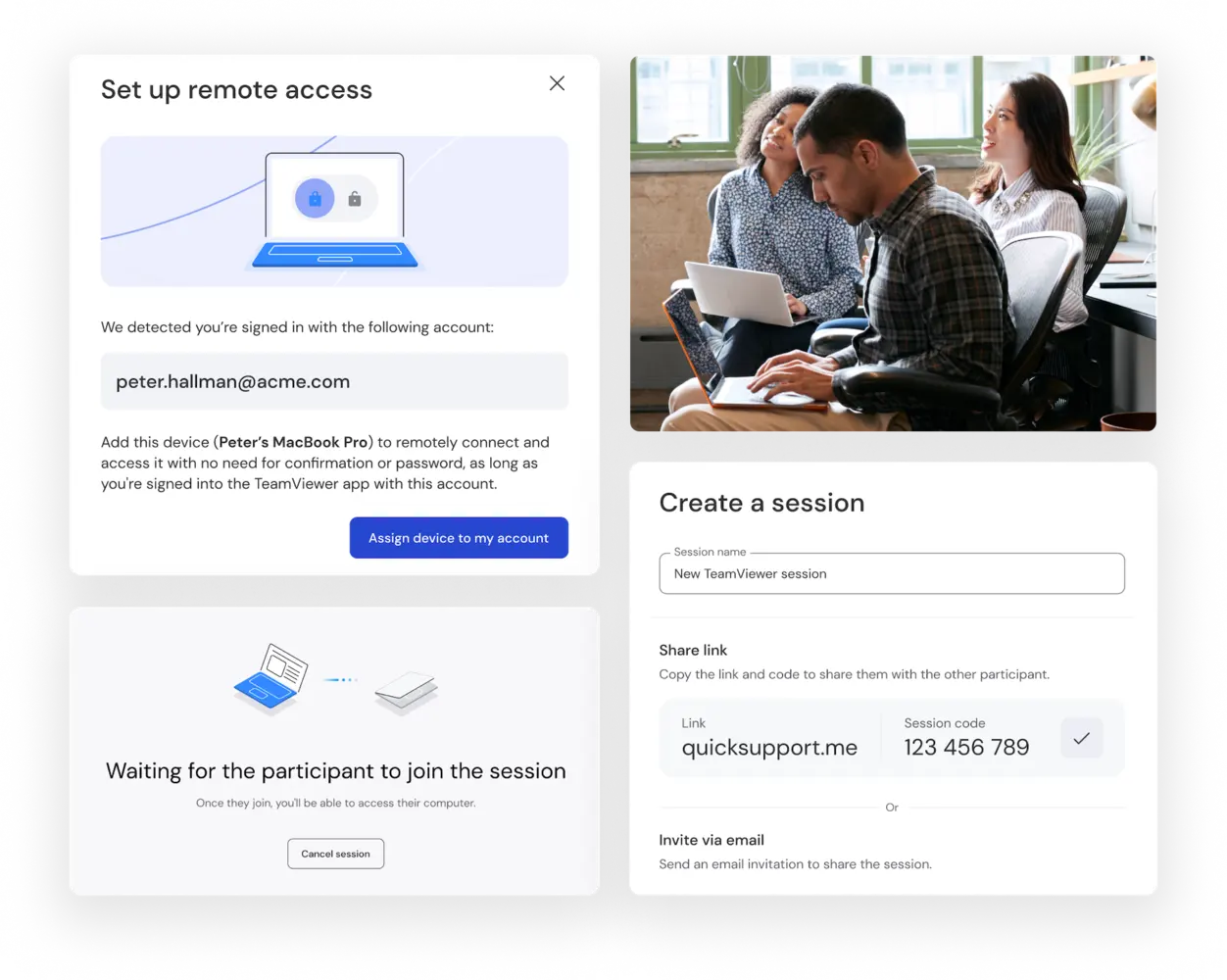
  1. Navigate to web.teamviewer.com in your browser on the outgoing device and sign in to your TeamViewer account. 
  2. Create and share a remote session with the participant. Alternatively, enter the participant's partner ID to access their device remotely.
  3. On the incoming device, open the TeamViewer client and accept the invitation to join the session.
  4. Start the session on your remote device to connect and control the incoming device as though it were physically in front of you.


To receive support, download the TeamViewer client and share the ID assigned to you with the supporter. You can only join sessions via the client.

Android and iOS

Connect to and remotely access mobile devices from another mobile or a desktop device with TeamViewer's support for mobile devices.


  1. Download TeamViewer QuickSupport, Host, or Remote Control from Google Play or App Store

  2. Use these apps to either receive support or control other devices

  3. Share your ID when receiving support or connect to other devices using their ID


Alternatively, access and start using TeamViewer on your iPhone, iPad, Android phone, or Android tablet (any manufacturer) by opening the web app in your browser or following the download link for your device from the website.


Note: You must have a TeamViewer application installed to receive support.

Linux

If you are a Linux user, you can install and start using TeamViewer's remote access solution in a few simple steps.


  1. Access TeamViewer through the web app
  2. Or download the TeamViewer client for Linux on the download page:

    • Select the download option most appropriate for your version of Linux. If in doubt, select the 64-bit DEB package.
    • For a detailed installation guide visit our Knowledge Base.


For more information about TeamViewer's remote access solution for Linux, refer to our remote desktop session information page.

See what our customers have to say

Remote access solutions for every user

TeamViewer fulfills a wide range of remote support needs while improving productivity and maintaining connectivity for users across all industries and organizational sizes.

Unlock fast and secure remote access with TeamViewer

Spotlight

Customer success

Explore more success stories

Frequently asked questions (FAQ)

Remote access software enables users to securely connect to and control computers, servers, and other devices from anywhere. Connections are established over the internet using encrypted communication and authenticated access.

Businesses use remote access software to provide IT support, enable remote work, and access critical systems from anywhere. It also helps IT teams manage and maintain servers and endpoints without being on site.

Popular examples include TeamViewer, AnyDesk, Chrome Remote Desktop, Microsoft Remote Desktop, and VNC, each designed for different remote access needs.

Remote access software uses the internet to establish a secure connection between computers, devices, or servers, enabling users to access and manage systems from virtually anywhere.

Advanced security technologies, such as end-to-end encryption and multi-factor authentication, help protect every session and ensure that only authorized users can connect. Once connected, users can securely view, control, and interact with remote systems as if they were physically present at the device.

Yes, remote access software can be very safe when it uses industry-standard security technologies such as TLS-secured connections and AES 256-bit encryption to protect data in transit. Strong authentication measures, including multi-factor authentication (MFA), help ensure that only authorized users can access remote devices and systems. When evaluating a remote access solution, look for robust encryption, secure authentication options, and granular access controls to help keep connections protected.

The best tool will largely depend on your needs and preferences. TeamViewer stands out for its secure, reliable remote access connections across multiple devices.  While others compromise on security or core functionality, TeamViewer delivers enterprise-grade protection and universal compatibility in an intuitive package.

The combination of secure encryption, cross-platform support, and thoughtful design makes TeamViewer the preferred choice for millions of users worldwide looking for dependable remote access without limitations.

TeamViewer is one of the best remote access software solutions for Windows, offering cross-platform support, advanced security, and an intuitive user experience.

Yes. TeamViewer offers a free version for personal, non-commercial use, making it easy to stay connected to the devices that matter most. Whether you're helping family members with technical issues, accessing files on your computer while traveling, or managing your personal devices from anywhere, you can take advantage of essential remote access capabilities at no cost.

For  IT teams that require more comprehensive remote connectivity solutions, TeamViewer offers advanced features, enhanced security, and scalability for business use.

Yes, Microsoft Remote Desktop Protocol (RDP) is a free remote access tool, but it often requires complex network setups and can be less straightforward to use than TeamViewer. RDP users typically face challenges with router configurations and firewall settings, and its compatibility can be more limited depending on the devices and operating systems involved.

TeamViewer helps eliminate these barriers by providing a seamless remote connection experience across platforms without the technical complexity. For users seeking simplicity, flexibility, and broad compatibility, TeamViewer offers a powerful alternative to basic RDP.

Microsoft Remote Desktop offers a free option for Windows users, but can be less flexible for cross-platform remote access and often requires additional configuration. The built-in Windows tool may involve network and firewall setup, and its support for connecting across different devices and operating systems is more limited.

TeamViewer simplifies remote access by enabling secure connections across Windows, macOS, Linux, Android, and iOS without complex network configuration. With enterprise-grade security and an intuitive user experience, TeamViewer helps users connect quickly and work seamlessly across devices.