Knowledge Base
Spatial Workplace
Last Modified 10 Ara 2025
Installing on an iOS or Android Device
Spatial Workplace can be installed directly from the App Store on your iOS devices and from the Play Store on your Android devices.
1. Search for Frontline Spatial Workplace in one of the stores. Alternatively, it can be downloaded by scanning the QR Code below:
For iOS device

For Android device

2. click Install.
⇒ The application will be downloaded to your device.
3. Enter your company link and your domain in the fields and click Confirm.
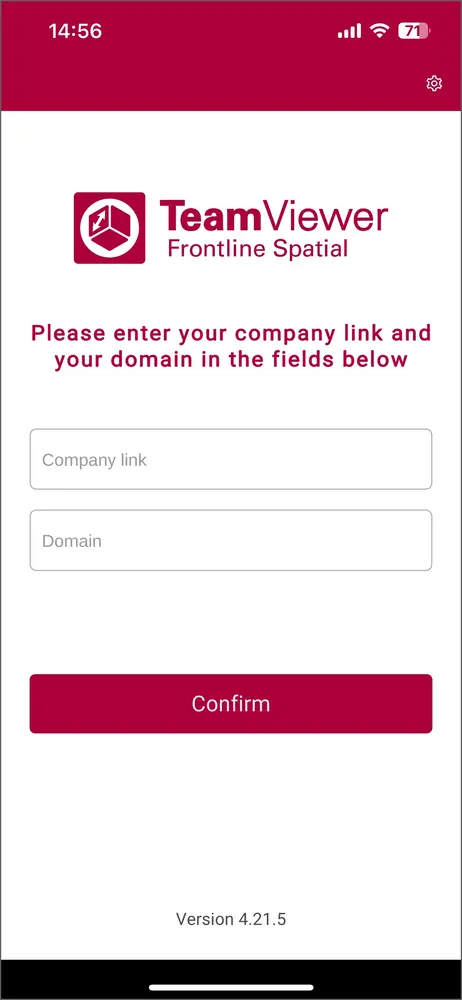
⇒ You will be redirected to the Single-Sign-On page.
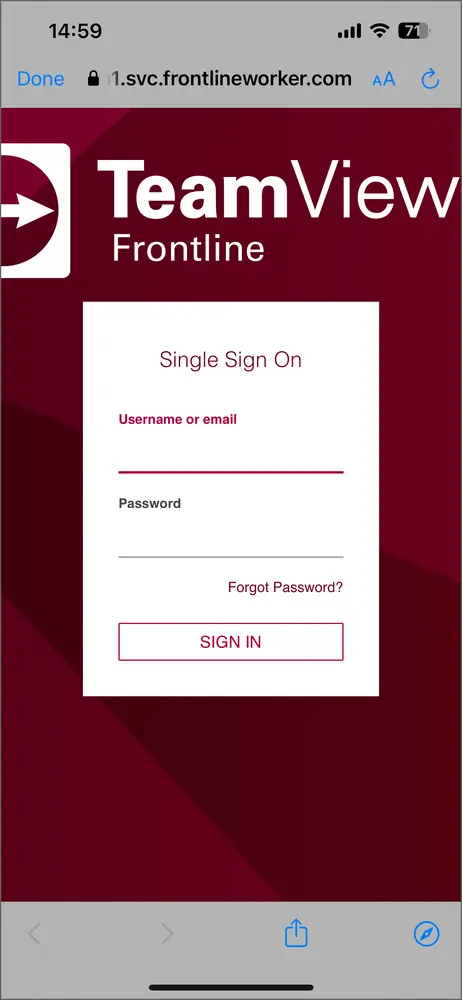
4. Enter your username or email and your password and click Sign In.
⇒ You will be logged in to the application.
Alternatively, in the Frontline Command Center, under the Spatial Editor section, you can find the links that direct you to download pages for your device.
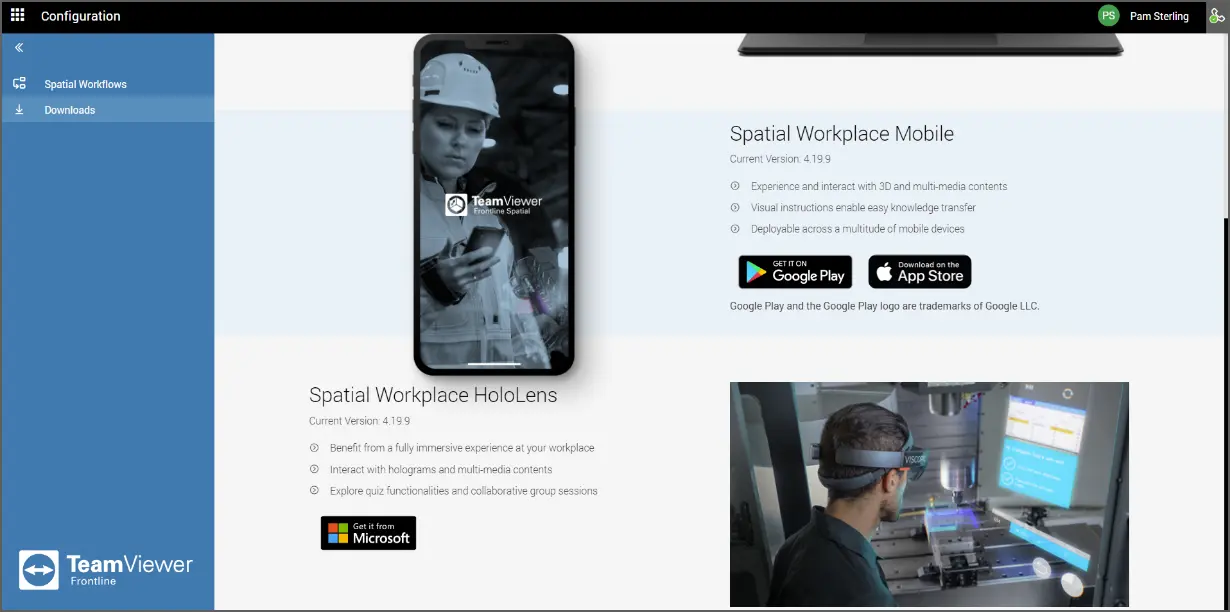
- Login to your Frontline Command Center (FCC) account.
- Click on Spatial Editor under Tools in the navigation panel on the left.
- Go to the Downloads tab.
- Click on Download Spatial Workplace Mobile.
- Click on Install on the redirected page.
For information, please see the login section.