Get started with TeamViewer Assist AR today

Best-in-class AR remote support solution that you can’t afford to miss.

Get started for free in four easy steps

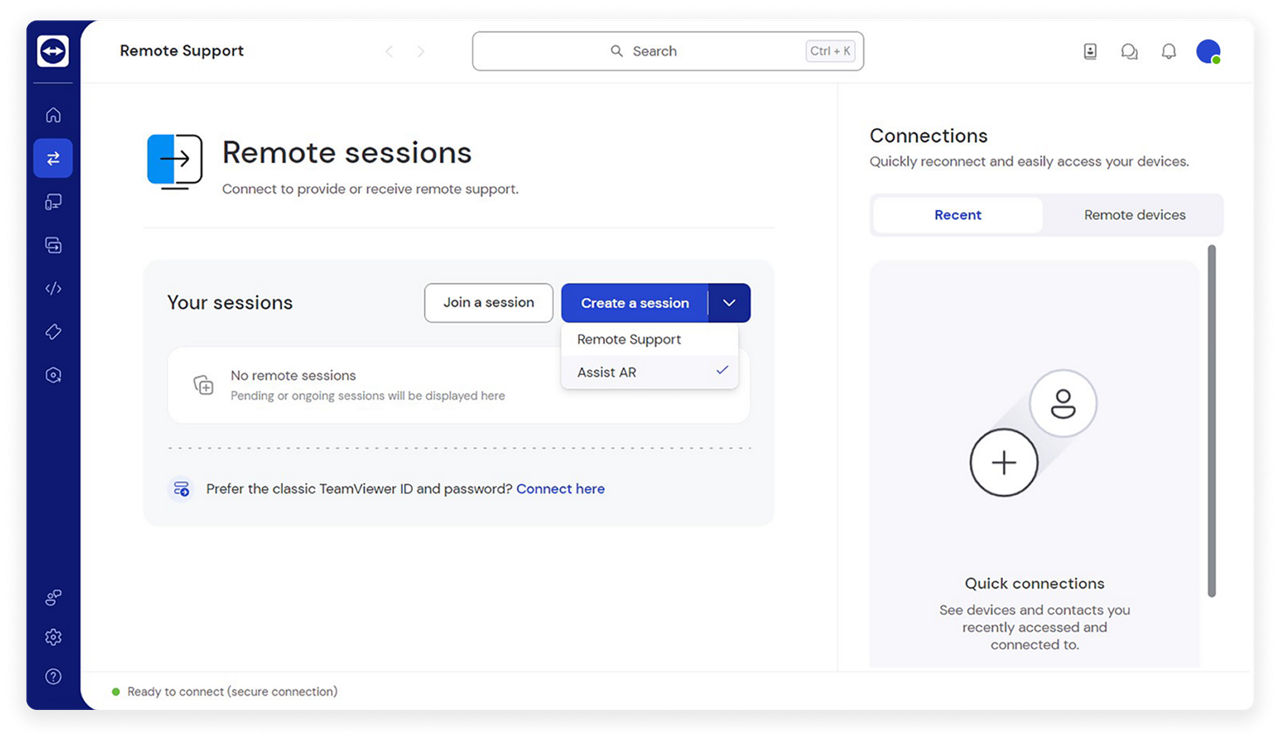
  • Open the TeamViewer Remote desktop or web client, click on the Create a session tab under Remote Support, and select Assist AR in the drop-down menu.

  • Copy the link to your clipboard and share it via email, WhatsApp, or other messaging platforms. Save the session.

  • On the mobile device, click on the session link, install the free Assist AR app for iOS or Android, and open the app. 

  • Start a session on the desktop or web client and accept the call on the mobile device.

Easy, fast, and free

Activate your Assist AR trial in the TeamViewer client

With just a few clicks, you can get started with our premium AR remote support features.

Simply open the TeamViewer desktop or web client, start your first remote support session with Assist AR, and your trial period will begin automatically.

If you’re unsure about any step in the process of starting a remote session, check out this video. You can also find a detailed step-by-step guide on our Knowledge Base.