• 聯絡銷售人員
    • 開啟網頁應用程式
    • 管理主控台
    • 工單
    • 客戶入口網站
TeamViewer
  • 個人使用與中小型企業 TeamViewer Remote

    安全快速的遠端存取與 IT 支援。

    瞭解更多

    • 遠端支援 提供即時、安全的支援
    • 遠端管理 監控和管理裝置
    查看方案與價格

    企業 TeamViewer Tensor

    為安全運作而創建的遠端連線功能。

    瞭解更多

    • 遠端 IT 支援 安全、靈活、整合
    • 運營技術 遠端車間存取

    即時故障排除 TeamViewer DEX

    在使用者受到影響前解決問題。

    瞭解更多

    • 端點故障排除 識別並解決問題
    • 端點自動化 自動執行常規 IT 任務

    連線工作者 TeamViewer Frontline

    工業擴增實境極大提升工作效率。

    瞭解更多

    • 物流與倉儲 無人物料搬運
    • 訓練和入職 快速完成入職訓練,實現技能提升
    TeamViewer 用戶端顯示的 AI 功能

    TeamViewer ONE

    於一個平台暢享 TeamViewer 的全部功能。

    • 瞭解更多

    關鍵整合功能

    • Microsoft Intune

    • ServiceNow

    • Freshworks

    • Jira

    • Salesforce

    • Slack

    • Microsoft Teams

    檢視所有整合功能
  • TeamViewer ONE 平台

    所有功能整合於一個平台中,主動管理並優化您的數位工作空間。

    • 適用於精簡的 IT 團隊 前瞻式裝置管理
    • 無縫體驗 順暢連續的數位化體驗
    • 無縫 IT 運作 前瞻式修復與卓越的服務
    • 請聯絡我們的團隊 準備好轉型了嗎?
    探索此平台

    Core 功能

    • TeamViewer AI
    • 數位員工體驗
    • 遠端支援與控制
    • 資產與修補程式管理
    檢視所有功能

    2025 年 Gartner 報告

    TeamViewer 被評為 DEX 工具領域的領導者

    TeamViewer 被評為 2025 年 Gartner® Magic Quadrant™ DEX 工具領域的領導者。

    關鍵整合功能

    • Microsoft Intune

    • ServiceNow

    • Freshworks

    • Jira

    • Salesforce

    • Zendesk

    • Slack

    • Microsoft Teams

    檢視所有整合功能
  • 熱門使用案例

    • 遠端存取與支援 隨時隨地管理人員、裝置與應用程式。
    • 數位員工體驗 (DEX) 前瞻式解決 IT 問題,避免影響工作效率。

    其他使用案例

    • 遠端存取 透過安全連線改進存取
    • 遠端控制 跨平台對裝置進行控制
    • 遠端桌面 隨時隨地提升工作效率
    • Wake-on-LAN(遠端喚醒) 啟用遠端裝置啟動
    • 螢幕共用 即時視覺化通訊
    • 智慧服務 簡化售後運作

    按照需求 不同團隊的熱門解決方案

    • 個人用途 您可從任何地點存取裝置
    • 小型企業 簡化遠端存取與支援
    • 大型企業 擴展並保障企業 IT 安全
    • 自由工作者與數位遊民 隨時隨地安全工作
    • 託管服務供應商 管理與維護客戶 IT 系統
    • 原始設備製造商 簡化支援與運作
    • 非營利及教育行業 TeamViewer 技術享 30% 優惠

    按照行業 按行業分類的熱門解決方案

    • 汽車
    • 農業
    • 物流
    • 製造業
    • 零售
    • 醫療保健
    • 銀行與金融
    • 公共領域

    請聯絡我們的銷售團隊

    需要協助選擇理想的解決方案、下單或升級授權嗎?

    • 請聯絡我們
  • 企業版
  • 瞭解關於 TeamViewer 的詳情

    • 關於 TeamViewer 安全地連線到他人、地點與物聯網。
    • 聯絡支援團隊 瀏覽支援文章或聯絡我們的團隊。
    • 成為合作夥伴 加入我們的全球合作夥伴計劃 TeamUP。
    • 成功案例 探索 TeamViewer 客戶取得的成果。
    新聞

    TeamViewer 報告稱,其 Al 服務獲得客戶廣泛採用。

    資源

    • 新聞與洞見
    • 成功案例
    • 活動與網路研討會
    • 信任中心

    合作夥伴

    • 成為合作夥伴
    • 尋找合作夥伴
    • 整合合作夥伴

    支援

    • 聯絡支援團隊
    • 指南和手冊
    • 知識庫
    • 系統狀態
    • 自訂模組
    • 針對開發人員
    • 社群

    公司

    • 關於 TeamViewer
    • 工作機會
    • 投資商
    • 新聞中心
    • 領導層
    • 體育行業夥伴關係
    • 可持續發展及企業社會責任
  • 價格
  • 免費下載

知识库

  • TeamViewer ONE
  • TeamViewer Remote
  • TeamViewer (Classic)
  • TeamViewer Tensor
  • TeamViewer Tensor (Classic)
  • TeamViewer Frontline
  • Other products
Back to support overview
  • What is TeamViewer Tensor?
  • Get started
    • Activate your Tensor license
    • Activate your Tensor Access license
    • Activate a license or an add-on as a tenant manager
    • Enable the new UI for your company
    • Customize the navigation for user groups in TeamViewer Tensor
  • Company, device and user management
    • Control the user interface
    • Multitenancy in TeamViewer Tensor
    • Distribute your Tensor license
    • Assign a device manually to your company
    • User groups
    • Manage device groups on company level
    • Custom QuickSupport for mobile
  • Conditional Access
    • Get started with Conditional Access
    • Hybrid Conditional Access
    • Approval option: Enforce approval for devices receiving a connection
    • Feature option: Define in-session permissions
    • Time option: Restrict or allow access for a specific time slot
    • Pre-approved access
    • Best practices for network configuration in a Conditional Access environment
  • Security
    • Auditability / Event Log
    • Provide in-session chat transcripts for integrations
    • Bring your own certificate
    • Security key redirection
    • Record TeamViewer sessions and upload them to your cloud storage
  • SSO
    • Single Sign-On (SSO)
    • Single Sign-On for Microsoft Entra ID
    • Single Sign-On for Active Directory Federation Services (ADFS)
    • Single Sign-On for Centrify
    • Single Sign-On for Google Workspace
    • Single Sign-On for Okta
    • Single Sign-On for OneLogin
    • Add users to SSO exclusion list via CSV import
    • Set up your SSO inclusion list
    • Enable account activation emails for Single Sign-On
  • Integrations
    • Microsoft Entra ID Integration - SCIM Configuration
    • Microsoft Teams Integration - Installation and User Guide
    • Okta Integration - SCIM Configuration
    • Getting started with the Windows LAPS integration in TeamViewer Tensor
  • Agentless Access
    • Set up an access gateway in TeamViewer
    • Create an access endpoint in TeamViewer
  • Getting started with the Windows LAPS integration in TeamViewer Tensor

    Last Modified: 2025年10月28日

Windows LAPS (Local Administrator Password Solution) integration in TeamViewer helps IT admins securely retrieve and inject local admin credentials during remote support sessions. This integration ensures elevated access without compromising security or exposing passwords. It works by connecting TeamViewer to Microsoft Entra ID and Intune, allowing password injection and optional rotation directly from within a TeamViewer session.

This article applies to all TeamViewer Tensor license holders.

Requirements

To use Windows LAPS integration:

  • The target device must:
    • Be a TeamViewer managed device running a TeamViewer version from 2025.
    • Have a Windows LAPS policy deployed.
    • Be Entra-joined or Intune-enrolled as a corporate device (BYOD is not supported).
  • The supporter must:
    • Use the TeamViewer full client on Windows.
    • Have permissions on the Entra tenant to access device credentials.
  • The integration must be enabled in the TeamViewer Admin settings on the web app.

How to set up Windows LAPS integration

Step 1: Connect TeamViewer to your Entra tenant

  1. Open the TeamViewer web app and go to Admin Settings ➜ General ➜ Integrations.
  2. Click Authorize to start the connection process.
  3. Sign in with a Microsoft account that has permission to authorize the connection.
  4. Confirm the connection on behalf of your company.
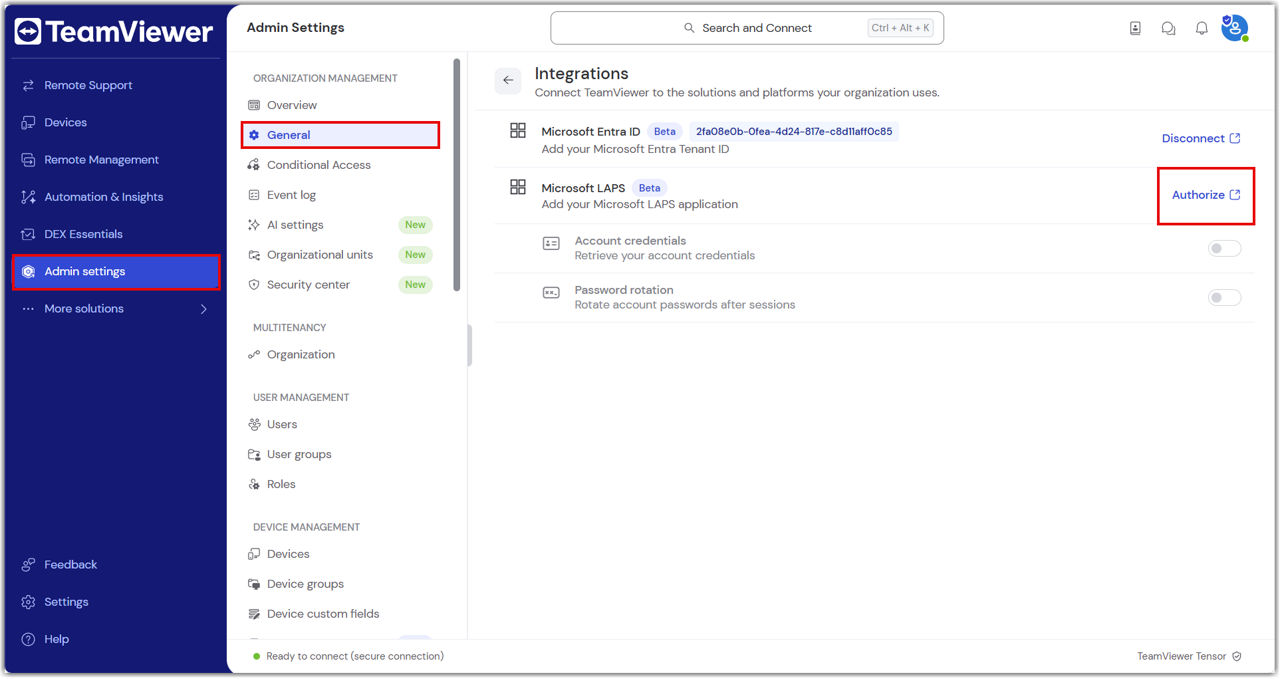
Step 2: Enable the LAPS integration connector

  1. In the same Integrations section, click Authorize under the LAPS integration.
  2. You’ll be redirected to Entra to approve permissions for the connector:
    • DeviceLocalCredential.Read.All
    • DeviceManagementManagedDevices.Read.All
    • DeviceManagementManagedDevices.PrivilegedOperations.All

      Note:
      These are the permissions that supporters who use the LAPS integration will use through their TeamViewer client. A supporter’s device requests all passwords directly from your Intune tenant, ensuring they stay in your infrastructure.
  3. After authorization, return to TeamViewer and toggle the integration on or off.
  4. Optionally, enable password rotation after each session.

Step 3: Use the Windows LAPS integration during a session

  1. Connect to a Managed Device using the TeamViewer full client.
  2. Open the Windows LAPS integration from the session toolbar.
  3. Click Authorize with Entra and sign in.
  4. Once authorized, click Auto-fill password to inject the admin password into the remote device.

Security-related information

  • Passwords are injected securely as keystrokes and never pass through the TeamViewer backend.
  • The integration uses PKCE for secure token exchange.
  • All password requests are made from a supporters device to your Intune tenant. Passwords are never transferred through TeamViewer’s cloud infrastructure.

請選擇您所在的地區

選擇區域會更改 teamviewer.com 上的語言和/或內容


建議區域

  • Americas

    • Americas - English
    • América Latina - Español
    • Brasil - Português
    • Canada - English
    • Canada - Français
    • United States - English
  • Asia Pacific

    • Asia Pacific - English
    • Australia - English
    • 中国 - 中⽂(简体)
    • 香港 - 繁體中文
    • India - English
    • 日本 - ⽇本語
    • New Zealand - English
    • 대한민국 - 한국어
    • 台灣-繁體中文
    • ประเทศไทย - ภาษาไทย
    • Việt Nam - Tiếng Việt
  • Commonwealth of Independent States

    • CIS - English
    • СНГ - Русский
  • Europe

    • Europe - English
    • Belgique - Français
    • België - Nederlands
    • Bulgaria - English
    • Croatia - English
    • Cyprus - English
    • Czechia - Čeština
    • Denmark - English
    • Deutschland - Deutsch
    • España - Español
    • Estonia - English
    • Finland - English
    • France - Français
    • Greece - English
    • Ireland - English
    • Italia - Italiano
    • Latvia - English
    • Liechtenstein - Deutsch
    • Liechtenstein - Français
    • Liechtenstein - Italiano
    • Lithuania - English
    • Luxembourg - Français
    • Magyarország - Magyar
    • Malta - English
    • Nederland - Nederlands
    • Norway - English
    • Österreich - Deutsch
    • Polska - Polski
    • Portugal - Português
    • Romania - English
    • Schweiz - Deutsch
    • Suisse - Français
    • Svizzera - Italiano
    • Slovakia - English
    • Slovenia - English
    • Sweden - English
    • Türkiye - Türkçe
    • United Kingdom - English
  • Middle East Africa

    • Middle East Africa - English
    • Middle East Africa - Français
  • 產品
    • TeamViewer Remote
    • TeamViewer Tensor
    • TeamViewer DEX
    • TeamViewer Frontline
    • 價格
  • ONE 平台
    • TeamViewer ONE
    • 請聯絡我們的團隊
  • 解決方案
    • 按照行業
    • 按照使用案例
    • 按照角色
    • 企業版
  • 合作夥伴
    • 成為合作夥伴
    • 尋找合作夥伴
    • 整合合作夥伴
  • 資源
    • 新聞與洞見
    • 成功案例
    • 信任中心
  • 支援
    • 聯絡支援團隊
    • 指南和手冊
    • 知識庫
    • 系統狀態
    • 自訂模組
    • 針對開發人員
    • 社群
  • 公司簡介
    • 關於 TeamViewer
    • 工作機會
    • 投資商
    • 新聞中心
    • 領導層
    • 體育行業夥伴關係
    • 可持續發展及企業社會責任
  • Additional Links
    • 聯絡銷售人員
    • TeamViewer User Focus Program
    • 電子通訊
  • 使用者授權合約 (EN)
  • Product Descriptions
  • 版權標記
  • 隱私權政策 (EN)
  • 聯絡方式
Cookie 設置