• 영업팀에 문의하기
    • 웹 앱 열기
    • 관리 콘솔
    • 티켓
    • 고객 포털
TeamViewer
  • 개인 및 중소기업 TeamViewer Remote

    빠르고 안전한 원격 액세스 및 IT 지원.

    더 알아보기

    • 원격 지원 즉각적이고 안전한 지원 제공
    • 원격 관리 장치 모니터링 및 관리
    플랜 및 가격 보기

    대기업 TeamViewer Tensor

    안전한 운영을 위해 구축된 원격 연결.

    더 알아보기

    • 원격 IT 지원 안전성, 유연성, 통합성
    • 운영 기술 작업 현장 원격 액세스

    실시간 문제 해결 TeamViewer DEX

    사용자에게 영향을 미치기 전에 문제를 해결합니다.

    더 알아보기

    • 엔드포인트 문제 해결 문제 식별 및 해결
    • 엔드포인트 자동화 일상적인 IT 작업 자동화

    연결된 작업자 TeamViewer Frontline

    산업용 증강현실로 효율성을 증대합니다.

    더 알아보기

    • 물류 및 창고 핸즈프리 자재 취급처리
    • 교육 및 온보딩 빠른 온보딩 및 업스킬링
    TeamViewer 클라이언트에 표시된 AI 기능

    TeamViewer ONE

    하나의 플랫폼에 통합된 TeamViewer의 모든 기능을 활용해 보세요.

    • 더 알아보기

    주요 통합

    • Microsoft Intune

    • ServiceNow

    • Freshworks

    • Jira

    • Salesforce

    • Slack

    • Microsoft Teams

    모든 통합 보기
  • TeamViewer ONE 플랫폼

    하나의 플랫폼에 통합된 디지털 업무 공간을 선제적으로 관리하고 최적화하세요.

    • 소규모 IT 팀용 사전 예방적 장치 관리
    • 마찰 없는 경험 원활하고 중단 없는 디지털 경험
    • 원활한 IT 운영 사전 예방적 수정 및 탁월한 서비스
    • 담당 팀에 문의 바뀔 준비가 되셨나요?
    플랫폼 살펴보기

    핵심 기능

    • TeamViewer AI
    • 디지털 직원 경험
    • 원격 지원 및 제어
    • 자산 및 패치 관리
    모든 기능 보기

    2025년 Gartner 보고서

    TeamViewer, DEX 부문 리더로 선정

    TeamViewer가 2025 Gartner® Magic Quadrant™ DEX 도구 부문에서 리더로 선정되었습니다.

    주요 통합

    • Microsoft Intune

    • ServiceNow

    • Freshworks

    • Jira

    • Salesforce

    • Zendesk

    • Slack

    • Microsoft Teams

    모든 통합 보기
  • 인기 있는 사용 사례

    • 원격 액세스 및 지원 어디서나 사람, 장치, 애플리케이션을 관리.
    • QuickSupport 언제든지 필요할 때 컴퓨터 및 모바일 장치에 대한 원격 지원을 받으세요.

    기타 사용 사례

    • 원격 액세스 보안 연결로 액세스 개선
    • 원격 제어 플랫폼에 관계 없이 장치 제어
    • 원격 데스크톱 어디서나 생산성 향상
    • Wake-on-LAN 원격 장치 활성화 켜기
    • 화면 공유 실시간 비주얼 커뮤니케이션
    • Smart Service 판매 후 운영 간소화

    요구사항 별 다양한 팀을 위한 인기 솔루션

    • 개인용 어디서나 장치에 액세스
    • 중소기업 원격 액세스 및 지원 단순화
    • 대기업용 기업 IT 확장 및 보안
    • 관리형 서비스 제공자 클라이언트 IT 관리 및 유지보수
    • OEM 지원 및 운영 간소화
    • 비영리 단체 및 교육기관 TeamViewer 기술 30% 할인

    산업별 산업별로 분류된 인기 솔루션

    • 자동차
    • 농업
    • 물류
    • 제조
    • 리테일
    • 헬스케어
    • 은행 및 금융

    영업팀에 문의

    올바른 솔루션을 선택하고, 주문을 넣고, 라이선스를 업그레이드하는 데 도움이 필요하신가요?

    • 문의하기
  • 대기업용
  • TeamViewer에 대해 더 알아보기

    • TeamViewer 소개 사람, 장소, 사물을 안전하게 연결합니다.
    • 지원 팀에 문의 지원 문서를 찾아보거나 지원 팀에 문의하세요.
    • 파트너 되기 글로벌 파트너 프로그램인 TeamUP에 참여하세요.
    • 고객 성공 사례 TeamViewer 고객이 달성한 성과를 살펴보세요.
    뉴스

    TeamViewer는 AI 제품을 도입하는 고객이 빠르게 늘고 있다고 밝혔습니다.

    리소스

    • 뉴스 및 인사이트
    • 고객 성공 사례
    • 이벤트 및 웨비나
    • 트러스트 센터

    파트너

    • 파트너 되기
    • 파트너 찾기
    • 통합 파트너

    지원

    • 지원 팀에 문의
    • 가이드 및 매뉴얼
    • 기술 문서 데이터베이스
    • 시스템 상태
    • 사용자 지정 모듈
    • 개발자용
    • 커뮤니티

    회사

    • TeamViewer 소개
    • 채용
    • 투자자
    • 뉴스룸
    • 리더십
    • 스포츠 파트너십
    • 지속 가능성 및 CSR
  • 가격

Knowledge Base

  • TeamViewer ONE
  • TeamViewer Remote
  • TeamViewer (Classic)
  • TeamViewer Tensor
  • TeamViewer Tensor (Classic)
  • TeamViewer Frontline
  • Other products
Back to support overview
  • What is TeamViewer Tensor?
  • Get started
    • Activate your Tensor license
    • Activate your Tensor Access license
    • Activate a license or an add-on as a tenant manager
    • Enable the new UI for your company
    • Customize the navigation for user groups in TeamViewer Tensor
  • Company, device and user management
    • Control the user interface
    • Multitenancy in TeamViewer Tensor
    • Distribute your Tensor license
    • Assign a device manually to your company
    • User groups
    • Manage device groups on company level
    • Custom QuickSupport for mobile
  • Conditional Access
    • Get started with Conditional Access
    • Hybrid Conditional Access
    • Approval option: Enforce approval for devices receiving a connection
    • Feature option: Define in-session permissions
    • Time option: Restrict or allow access for a specific time slot
    • Pre-approved access
    • Best practices for network configuration in a Conditional Access environment
  • Security
    • Auditability / Event Log
    • Provide in-session chat transcripts for integrations
    • Bring your own certificate
    • Security key redirection
    • Record TeamViewer sessions and upload them to your cloud storage
  • SSO
    • Single Sign-On (SSO)
    • Single Sign-On for Microsoft Entra ID
    • Single Sign-On for Active Directory Federation Services (ADFS)
    • Single Sign-On for Centrify
    • Single Sign-On for Google Workspace
    • Single Sign-On for Okta
    • Single Sign-On for OneLogin
    • Add users to SSO exclusion list via CSV import
    • Set up your SSO inclusion list
    • Enable account activation emails for Single Sign-On
  • Integrations
    • Microsoft Entra ID Integration - SCIM Configuration
    • Okta Integration - SCIM Configuration
    • Getting started with the Windows LAPS integration in TeamViewer Tensor
  • Agentless Access
    • Set up an access gateway in TeamViewer
    • Create an access endpoint in TeamViewer
  • Getting started with the Windows LAPS integration in TeamViewer Tensor

    Last Modified: 2025. 10. 28.

Windows LAPS (Local Administrator Password Solution) integration in TeamViewer helps IT admins securely retrieve and inject local admin credentials during remote support sessions. This integration ensures elevated access without compromising security or exposing passwords. It works by connecting TeamViewer to Microsoft Entra ID and Intune, allowing password injection and optional rotation directly from within a TeamViewer session.

This article applies to all TeamViewer Tensor license holders.

Requirements

To use Windows LAPS integration:

  • The target device must:
    • Be a TeamViewer managed device running a TeamViewer version from 2025.
    • Have a Windows LAPS policy deployed.
    • Be Entra-joined or Intune-enrolled as a corporate device (BYOD is not supported).
  • The supporter must:
    • Use the TeamViewer full client on Windows.
    • Have permissions on the Entra tenant to access device credentials.
  • The integration must be enabled in the TeamViewer Admin settings on the web app.

How to set up Windows LAPS integration

Step 1: Connect TeamViewer to your Entra tenant

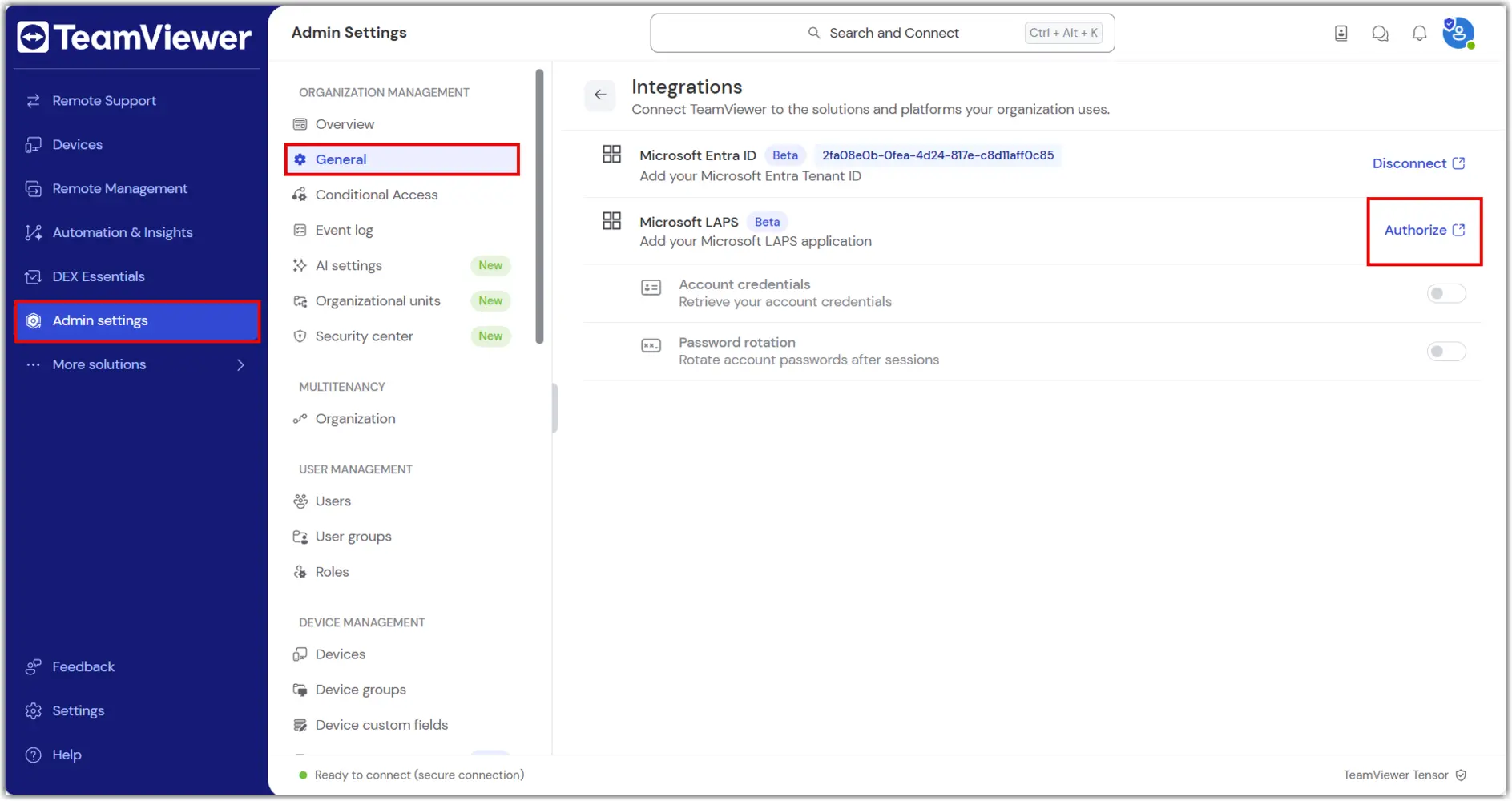
  1. Open the TeamViewer web app and go to Admin Settings ➜ General ➜ Integrations.
  2. Click Authorize to start the connection process.
  3. Sign in with a Microsoft account that has permission to authorize the connection.
  4. Confirm the connection on behalf of your company.
Step 2: Enable the LAPS integration connector

  1. In the same Integrations section, click Authorize under the LAPS integration.
  2. You’ll be redirected to Entra to approve permissions for the connector:
    • DeviceLocalCredential.Read.All
    • DeviceManagementManagedDevices.Read.All
    • DeviceManagementManagedDevices.PrivilegedOperations.All

      Note:
      These are the permissions that supporters who use the LAPS integration will use through their TeamViewer client. A supporter’s device requests all passwords directly from your Intune tenant, ensuring they stay in your infrastructure.
  3. After authorization, return to TeamViewer and toggle the integration on or off.
  4. Optionally, enable password rotation after each session.

Step 3: Use the Windows LAPS integration during a session

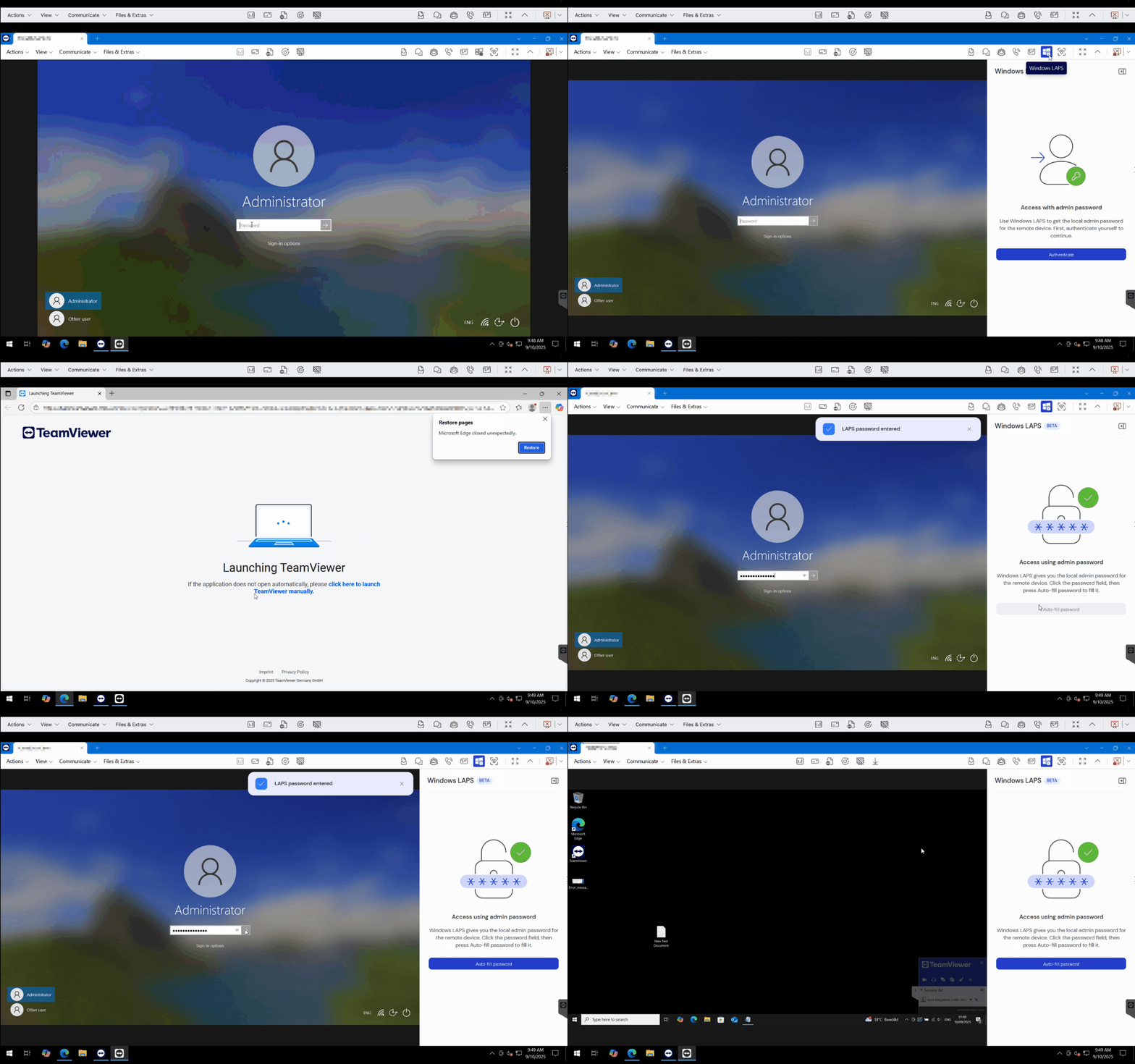
  1. Connect to a Managed Device using the TeamViewer full client.
  2. Open the Windows LAPS integration from the session toolbar.
  3. Click Authorize with Entra and sign in.
  4. Once authorized, click Auto-fill password to inject the admin password into the remote device.
Security-related information

  • Passwords are injected securely as keystrokes and never pass through the TeamViewer backend.
  • The integration uses PKCE for secure token exchange.
  • All password requests are made from a supporters device to your Intune tenant. Passwords are never transferred through TeamViewer’s cloud infrastructure.

지역을 선택하세요

지역을 선택하면 teamviewer.com 의 언어 및/또는 콘텐츠가 변경됩니다


제안된 지역

  • Americas

    • Americas - English
    • América Latina - Español
    • Brasil - Português
    • Canada - English
    • Canada - Français
    • United States - English
  • Asia Pacific

    • Asia Pacific - English
    • Australia - English
    • 中国 - 中⽂(简体)
    • 香港 - 繁體中文
    • India - English
    • 日本 - ⽇本語
    • New Zealand - English
    • 대한민국 - 한국어
    • 台灣-繁體中文
    • ประเทศไทย - ภาษาไทย
    • Việt Nam - Tiếng Việt
  • Commonwealth of Independent States

    • CIS - English
    • СНГ - Русский
  • Europe

    • Europe - English
    • Belgique - Français
    • België - Nederlands
    • Bulgaria - English
    • Croatia - English
    • Cyprus - English
    • Czechia - Čeština
    • Denmark - English
    • Deutschland - Deutsch
    • España - Español
    • Estonia - English
    • Finland - English
    • France - Français
    • Greece - English
    • Ireland - English
    • Italia - Italiano
    • Latvia - English
    • Liechtenstein - Deutsch
    • Liechtenstein - Français
    • Liechtenstein - Italiano
    • Lithuania - English
    • Luxembourg - Français
    • Magyarország - Magyar
    • Malta - English
    • Nederland - Nederlands
    • Norway - English
    • Österreich - Deutsch
    • Polska - Polski
    • Portugal - Português
    • Romania - English
    • Schweiz - Deutsch
    • Suisse - Français
    • Svizzera - Italiano
    • Slovakia - English
    • Slovenia - English
    • Sweden - English
    • Türkiye - Türkçe
    • United Kingdom - English
  • Middle East Africa

    • Middle East Africa - English
    • Middle East Africa - Français
  • 제품
    • TeamViewer Remote
    • TeamViewer Tensor
    • TeamViewer DEX
    • TeamViewer Frontline
    • 가격
  • ONE 플랫폼
    • TeamViewer ONE
    • 담당 팀에 문의
  • 솔루션
    • 산업별
    • 사용 사례별
    • 역할별
    • 대기업용
  • 파트너
    • 파트너 되기
    • 파트너 찾기
    • 통합 파트너
  • 리소스
    • 뉴스 및 인사이트
    • 고객 성공 사례
    • 트러스트 센터
  • 지원
    • 지원 팀에 문의
    • 가이드 및 매뉴얼
    • 기술 문서 데이터베이스
    • 시스템 상태
    • 사용자 지정 모듈
    • 개발자용
    • 커뮤니티
  • 회사소개
    • TeamViewer 소개
    • 채용
    • 투자자
    • 뉴스룸
    • 리더십
    • 스포츠 파트너십
    • 지속 가능성 및 CSR
  • 추가 링크
    • 영업팀에 문의하기
    • TeamViewer User Focus Program
    • Find Your Better
    • Newsletter
  • 개인정보 보호정책 (EN)
  • 문의
  • EULA / DPA (EN)
  • Product Descriptions
  • 기재사항
쿠키 설정

팀뷰어싱가포르 피티이엘티디 한국지점 대표이사: 올리버스타일, 이소정사업자등록번호: 602-84-01595사업장주소: 서울특별시 강남구 영동대로 517, 30층 (삼성동, 아셈타워)문의: [email protected]

www.teamviewer.com 웹사이트는 TeamViewer Germany GmbH (Bahnhofsplatz 2, 73033 Göppingen, Germany)에서 운영합니다.
대표자: Oliver Steil, Michael Wilkens, Mei Dent, Mark Banfield.
TeamViewer Germany GmbH는 독일 울름 지방 법원 에 No. HRB 534075로 등록되어 있습니다.