Knowledge Base

Okta Integration - SCIM Configuration

Last Modified: Sep 10, 2025

Application Username Format

This is old accordion

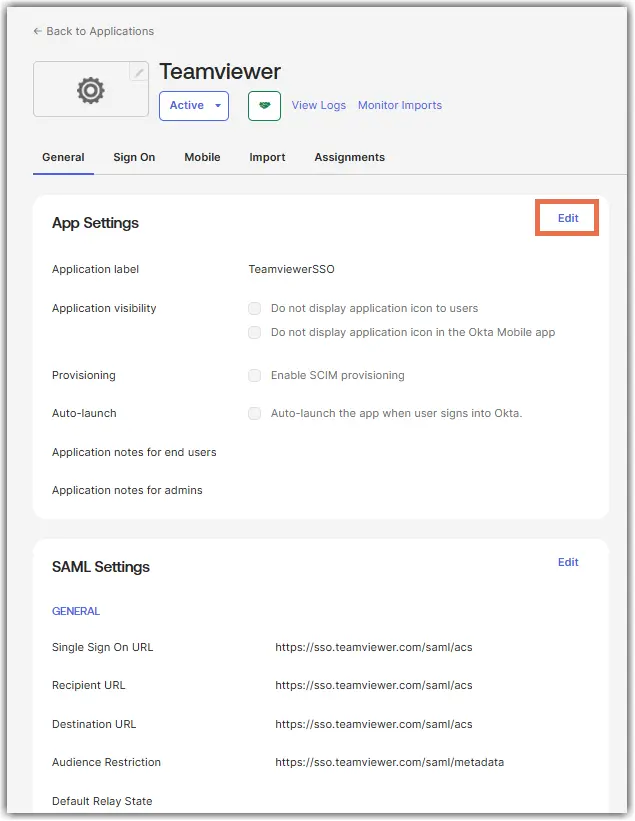
App Settings Edit
Fields Information to be entered

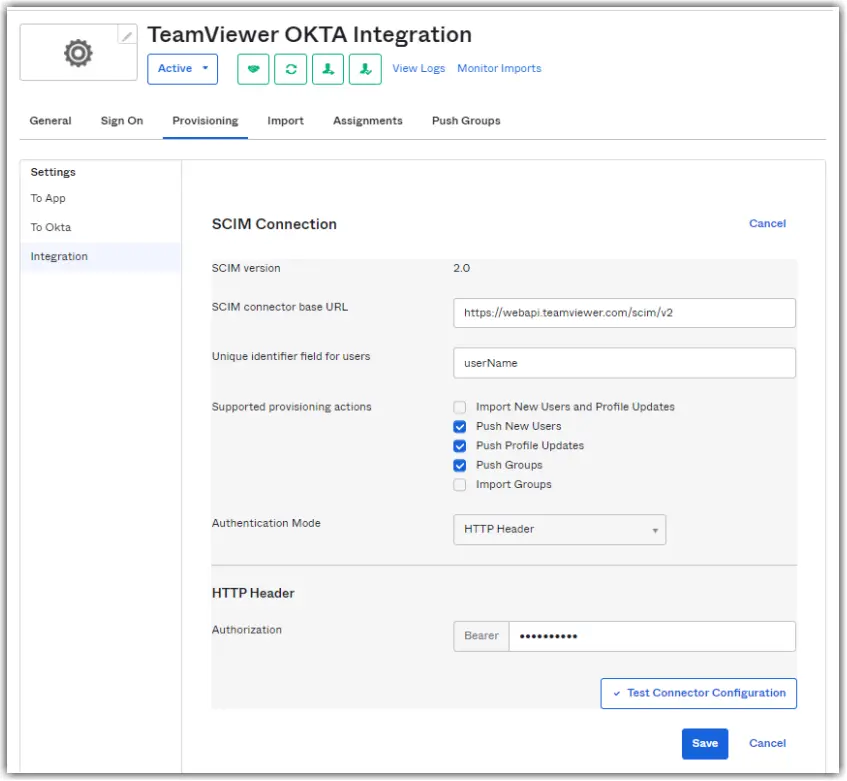
SCIM connector base URL

Unique identifier field for users

userName 

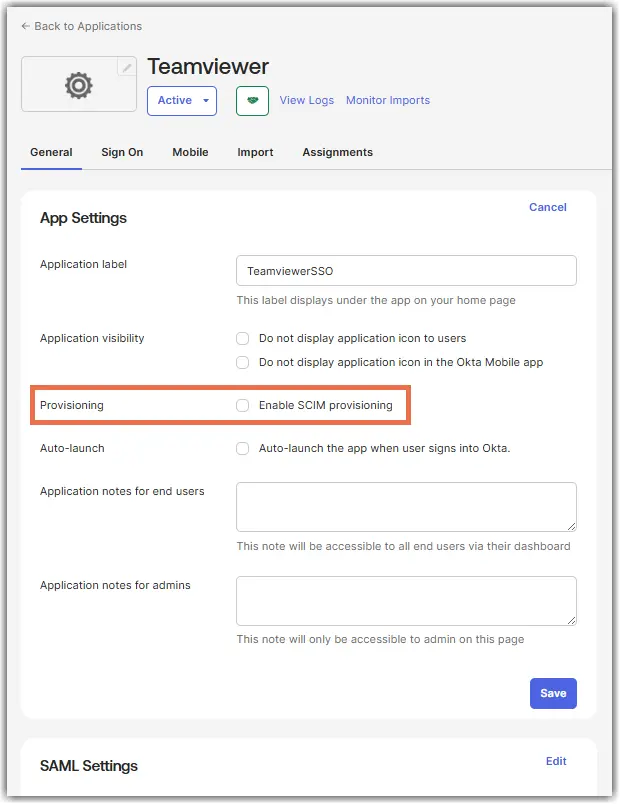
Enable Scim Provisioning

6. Select Push New Users, Push Profile Updates, and Push Groups. 

7. Change Authentication Mode to HTTP Header.

8. Enter your SCRIPT Token you created above in the TeamViewer Management Console next to Authorization.

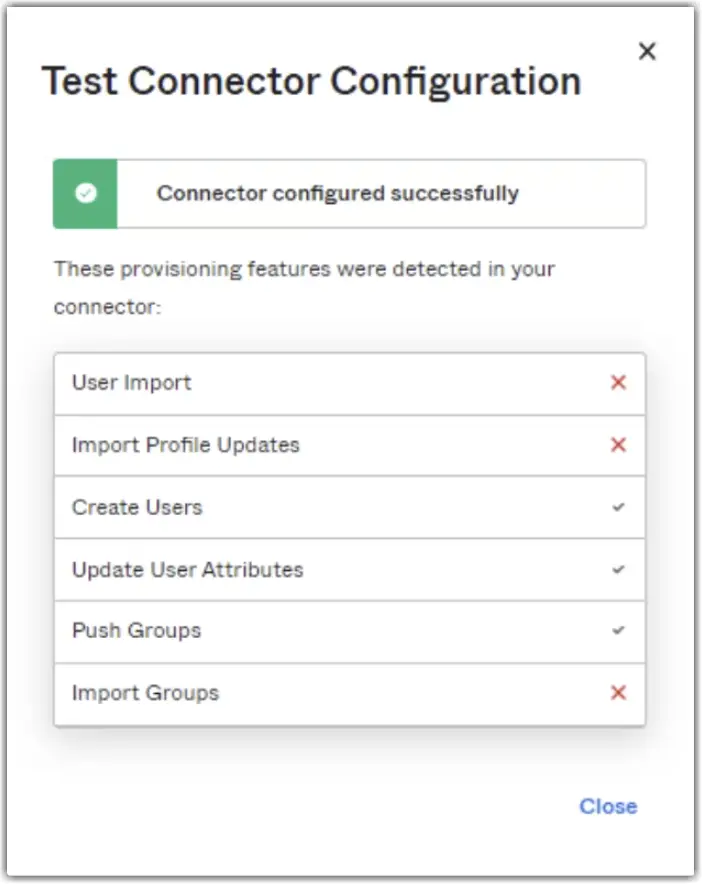
9. Once complete, you can click on Test Connector Configuration, then click Save. 

Your completed config should look like this:

Scim Connection
Test Connector Configuration

10. Edit your Provisioning again and tick the Create Users, Update User Attributes, Deactivate Users, and Sync Password checkbox, then click Save. 

1. Go to the Push Groups tab.

2. Allocate any groups you want pushed to TeamViewer. 

Push Groups To TeamViewer Okta Integration

After following the steps above, the SCIM parameters must be adapted to include the customer Identifier.

1. Go to Applications.

2. Open the appropriate app.

3. Switch tab to Provisioning, and scroll down to Attribute Mapping.

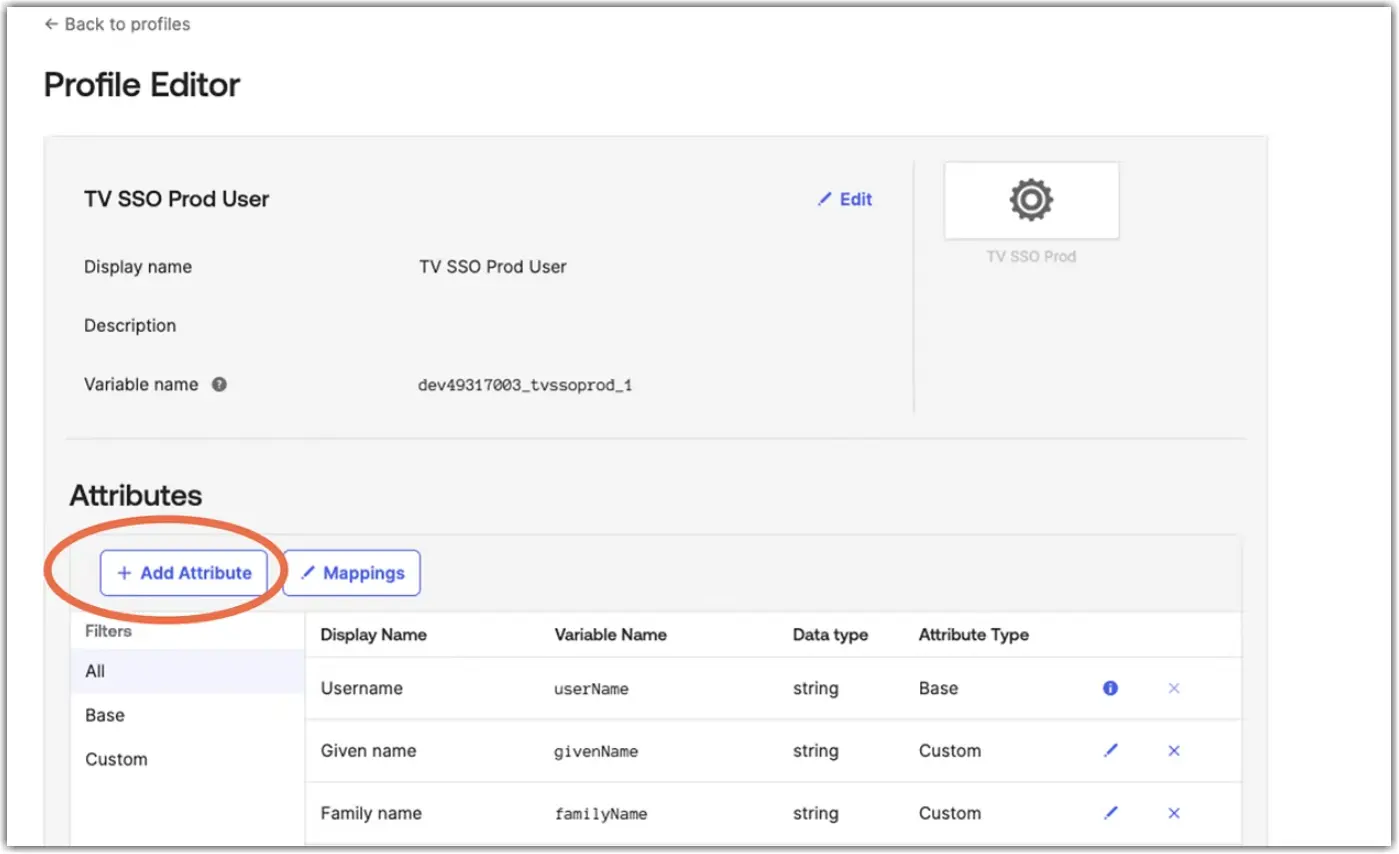
4. Press Go to Profile Editor.

5. Click on + Add Attribute.

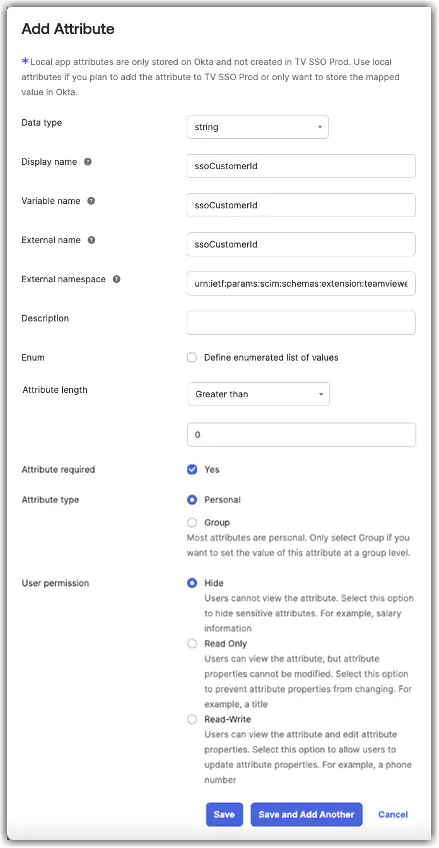
Add Attribute

6. Set the following variables where the external name and external namespace must not be changed:

Fields Information to be entered

Display name

ssoCustomerId

Variable name

ssoCustomerId

External name

ssoCustomerId

External Namespace

urn:ietf:params:scim:schemas:extension:teamviewer:1.0:SsoUser

Attribute length

Greater than 0

Attribute required

Yes

Attribute type

Personal

User permission
(Not mandatory but recommended) 

Hide

Add Attribute Info

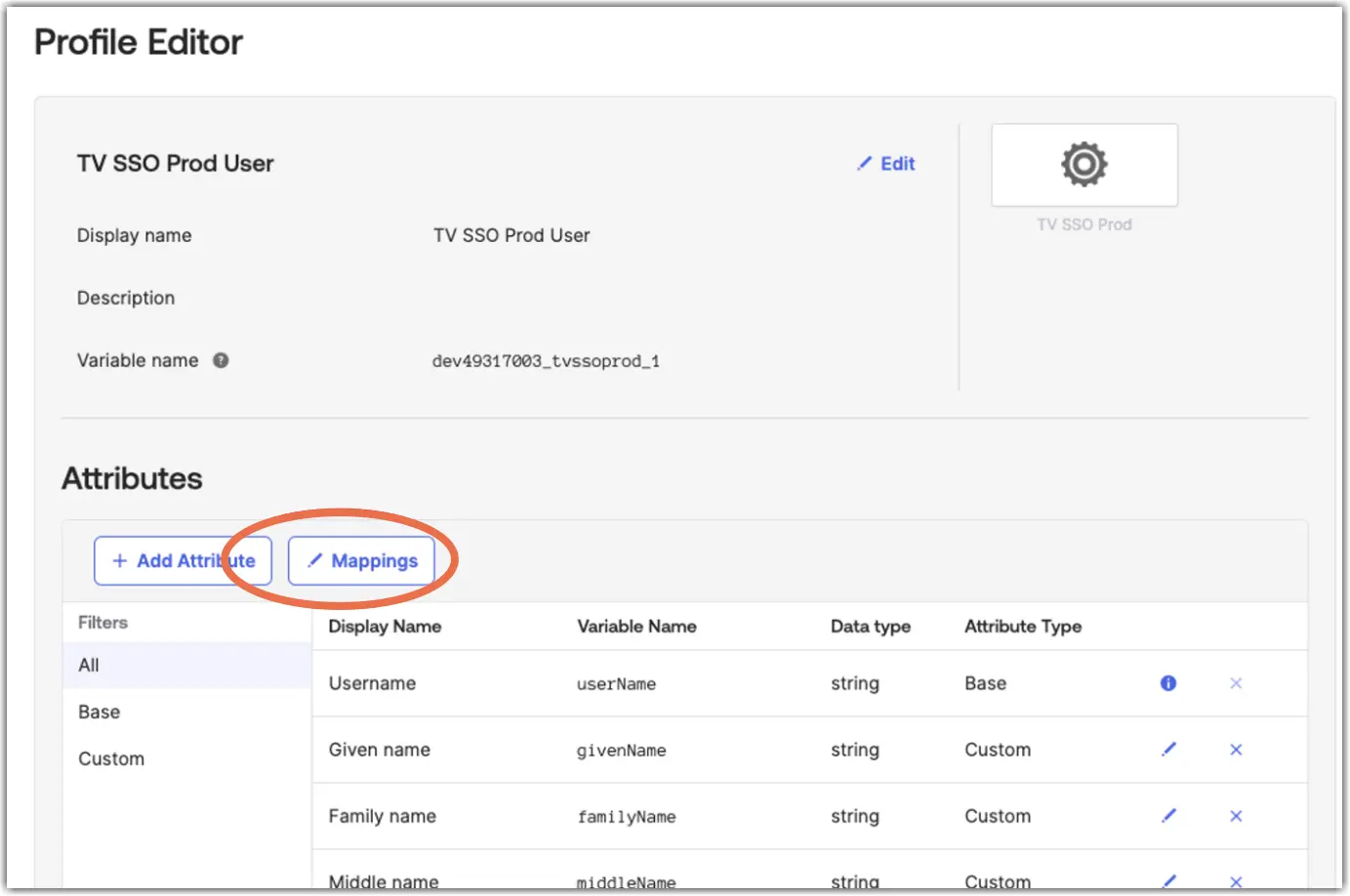
7. Open Mappings for that app.

Mappings

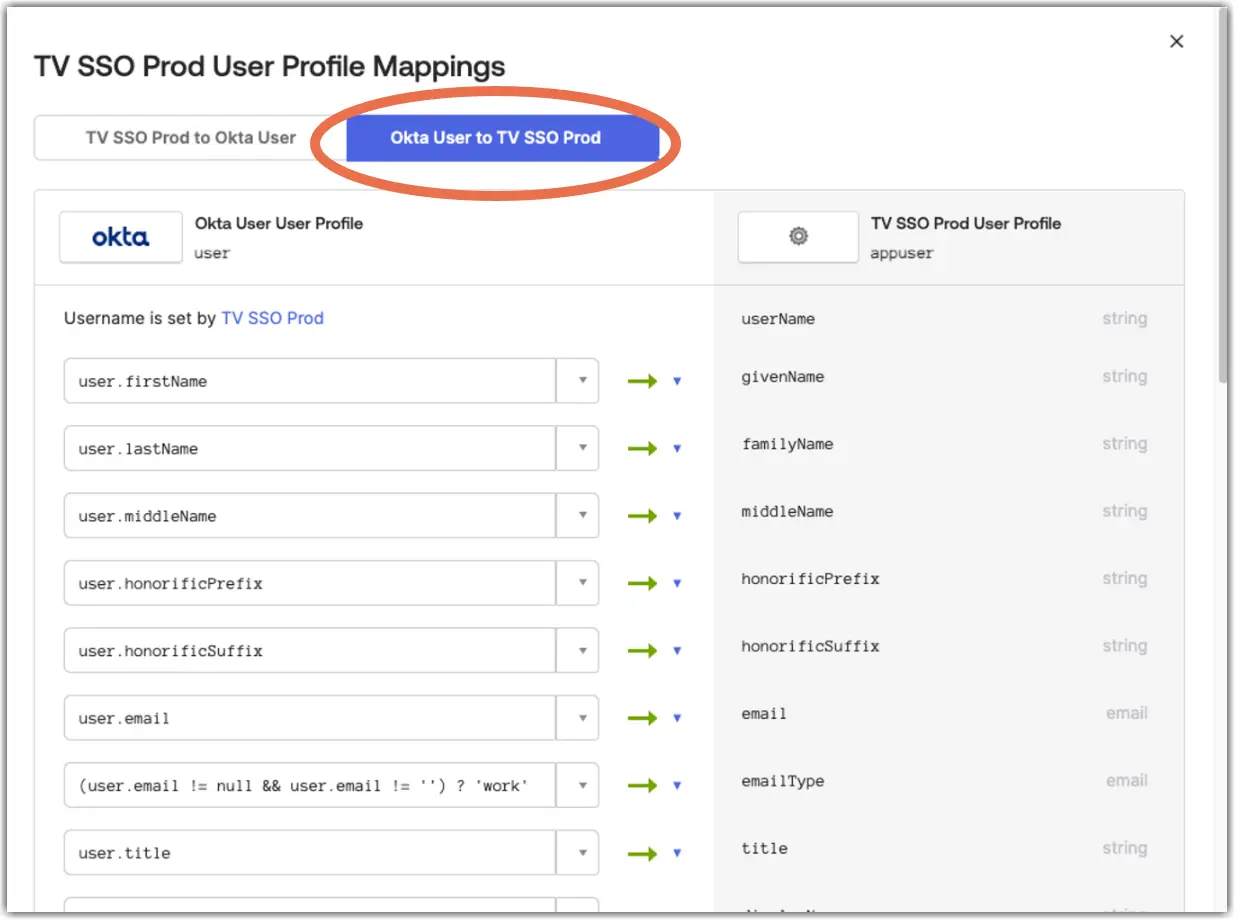
8. Switch to Okta User to App.

Okta User To Tv SSO Prod

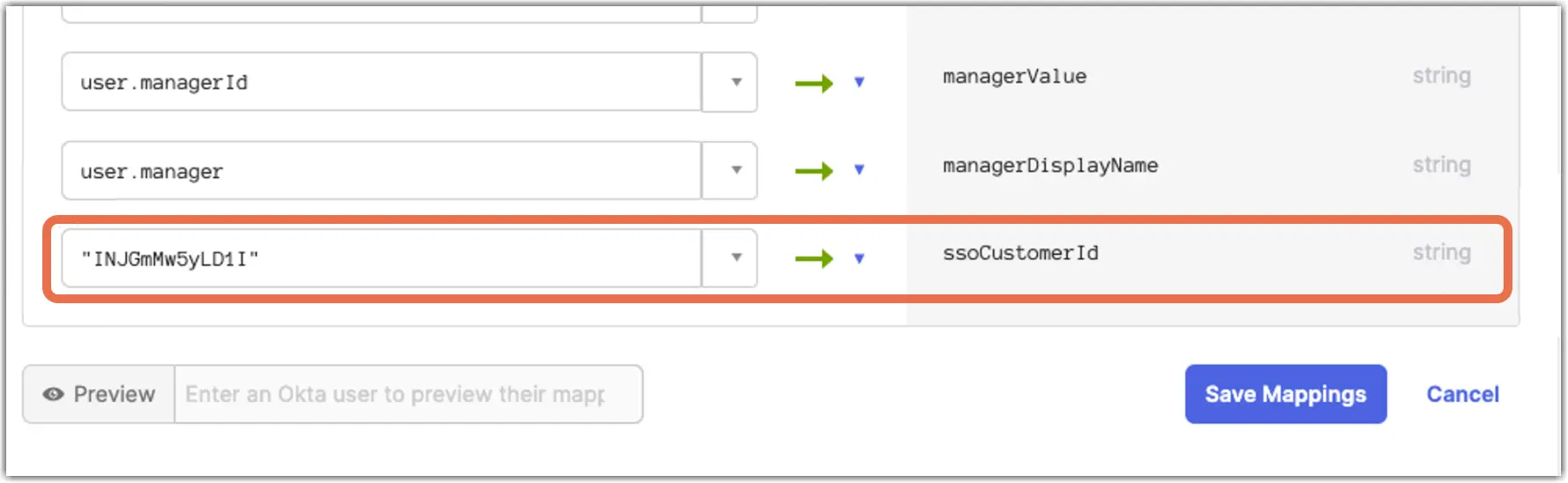
9. Set the customer identifier used also for SSO as a static value.

Ssocustomerid

10. Apply updates now.

11. Under the given Application, click on Provisioning, and the newly created attribute should be visible.

12. Edit the attribute to apply the value only on Create.

Tv SSO Prod Ssocustomerid

Newly provisioned users should now be able to directly log in via their Okta account.