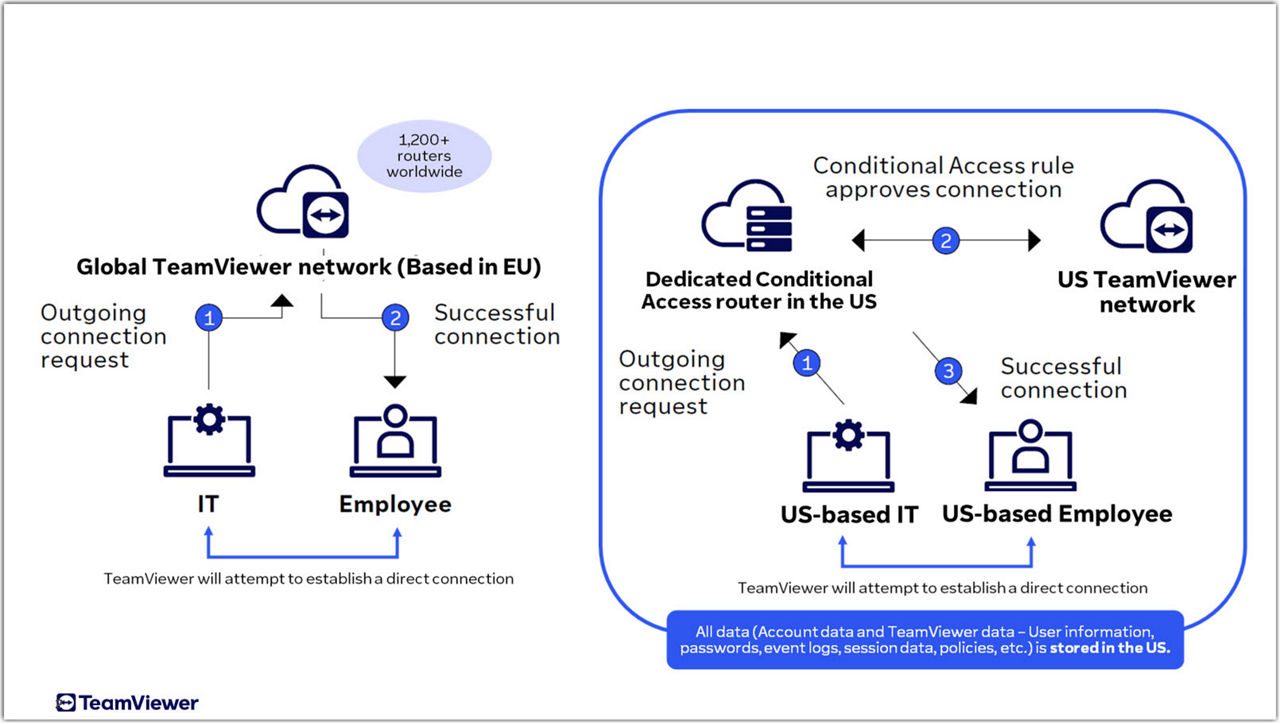
Organizations handling sensitive data increasingly need to control where their remote access data is processed and stored. TeamViewer Tensor US Regional Restricted Access ensures that all remote connection data flows exclusively through servers located in the United States. This helps you meet regulatory requirements, satisfy cyber insurance policies, and maintain stricter control over your mission-critical systems. By restricting data transmission to US-based infrastructure, you reduce exposure to international data transfer risks.
This article applies to all TeamViewer Tensor US Regional Restricted Access license holders.
How it works
When you enable US Regional Restricted Access, TeamViewer routes all remote session data through dedicated servers in the United States. This includes connection metadata, authentication requests, and session traffic. Your devices connect exclusively to US-based routers and conditional access servers, ensuring data residency compliance.
Requirements
Before configuring US Regional Restricted Access, ensure you meet these conditions:
-
Active TeamViewer Tensor US Regional Restricted Access license
-
Conditional Access is enabled on your TeamViewer Tensor account
-
TeamViewer Tensor is configured to use the new UI
-
Administrator access to devices where you will install or configure the client
-
Command line access for Windows installations or file system access for macOS installations
Limitations
Be aware of these restrictions when using US Regional Restricted Access:
-
Only TeamViewer Tensor licenses with Conditional Access are supported
-
Only the new TeamViewer Tensor UI is supported
-
Portable versions are not supported (full client, Host, and QuickSupport modules are supported)
How to configure US Regional Restricted Access on Windows
Use this method when deploying TeamViewer to new devices or reinstalling. You must use the MSI installer package for this configuration.
1. Download the TeamViewer MSI installer package and place it into the desired folder.
2. Open Command Prompt as administrator.
3. Navigate to the folder containing the TeamViewer MSI installer file.
4. Run the following command to install TeamViewer with a US server configuration:
msiexec.exe /i TeamViewer_Full.msi /qn SERVER_ENVIRONMENT=US
5. Wait for the installation to complete.
6. Verify that the conditional access router is set correctly in the Windows Registry at HKEY_LOCAL_MACHINE\SOFTWARE\TeamViewer.
Note: For complete MSI deployment instructions and additional deployment options, see this article:
How to configure US Regional Restricted Access on macOS
Configure the US server environment by creating a configuration file before or during installation.
Create the installer configuration file
1. Open Terminal.
2. Create the configuration directory by running:
sudo mkdir -p "/Library/Application Support/com.teamviewer.configuration"
3. Create the configuration file by running:
sudo nano "/Library/Application Support/com.teamviewer.configuration/InstallerConfiguration.json"
4. Add the following content to the file:
{
  "ServerEnvironment": "us",
  "ConditionalAccessRouters": [
    "us-was-anx-c001.carouter.us.teamviewer.com"
  ]
}
5. Press Control + O to save, then press Enter to confirm.
6. Press Control + X to exit the editor.
7. Install or reinstall the TeamViewer full client or Host.
Use a script to create the configuration automatically
You can automate the configuration file creation using a script.
#!/bin/bash
set -e
This script applies an installer configuration It needs to be run before installing TeamViewer
as root (or with sudo).
This script is an example for documentation and testing purposes. It is provided "as is" without
any warranty or support.
if (( $# == 0 )); then
echo "Usage: $(basename $0) <router1> [<router2>, ...]" >&2
exit 1
fi
JSON_ARRAY="["
ELEMENT_SEP=""
for ARG in "$@"; do
JSON_ARRAY+="${ELEMENT_SEP}\"${ARG}\""
ELEMENT_SEP=", "
done
JSON_ARRAY+="]"
if [ "${EUID}" -ne 0 ]; then
echo "This script needs to be run as root (or with sudo)." >&2
exit 1
fi
if [ -e "/Applications/TeamViewer.app" ]; then
echo "TeamViewer is already installed. You will have to install it again for the settings to take effect!"
fi
if [ -e "/Applications/TeamViewerHost.app" ]; then
echo "TeamViewer Host is already installed. You will have to install it again for the settings to take effect!"
fi
mkdir -p "/Library/Application Support/com.teamviewer.configuration"
cat >"/Library/Application Support/com.teamviewer.configuration/InstallerConfiguration.json" <<EOF
{
"ServerEnvironment": "us",
"ConditionalAccessRouters": ${JSON_ARRAY}
}
EOF