• Kontaktujte prodejní tým
    • Otevření webové aplikace
    • Konzole pro správu
    • Požadavek podpory
    • Zákaznický portál
TeamViewer
  • Osobní použití a SMB TeamViewer Remote

    Rychlý a zabezpečený vzdálený přístup a IT podpora.

    Další informace

    • Vzdálená podpora Poskytujte okamžitou a bezpečnou podporu
    • Vzdálená správa Monitorujte a spravujte zařízení
    Zobrazit plány a ceny

    Podnik TeamViewer Tensor

    Vzdálené připojení vytvořené pro zabezpečené operace.

    Další informace

    • Vzdálená IT podpora Bezpečná, flexibilní, integrovaná
    • Operační technologie Vzdálený přístup do dílny

    Řešení problémů v reálném čase TeamViewer DEX

    Řešte problémy dříve, než ovlivní uživatele.

    Další informace

    • Řešení problémů koncových bodů Identifikujte a řešte problémy
    • Automatizace koncových bodů Automatizujte rutinní IT úkoly

    Připojený pracovník TeamViewer Frontline

    Zvyšte efektivitu s průmyslovou rozšířenou realitou.

    Další informace

    • Logistika a sklady Manipulace s materiálem bez použití rukou
    • Školení a nástup do zaměstnání Rychlý nástup do zaměstnání a zvyšování kvalifikace
    Možnosti AI zobrazené v klientovi TeamViewer

    TeamViewer ONE

    Získejte plný výkon TeamVieweru sjednocený v jedné platformě.

    • Další informace

    Klíčová integrace

    • Microsoft Intune

    • ServiceNow

    • Freshworks

    • Jira

    • Salesforce

    • Slack

    • Microsoft Teams

    Zobrazit veškerou integraci
  • Platforma TeamViewer ONE

    Proaktivně spravujte a optimalizujte své digitální pracoviště v jedné platformě.

    • Pro štíhlé IT týmy Proaktivní správa zařízení
    • Bezproblémová zkušenost Plynulý a nerušený digitální zážitek
    • Bezproblémové IT operace Proaktivní nápravná opatření a výjimečný servis
    • Promluvte si s naším týmem Připraveni na změnu?
    Prozkoumat platformu

    Hlavní funkce

    • TeamViewer AI
    • Digital Employee Experience
    • Vzdálená podpora a řízení
    • Správa aktiv a záplat
    Zobrazit všechny funkce

    Zpráva Gartner 2026

    TeamViewer jmenován lídrem v DEX

    TeamViewer jmenován lídrem v nástrojích DEX Gartner® Magic Quadrant™ 2026.

    Klíčová integrace

    • Microsoft Intune

    • ServiceNow

    • Freshworks

    • Jira

    • Salesforce

    • Zendesk

    • Slack

    • Microsoft Teams

    Zobrazit veškerou integraci
  • Oblíbené případy použití

    • Vzdálený přístup a podpora Spravujte lidi, zařízení a aplikace – odkudkoli.
    • Digital employee experience (DEX) Proaktivně řešte problémy týkající se IT, než začnou mít dopad na produktivitu.

    Další případy použití

    • Vzdálený přístup Zlepšete přístup pomocí zabezpečeného připojení
    • Vzdálené řízení Ovládejte zařízení bez ohledu na platformu
    • Vzdálená plocha Zvyšujte produktivitu odkudkoli
    • Wake-on-LAN Povolte vzdálenou aktivaci zařízení
    • Sdílení obrazovky Vizuální komunikace v reálném čase
    • Smart Service Zjednodušte poprodejní operace

    Dle potřeby Oblíbená řešení pro různé týmy

    • Osobní použití Přístup k zařízením odkudkoliv
    • Malé podniky Zjednodušte vzdálený přístup a podporu
    • Velké podniky Rozšiřujte a zabezpečte podnikové IT
    • Freelanceři a digitální nomádi Pracujte bezpečně z jakéhokoli místa
    • Poskytovatelé spravovaných služeb Spravujte a udržujte klientské IT
    • OEM Zjednodušte podporu a provoz
    • Neziskové a vzdělávací organizace 30% sleva na technologii TeamViewer

    Podle odvětví Oblíbená řešení seřazená podle odvětví

    • Automobilový průmysl
    • Zemědělství
    • Logistika
    • Výroba
    • Maloobchod
    • Zdravotní péče
    • Bankovní a finanční sektor
    • Veřejný sektor

    Promluvte si s naším prodejním týmem

    Potřebujete pomoc s výběrem správného řešení, jeho zadáním a objednáním nebo s upgradem licence?

    • Sdělte nám své požadavky
  • Pro firmy
  • Více informací o TeamViewer

    • O společnosti TeamViewer Bezpečné propojení lidí, míst a věcí.
    • Příklady úspěšného využití Prozkoumejte výsledky, kterých dosáhli zákazníci TeamViewer.
    • Kontaktovat podporu Prohlédněte si články podpory nebo kontaktujte náš tým.
    • Staňte se partnerem Připojte se k našemu globálnímu partnerskému programu TeamUP.
    NOVINKY

    TeamViewer hlásí rychlé přijetí jeho nabídky umělé inteligence zákazníky.

    Zdroje

    • Blog
    • Příklady úspěšného využití
    • Události a semináře
    • Trust Center

    Partner

    • Staňte se partnerem
    • Vyhledat partnera
    • Partneři pro integraci

    Podpora

    • Kontaktovat podporu
    • Návody a příručky
    • Informační databáze
    • Stav systému
    • Přizpůsobené moduly
    • Pro vývojáře
    • Komunita

    Společnost

    • O společnosti TeamViewer
    • Kariéra
    • Investoři
    • Pro média
    • Vedení
    • Partnerství ve sportu
    • Udržitelnost a CSR
    • Správa a řízení společnosti
  • Ceny
  • Stažení zdarma

Knowledge Base

  • TeamViewer ONE
  • TeamViewer Remote
  • TeamViewer (Classic)
  • TeamViewer Tensor
  • TeamViewer Tensor (Classic)
  • TeamViewer Frontline
  • Other products
Back to support overview
  • What is TeamViewer Tensor?
  • Get started
    • Activate your Tensor license
    • Activate your Tensor Access license
    • Activate a license or an add-on as a tenant manager
    • Enable the new UI for your company
    • Customize the navigation for user groups in TeamViewer Tensor
  • Company, device and user management
    • Control the user interface
    • Multitenancy
    • Distribute your Tensor license
    • Assign a device manually to your company
    • User groups
    • Manage device groups on company level
    • Custom QuickSupport for mobile
    • Audio and video forwarding
  • Conditional Access
    • Get started with Conditional Access
    • Conditional Access in a Multitenancy organization
    • Hybrid Conditional Access
    • Approval option: Enforce approval for devices receiving a connection
    • Feature option: Define in-session permissions
    • Time option: Restrict or allow access for a specific time slot
    • Pre-approved access
    • Best practices for network configuration in a Conditional Access environment
  • Security
    • Auditability / Event Log
    • Provide in-session chat transcripts for integrations
    • Bring your own certificate
    • Security key redirection
    • Record TeamViewer sessions and upload them to your cloud storage
  • SSO
    • Single Sign-On (SSO)
    • Single Sign-On for Microsoft Entra ID
    • Single Sign-On for Active Directory Federation Services (ADFS)
    • Single Sign-On for Centrify
    • Single Sign-On for Google Workspace
    • Single Sign-On for Okta
    • Single Sign-On for OneLogin
    • Add users to SSO exclusion list
    • Set up your SSO inclusion list
    • Enable account activation emails for Single Sign-On
  • Integrations
    • Microsoft Entra ID Integration - SCIM Configuration
    • Microsoft Teams Integration - Installation and User Guide
    • Okta Integration - SCIM Configuration
    • Getting started with the Windows LAPS integration in TeamViewer Tensor
    • Launch remote access directly from Intune with the TeamViewer Intune Connect integration
    • Synchronize your Intune environment in TeamViewer with the Intune Device Sync integration
  • Agentless Access
    • Set up an access gateway in TeamViewer
    • Create an access endpoint in TeamViewer
  • Audio and video forwarding

    Last Modified: 28. 7. 2026

TeamViewer Tensor's audio and video forwarding feature lets you use your local microphone and camera during a remote session. By forwarding your selected audio and video devices to the remote computer, you can join meetings and use communication applications as if you were sitting at the remote device.

This article applies to TeamViewer ONE users and TeamViewer Tensor users on the following licenses: Tensor, Tensor Light Agent, Tensor Support & Tensor Support Concurrent, and TeamViewer ONE.

Requirements

Before utilizing audio and video forwarding, make sure the following conditions are met:

  • The device is associated with your TeamViewer Tensor license.
  • The remote device is running the full version of TeamViewer or TeamViewer Host.
  • Connection to the remote device is made via Easy Access.
  • A microphone and/or camera is available and functioning on your local device.

How audio and video forwarding works

When activated, TeamViewer Tensor checks the remote device to verify whether the appropriate virtual drivers are installed. If they are not found, TeamViewer Tensor automatically installs the required virtual devices. This allows your selected audio and video devices to be used by the remote machine in meetings or other communication applications. By default, the pre-selected audio and video devices in TeamViewer Tensors settings (LOCATION) are shared. If different audio or video devices should be used instead, you can change the configuration in the Configure audio/Configure video menus provided.

How to enable audio and video forwarding

  1. Start a remote connection to a supported device via Easy Access.
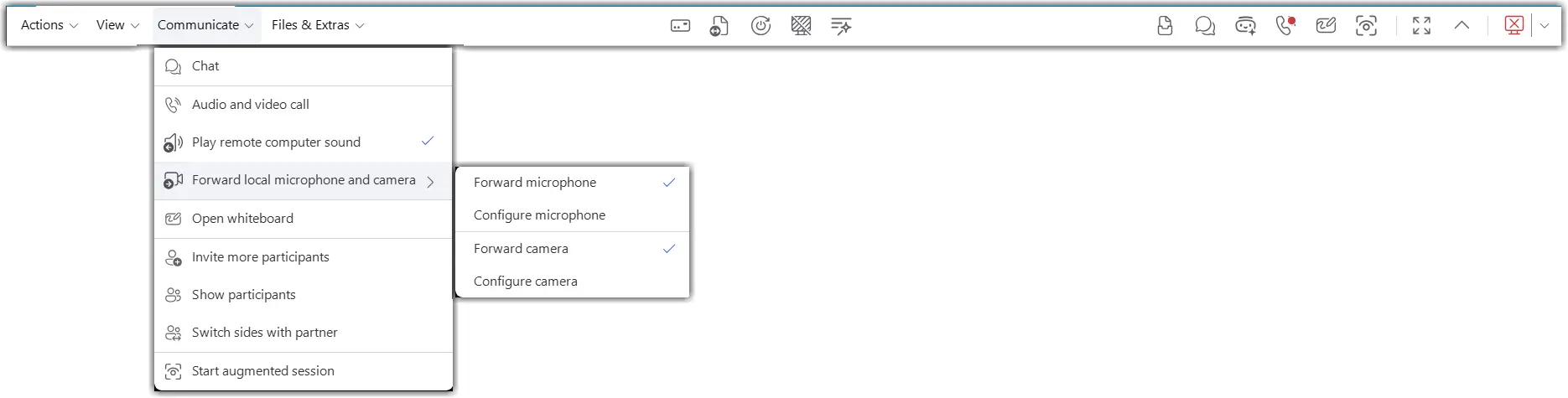
  2. In the session toolbar, enable audio forwarding, video forwarding, or both.
  3. If TeamViewer does not detect the required virtual drivers on the remote device, allow the installation to complete.
  4. To change the microphone forwarded by TeamViewer, select the Configure Microphone option, and choose the desired input device.
  5. To change the camera forwarded by TeamViewer, select the Configure Camera option and choose the desired video device.
  6. Open the desired meeting or communication application on the remote device.
  7. Select the TeamViewer virtual microphone and/or TeamViewer virtual camera in the application's audio and video settings.
  8. Verify that the remote application receives audio and video from your local devices.
How to change the forwarded audio/camera devices

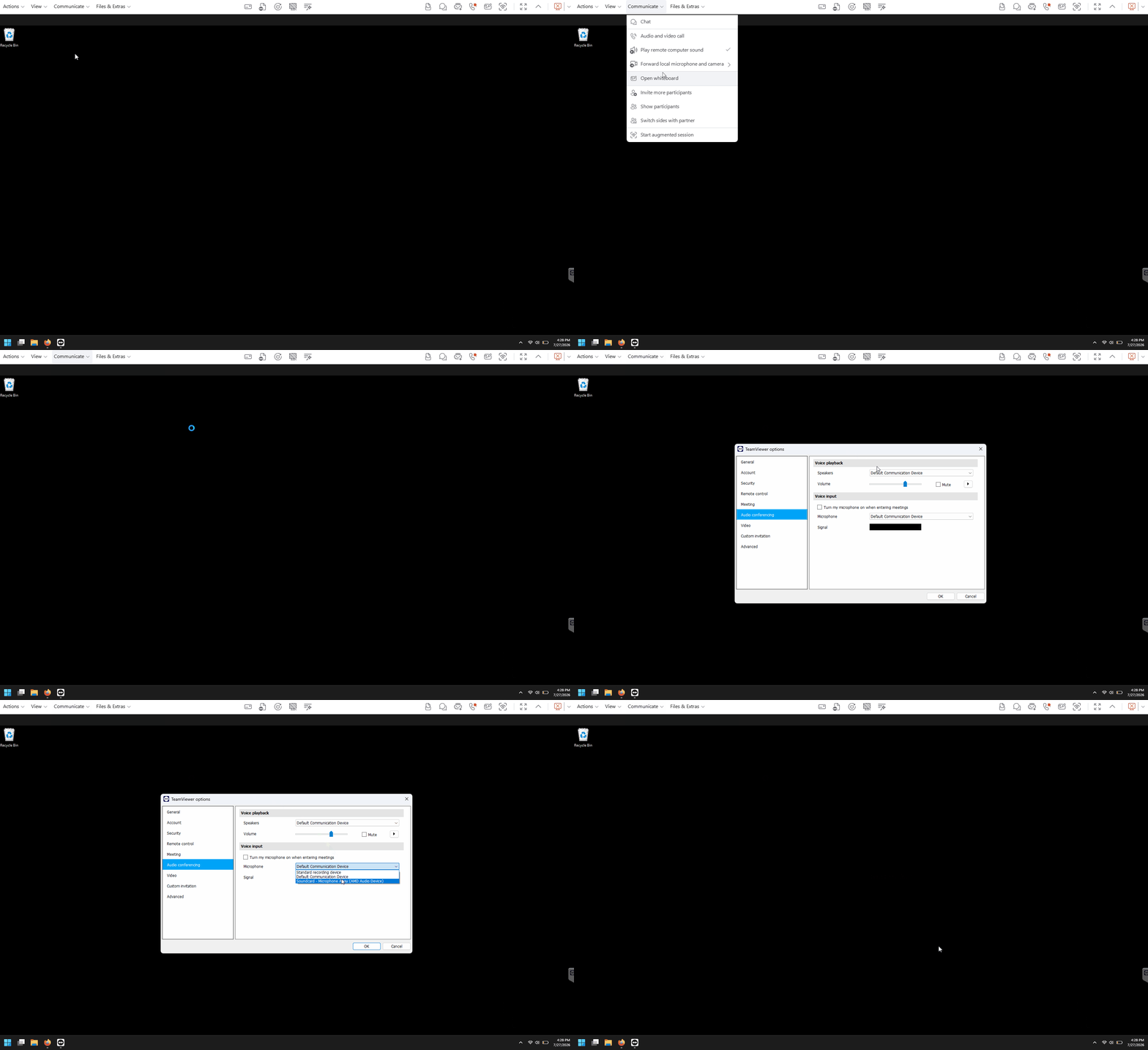
  1. While in the remote session, open the audio or video forwarding settings from the session toolbar.
  2. Select a different local microphone or camera.
  3. Confirm the selection.
  4. Test the device in the remote application.
How to manually install or uninstall the forwarding drivers

In TeamViewer Remote:

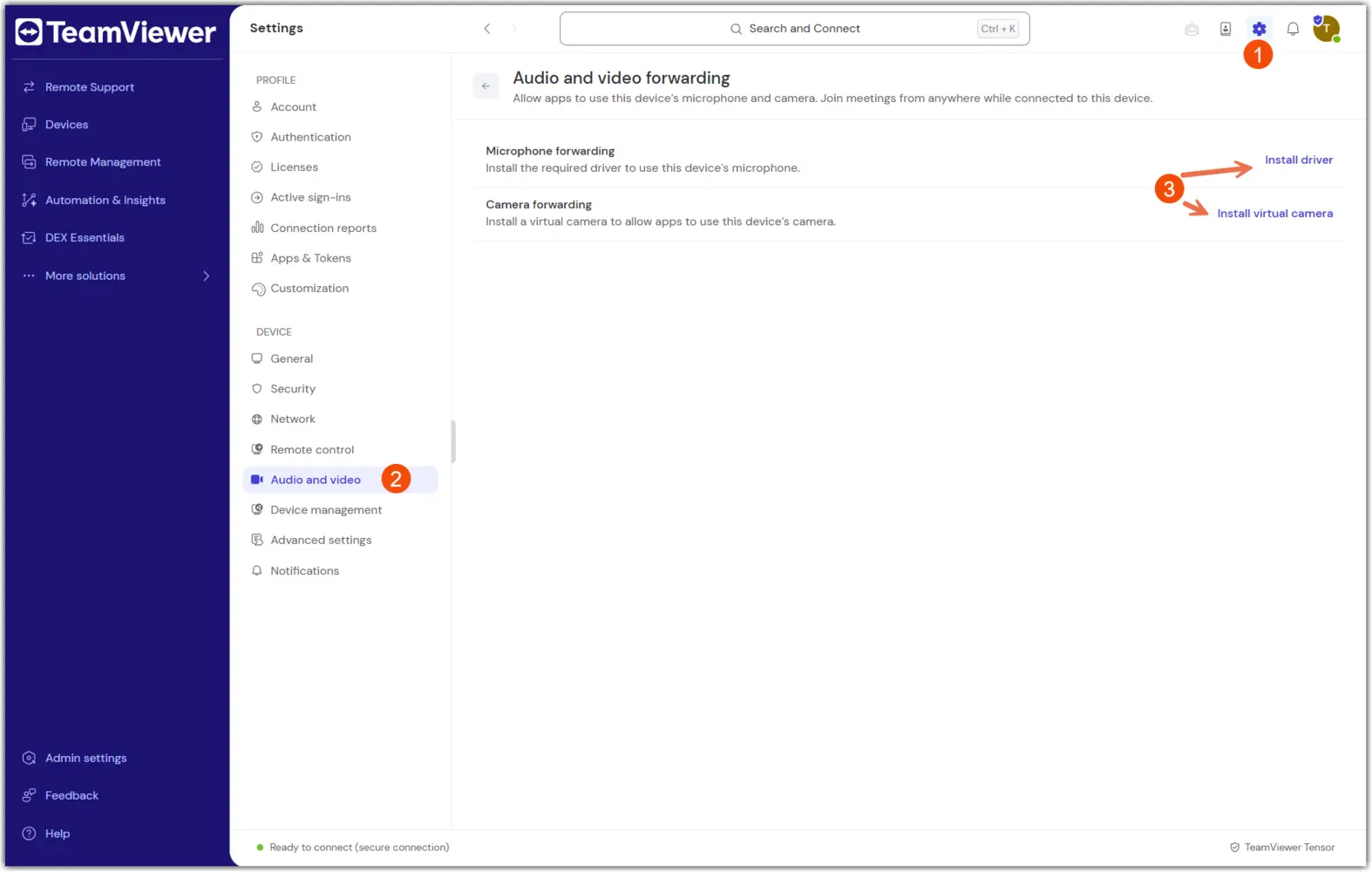
  1. Open TeamViewer settings on the remote device.
  2. Navigate to the audio and video forwarding driver section.
  3. Install or uninstall the virtual audio and camera drivers as needed.
  4. Confirm the change.
  5. Restart the remote session if required.
In TeamViewer (Classic):

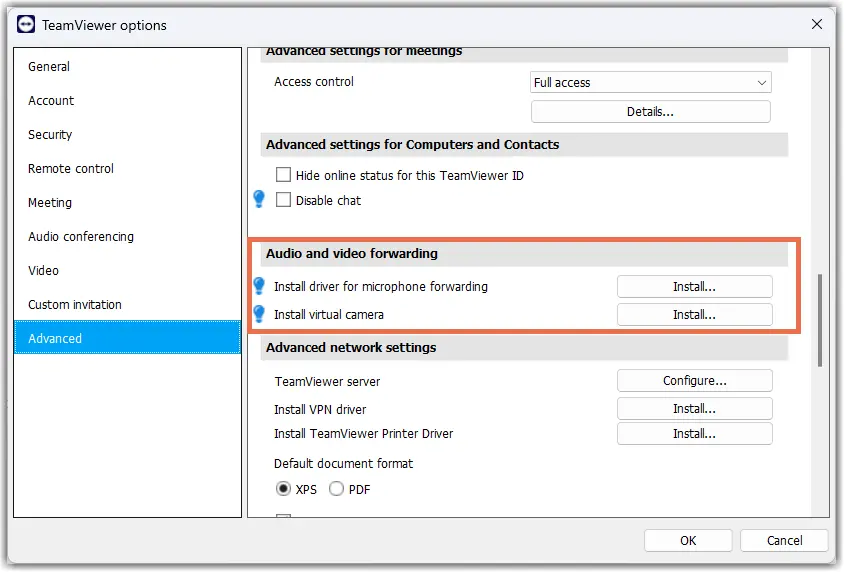
  1. Open TeamViewer Advanced settings: Extras → Options → Advanced → Show advanced.
  2. Navigate to the Audio and video forwarding section.
  3. Install or uninstall the virtual audio and camera drivers as needed.
  4. Confirm the change.
  5. Restart the remote session if required.
How to install the forwarding audio driver via MSI

The forwarding drivers can also be installed via MSI, using the following commands:

msiexec /i TeamViewer_Full.msi INSTALLVIRTUALAUDIO=1
msiexec /i TeamViewer_Host.msi INSTALLVIRTUALAUDIO=1

Vyberte prosím svůj region

Výběrem regionu změníte jazyk a/nebo obsah na webu teamviewer.com


NAVRHOVANÝ REGION

  • Americas

    • Americas - English
    • América Latina - Español
    • Brasil - Português
    • Canada - English
    • Canada - Français
    • United States - English
  • Asia Pacific

    • Asia Pacific - English
    • Australia - English
    • 中国 - 中⽂(简体)
    • 香港 - 繁體中文
    • India - English
    • 日本 - ⽇本語
    • New Zealand - English
    • 대한민국 - 한국어
    • 台灣-繁體中文
    • ประเทศไทย - ภาษาไทย
  • Commonwealth of Independent States

    • CIS - English
    • СНГ - Русский
  • Europe

    • Europe - English
    • Belgique - Français
    • België - Nederlands
    • Bulgaria - English
    • Croatia - English
    • Cyprus - English
    • Czechia - Čeština
    • Denmark - English
    • Deutschland - Deutsch
    • España - Español
    • Estonia - English
    • Finland - English
    • France - Français
    • Greece - English
    • Ireland - English
    • Italia - Italiano
    • Latvia - English
    • Liechtenstein - Deutsch
    • Liechtenstein - Français
    • Liechtenstein - Italiano
    • Lithuania - English
    • Luxembourg - Français
    • Magyarország - Magyar
    • Malta - English
    • Nederland - Nederlands
    • Norway - English
    • Österreich - Deutsch
    • Polska - Polski
    • Portugal - Português
    • Romania - English
    • Schweiz - Deutsch
    • Suisse - Français
    • Svizzera - Italiano
    • Slovakia - English
    • Slovenia - English
    • Sweden - English
    • Türkiye - Türkçe
    • United Kingdom - English
  • Middle East Africa

    • Middle East Africa - English
    • Middle East Africa - Français
  • Produkty
    • TeamViewer Remote
    • TeamViewer Tensor
    • TeamViewer DEX
    • TeamViewer Frontline
    • Ceny
  • Platforma ONE
    • TeamViewer ONE
  • Řešení
    • Podle odvětví
    • Podle případů použití
    • Podle rolí
    • Pro firmy
  • Partneři
    • Vyhledat partnera
    • Staňte se partnerem
    • Partneři pro integraci
  • Zdroje
    • Blog
    • Příklady úspěšného využití
    • Trust Center
  • Podpora
    • Kontaktovat podporu
    • Návody a příručky
    • Informační databáze
    • Stav systému
    • Přizpůsobené moduly
    • Pro vývojáře
    • Komunita
  • Společnost
    • O společnosti TeamViewer
    • Kariéra
    • Investoři
    • Vedení
    • Pro média
    • Partnerství ve sportu
    • Udržitelnost a CSR
    • Správa a řízení společnosti
  • Doplňující Odkazy
    • Kontaktujte prodejní tým
    • TeamViewer User Focus Program
    • Make work work better
    • Elektronický zpravodaj
  • Smlouva EULA (EN)
  • Product Descriptions
  • Údaje o společnosti
  • Zásady ochrany osobních údajů (EN)
  • Kontakt
Nastavení souborů cookie