
知识库
Company settings
Last Modified 2025年7月3日
Company settings encompass a range of configurations that company administrators can modify. These settings define communication features, monitoring options, device management behavior, and interface customization. By configuring company settings, administrators ensure consistent security, transparency, and user experience across all users and devices.
Access the company settings
To access the company settings, please follow the instructions below:
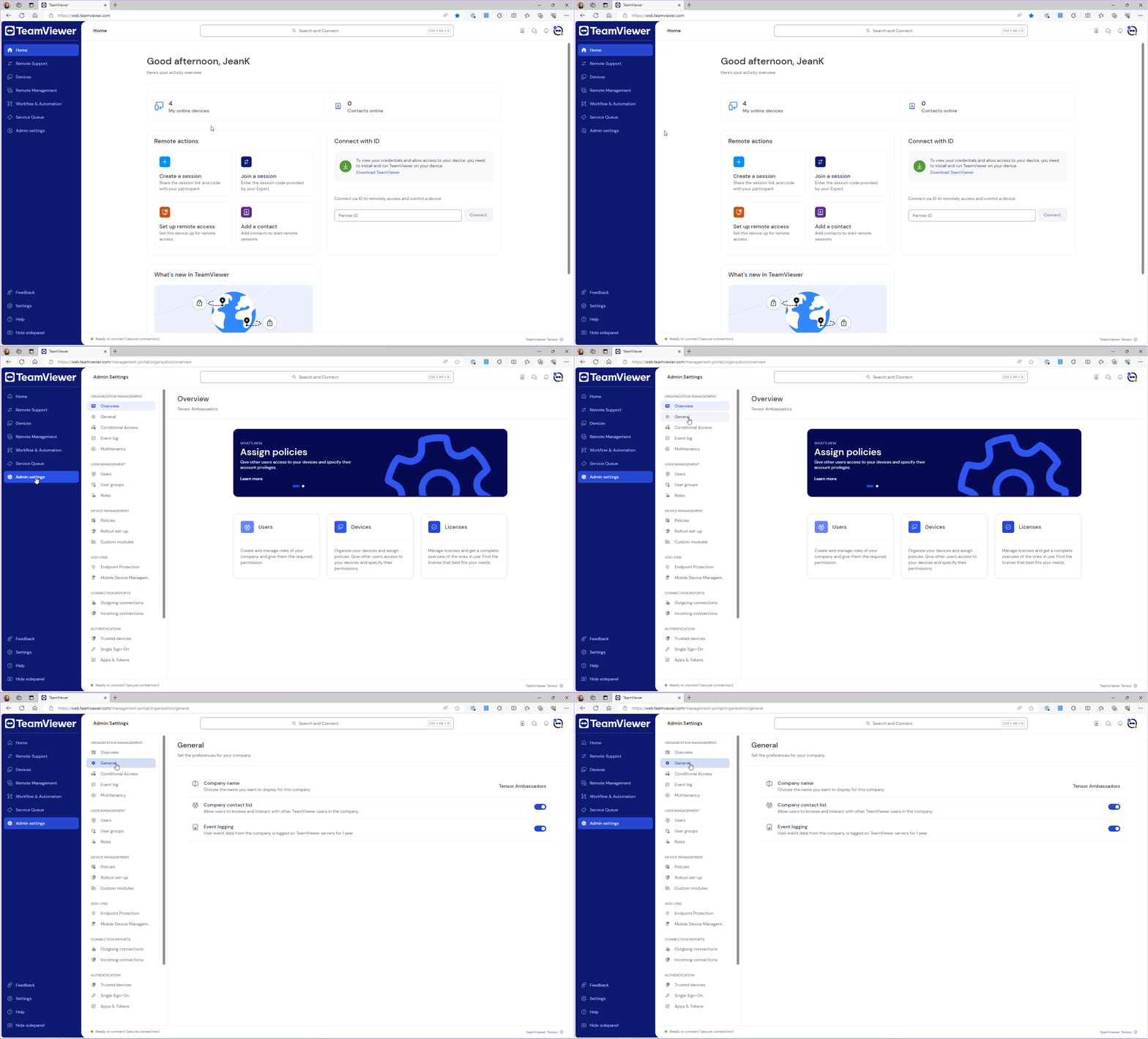
- Sign in with your account at https://web.teamviewer.com/.
- Go to Admin settings.
- Under Organization management, go to General.
Change company name
To change the company name, access the company settings as described above, click on your company name, enter the new company name, and click Save.
Enable/disable the company contact list
To enable or disable the company contact list, access the company settings as described above and click the respective toggle to enable or disable the feature. Users within your company won't be able to see company contacts within their contacts section.
To learn more about the company contact list, please read this article: Company Address Book
Enable/disable event logging
To enable or disable event logging, access the company settings as described above and click the respective toggle to enable or disable the feature. If the toggle is disabled, no event will be logged within your company.
To learn more about event logging, please read this article: Auditability / Event Log