• 聯絡銷售人員
    • 開啟網頁應用程式
    • 管理主控台
    • 工單
    • 客戶入口網站
TeamViewer
  • 個人使用與中小型企業 TeamViewer Remote

    安全快速的遠端存取與 IT 支援。

    瞭解更多

    • 遠端支援 提供即時、安全的支援
    • 遠端管理 監控和管理裝置
    查看方案與價格

    企業 TeamViewer Tensor

    為安全運作而創建的遠端連線功能。

    瞭解更多

    • 遠端 IT 支援 安全、靈活、整合
    • 運營技術 遠端車間存取

    即時故障排除 TeamViewer DEX

    在使用者受到影響前解決問題。

    瞭解更多

    • 端點故障排除 識別並解決問題
    • 端點自動化 自動執行常規 IT 任務

    連線工作者 TeamViewer Frontline

    工業擴增實境極大提升工作效率。

    瞭解更多

    • 物流與倉儲 無人物料搬運
    • 訓練和入職 快速完成入職訓練,實現技能提升
    TeamViewer 用戶端顯示的 AI 功能

    TeamViewer ONE

    於一個平台暢享 TeamViewer 的全部功能。

    • 瞭解更多

    關鍵整合功能

    • Microsoft Intune

    • ServiceNow

    • Freshworks

    • Jira

    • Salesforce

    • Slack

    • Microsoft Teams

    檢視所有整合功能
  • TeamViewer ONE 平台

    所有功能整合於一個平台中,主動管理並優化您的數位工作空間。

    • 適用於精簡的 IT 團隊 前瞻式裝置管理
    • 無縫體驗 順暢連續的數位化體驗
    • 無縫 IT 運作 前瞻式修復與卓越的服務
    • 請聯絡我們的團隊 準備好轉型了嗎?
    探索此平台

    Core 功能

    • TeamViewer AI
    • 數位員工體驗
    • 遠端支援與控制
    • 資產與修補程式管理
    檢視所有功能

    2026 年 Gartner 報告

    TeamViewer 被評為 DEX 工具領域的領導者

    TeamViewer 被評為 2026 年 Gartner® Magic Quadrant™ DEX 工具領域的領導者。

    關鍵整合功能

    • Microsoft Intune

    • ServiceNow

    • Freshworks

    • Jira

    • Salesforce

    • Zendesk

    • Slack

    • Microsoft Teams

    檢視所有整合功能
  • 熱門使用案例

    • 遠端存取與支援 隨時隨地管理人員、裝置與應用程式。
    • 數位員工體驗 (DEX) 前瞻式解決 IT 問題,避免影響工作效率。

    其他使用案例

    • 遠端存取 透過安全連線改進存取
    • 遠端控制 跨平台對裝置進行控制
    • 遠端桌面 隨時隨地提升工作效率
    • Wake-on-LAN(遠端喚醒) 啟用遠端裝置啟動
    • 螢幕共用 即時視覺化通訊
    • 智慧服務 簡化售後運作

    按照需求 不同團隊的熱門解決方案

    • 個人用途 您可從任何地點存取裝置
    • 小型企業 簡化遠端存取與支援
    • 大型企業 擴展並保障企業 IT 安全
    • 自由工作者與數位遊民 隨時隨地安全工作
    • 託管服務供應商 管理與維護客戶 IT 系統
    • 原始設備製造商 簡化支援與運作
    • 非營利及教育行業 TeamViewer 技術享 30% 優惠

    按照行業 按行業分類的熱門解決方案

    • 汽車
    • 農業
    • 物流
    • 製造業
    • 零售
    • 醫療保健
    • 銀行與金融
    • 公共領域

    請聯絡我們的銷售團隊

    需要協助選擇理想的解決方案、下單或升級授權嗎?

    • 請聯絡我們
  • 企業版
  • 瞭解關於 TeamViewer 的詳情

    • 關於 TeamViewer 安全地連線到他人、地點與物聯網。
    • 聯絡支援團隊 瀏覽支援文章或聯絡我們的團隊。
    • 成為合作夥伴 加入我們的全球合作夥伴計劃 TeamUP。
    • 成功案例 探索 TeamViewer 客戶取得的成果。
    新聞

    TeamViewer 報告稱,其 Al 服務獲得客戶廣泛採用。

    資源

    • 網誌
    • 成功案例
    • 活動與網路研討會
    • 信任中心

    合作夥伴

    • 成為合作夥伴
    • 尋找合作夥伴
    • 整合合作夥伴

    支援

    • 聯絡支援團隊
    • 指南和手冊
    • 知識庫
    • 系統狀態
    • 自訂模組
    • 針對開發人員
    • 社群

    公司

    • 關於 TeamViewer
    • 工作機會
    • 投資商
    • 新聞中心
    • 領導層
    • 體育行業夥伴關係
    • 可持續發展及企業社會責任
    • 公司治理
  • 價格
  • 免費下載

知识库

  • TeamViewer ONE
  • TeamViewer Remote
  • TeamViewer (Classic)
  • TeamViewer Tensor
  • TeamViewer Tensor (Classic)
  • TeamViewer Frontline
  • Other products
Back to support overview
  • Get started
    • Get started with TeamViewer Remote
    • TeamViewer Remote FAQ
    • Management Console integrated into TeamViewer's admin settings
    • Switch to the new interface
    • Customize your navigation in TeamViewer
    • Use TeamViewer Remote's latest version
    • Enhanced accessibility during TeamViewer remote sessions on Windows
    • The TeamViewer deployment and configuration guide
  • Account
    • Create your account
    • Sign in with your account
    • Two-factor authentication for your account
    • Change your account information
    • Reset your account password
    • Delete your account
    • Account verification requirement
  • Download and Installation
    • Download and install TeamViewer
    • Uninstall TeamViewer
    • Supported operating systems for TeamViewer
    • Download older TeamViewer versions
    • TeamViewer insider builds
    • Use TeamViewer on Windows servers
    • Use TeamViewer on cloned systems
    • Linux
      • Install TeamViewer (Classic) on Linux
      • Install TeamViewer (Classic) on Linux without graphical user interface
      • Install TeamViewer (Classic) on Red Hat and CentOS
      • Install TeamViewer (Classic) on SUSE Enterprise 15 SP2
      • Install TeamViewer (Classic) on Ubuntu
      • Install TeamViewer (Classic) on other Linux distributions
      • Install older TeamViewer (Classic) versions on Linux
      • Solve incoming connection problems on Fedora 29 and newer
      • System Tray, StatusNotifier and TeamViewer (Classic) for Linux
      • Use the TAR package for Linux
  • Update
    • Update TeamViewer
    • Update TeamViewer via policy
  • Modules
    • Full client and custom full client
    • QuickSupport and custom QuickSupport
    • Host and custom Host
  • Remote control
    • Troubleshoot IT Issues with Tia (TeamViewer Intelligent Agent)
    • Connect via device dock
    • Connect via ID and password
    • Provide attended remote support
    • Provide unattended remote support
    • Remote control a Mac
    • Start a screen sharing session
    • Troubleshoot IT Issues with Tia (TeamViewer Intelligent Agent)
    • Use TeamViewer Remote in LAN
    • Use TeamViewer Remote on Windows servers
    • Connect to a contact
    • Connect via Windows Authentication to control UAC during a TeamViewer session
    • Access the command prompt via Remote terminal connection
    • TeamViewer VPN
    • Where to find my ID and password?
    • Open a file transfer session
    • Share files with the file box
    • Remote session toolbar
    • Use Teamviewer Printing
    • Paste the clipboard as keystrokes during a remote session
    • Wake up a device remotely
    • Add a virtual monitor to your remote device
    • Generate session summaries with Session Insights
    • Save the chat history of a TeamViewer session
    • Forward local key input with the direct keyboard mode
    • Control clipboard sync during remote support sessions
  • TeamViewer AI
    • Integrate TeamViewer with AI systems using MCP
  • Company and users
    • Create a company
    • Automated company creation for commercial licenses
    • Add users to your company
    • Manage your users
    • Export your users
    • User roles
    • User role permissions - Overview
    • Company settings
    • Create user groups
  • Devices
    • The new device management system explained
    • Automatic device migration explained
    • Add a new device to your account and your company
    • Add a device via link
    • Add a device via a remote session
    • Add a device via rollout configuration
    • Create, edit and delete a device group
    • Share and manage access to devices in TeamViewer
    • Share device groups and devices with user groups
    • Edit manager permissions on devices
    • Apply manager permissions at group level
    • Move devices to a group and apply a policy
    • Delete a device
    • Bookmarked vs. managed devices
    • Device groups explained
    • Add and remove existing devices from groups
    • Understanding how manager permissions work
    • Find the best view to display your devices and device groups
    • Expand device overview and filter devices
    • Navigate and connect using Global Search
    • Use device custom fields
    • Policies
    • Policy rules
    • Session recording policies
  • Deployment
    • Deploy TeamViewer on device groups via Microsoft Intune
    • TeamViewer deployment - User guide
      • Create your company (with a primary account)
      • Add your users to your company
      • Create your module
      • Create your policy
      • Create a device group
      • Create a rollout configuration
      • Download the .msi installer
      • Deploy TeamViewer (Host or full client)
      • Create a package in Microsoft Endpoint Manager via Intune (Win32 app)
      • Assign existing TeamViewer installations via command line
      • Grant Easy access to your devices and device groups
  • Mobile
    • Provide attended remote support for mobile
    • Enhance iOS remote support with Visual Guidance
    • Set up remote control for Samsung Knox devices via your MDM
    • Remotely control a Sony Bravia TV
  • Security
    • Increase your security posture with the Security Center
    • Expert Identity
    • Security Statement - How secure is TeamViewer?
    • Trust devices via push notification
    • Block and allowlist
    • Connection reports
    • TeamViewer and scamming
    • Enforce two-factor authentication for your company members
    • Enable the screen sharing indicator for your remote sessions
    • TeamViewer Black Screen
  • Licenses
    • Activate and set up your Remote Access license
    • Get started with your TeamViewer Business license
    • Get started with your TeamViewer Premium or Corporate license
    • Activate your Tensor license
    • Licenses and Features
      • All TeamViewer licenses - Feature overview
      • Free license - Feature overview
      • Remote Access license - Feature overview
      • Business license - Feature overview
      • Premium license - Feature overview
      • Corporate license - Feature overview
      • Tensor license - Feature overview
      • FAQ on Remote Access license
      • AI credit‑based payment model, AI credits, and AI credits add‑on
    • TeamViewer Customer Portal
  • Service management
    • Service Desk
    • Manage service cases with Service Queue
    • Service Portals
  • Remote Management
    • Get started with TeamViewer Remote Management
    • Supported operating systems for Remote Management
    • Activate your Remote Management License
    • Remote Management Policies
    • Uninstall Remote Management services
    • TeamViewer Monitoring
      • Get started with TeamViewer Monitoring
      • Rule-based task automation
      • Event log check
      • Add and create scripts
      • Execute scripts remotely
      • Advanced Monitoring using 1E technology
    • TeamViewer Asset Management
      • Get started with TeamViewer Asset Management
      • Deploying missing patches and new software
      • Asset Management reporting
      • Troubleshooting Asset Management installations
    • TeamViewer Endpoint Protection
      • Get started with TeamViewer Endpoint Protection
      • Get started with TeamViewer Endpoint Detection and Response
      • Endpoint Protection settings
      • Managed Detection and Response
      • Managed Threat Hunting
      • Network access and firewall settings for Endpoint Protection
    • TeamViewer Backup
      • Get started with TeamViewer Backup
    • TeamViewer Mobile Device Management
      • Mobile Device Management - Overview
      • Set up the MDM environment
      • Mobile Apps Catalog
      • Mobile Device Management configurations
      • Mobile Device Management policies
      • Mobile Device Management users
      • Mobile Device Management User groups
      • Mobile Device Management devices
      • Mobile Device Management Device groups
      • Connect to a device via TeamViewer MDM
      • Connect to a device via TeamViewer MDM - QuickStart Guide
      • Mobile Device Management - Android Bulk Enrollment
    • TeamViewer Monitoring & Asset Management (Classic)
      • TeamViewer Monitoring & Asset Management (Classic) - Overview
      • Get started with TeamViewer Monitoring (Classic)
      • Event Log Check
      • Add & create scripts
      • Execute scripts remotely
      • Get started with Asset Management (Classic)
  • TeamViewer DEX Essentials
    • Get started with TeamViewer DEX Essentials
  • Meeting
    • Create and join a meeting
  • For developers
    • Use the TeamViewer API
    • Build a TeamViewer integration
    • Command line parameters
  • Troubleshooting
    • Ports and URLs used by TeamViewer
    • Black screen after starting a connection
    • Company logo not displayed within QuickSupport
    • Error message: Reason Unknown
    • Fix connectivity issues - Partner did not connect to router
    • Log file reading - Incoming connection
    • Not ready. Please check your connection
    • Resolve High CPU usage
    • Solve an aborted file transfer
    • TeamViewer Status - Is TeamViewer Down?
    • Time limitation on licensed connections
    • Troubleshoot after a Backup or OS update on MAC
    • Troubleshoot connection issues using killernetworking driver
    • Troubleshoot remote printing
    • Use TeamViewer (Classic) on headless systems
  • Contact Support
    • Submit a ticket
    • Collect log files with the TeamViewer Support Collector
    • Find your log files
    • Join our User Focus Program
    • Password for TeamViewer server
  • TeamViewer EULA and DPA
  • Integrate TeamViewer with AI systems using MCP

    Last Modified: 2026年8月6日

Model Context Protocol (MCP) enables AI systems to connect to TeamViewer ONE and interact with your IT environment. It provides a standardized way to access data, trigger actions, and automate workflows using natural language. This allows you to reduce manual steps and work more efficiently across systems.

MCP acts as a shared interface between AI tools and enterprise platforms. Instead of creating multiple integrations, it provides a single, consistent connection layer.

This article applies to all TeamViewer paid license holders with access to TeamViewer WebAPI.

Prerequisites

  • Access to an AI system (E.g., Claude or Copilot)
  • Access to a TeamViewer account

Available resources

  • Self-hosted version: GitHub repository

Note: For additional details, see the ReadMe section in the GitHub repository.

  • Hosted version (link to live): https://tvone-mcp.azurewebsites.net

    • Available MCP Tools for the hosted version: 

Download

Model Context Protocol overview

Model Context Protocol (MCP) is an open standard that connects AI models with enterprise tools and APIs.

It enables:

  • Access to real-time data

  • Execution of actions across systems

  • Reusable workflows using structured prompts

MCP provides a consistent interface that allows AI systems to interact with tools without requiring individual integrations.

What the connector can do

After connecting your TeamViewer account, AI systems can help with:

  • Devices: View, add, edit, or remove managed devices and device groups

  • Remote sessions: Start and manage remote control sessions

  • Users and access: View and manage users, roles, and permissions in your TeamViewer company

  • Contacts: View, add, edit, or remove contacts

  • Policies: View and manage TeamViewer, monitoring, and patch management policies

  • Monitoring: View monitoring information for devices

  • Reports and logs: Access connection reports, device reports, and event logs

  • Account and company information: View and update account and company details

  • API tokens: Manage TeamViewer API tokens

The AI systems only perform these actions when you request them. Connecting the app does not allow them to act independently.

How your data is protected

TeamViewer uses OAuth authentication to protect your account information.

  • Your TeamViewer password is never shared with or stored by any of the AI systems

  • You always sign in directly through TeamViewer

  • Claude does not receive your TeamViewer credentials

  • Claude uses a separate authorization token with limited permissions

  • Access tokens are stored securely and only used to complete requested actions

  1. Use TeamViewer with Claude via MCP
  2. Use TeamViewer with Copilot via MCP

You can connect your TeamViewer account to Claude using the TeamViewer connector. Once connected, Claude can access TeamViewer information and perform actions on your behalf based on the permissions you grant.

The connection uses TeamViewer authentication, and you can review or revoke access at any time. Claude only performs actions when you explicitly ask it to.

How to connect TeamViewer with Claude

  1. Go to Claude and open a new chat.

  2. Click Customize.

  3. Click Connect your apps.

4. Open Connectors and select Add custom connector.

5. Enter the connector details:

  • Connector name
  • MCP server URL
https://tvone-mcp.azurewebsites.net/mcp

6. Save the connector.

7. The TeamViewer tools are now available under the custom connector. Select Always allow to enable access to the tools.

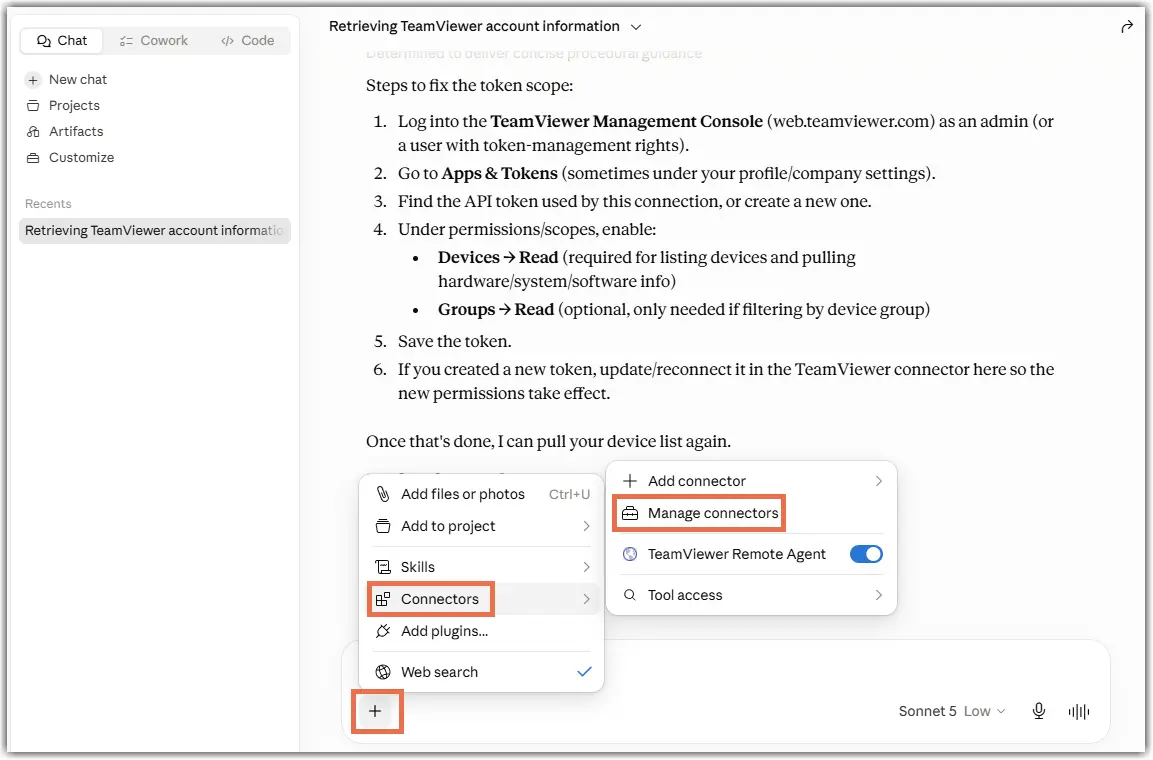
8. Return to the chat window. Click +, then open Connectors. Here you would find the TeamViewer Remote Agent custom connector. You can enable or disable the agent here. 

9. In the chat, enter: 

Help me get the TeamViewer account info

The request is processed. When prompted, click Connect and authenticate in the new window.

10. Allow the required permissions.

11.  The connection is established, and Claude can answer your queries now. 

In Claude

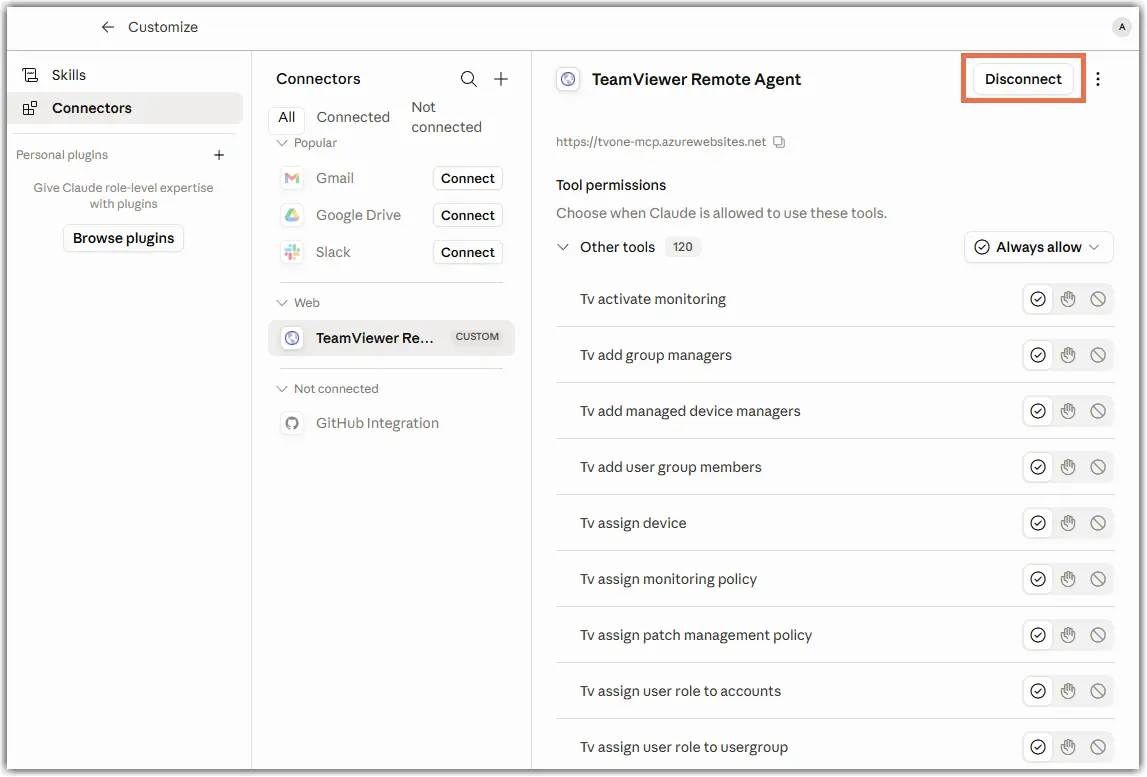
  1. Open Connectors.

  2. Select Manage connectors.

3. Choose the TeamViewer connector and click Disconnect.

4. Confirm the disconnection in the pop-up window.

In TeamViewer

  1. Sign in to TeamViewer Management Console.

  2. Go to Account settings.

  3. Select Apps.

  4. Revoke access for the TeamViewer connector.

  1. Go to Customize > Connectors.

  2. Under Not connected, select TeamViewer Remote Agent.

  3. Click Connect.

4. Log in with your TeamViewer account.

You can connect your TeamViewer account to Microsoft Copilot Studio and allow agents to access TeamViewer data and perform actions on your behalf, based on the permissions you grant.

Copilot Studio performs actions only when triggered by an agent or workflow you configure.

How to connect TeamViewer with Copilot

  1. Open Microsoft Copilot Studio and click Tools in the left navigation.

2. Click New tool and select Model Context Protocol.

3. Enter a name in Server name, add a description in Server description, paste your MCP server URL into Server URL, and select OAuth 2.0 under Authentication. 

  • MCP server URL:
https://tvone-mcp.azurewebsites.net/mcp

4. Provide Client ID, Client Secret, Authorization URL, Token URL Template, and Refresh URL in the popped-up window. Then click Create.

AuthorizationURL: https://tvone-mcp-nodcr.azurewebsites.net/authorize
Token URL: https://tvone-mcp-nodcr.azurewebsites.net/token
Refresh URL: https://tvone-mcp-nodcr.azurewebsites.net/token
Scope:UserInfo.View Computers.View Computers.Edit Computers.DeleteGroups.View Groups.Create Groups.Edit Groups.DeleteContacts.View Contacts.Create Contacts.Edit Contacts.DeletePartners.View Sessions.ManualCreation

5. Find the newly created tool in the Tools list, click the three-dot menu next to the tool, and select Add to agent.

6. Select the agent you want to use and confirm the selection.

7. In the tool selection window, choose your custom connector and click Connect.

8. Click Create new connection, confirm the connection, and then click Add to attach the tool to your agent.

9. Enter your TeamViewer credentials and allow the required permissions. 

10. Open your agent, navigate to the Tools section, and confirm that the MCP tool is listed and enabled.

In Copilot

  1. Open Copilot.

  2. Go to Connections.

  3. Locate the TeamViewer connection.

  4. Select the connection and remove it.

In TeamViewer

  1. Sign in to TeamViewer Management Console.

  2. Go to Account settings.

  3. Select Apps.

  4. Revoke access for the TeamViewer connector.

Additional information for prompts

After connecting TeamViewer to an AI system through MCP, you can interact with your TeamViewer environment using natural language. The AI systems can help you retrieve information, manage users, update devices, review sessions, and perform administrative tasks.

The following example prompts show some of the actions available through the integration.

Account management

  • Show me the details of my current TeamViewer account

  • Update my TeamViewer account name to "[New Name]" and email to "[[email protected]]"

Company information

  • Show me the details of my TeamViewer company

  • What licenses does our company currently have?

Users

  • Create a new user named "[Jane Doe]" with email "[[email protected]]"

  • Show me the details for user "[user_name]"

  • Update user "[user_name]" and change their name to "[New Name]"

  • Delete the user with ID "[user_id]"

  • List all users in our company

Roles and permissions

  • List all user roles in our company

  • Create a new role called "[Support Agent]" with permissions to view sessions and manage devices

  • Assign the role "[role_id]" to user "[user_id]"

  • Remove the role "[role_id]" from user "[user_id]"

  • What permissions does user "[user_id]" have?

Devices

  • Show me the details for device "[device_id]"

  • Delete device "[device_id]"

  • List all devices I directly manage

  • Update managed device "[device_id]" and rename it to "[New Name]" and assign policy "[policy_id]"

  • Which managed groups does device "[device_id]" belong to?

Sessions

  • Show me the details of session "[session_id]"

  • List all sessions from the last 7 days

  • List the connection reports for the last 5 connections

  • Get session insights for connections with microphone issues

  • Show me the last connection made to device ID "[device_id]"

Connection reports

  • List connection reports for device "[device_id]"

  • Give me the AI-generated summary of connection "[connection_id]"

  • Get the chat transcript for connection "[connection_id]"

  • List all screenshots available for connection "[connection_id]"

Device groups

  • Create a new device group called "[Sales Devices]"

  • List all device groups

  • Share device group "[group_id]" with user "[user_id]"

  • Delete device group "[group_id]"

請選擇您所在的地區

選擇區域會更改 teamviewer.com 上的語言和/或內容


建議區域

  • Americas

    • Americas - English
    • América Latina - Español
    • Brasil - Português
    • Canada - English
    • Canada - Français
    • United States - English
  • Asia Pacific

    • Asia Pacific - English
    • Australia - English
    • 中国 - 中⽂(简体)
    • 香港 - 繁體中文
    • India - English
    • 日本 - ⽇本語
    • New Zealand - English
    • 대한민국 - 한국어
    • 台灣-繁體中文
    • ประเทศไทย - ภาษาไทย
  • Commonwealth of Independent States

    • CIS - English
    • СНГ - Русский
  • Europe

    • Europe - English
    • Belgique - Français
    • België - Nederlands
    • Bulgaria - English
    • Croatia - English
    • Cyprus - English
    • Czechia - Čeština
    • Denmark - English
    • Deutschland - Deutsch
    • España - Español
    • Estonia - English
    • Finland - English
    • France - Français
    • Greece - English
    • Ireland - English
    • Italia - Italiano
    • Latvia - English
    • Liechtenstein - Deutsch
    • Liechtenstein - Français
    • Liechtenstein - Italiano
    • Lithuania - English
    • Luxembourg - Français
    • Magyarország - Magyar
    • Malta - English
    • Nederland - Nederlands
    • Norway - English
    • Österreich - Deutsch
    • Polska - Polski
    • Portugal - Português
    • Romania - English
    • Schweiz - Deutsch
    • Suisse - Français
    • Svizzera - Italiano
    • Slovakia - English
    • Slovenia - English
    • Sweden - English
    • Türkiye - Türkçe
    • United Kingdom - English
  • Middle East Africa

    • Middle East Africa - English
    • Middle East Africa - Français
  • 產品
    • TeamViewer Remote
    • TeamViewer Tensor
    • TeamViewer DEX
    • TeamViewer Frontline
    • 價格
  • ONE 平台
    • TeamViewer ONE
  • 解決方案
    • 按照行業
    • 按照使用案例
    • 按照角色
    • 企業版
  • 合作夥伴
    • 成為合作夥伴
    • 尋找合作夥伴
    • 整合合作夥伴
  • 資源
    • 網誌
    • 成功案例
    • 信任中心
  • 支援
    • 聯絡支援團隊
    • 指南和手冊
    • 知識庫
    • 系統狀態
    • 自訂模組
    • 針對開發人員
    • 社群
  • 公司簡介
    • 關於 TeamViewer
    • 工作機會
    • 投資商
    • 新聞中心
    • 領導層
    • 體育行業夥伴關係
    • 可持續發展及企業社會責任
    • 公司治理
  • 額外連結
    • 聯絡銷售人員
    • TeamViewer User Focus Program
    • Make work work better
    • 電子通訊
  • 使用者授權合約 (EN)
  • Product Descriptions
  • 版權標記
  • 隱私權政策 (EN)
  • 聯絡方式
Cookie 設置