• Contact salesafdeling
    • Open web-app
    • Beheerconsole
    • Ticket
    • Klantenportaal
TeamViewer
  • Persoonlijk gebruik en SMB TeamViewer Remote

    Snelle en veilige toegang en IT-ondersteuning op afstand.

    Meer informatie

    • Ondersteuning op afstand Directe, veilige ondersteuning
    • Beheer op afstand Apparaten bewaken en beheren
    Bekijk schema’s en prijzen

    Enterprise TeamViewer Tensor

    Connectiviteit op afstand, gericht op veilige operaties.

    Meer informatie

    • IT-ondersteuning op afstand Veilig, flexibel, geïntegreerd
    • Operationele technologie Werkvloertoegang op afstand

    Realtime probleemoplossing TeamViewer DEX

    Los problemen op, voordat ze invloed hebben op gebruikers.

    Meer informatie

    • Eindpuntprobleemoplossing Problemen identificeren en oplossen
    • Eindpuntautomatisering IT-routinetaken automatiseren

    Verbonden werknemer TeamViewer Frontline

    Hogere efficiëntie met industriële aangevulde realiteit.

    Meer informatie

    • Logistiek en magazijnopslag Handsfree materiaalverwerking
    • Opleiding en onboarding Snelle onboarding en bijscholing
    AI-mogelijkheden zoals gezien in de TeamViewer-client

    TeamViewer ONE

    Ontvang de volledige kracht van TeamViewer, verenigd in één platform.

    • Meer informatie

    Belangrijke integraties

    • Microsoft Intune

    • ServiceNow

    • Freshworks

    • Jira

    • Salesforce

    • Slack

    • Microsoft Teams

    Alle integraties bekijken
  • TeamViewer ONE-platform

    Uw digitale werkplaats proactief beheren en optimaliseren gecombineerd in één platform.

    • Voor gestroomlijnde IT-teams Proactief apparaatbeheer
    • Wrijvingsloze ervaring Vlotte en ononderbroken digitale ervaring
    • Naadloze IT-activiteiten Proactieve herstelmaatregelen en voortreffelijke service
    • Praat met ons team Klaar om te transformeren?
    Ontdek het platform

    Kernmogelijkheden

    • TeamViewer AI
    • Digitale werknemerservaring
    • Ondersteuning en controle op afstand
    • Asset- en patchbeheer
    Bekijk alle mogelijkheden

    Gartner Report 2026

    TeamViewer uitgeroepen tot leider in DEX

    TeamViewer uitgeroepen tot leider in 2026 Gartner® Magic Quadrant™ DEX-tools.

    Belangrijke integraties

    • Microsoft Intune

    • ServiceNow

    • Freshworks

    • Jira

    • Salesforce

    • Zendesk

    • Slack

    • Microsoft Teams

    Bekijk alle integraties
  • Populaire gebruiksscenario’s

    • Toegang en ondersteuning op afstand Personen, apparaten en applicaties beheren—vanaf overal.
    • Digitale werknemerservaring (DEX) IT-problemen proactief oplossen, voordat ze invloed hebben op de productiviteit.

    Andere gebruiksscenario’s

    • Toegang op afstand Veilige verbinding voor betere toegang
    • Controle op afstand Onafhankelijk van platform
    • Desktop op afstand De productiviteit vanaf overal verbeteren
    • Wake-on-LAN Apparaten op afstand activeren
    • Schermdeling Realtime visuele communicatie
    • Smart Service Aftersales-activiteiten stroomlijnen

    Op behoefte Populaire oplossingen voor verschillende teams

    • Persoonlijk gebruik Overal toegang tot apparaten
    • Kleine bedrijven Eenvoudige toegang en ondersteuning op afstand
    • Grote bedrijven IT van grote ondernemingen opschalen en beveiligen
    • Beheerde serviceproviders Client-IT beheren en behouden
    • OEM's Ondersteuning en bedrijfsvoering stroomlijnen
    • Non-profitorganisaties en onderwijs 30% korting op TeamViewer-technologie

    Per branches Populaire oplossingen gesorteerd per branche

    • Automotive
    • Landbouw
    • Logistiek
    • Productie
    • Detailhandel
    • Gezondheidszorg
    • Bankwezen en financiën

    Praat met ons verkoopteam

    Hebt u hulp nodig om de juiste oplossing te kiezen, een bestelling te plaatsen of uw licentie te upgraden?

    • Spreek met ons
  • Voor grote ondernemingen
  • Meer informatie over TeamViewer

    • Over TeamViewer Personen, plaatsen en dingen veilig verbinden.
    • Hulp en contact Bekijk artikelen of neem contact op met ons team.
    • Een partner worden Neem deel aan ons globale partnerprogramma TeamUP.
    • Succesverhalen Ontdek resultaten bereikt door TeamViewer-klanten.
    NIEUWS

    TeamViewer doet verslag van snelle klantaanpassing aan haar Al-aanbod.

    Bronnen

    • Blog
    • Succesverhalen
    • Evenementen en webinars
    • Trust Center

    Partner

    • Een partner worden
    • Een partner zoeken
    • Integratiepartners

    Ondersteuning

    • Hulp en contact
    • Handleidingen
    • Kennisbank
    • Systeemstatus
    • Aangepaste modules
    • Voor ontwikkelaars
    • Community

    Bedrijf

    • Over TeamViewer
    • Werken bij TeamViewer
    • Investeerders
    • Newsroom
    • Leiderschap
    • Sport-partnerschappen
    • Duurzaamheid en CSR
    • Corporate Governance
  • Prijzen
  • Gratis download

Knowledge Base

  • TeamViewer ONE
  • TeamViewer Remote
  • TeamViewer (Classic)
  • TeamViewer Tensor
  • TeamViewer Tensor (Classic)
  • TeamViewer Frontline
  • Other products
Back to support overview
  • What is TeamViewer Tensor?
  • Get started
    • Activate your Tensor license
    • Activate your Tensor Access license
    • Activate a license or an add-on as a tenant manager
    • Enable the new UI for your company
    • Customize the navigation for user groups in TeamViewer Tensor
  • Company, device and user management
    • Control the user interface
    • Multitenancy
    • Distribute your Tensor license
    • Assign a device manually to your company
    • User groups
    • Manage device groups on company level
    • Custom QuickSupport for mobile
    • Audio and video forwarding
  • Conditional Access
    • Get started with Conditional Access
    • Conditional Access in a Multitenancy organization
    • Hybrid Conditional Access
    • Approval option: Enforce approval for devices receiving a connection
    • Feature option: Define in-session permissions
    • Time option: Restrict or allow access for a specific time slot
    • Pre-approved access
    • Best practices for network configuration in a Conditional Access environment
  • Security
    • Auditability / Event Log
    • Provide in-session chat transcripts for integrations
    • Bring your own certificate
    • Security key redirection
    • Record TeamViewer sessions and upload them to your cloud storage
  • SSO
    • Single Sign-On (SSO)
    • Single Sign-On for Microsoft Entra ID
    • Single Sign-On for Active Directory Federation Services (ADFS)
    • Single Sign-On for Centrify
    • Single Sign-On for Google Workspace
    • Single Sign-On for Okta
    • Single Sign-On for OneLogin
    • Add users to SSO exclusion list
    • Set up your SSO inclusion list
    • Enable account activation emails for Single Sign-On
  • Integrations
    • Microsoft Entra ID Integration - SCIM Configuration
    • Microsoft Teams Integration - Installation and User Guide
    • Okta Integration - SCIM Configuration
    • Getting started with the Windows LAPS integration in TeamViewer Tensor
    • Launch remote access directly from Intune with the TeamViewer Intune Connect integration
    • Synchronize your Intune environment in TeamViewer with the Intune Device Sync integration
  • Agentless Access
    • Set up an access gateway in TeamViewer
    • Create an access endpoint in TeamViewer
  • Audio and video forwarding

    Last Modified: 28 jul. 2026

TeamViewer Tensor's audio and video forwarding feature lets you use your local microphone and camera during a remote session. By forwarding your selected audio and video devices to the remote computer, you can join meetings and use communication applications as if you were sitting at the remote device.

This article applies to TeamViewer ONE users and TeamViewer Tensor users on the following licenses: Tensor, Tensor Light Agent, Tensor Support & Tensor Support Concurrent, and TeamViewer ONE.

Requirements

Before utilizing audio and video forwarding, make sure the following conditions are met:

  • The device is associated with your TeamViewer Tensor license.
  • The remote device is running the full version of TeamViewer or TeamViewer Host.
  • Connection to the remote device is made via Easy Access.
  • A microphone and/or camera is available and functioning on your local device.

How audio and video forwarding works

When activated, TeamViewer Tensor checks the remote device to verify whether the appropriate virtual drivers are installed. If they are not found, TeamViewer Tensor automatically installs the required virtual devices. This allows your selected audio and video devices to be used by the remote machine in meetings or other communication applications. By default, the pre-selected audio and video devices in TeamViewer Tensors settings (LOCATION) are shared. If different audio or video devices should be used instead, you can change the configuration in the Configure audio/Configure video menus provided.

How to enable audio and video forwarding

  1. Start a remote connection to a supported device via Easy Access.
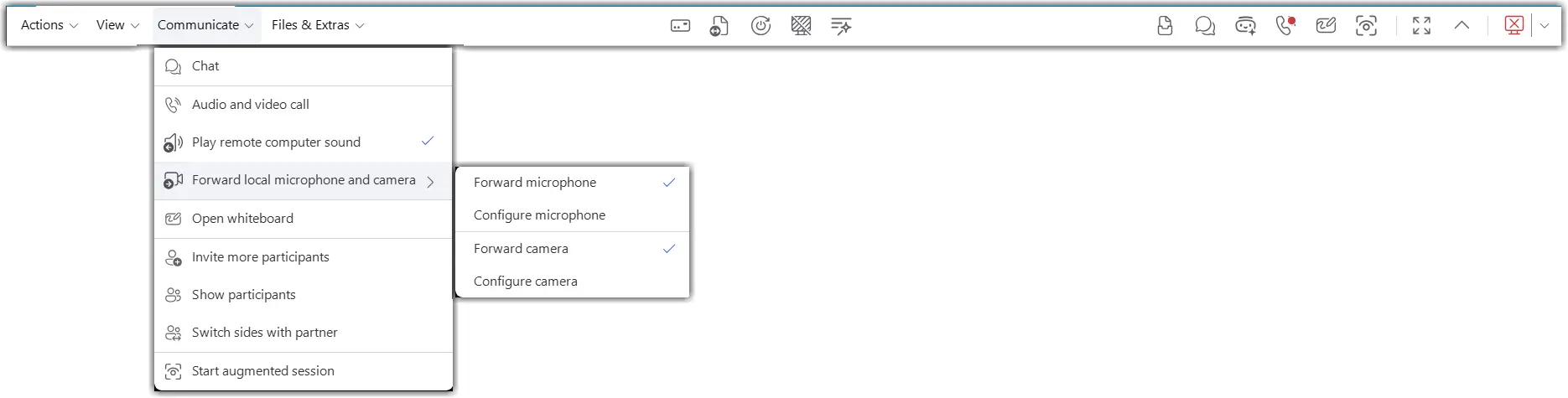
  2. In the session toolbar, enable audio forwarding, video forwarding, or both.
  3. If TeamViewer does not detect the required virtual drivers on the remote device, allow the installation to complete.
  4. To change the microphone forwarded by TeamViewer, select the Configure Microphone option, and choose the desired input device.
  5. To change the camera forwarded by TeamViewer, select the Configure Camera option and choose the desired video device.
  6. Open the desired meeting or communication application on the remote device.
  7. Select the TeamViewer virtual microphone and/or TeamViewer virtual camera in the application's audio and video settings.
  8. Verify that the remote application receives audio and video from your local devices.
How to change the forwarded audio/camera devices

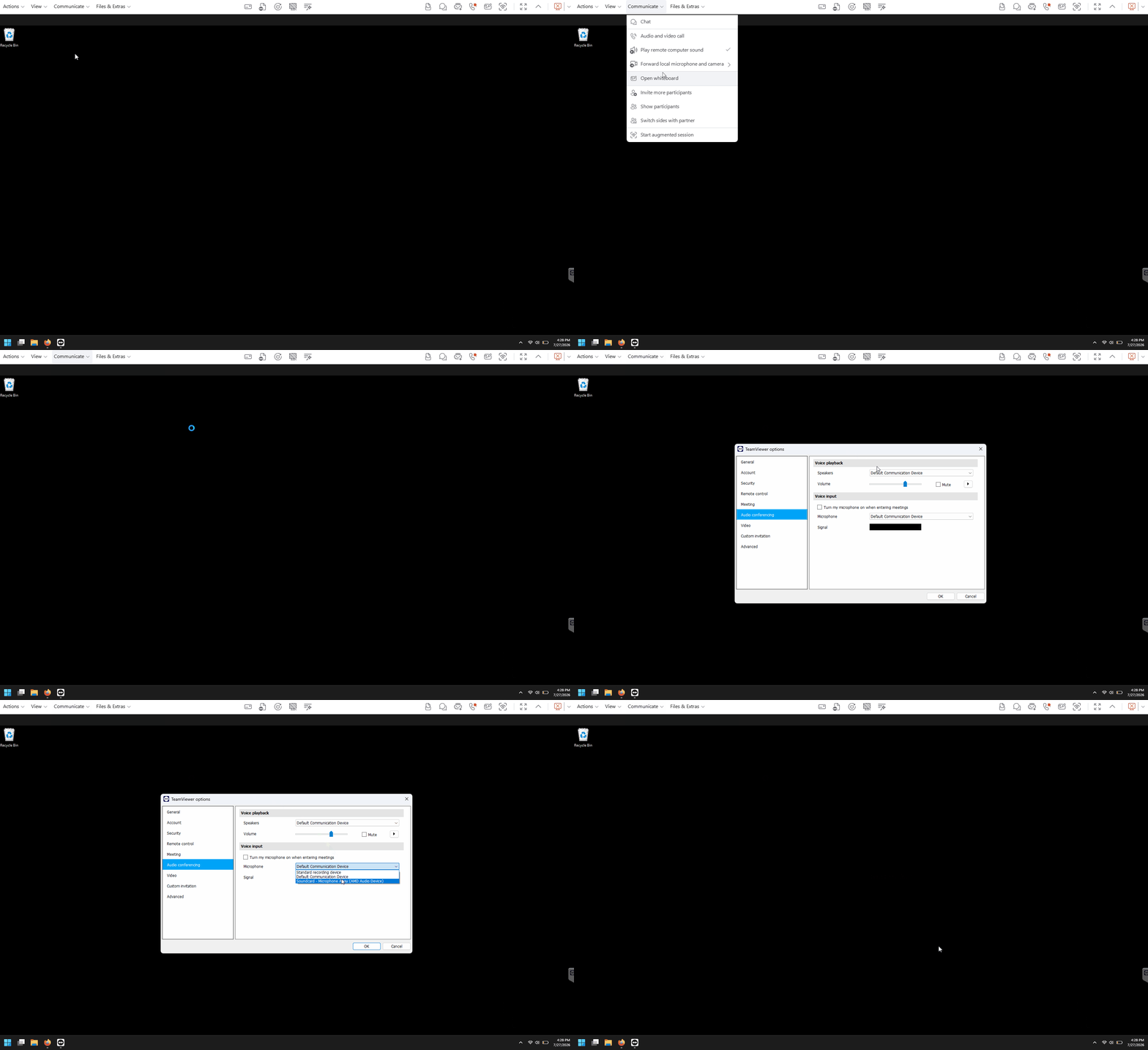
  1. While in the remote session, open the audio or video forwarding settings from the session toolbar.
  2. Select a different local microphone or camera.
  3. Confirm the selection.
  4. Test the device in the remote application.
How to manually install or uninstall the forwarding drivers

In TeamViewer Remote:

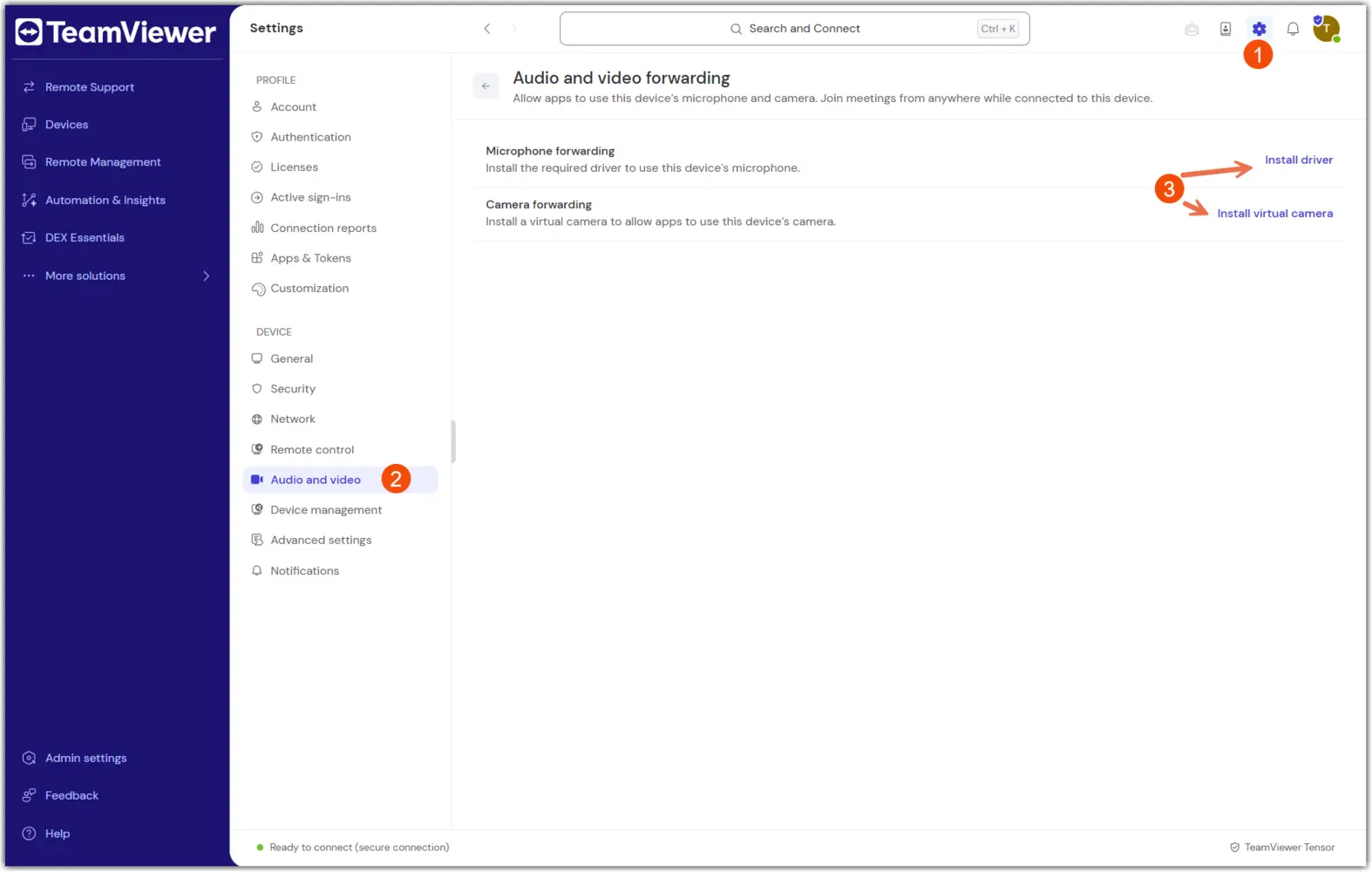
  1. Open TeamViewer settings on the remote device.
  2. Navigate to the audio and video forwarding driver section.
  3. Install or uninstall the virtual audio and camera drivers as needed.
  4. Confirm the change.
  5. Restart the remote session if required.
In TeamViewer (Classic):

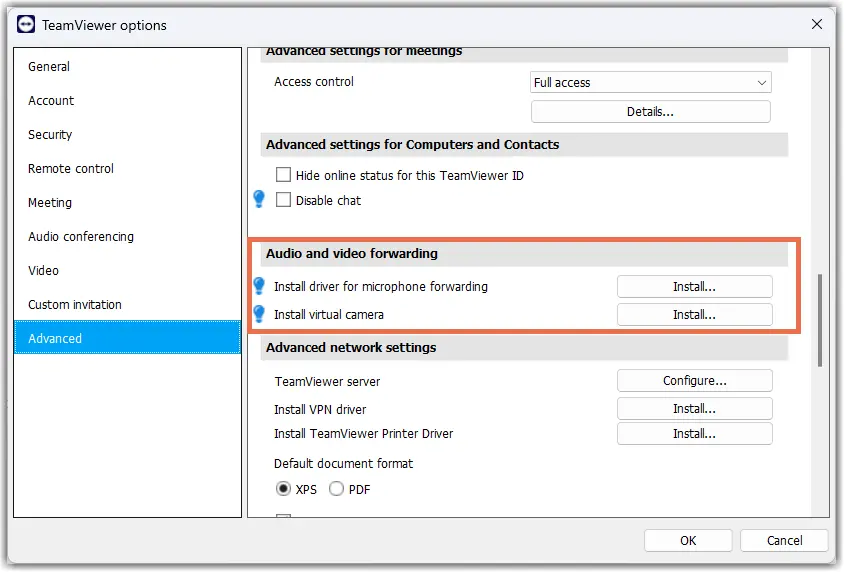
  1. Open TeamViewer Advanced settings: Extras → Options → Advanced → Show advanced.
  2. Navigate to the Audio and video forwarding section.
  3. Install or uninstall the virtual audio and camera drivers as needed.
  4. Confirm the change.
  5. Restart the remote session if required.
How to install the forwarding audio driver via MSI

The forwarding drivers can also be installed via MSI, using the following commands:

msiexec /i TeamViewer_Full.msi INSTALLVIRTUALAUDIO=1
msiexec /i TeamViewer_Host.msi INSTALLVIRTUALAUDIO=1

Selecteer uw regio

Het selecteren van een regio verandert de taal en/of inhoud op teamviewer.com


AANBEVOLEN REGIO

  • Americas

    • Americas - English
    • América Latina - Español
    • Brasil - Português
    • Canada - English
    • Canada - Français
    • United States - English
  • Asia Pacific

    • Asia Pacific - English
    • Australia - English
    • 中国 - 中⽂(简体)
    • 香港 - 繁體中文
    • India - English
    • 日本 - ⽇本語
    • New Zealand - English
    • 대한민국 - 한국어
    • 台灣-繁體中文
    • ประเทศไทย - ภาษาไทย
  • Commonwealth of Independent States

    • CIS - English
    • СНГ - Русский
  • Europe

    • Europe - English
    • Belgique - Français
    • België - Nederlands
    • Bulgaria - English
    • Croatia - English
    • Cyprus - English
    • Czechia - Čeština
    • Denmark - English
    • Deutschland - Deutsch
    • España - Español
    • Estonia - English
    • Finland - English
    • France - Français
    • Greece - English
    • Ireland - English
    • Italia - Italiano
    • Latvia - English
    • Liechtenstein - Deutsch
    • Liechtenstein - Français
    • Liechtenstein - Italiano
    • Lithuania - English
    • Luxembourg - Français
    • Magyarország - Magyar
    • Malta - English
    • Nederland - Nederlands
    • Norway - English
    • Österreich - Deutsch
    • Polska - Polski
    • Portugal - Português
    • Romania - English
    • Schweiz - Deutsch
    • Suisse - Français
    • Svizzera - Italiano
    • Slovakia - English
    • Slovenia - English
    • Sweden - English
    • Türkiye - Türkçe
    • United Kingdom - English
  • Middle East Africa

    • Middle East Africa - English
    • Middle East Africa - Français
  • Producten
    • TeamViewer Remote
    • TeamViewer Tensor
    • TeamViewer DEX
    • TeamViewer Frontline
    • Prijzen
  • ONE-platform
    • TeamViewer ONE
    • Mogelijkheden
    • Praat met ons team
  • Oplossingen
    • Per branches
    • Per gebruiksscenario’s
    • Per rollen
    • Voor grote ondernemingen
  • Partners
    • Een partner worden
    • Een partner zoeken
    • Integratiepartners
  • Bronnen
    • Blog
    • Succesverhalen
    • Trust Center
  • Ondersteuning
    • Hulp en contact
    • Handleidingen
    • Kennisbank
    • Systeemstatus
    • Aangepaste modules
    • Voor ontwikkelaars
    • Community
  • Bedrijf
    • Over TeamViewer
    • Werken bij TeamViewer
    • Investeerders
    • Newsroom
    • Leiderschap
    • Sport-partnerschappen
    • Duurzaamheid en CSR
    • Corporate Governance
  • Aanvullende links
    • Contact salesafdeling
    • TeamViewer User Focus Program
    • Find Your Better
    • Nieuwsbrief
  • EULA / DPA (EN)
  • Product Descriptions
  • Impressum
  • Privacy en cookies (EN)
  • Contact
Cookie-instellingen