This article applies to all TeamViewer Meeting users.
In this article, you will learn how to join a TeamViewer Meeting using the TeamViewer Meeting software via your computer or a mobile device.
Note: You can only join a meeting after the organizer has started it. Until they start the meeting, you will be queued in a TeamViewer Meeting waiting room.
Access information
To join a TeamViewer Meeting meeting, the organization will share the following data with you by email or another communication tool:
- Start date and time
- Meeting ID
- The topic of the Meeting
- optional: Password
Joining using the TeamViewer Meeting Software
After the organization provided you with the meeting ID and a password (if
needed), you can join the TeamViewer Meeting meeting from your computer or Mac.
1. On the navigation bar, click on Meeting and enter the Meeting ID under Join.
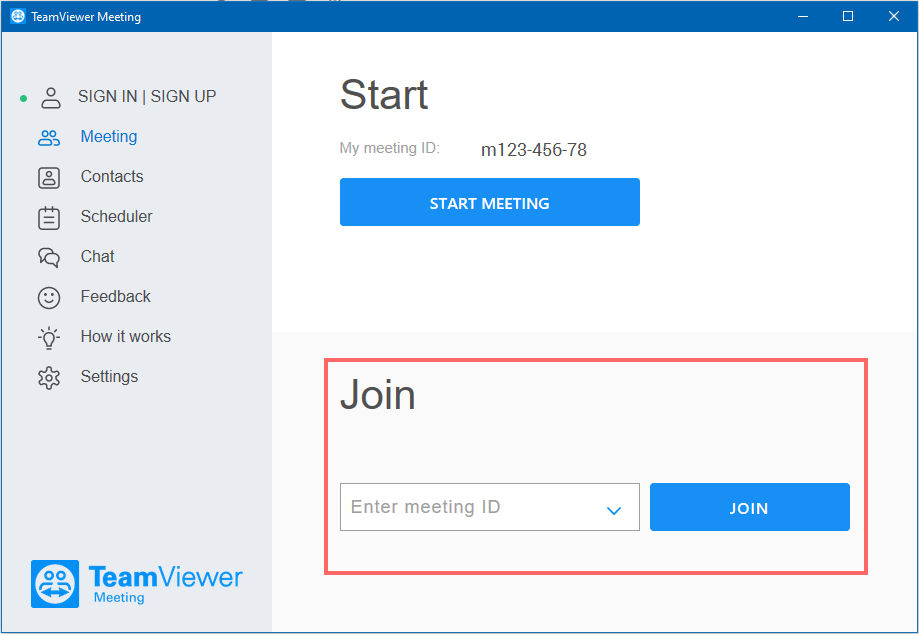
Note: You can enter the meeting ID with or without leading "m" and hyphens. TeamViewer Meeting adjusts the entry automatically.
If the meeting is not yet active, you must wait until the organizer starts it. If the organizer has protected the meeting with a password, you must enter the password.
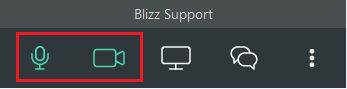
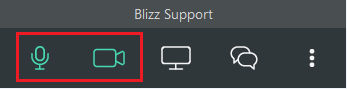
2. After entering the TeamViewer Meeting meeting, you need to activate your microphone to speak with the other participants and your video to transmit your video.
Due to data protection reasons, you need to activate the microphone and your camera in each meeting manually.
Click on the microphone for speaking and activate your webcam for video transmission.
Join from "My recent Meetings"
If you have a concurrent meeting ID that you usually join, you can use the shortcut My recent Meetings.
1. Open your TeamViewer Meeting application and navigate to the Meeting tab. Click on the history arrow to open your recent meetings.
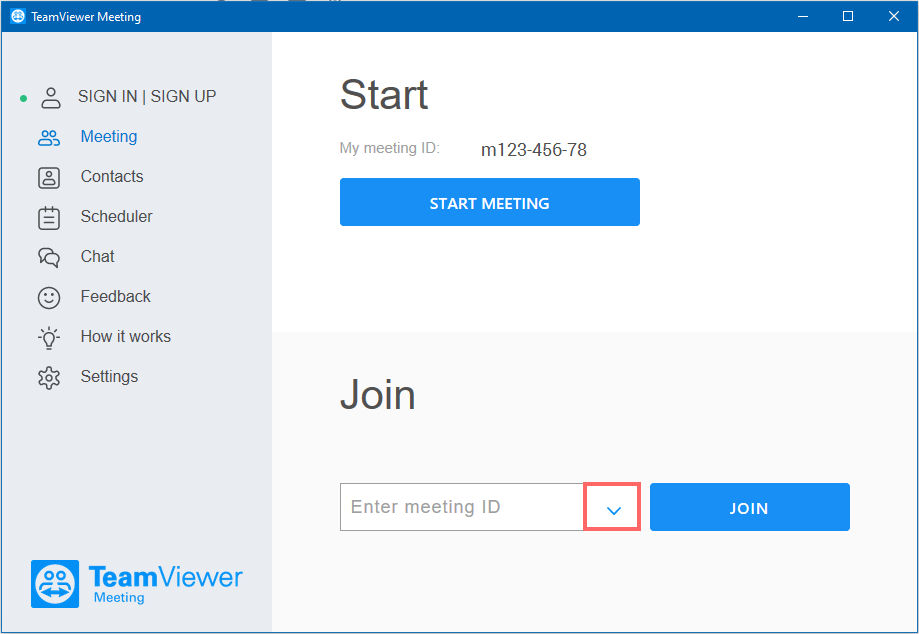
2. The list of recent meetings shows the last five meetings you have joined in the past. If you would like to join one of those meetings, click on it and then click on Join.
If the organizer has started the meeting you will be prompted to it.
Note: If the meetings were not named or scheduled, you will see the meeting ID and the owner's name instead of a meeting name.
Joining using a Mobile Device
After the organiser provides you with the meeting ID and a password (if needed), you can join the meeting from your mobile device.
1. Download the TeamViewer Meeting App using the following links, accordingly. Please use the links from the mobile devices or visit your Application Store on the devices directly:
iOS:
Participate in meetings from your iOS device anytime, anywhere. You will never miss an important discussion again: Blizz allows you to participate in web conferences spontaneously and with more flexibility, without being in front of your computer. Download the app, enter the Meeting ID and get a star
Android:
TeamViewer Meeting - Apps on Google Play
TeamViewer Meeting keeps you connected to your contacts and teams through secure videoconferencing and VoIP calls, instant chat, screen sharing, and more across devices and platforms — anywhere you meet. Download the free mobile app and get started today! Free for up to 5 people. READ MORE SECURITY • Lock meetings • Meeting passwords • GDPR and HIPAA compliant • RSA 4096 public/private key exchange • AES 256-bit end-to-end meeting encryption • Optional two-factor authentication
2. Open your application, enter the Meeting ID and click on Join
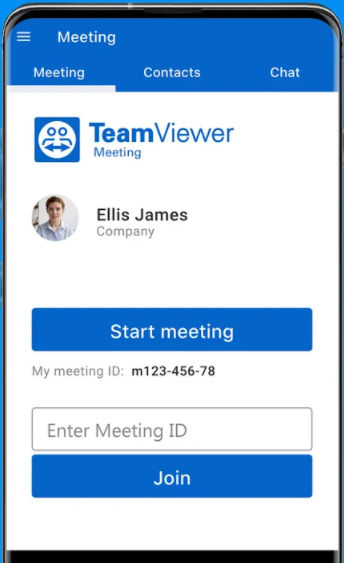
3. Unmute your microphone or start your webcam if desired.
Joining directly from the Chat
Prerequisite: Organizer and participant (s) are logged in with their TeamViewer account.
For the organizer:
1. Open your TeamViewer Meeting application and click on Meeting and Start Meeting.
2. Navigate to the Chat option.
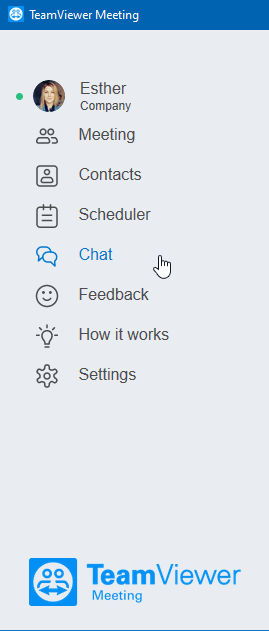
3. Locate the contact with whom you would like to meet and type your meeting ID in the message. It must include the m at the beginning e.g. m00-901-469

As a participant:
1. click on the meeting ID.
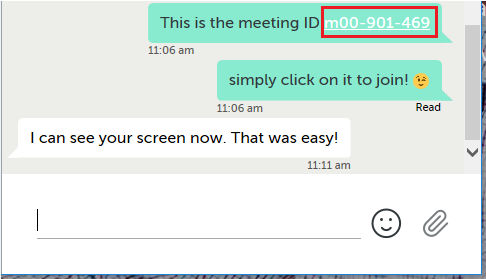
2. You will be automatically prompted to the meeting.
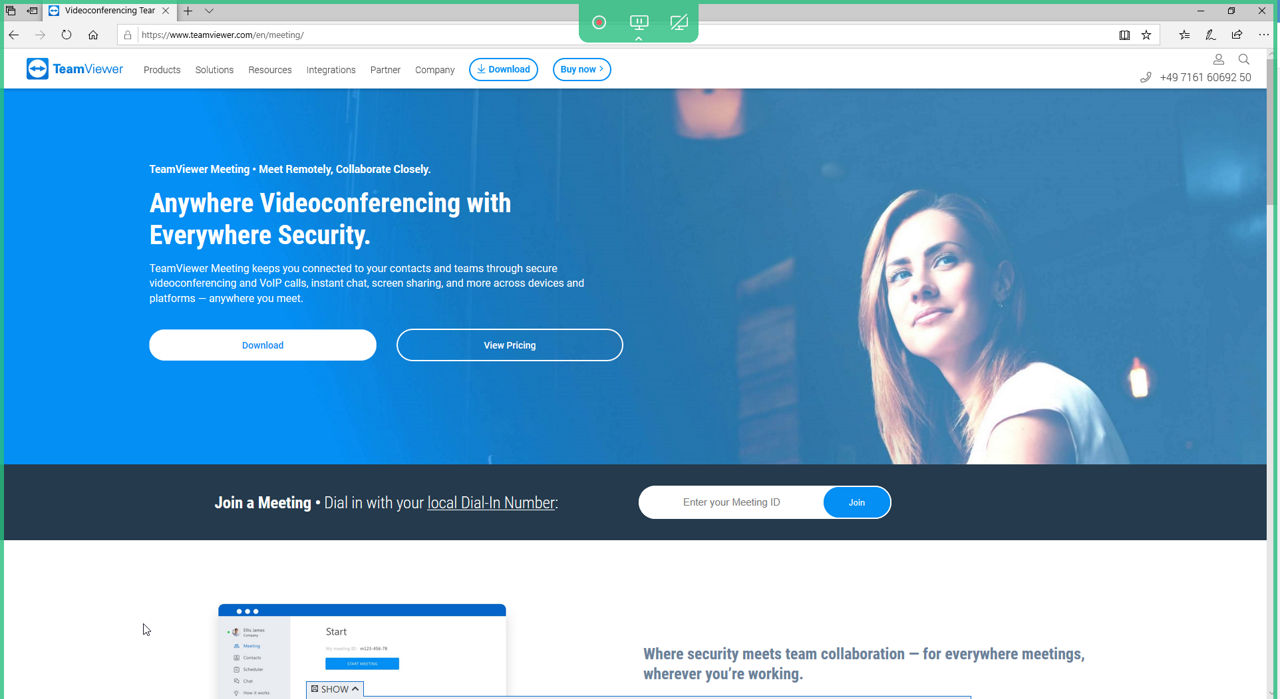
3. Unmute your microphone and start your webcam accordingly.