Knowledge Base
Distribute your license via MCO
Last Modified 10 lip 2026
Companies that have multiple Tensor licenses (because they have subsidiaries or use a franchising model) can split their Tensor license across different entities/departments and can distribute their Tensor license to the lower entities as needed via Multitenancy.
These lower entities can work completely independently from one another.
This functionality allows companies to manage all their Tensor contracts at the organizational level with one single license.
Note: For distributing your license on the new interface, please see here.
Consolidate your Tensor licenses
Step 1: Move your Tensor license into Multitenancy
First, the Tensor license needs to be moved into Multitenancy.
Important note: To perform this action, you first have to create an Organization. If you haven't done this yet, please check our article here:
1) On the left navigation menu, select Company Administration
2) Click on Licenses
3) Hover over the license you want to move, click on the three dots (⋮), and select Move license.
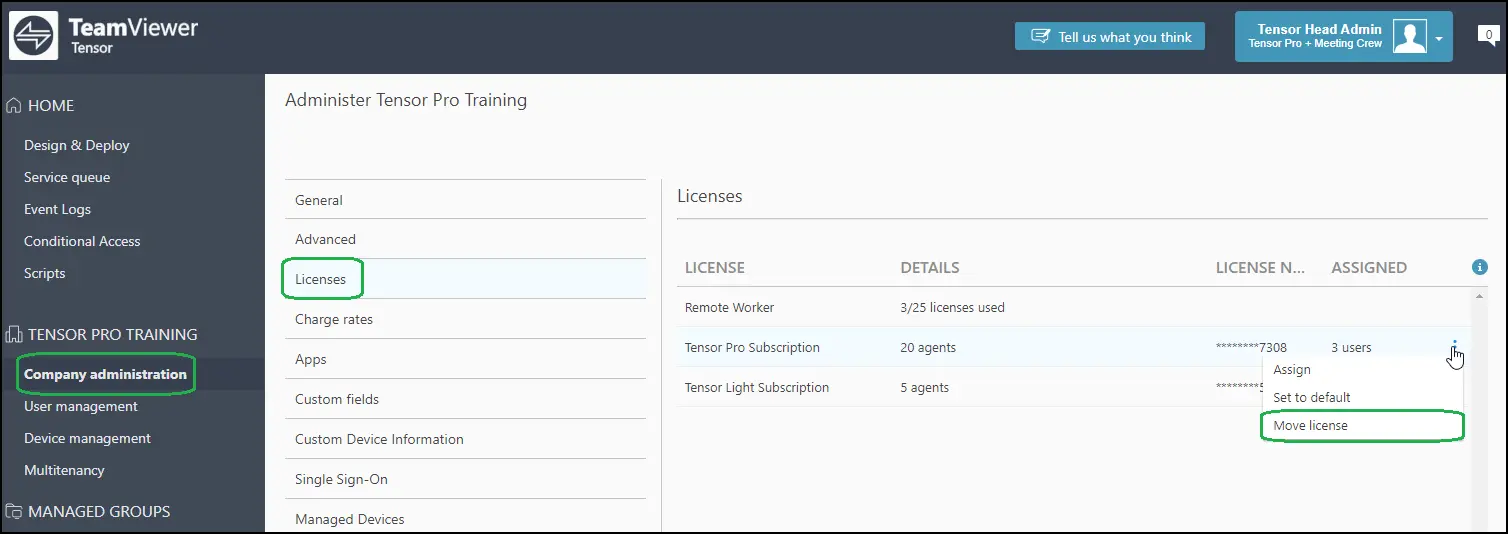
Note: Only the following Tensor licenses can be moved: Basic, Pro, Unlimited.
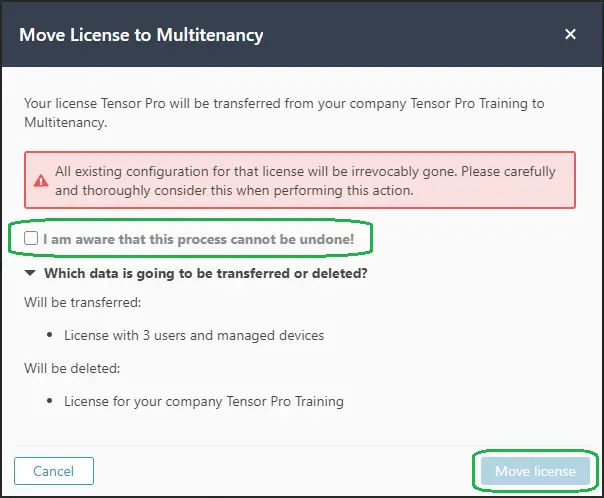
4) Tick the box I am aware that this process cannot be undone! and click on Move license.
5) You will be notified that your license has been successfully transferred to Multitenancy.

Step 2: Manage the number of users per company profile
You can increase and reduce the number of users across all company profiles within Multitenancy.
Reduce the number of users of a company profile:
1) Access the license by clicking on Multitenancy, and click the Edit icon of the company profile you want to remove users.
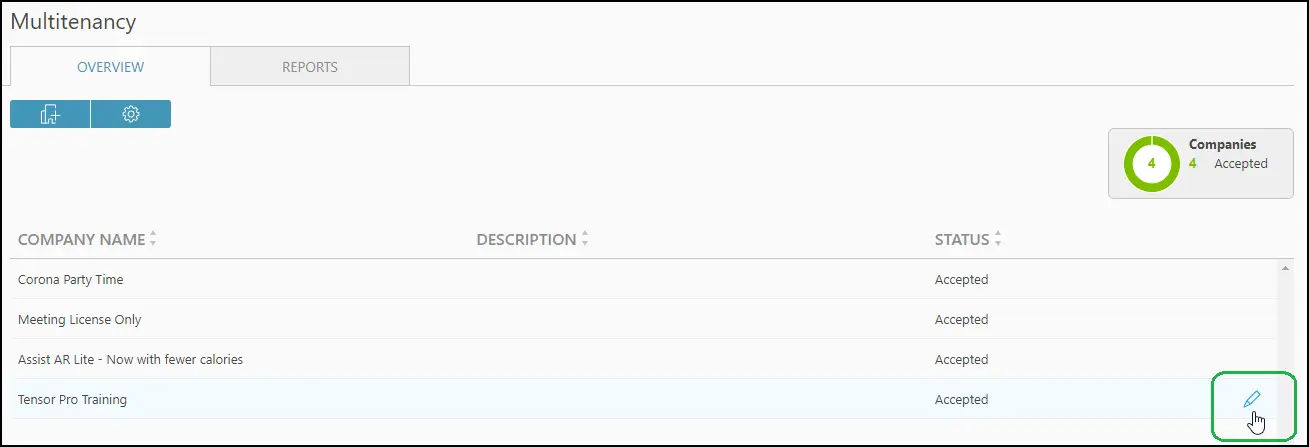
You will see an overview of the license with all its users and management devices.
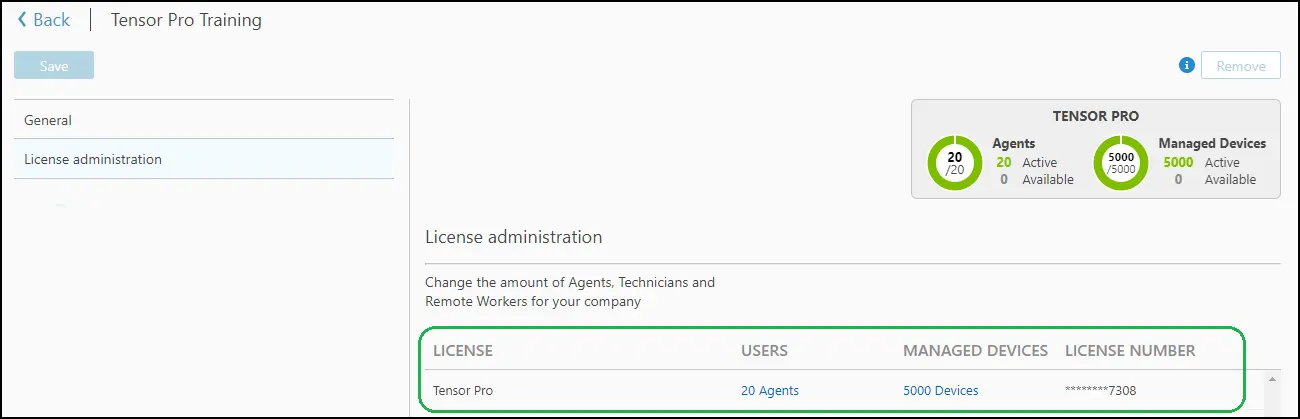
2) Click e.g. onto the number of users to "free up" users.
Note: This applies analogously to managed devices.
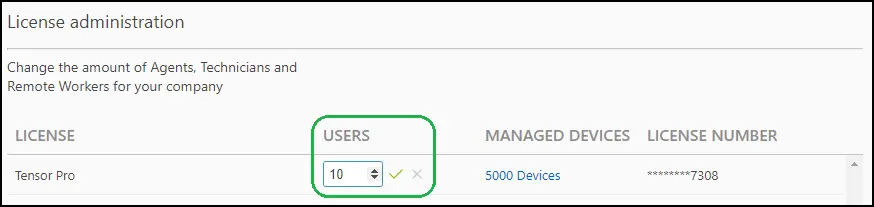
Increase the number of users of a company profile:
1) Access the other license by clicking on Multitenancy, and click the Edit icon of the company profile you want to add users.
2) Click on No assignment and select how many users you need in this company profile.
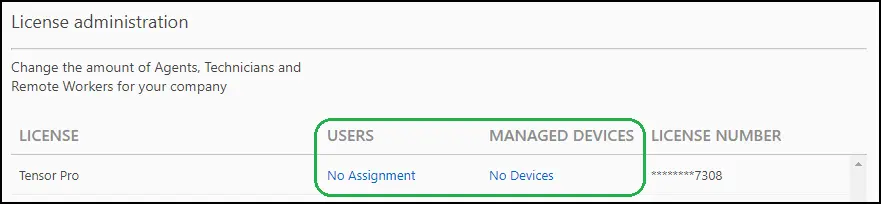
The minimum number of users that can be provided depends on the license (5 for Basic, 10 for Pro, and 15 for Unlimited).
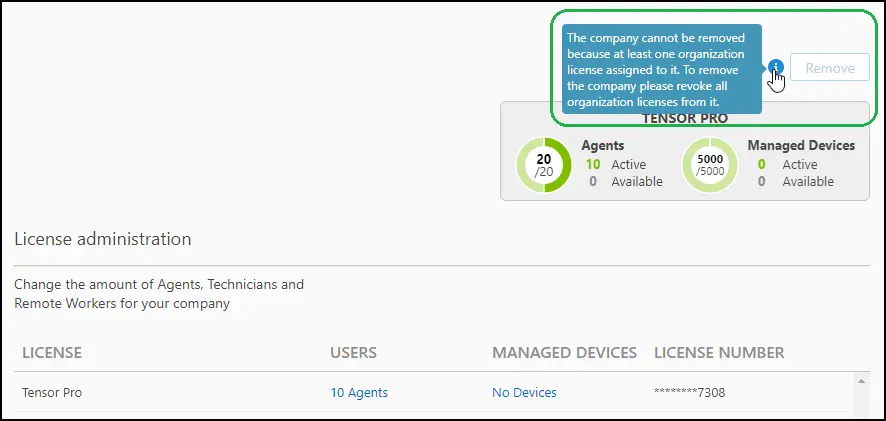
ℹ Once a subsidiary company profile has received users and managed devices this way, it cannot be removed from the Multitenancy organization anymore. Furthermore, removing the split license from the organization is currently not possible, either.
Revoke an assigned license from your company
To revoke an assigned license from your company, please follow the instructions below:
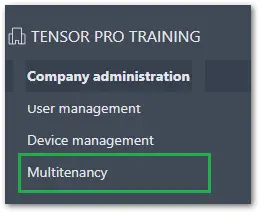
1) On the left navigation menu, select Multitenancy.

2) Hover the mouse over the company and click the Edit button.
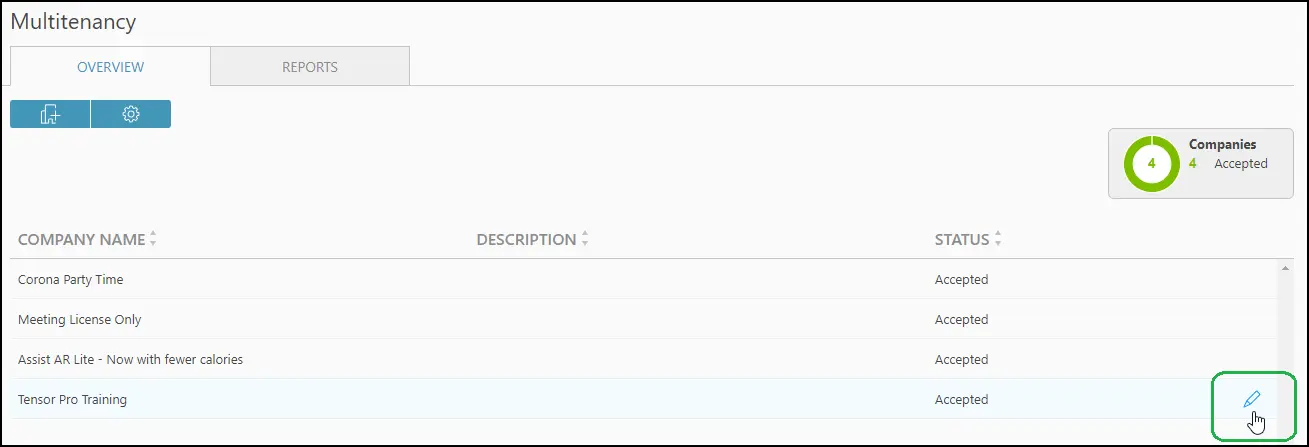
3) Select License administration.
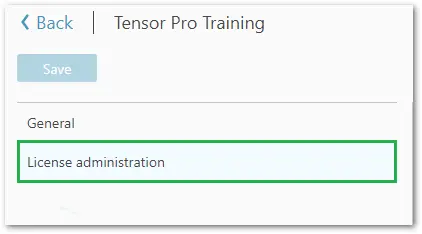
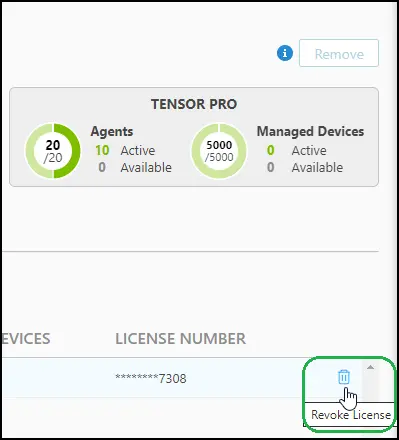
4) Hover the mouse over the license and click the Revoke License button.
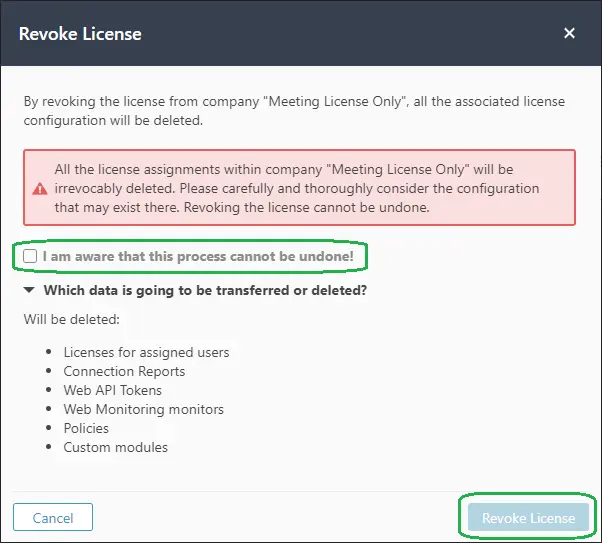
5) You will be prompted to confirm the deletion. Tick the awareness box and click Revoke License.
Remove a company from Multitenancy
1) On the left navigation menu, select Multitenancy.
2) Hover the mouse over the company and click the Edit button.
3) Select License administration
4) Over your Multitenancy dashboard, click Remove.
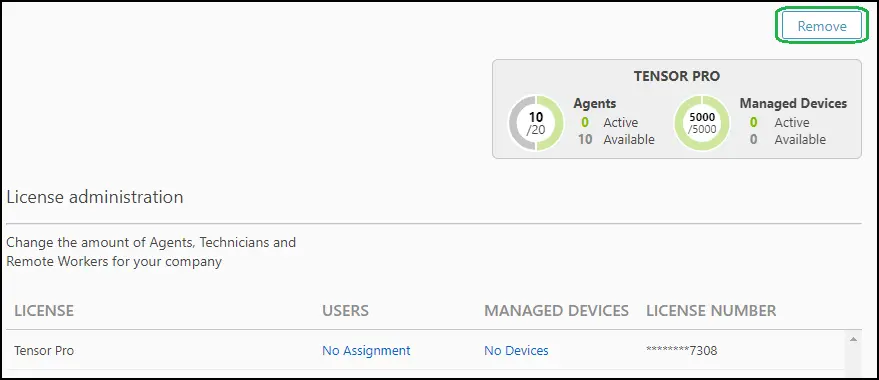
Note: If organization licenses are still assigned to your company, you won't be able to remove it. Make sure to first revoke all licenses from the company.