The TeamViewer Intune Connect integration lets IT admins connect to and support devices that are managed in both Microsoft Intune and TeamViewer. The new integration requires that the remote device is a TeamViewer managed device, not only Intune‑managed. Access behavior, whether attended or unattended, is fully controlled by your TeamViewer device permissions and access control policy rules.
If you still use the legacy Intune integration, the following points are important:
The legacy integration is different
-
It allowed connecting to devices using QuickSupport and required user acceptance.
-
It did not require the device to be a managed device in TeamViewer.
-
It allowed connections to devices that were not part of your TeamViewer device inventory.
This is no longer the case with the new integration.
The new integration requires managed devices
With the new Intune integration:
-
The remote device must be a managed device in TeamViewer.
-
Connections to bookmarked devices or unmanaged devices are no longer supported and will result in an error.
Retirement timeline
-
The legacy integration will be retired in April 2027.
-
We recommend migrating to the new integration as early as possible.
This article applies to all TeamViewer Tensor, TeamViewer One Standard, TeamViewer One Advanced, and TeamViewer Corporate license holders.
Prerequisites
-
Devices enrolled in Microsoft Intune and fully company-managed (i.e. enrollment via Intune Autopilot for Windows)
-
A valid Microsoft Intune license associated with your admin account
-
TeamViewer full client installed on the admin device
-
For unattended access: TeamViewer Host is installed and assigned to your TeamViewer company
Compatibility
The Intune Connect integration supports various TeamViewer modules across different operating systems. The table below shows all supported modules and OS combinations:
Requirements
Licensing requirements
The Intune TeamViewer integration requires one of the following:
TeamViewer Tensor, TeamViewer One Standard, TeamViewer One Advanced
-
Enterprise Integrations Add‑On
or -
Microsoft Connect Pro Add‑On
TeamViewer Corporate
-
Microsoft Connect Add‑On
How to enable the TeamViewer connector in Intune
-
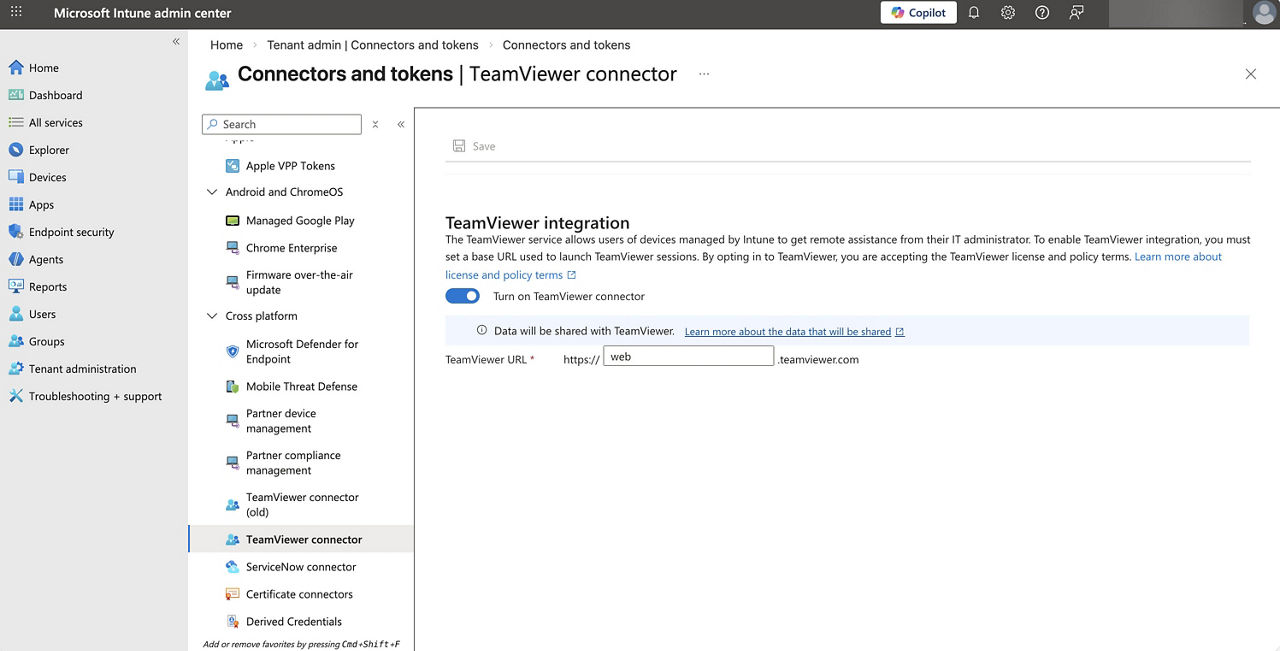
Open the Intune admin center.
-
Go to Tenant administration ➜ Connectors and tokens ➜ TeamViewer connector.
-
Enable the toggle Turn on TeamViewer connector.
Note: Do not change or modify the URL shown on this page. Only customers using Regional Restricted Access should adjust this field. All other customers must leave it unchanged to ensure the connector works correctly.
How to start a remote session
-
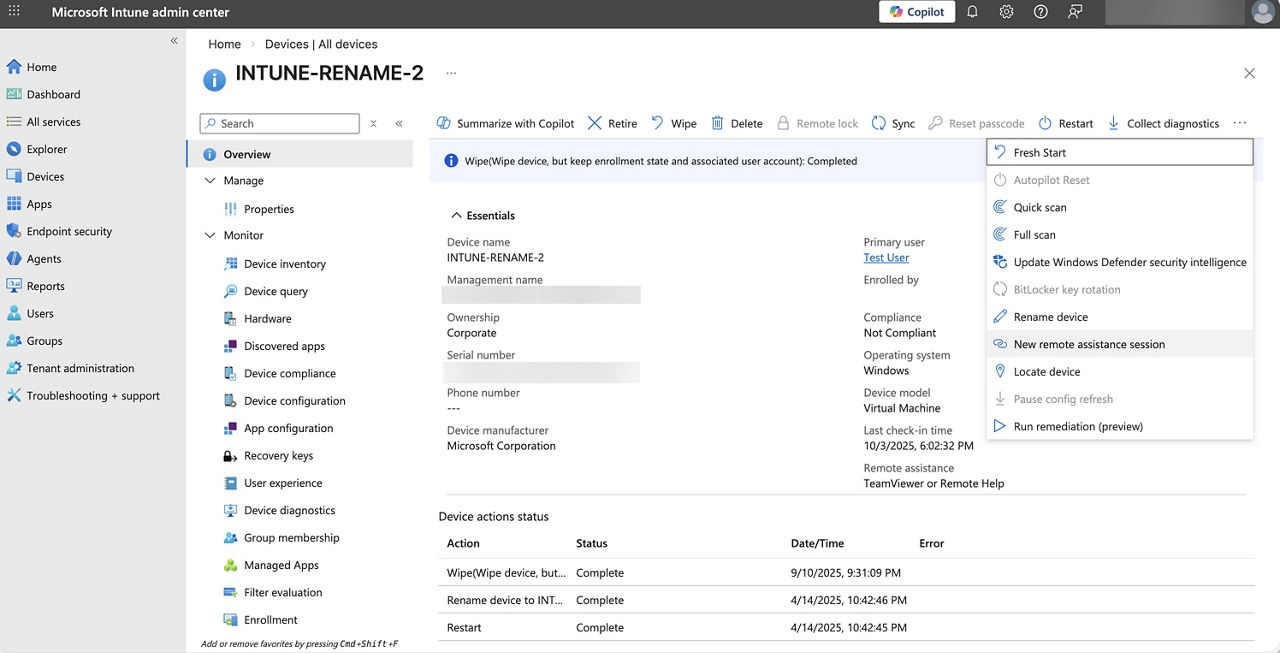
In Intune, go to Devices.
-
Click the device you want to connect to.
-
Within the Overview menu, click the three dots menu (…) and click New remote assistance session.
-
Select TeamViewer and click Continue.
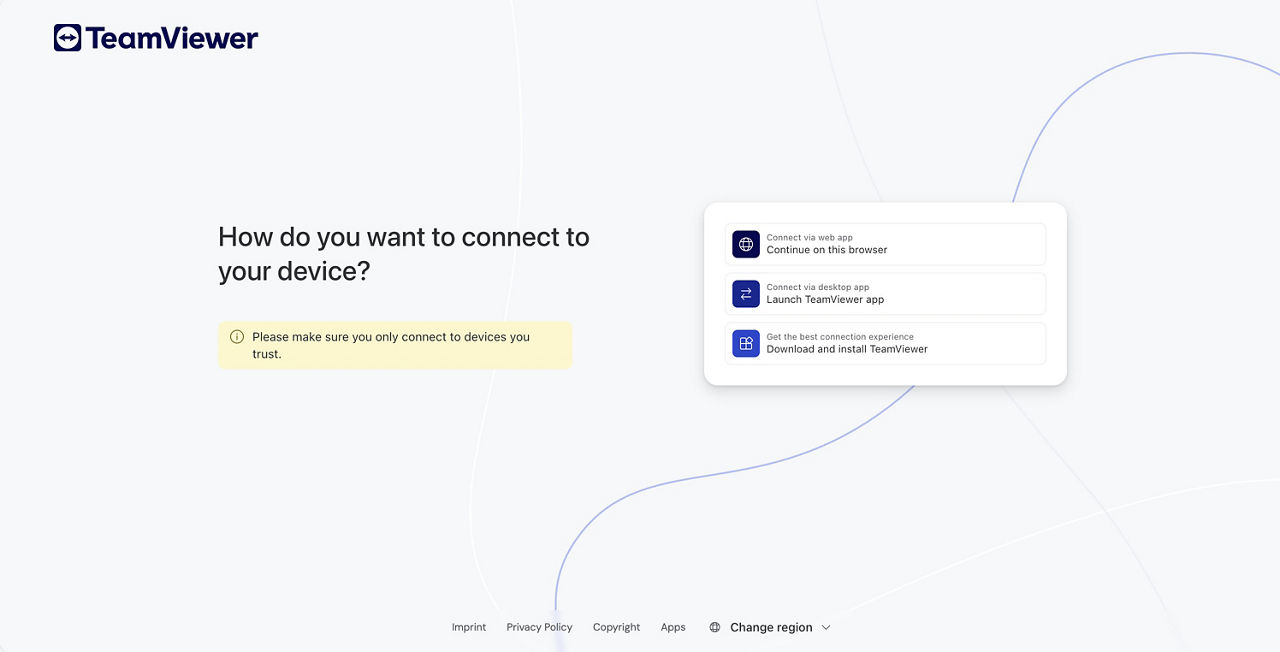
5. A TeamViewer connection page opens.
You must choose now how you want to connect to your remote device:
-
TeamViewer web client, or
-
TeamViewer desktop app
6. The session starts according to your TeamViewer access permissions.
Important:
-
If attended access is required, apply the access control policy rule on your devices and set it to Prompt for confirmation.
-
If unattended access is allowed, no confirmation is required.
-
If you are using Conditional Access, your Conditional Access rules apply.
Deploying TeamViewer Host for unattended access
- Windows
- Android
Deploy the TeamViewer Host MSI through Intune as a Line‑of‑Business app.
Use command-line parameters such as:
/qn CUSTOMCONFIGID=%YOURCUSTOMCONFIGID% APITOKEN=%YOURAPITOKEN% ASSIGNMENTOPTIONS="--alias %COMPUTERNAME% --grant-easy-access --reassign"
-
Approve TeamViewer Host and add‑ons in Managed Google Play.
-
Sync apps to Intune.
-
Assign them to devices.
-
Add an App Configuration Policy and enter your configID.
This setup enables unattended access and advanced mobile device support.
Using attended access (QuickSupport)
Attended access connections work as follows:
-
The end user receives a prompt in the Company Portal
-
They must accept the request
-
QuickSupport is used for mobile devices
-
The session starts once the user approves
This workflow remains supported until April 2027.
Migration recommendations
-
If you are still using the legacy integration, we recommend switching to the new integration.
-
The new integration provides more flexibility, including both attended and unattended support.
-
Attended and unattended workflows can run in parallel during your transition.
-
Only the legacy connector is being retired in April 2027; attended access remains supported.
Common questions
Do users always have to accept a connection?
No. This depends on the TeamViewer policy you applied to your devices.
Attended access requires confirmation; unattended access does not.
Why can’t I connect to a device?
Check the following:
-
The device has a current TeamViewer Host installed (for unattended access)
-
The device is assigned to your TeamViewer organization
-
The device is a managed device, also in your TeamViewer device list
-
Your TeamViewer account has permission to access the device group
-
The TeamViewer connector in Intune is active
Is the legacy integration still available?
Yes. It remains available until the legacy integration retires in April 2027.
After migrating to the new integration, you can still use attended access as before.