• 영업팀에 문의하기
    • Open web app
    • Management Console
    • Ticket
    • Customer Portal
TeamViewer
  • Personal use and SMB TeamViewer Remote

    Fast and secure remote access and IT support.

    Learn more

    • 원격 지원 즉각적이고 안전한 지원 제공
    • 원격 관리 장치 모니터링 및 관리
    View plans and pricing

    Enterprise TeamViewer Tensor

    Remote connectivity built for secure operations.

    Learn more

    • 원격 IT 지원 안전성, 유연성, 통합성
    • 운영 기술 작업 현장 원격 액세스

    Real-time troubleshooting TeamViewer DEX

    Resolve issues before they affect users.

    Learn more

    • 엔드포인트 문제 해결 문제 식별 및 해결
    • 엔드포인트 자동화 일상적인 IT 작업 자동화

    Connected worker TeamViewer Frontline

    Drive efficiency with industrial augumented reality.

    Learn more

    • 물류 및 창고 핸즈프리 자재 취급처리
    • 교육 및 온보딩 빠른 온보딩 및 업스킬링
    AI capabilities as seen in the TeamViewer client

    TeamViewer ONE

    Get the full power of TeamViewer, unified in one platform.

    • Learn more

    Key integrations

    • Microsoft Intune

    • ServiceNow

    • Freshworks

    • Jira

    • Salesforce

    • Slack

    • Microsoft Teams

    View all integrations
  • TeamViewer ONE Platform

    Proactively manage and optimize your digital workplace combined in one platform.

    • 소규모 IT 팀용 사전 예방적 장치 관리
    • 마찰 없는 경험 원활하고 중단 없는 디지털 경험
    • 원활한 IT 운영 사전 예방적 수정 및 탁월한 서비스
    • 담당 팀에 문의 바뀔 준비가 되셨나요?
    Explore the platform

    Core capabilities

    • TeamViewer AI
    • 디지털 직원 경험
    • 원격 지원 및 제어
    • 자산 및 패치 관리
    View all capabilities

    Gartner Report 2025

    TeamViewer named a leader in DEX

    TeamViewer named leader in 2025 Gartner® Magic Quadrant™ DEX tools.

    Key integrations

    • Microsoft Intune

    • ServiceNow

    • Freshworks

    • Jira

    • Salesforce

    • Zendesk

    • Slack

    • Microsoft Teams

    View all integrations
  • Popular use cases Most popular TeamViewer use cases

    • 원격 액세스 및 지원 어디서나 사람, 장치, 애플리케이션을 관리.
    • 디지털 직원 경험(DEX) 생산성에 영향을 미치기 전에 IT 문제를 선제적으로 해결하세요.

    Other use cases Popular solutions for further use cases

    • 원격 액세스 보안 연결로 액세스 개선
    • 원격 제어 플랫폼에 관계 없이 장치 제어
    • 원격 데스크톱 어디서나 생산성 향상
    • Wake-on-LAN 원격 장치 활성화 켜기
    • 화면 공유 실시간 비주얼 커뮤니케이션
    • Smart Service 판매 후 운영 간소화

    By need Popular solutions for different requirements

    • 개인용 어디서나 장치에 액세스
    • 중소기업 원격 액세스 및 지원 단순화
    • 대기업용 기업 IT 확장 및 보안
    • 관리형 서비스 제공자 클라이언트 IT 관리 및 유지보수
    • OEM 지원 및 운영 간소화
    • 비영리 단체 및 교육기관 TeamViewer 기술 30% 할인

    By industries Popular solutions sorted by industry

    • 자동차
    • 농업
    • 물류
    • 제조
    • 리테일
    • 헬스케어
    • 은행 및 금융
    • 금융 서비스

    Talk to our sales team

    Need help choosing the right solution, placing and order, or upgrading your license?

    • Talk to us
  • 대기업용
  • Find out more about TeamViewer

    • TeamViewer 소개 사람, 장소, 사물을 안전하게 연결합니다.
    • 지원 팀에 문의 지원 문서를 찾아보거나 지원 팀에 문의하세요.
    • 파트너 되기 글로벌 파트너 프로그램인 TeamUP에 참여하세요.
    • 고객 성공 사례 TeamViewer 고객이 달성한 성과를 살펴보세요.
    NEWS

    TeamViewer reports rapid customer adoption of its Al offering.

    Resources

    • 뉴스 및 인사이트
    • 고객 성공 사례
    • 이벤트 및 웨비나
    • 트러스트 센터

    Partner

    • 파트너 되기
    • 파트너 찾기
    • 통합 파트너

    Support

    • 지원 팀에 문의
    • 가이드 및 매뉴얼
    • 기술 문서 데이터베이스
    • 시스템 상태
    • 사용자 지정 모듈
    • 개발자용
    • 커뮤니티

    Company

    • TeamViewer 소개
    • 채용
    • 투자자
    • 뉴스룸
    • 리더십
    • 스포츠 파트너십
    • 지속 가능성 및 CSR
    • 기업 지배 구조
  • 가격
  • 무료 다운로드

Knowledge Base

  • TeamViewer ONE
  • TeamViewer Remote
  • TeamViewer (Classic)
  • TeamViewer Tensor
  • TeamViewer Tensor (Classic)
  • TeamViewer Frontline
  • Other products
Back to support overview
  • Get started with your TeamViewer ONE license
  • Understanding the Home Dashboard in TeamViewer ONE
  • Company Readiness in TeamViewer ONE
  • New navigation experience in TeamViewer ONE
  • New navigation experience in TeamViewer ONE

    Last Modified: 2026. 4. 7.

TeamViewer ONE introduces a redesigned navigation experience for both Standard and Advanced users. The new navigation replaces a fragmented, feature-centric structure with a use-case-based navigation, organizing the product around the key tasks you perform every day. This optimization makes it faster and more intuitive to manage your IT environment from end to end.

This article applies to all Standard and Advanced TeamViewer ONE customers.

What has changed?

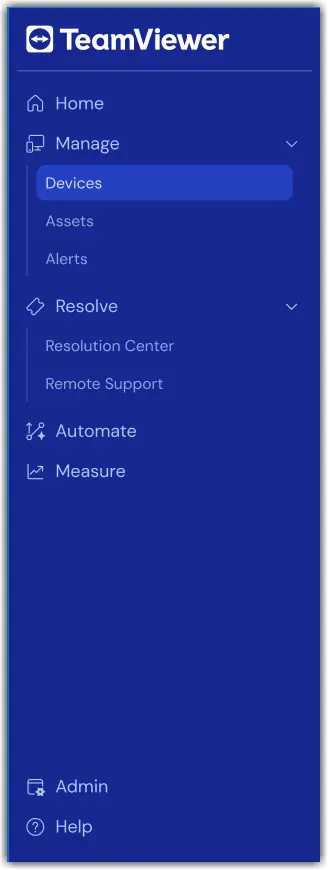
The new sidebar navigation organizes TeamViewer ONE around four clearly defined sections, each focused on a specific part of your IT workflow. Instead of hunting across separate menu items, everything you need for a given task is grouped in one place.

The sidebar remembers its collapsed or expanded state between sessions. When collapsed, hovering over a section reveals its sub-items without requiring you to expand the full menu.
The new navigation sections

TeamViewer ONE's new navigation experience is broken down into four sections: Manage, Resolve, Measure, and Automate.
  1. Manage
  2. Resolve
  3. Automate
  4. Measure

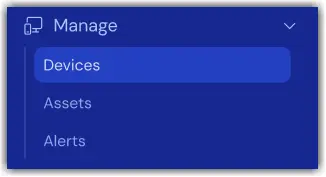
Manage

Your central hub for day-to-day device operations. From here, you can access your devices, review vulnerabilities and patches, respond to alerts, and run automation workflows, all from one place. Manage is broken down into three sections: Devices, Alerts, and Assets.

  1. Devices
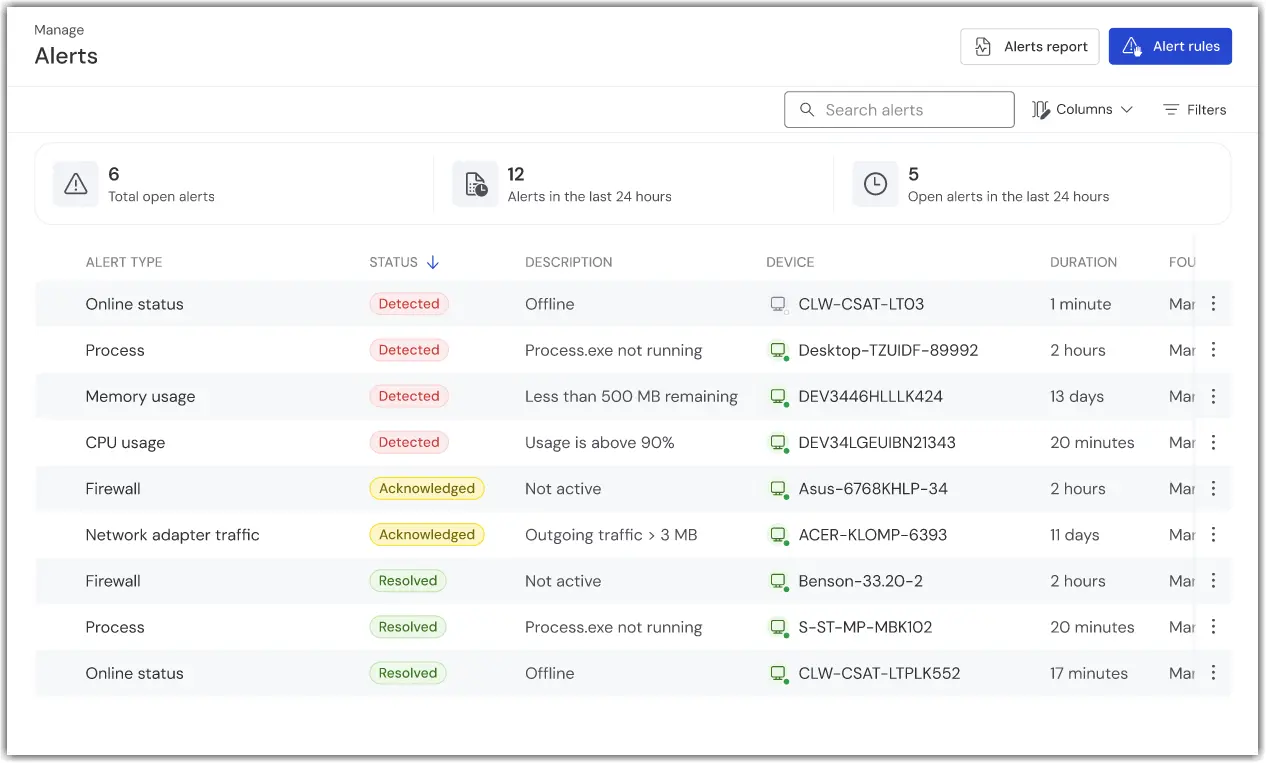
  2. Alerts
  3. Assets

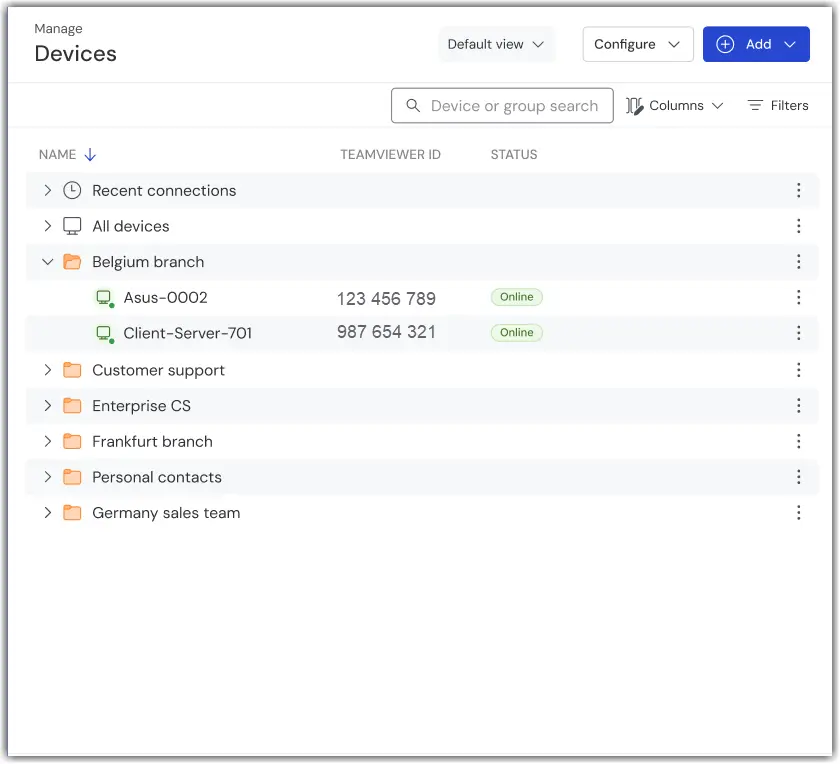
Devices

TeamViewer ONE previously spread device information across several separate sections of the product. Depending on what you needed to check, be it alerts, patches, protection status, or backup coverage, you had to navigate to a different area each time. The Devices section brings all of that together. From a single page, you can switch between focused device views using a dropdown selector, without losing your place or navigating away. There are five available views: Devices, Alerts, Patches, Protection, and Backup.

  1. Default view
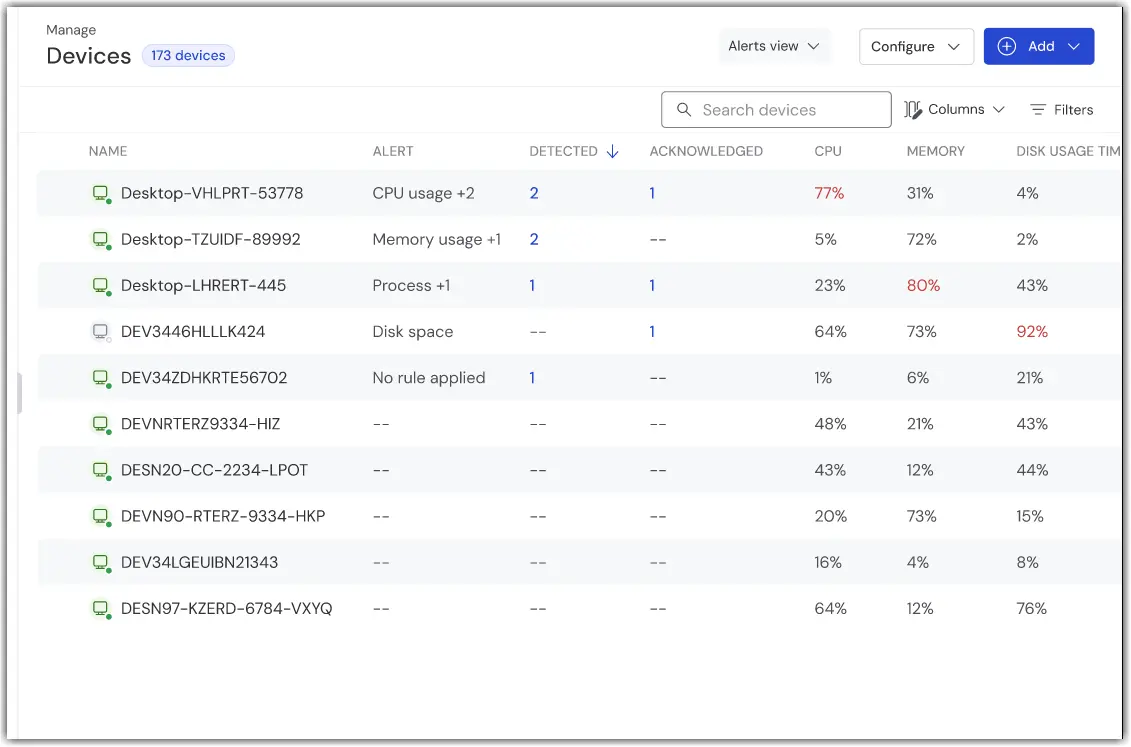
  2. Alerts view
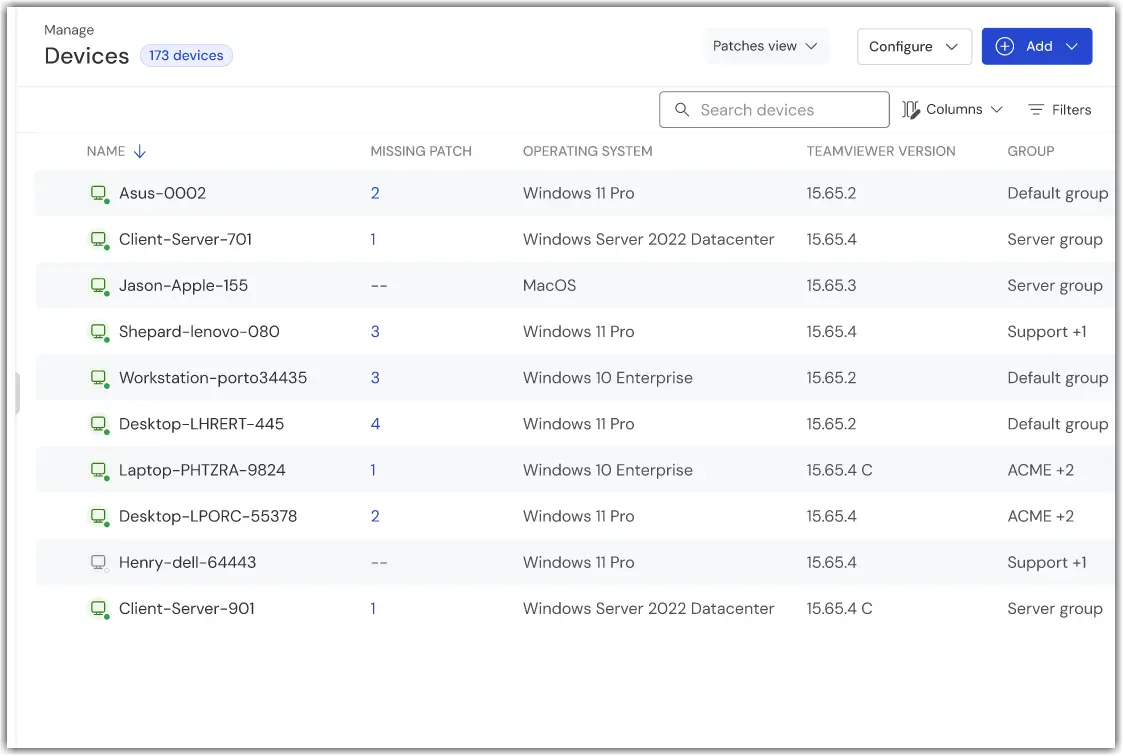
  3. Patches view
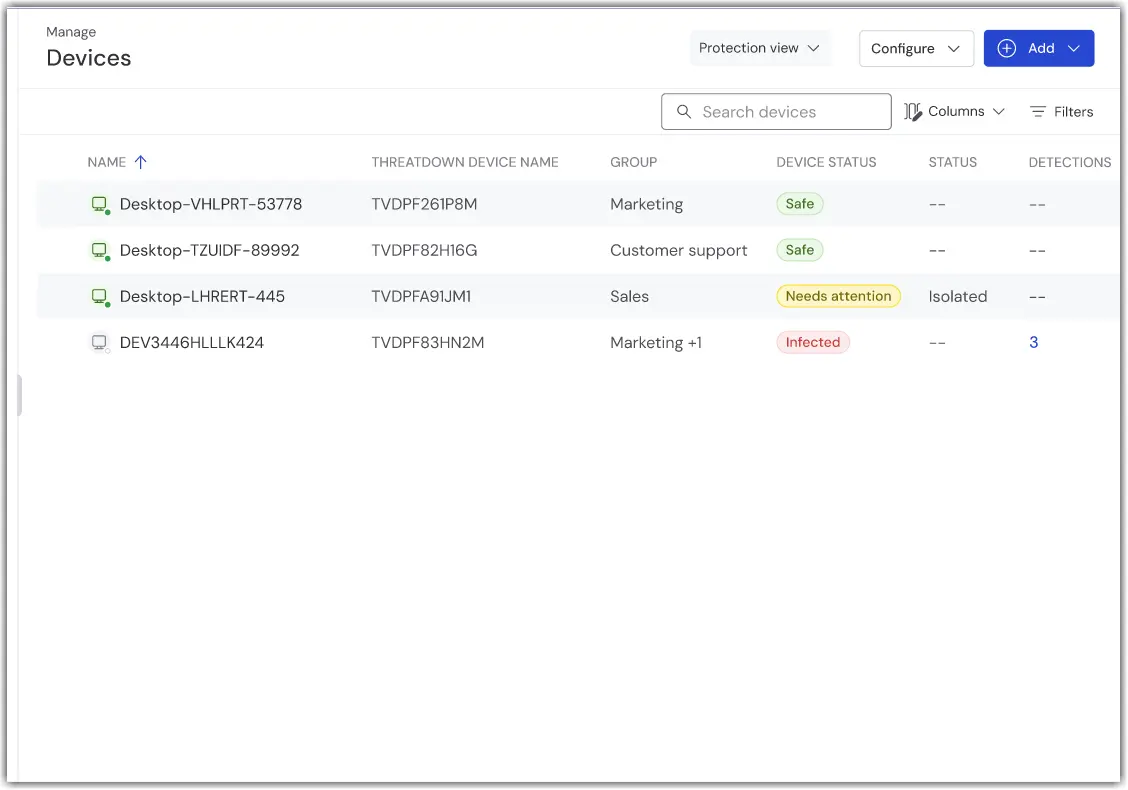
  4. Protection view
  5. Backup view

Default view

Your full list of all managed devices.

The default view provides a centralized overview of all devices managed through TeamViewer ONE. From this screen, you can start a remote session, verify whether a device is online, view its TeamViewer ID, and access additional management actions that mirror the familiar TeamViewer Remote workflow.

Alerts view

Device-level alert and monitoring information for your fleet.

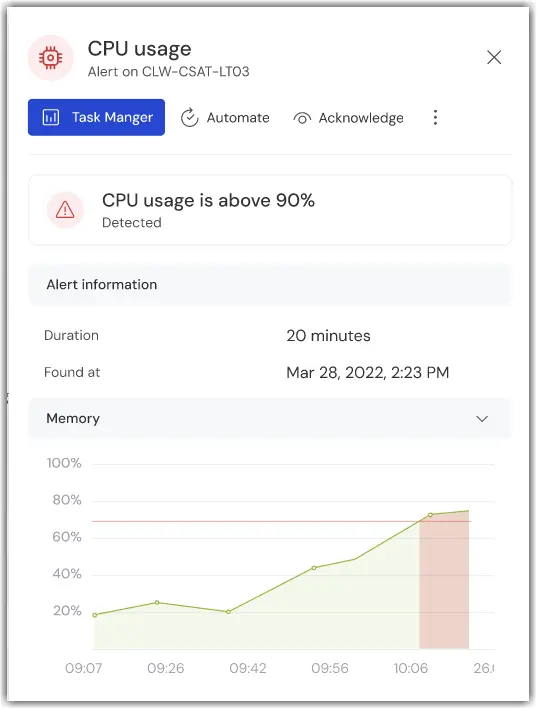
Here you’ll find real‑time insights into the condition of every device you manage. This includes active alerts, system health metrics, and other monitoring signals that help you spot problems early and take action before they impact your environment.

Patches view

Patch and asset management data per device, showing which devices need attention.

The Patches view section provides a clear breakdown of each device’s patch status and installed assets. You can quickly identify which devices are missing important updates, require maintenance, or show indicators that they may be at risk. By highlighting devices that need attention, this view helps you prioritize patching tasks and maintain a secure, fully updated environment.

Protection view

Protection status across your managed devices

The Protection view provides an at‑a‑glance summary of the security posture of each device in your environment. You can review which devices are fully protected, which may require action, and where potential risks have been identified. This helps you quickly assess overall security health and address issues before they impact your fleet.

Backup view

Backup coverage and status per device

Note: The Backup view is available only to TeamViewer ONE customers with the Backup add-on.

The Backup view shows whether each device in your environment is fully archived and whether recent backups have completed successfully. You can quickly see which devices are covered, which may be missing backups, and where attention is needed to ensure your data remains safe and recoverable.

Alerts

The Alerts section serves as your central workspace for investigating active issues as they arise. It shows alerts generated from individual devices, along with context that helps you understand what triggered them and how urgent they are. From here, you can drill into specific alerts, review additional details, and take immediate corrective action, all without switching to another part of the product. This streamlined view helps you respond quickly and maintain awareness of emerging problems across your environment.

Previously known as TeamViewer Monitoring, this is where you can review active alerts, investigate their root cause, and take action, without switching to a separate area of the product.

Additional views for TeamViewer Endpoint Detection and Response customers

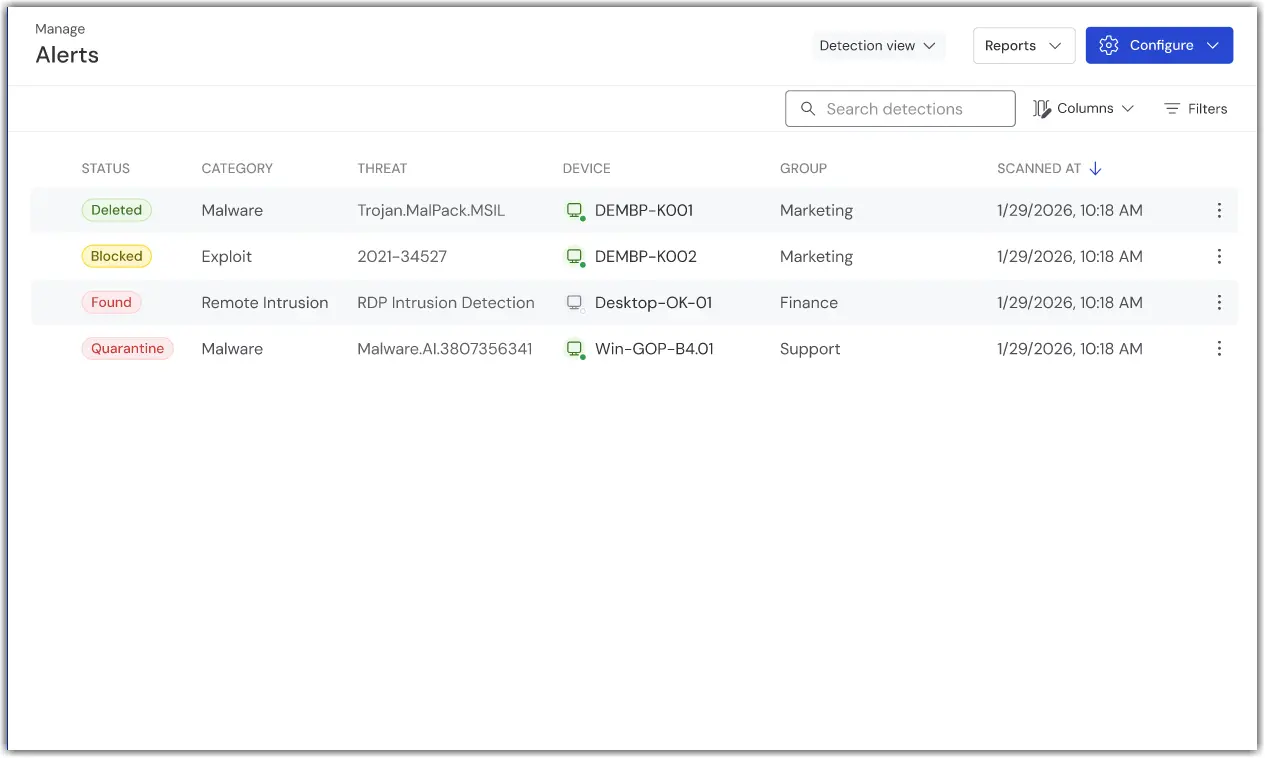
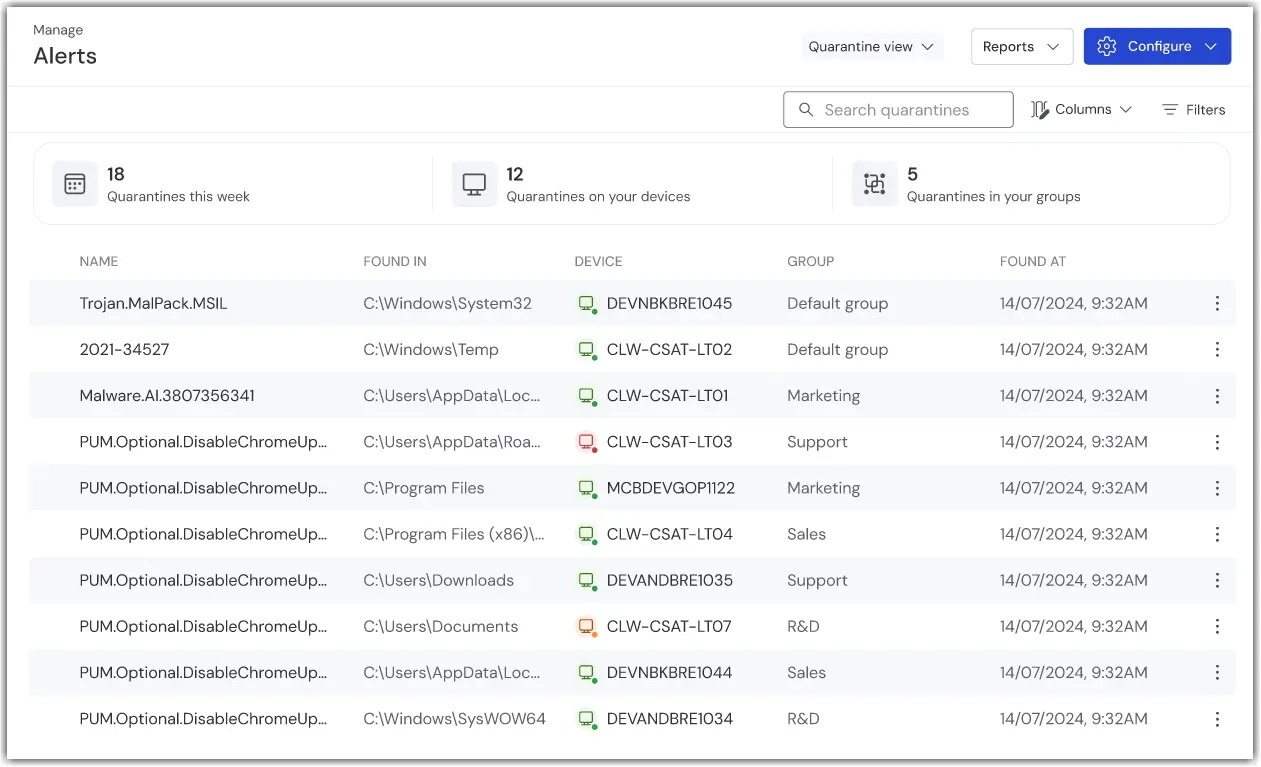
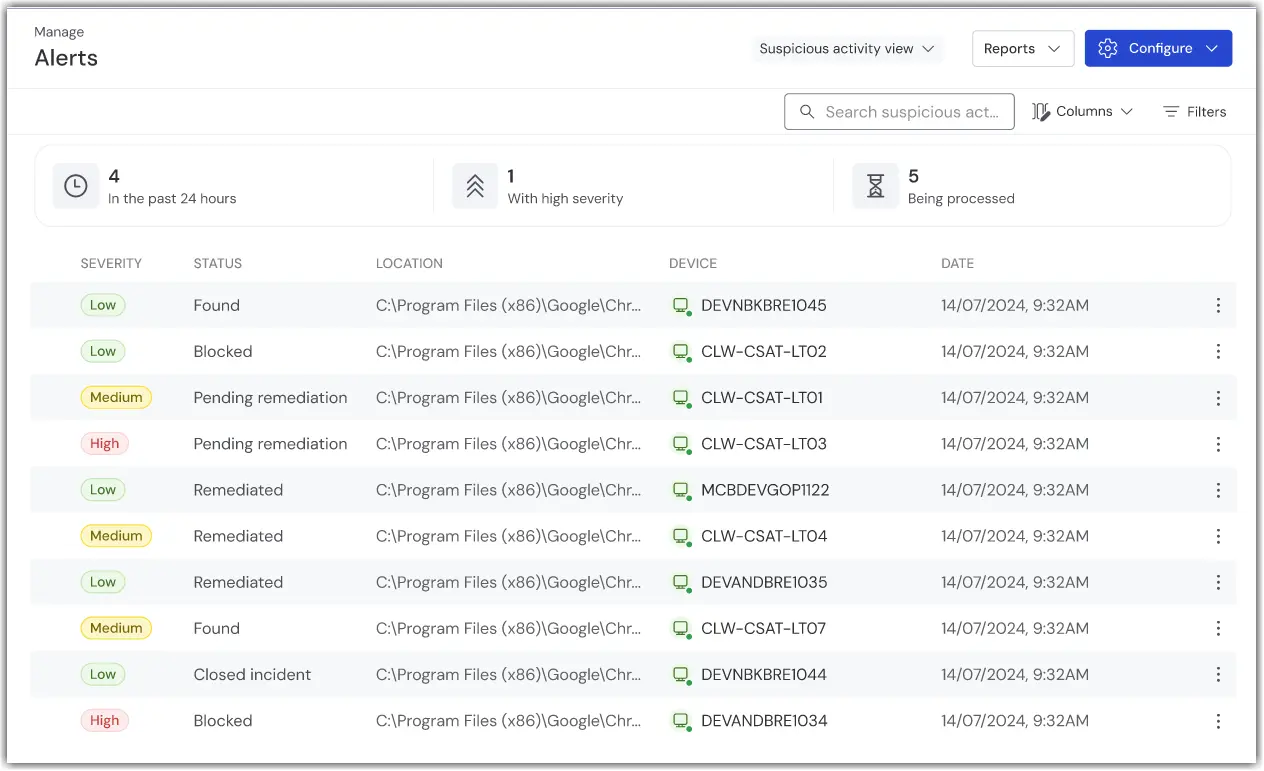
TeamViewer Endpoint Detection & Response customers also receive three additional Alerts views: Detection, Quarantine, and Suspicious activity.

  1. Detection view
  2. Quarantine view
  3. Suspicious activity view

Detection view

The Detection view lets you review all current threats on your devices and their status, making it easier to prioritize devices that require your attention. The Detection view helps you quickly identify which devices need immediate attention while maintaining visibility across your entire environment.

Quarantine view

The Quarantine view lets you review detections that match known signatures or other threat details and may be false positives. The Quarantine view lets you examine quarantined files and decide whether to restore them or permanently delete them based on your review.

Suspicious activity view

With the Suspicious activity view, you can monitor potentially malicious behavior by reviewing activity related to processes, the registry, the file system, and network connections. The dashboard brings this information together to help you quickly identify activity that requires attention.

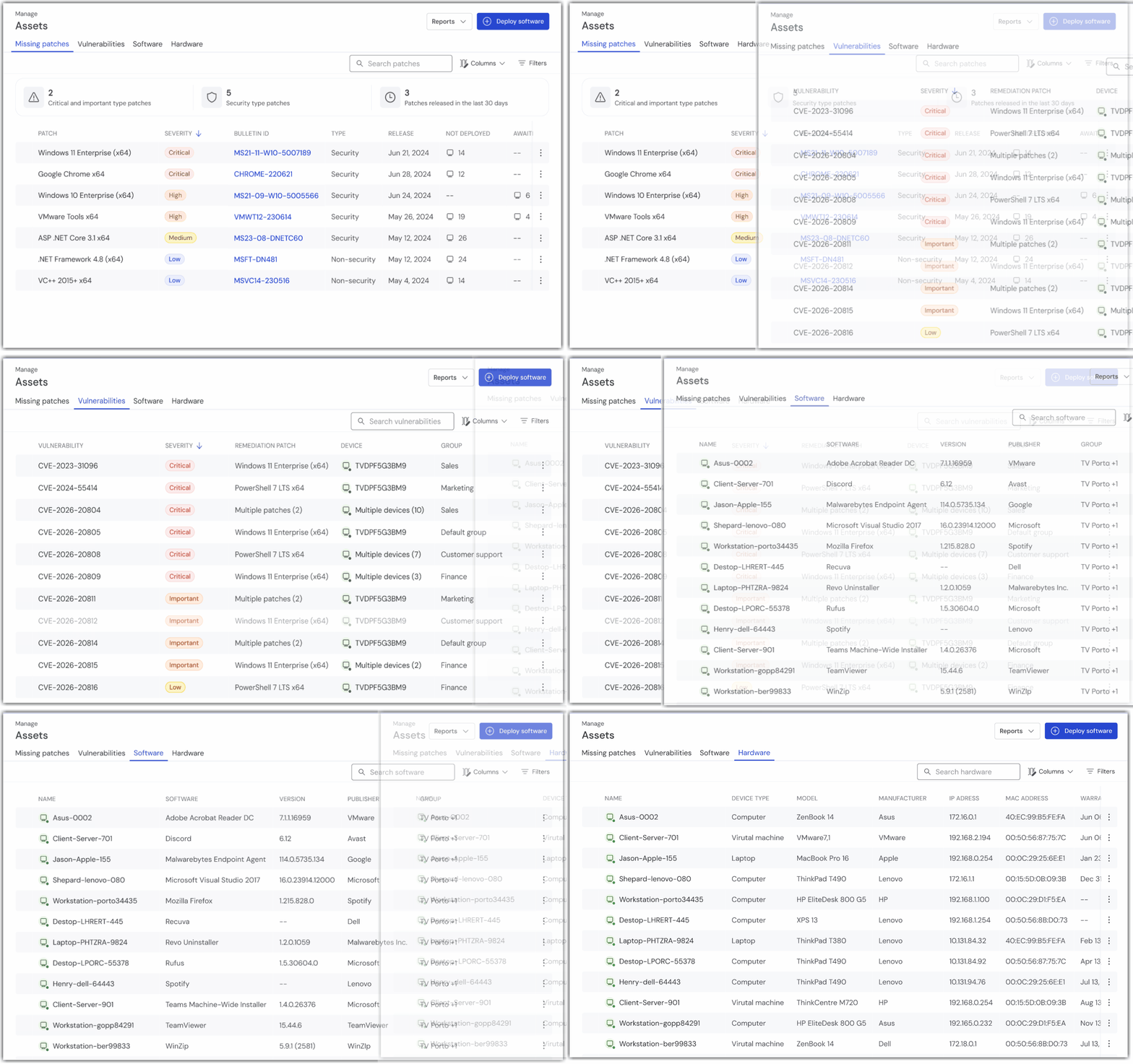
Assets

Note: Assets is available only for TeamViewer ONE Advanced customers.

The Assets section provides a consolidated view of the software, updates, and known vulnerabilities across your devices. It helps you understand the current state of each system by showing patch status, identifying outstanding vulnerabilities, and prioritizing remediation efforts. It also provides a complete rundown of both software and hardware assets for your fleet.

From this unified view, you can assess exposure, prioritize remediation tasks, and make informed decisions to improve the overall security and compliance posture of your device fleet, and all from a single, focused view within Manage.

Resolve

Your dedicated space for support and issue resolution.

This area serves as the central hub for managing technical issues reported within your environment. It gives your support team a complete view of incoming requests, ongoing investigations, and resolved items, all organized to help track progress from the moment an issue is detected through to final closure.

The Resolution Center and Remote Support are grouped here, consolidating case activity in one place. Your team can stay organized, respond quickly, and maintain clear oversight of open and historical issues, from detection to closure.

  1. Resolution Center
  2. Remote Support

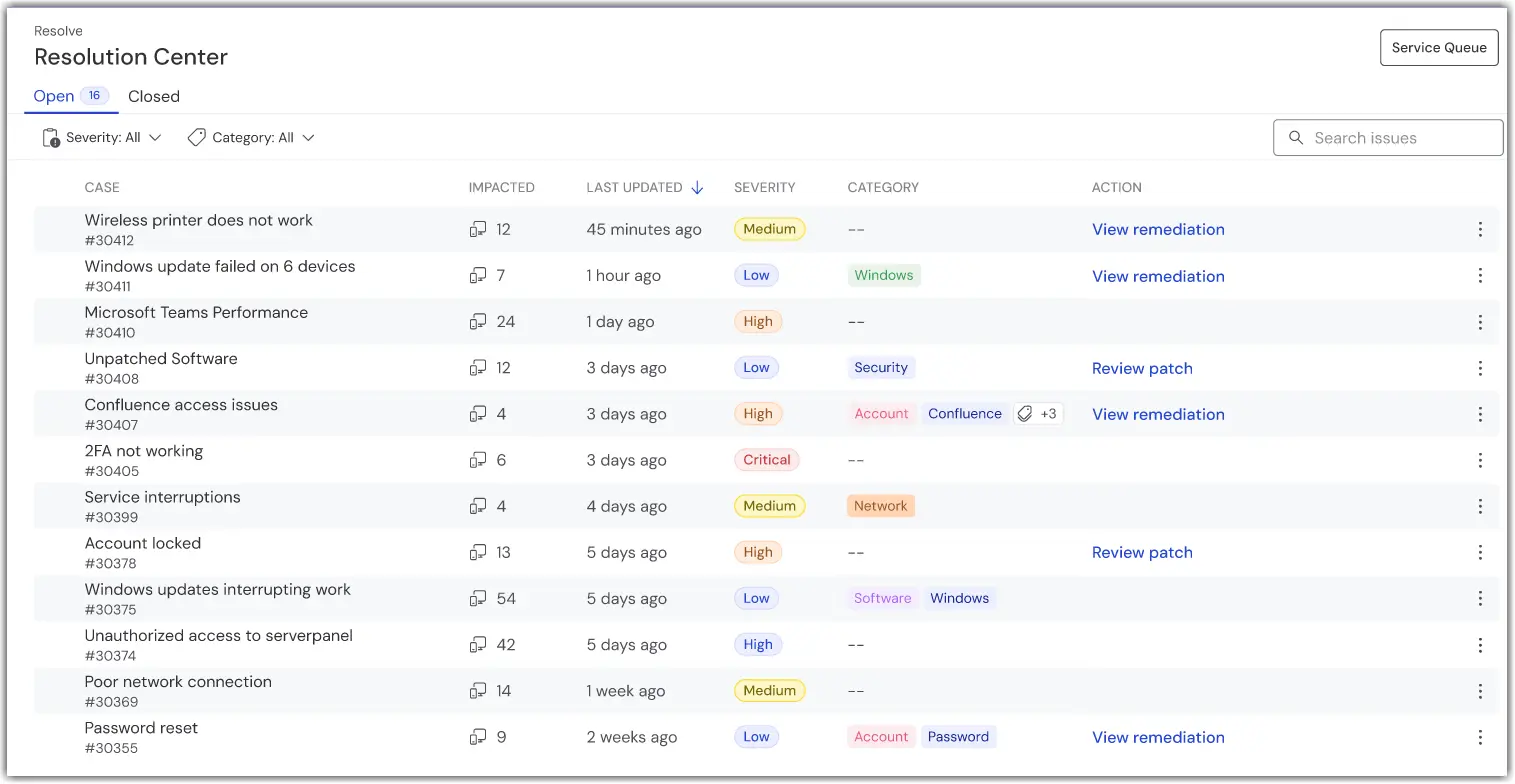
Resolution Center

The Resolution Center provides structured visibility into all cases raised across your organization, separating open and closed cases into dedicated views. Each case includes key details such as status, severity, impact, and category, allowing your support team to gauge urgency and understand the nature of the issue at a glance. This layout helps streamline triage, track case progression, and ensure that nothing falls through the cracks.

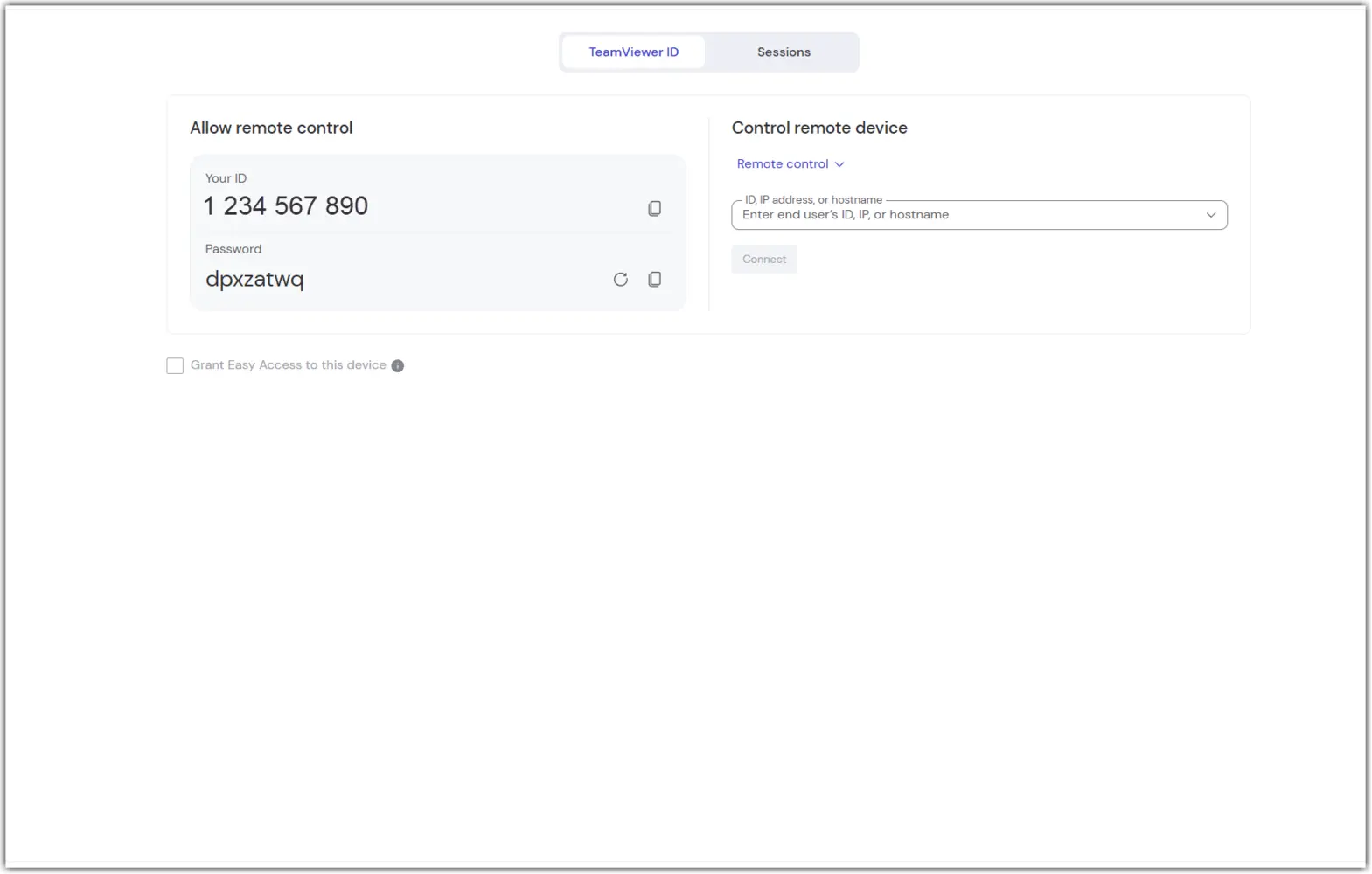
Remote Support

Your complete Remote Support toolkit, now accessible from within your case workflow.

Remote Support provides the same capabilities you may already know from TeamViewer Remote. All core functions remain available, only the location in the interface has changed. 

Here, technicians can enter a TeamViewer ID to connect to a device, join or create support sessions, and manage existing sessions, all from the standard Remote Support workspace. Nothing about the workflow has changed except its location: it has been moved into this new area in TeamViewer ONE to keep your support tools organized and easy to access.

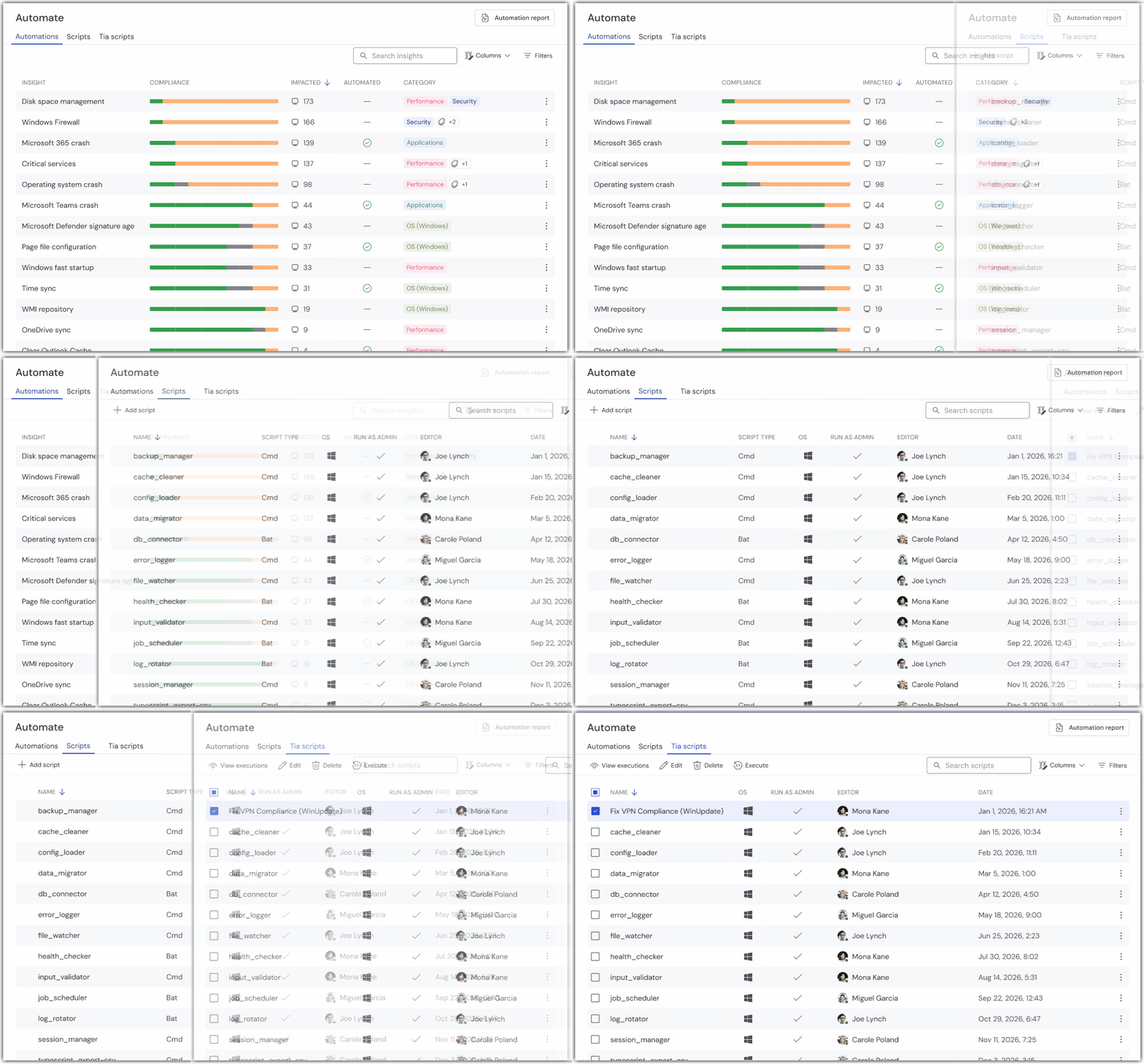
Automate

A focused area for workflow automation.

Automate provides a centralized workspace for configuring and managing automated processes across your environment. From here, you can create, edit, and organize Scripts as well as manage DEX Essentials scripting tasks, all from a single, streamlined location.

By bringing your automation tools together, this view eliminates the need to navigate through multiple areas of the product, making it easier to deploy actions, maintain consistency, and scale your workflows efficiently.

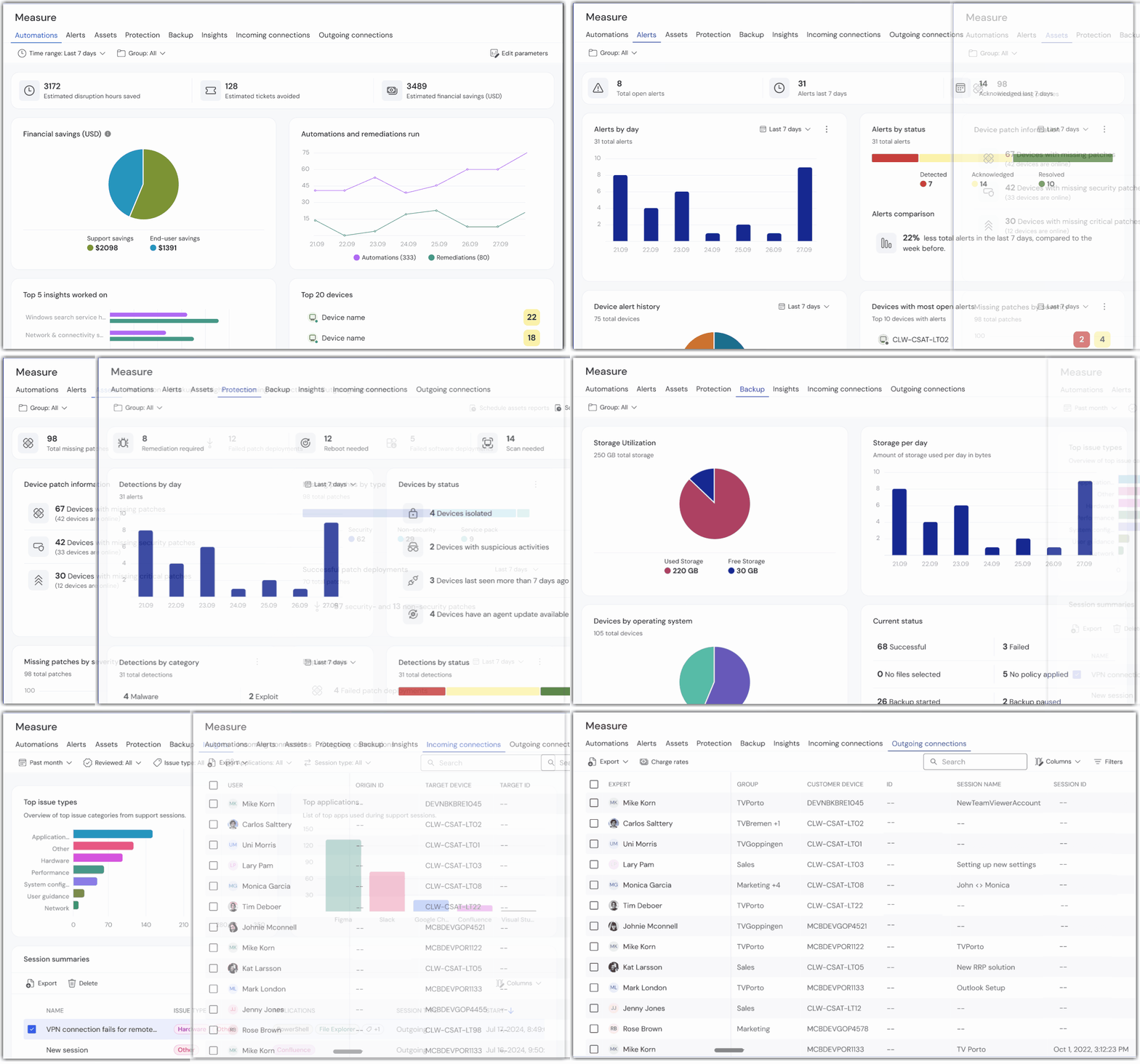
Measure

A unified view of your environment’s performance and health

Measure brings together key insights that help you understand how your overall environment is performing. Instead of looking at data device by device, this view consolidates high‑level trends, activity patterns, and operational health indicators so you can evaluate the stability, efficiency, and usage of your entire setup at a glance.

It provides the context you need to monitor the environment holistically and make informed decisions that support ongoing performance and reliability. 

Measure consolidates all your Dashboards, so you always have the data you need to make informed decisions.

Benefits for you

Less time navigating, more time acting

Use‑case‑based navigation groups the actions most relevant to a task into one place, allowing you to move through your daily workflows with fewer clicks and less friction. Instead of switching between menus to find what you need, each section is organized around a clear purpose, helping you take action faster and stay focused on resolving issues and managing your environment.

This streamlined navigation model helps you stay focused on what matters most: taking action quickly and keeping your environment running smoothly.

A complete picture of your devices

The unified Devices page provides a comprehensive view of each device’s overall health, eliminating the need to jump between multiple areas to understand its status. A single page displays patch levels, alerts, backup coverage, and other key details, and a simple view selector lets you switch perspectives as needed.

This makes it easier to assess device readiness, spot issues quickly, and maintain consistency across your fleet.

Consistent and intuitive language

The updated terminology for Alerts and Alert rules aligns feature names with the way IT teams naturally describe monitoring and detection workflows. This clearer, more intuitive language reduces ambiguity for new users and shortens onboarding time.

With terminology that matches industry expectations, users can understand capabilities at a glance and find what they need without second‑guessing which feature performs which function.

Please choose your region

Selecting a region changes the language and/or content on teamviewer.com


SUGGESTED REGION

  • Americas

    • Americas - English
    • América Latina - Español
    • Brasil - Português
    • Canada - English
    • Canada - Français
    • United States - English
  • Asia Pacific

    • Asia Pacific - English
    • Australia - English
    • 中国 - 中⽂(简体)
    • 香港 - 繁體中文
    • India - English
    • 日本 - ⽇本語
    • New Zealand - English
    • 대한민국 - 한국어
    • 台灣-繁體中文
    • ประเทศไทย - ภาษาไทย
  • Commonwealth of Independent States

    • CIS - English
    • СНГ - Русский
  • Europe

    • Europe - English
    • Belgique - Français
    • België - Nederlands
    • Bulgaria - English
    • Croatia - English
    • Cyprus - English
    • Czechia - Čeština
    • Denmark - English
    • Deutschland - Deutsch
    • España - Español
    • Estonia - English
    • Finland - English
    • France - Français
    • Greece - English
    • Ireland - English
    • Italia - Italiano
    • Latvia - English
    • Liechtenstein - Deutsch
    • Liechtenstein - Français
    • Liechtenstein - Italiano
    • Lithuania - English
    • Luxembourg - Français
    • Magyarország - Magyar
    • Malta - English
    • Nederland - Nederlands
    • Norway - English
    • Österreich - Deutsch
    • Polska - Polski
    • Portugal - Português
    • Romania - English
    • Schweiz - Deutsch
    • Suisse - Français
    • Svizzera - Italiano
    • Slovakia - English
    • Slovenia - English
    • Sweden - English
    • Türkiye - Türkçe
    • United Kingdom - English
  • Middle East Africa

    • Middle East Africa - English
    • Middle East Africa - Français
  • 제품
    • TeamViewer Remote
    • TeamViewer Tensor
    • TeamViewer DEX
    • TeamViewer Frontline
    • 가격
  • ONE 플랫폼
    • TeamViewer ONE
    • 기능
    • 담당 팀에 문의
  • 솔루션
    • 산업별
    • 사용 사례별
    • 역할별
    • 대기업용
  • 파트너
    • 파트너 되기
    • 파트너 찾기
    • 통합 파트너
  • 리소스
    • 뉴스 및 인사이트
    • 고객 성공 사례
    • 트러스트 센터
  • 지원
    • 지원 팀에 문의
    • 가이드 및 매뉴얼
    • 기술 문서 데이터베이스
    • 시스템 상태
    • 사용자 지정 모듈
    • 개발자용
    • 커뮤니티
  • 회사소개
    • TeamViewer 소개
    • 채용
    • 투자자
    • 뉴스룸
    • 리더십
    • 스포츠 파트너십
    • 지속 가능성 및 CSR
    • 기업 지배 구조
  • 추가 링크
    • 구매 문의 및 상담
    • TeamViewer User Focus Program
    • Make work work better
    • 뉴스레터
  • EULA / DPA (EN)
  • Product Descriptions
  • 기재사항
  • 개인정보 보호정책 (EN)
  • 문의
Cookie Settings