Remote Desktop Protocol (RDP) allows users to access and control a remote Windows computer from another device. While working remotely, one of the most common requirements is moving files between the local computer and the remote machine. Whether you're uploading documentation, installing software, sharing reports, or transferring project files, Windows offers several ways to move files during a Remote Desktop session. The right approach depends on your environment, security requirements, and how frequently you need to transfer files.
This guide explains the most common methods for transferring files to a Remote Desktop session and explores alternatives for users who regularly move files between devices.
Why transfer files through Remote Desktop?
File transfers are a routine part of many remote workflows.
Common use cases include:
- Accessing work files from a home office.
- Providing remote IT support.
- Installing applications on remote devices.
- Sharing reports and documentation.
- Managing servers remotely.
- Supporting hybrid and distributed teams.
Being able to move files efficiently helps reduce downtime and keeps workflows running smoothly.
Method 1: Transfer files using TeamViewer
Moving files is often part of a broader remote support or remote work workflow. Whether you're deploying software, sharing documentation, transferring logs for troubleshooting, or providing technical support, switching between multiple tools can slow down the process.
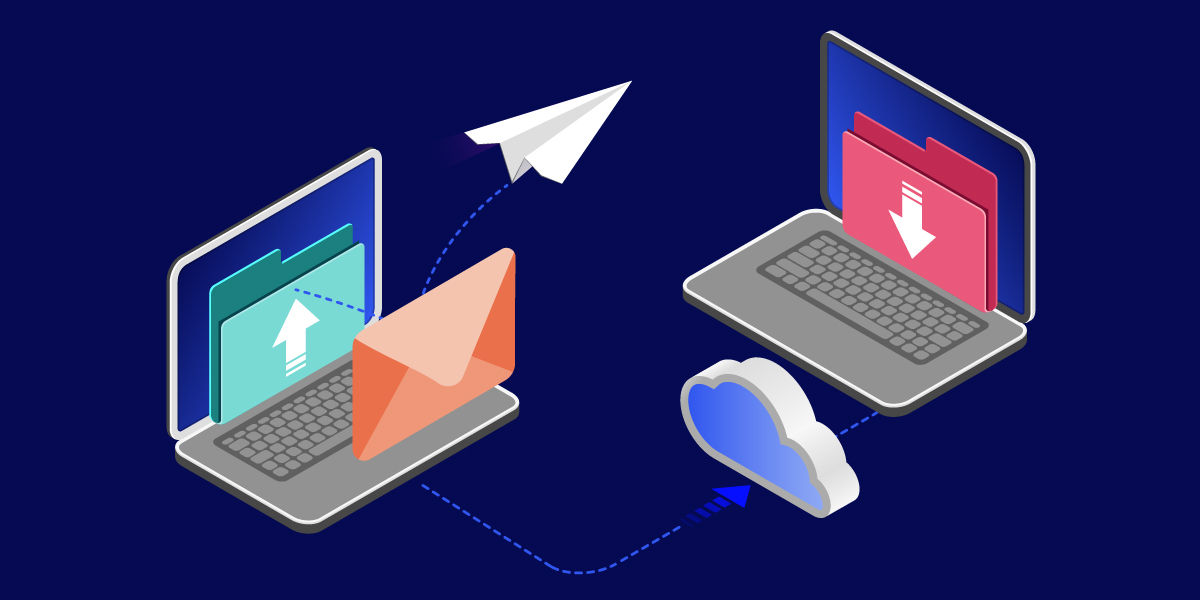
TeamViewer enables secure file transfers as part of a remote access session, allowing users to move files between devices without complicated configuration or additional infrastructure. By combining remote connectivity and file transfer capabilities in a single platform, organizations can streamline support workflows, reduce administrative overhead, and keep work moving efficiently across distributed teams.
This can be especially valuable for IT teams, managed service providers (MSPs), and organizations supporting remote and hybrid work environments, where fast access to devices and information is essential for maintaining productivity and minimizing downtime.
Method 2: Share local drives before connecting
One of the easiest ways to transfer files is by making local drives available inside the remote session.
Steps
- Open Remote Desktop Connection.
- Select Show Options.
- Open the Local Resources tab.
- Click More under Local Devices and Resources.
- Expand Drives.
- Select the local drives you want to access remotely.
- Connect to the remote computer.
Once connected, the selected drives will appear in File Explorer on the remote computer. You can then copy, move, and organize files between systems just as you would when working with folders on a local device.
Method 3: Copy and paste files
Remote Desktop supports clipboard sharing, which can allow basic file transfers.
Steps
- Verify that clipboard sharing is enabled.
- Copy a file on your local device.
- Open your Remote Desktop session.
- Paste the file into the destination folder.
This method works best for occasional transfers and smaller files. For larger files, drive redirection or other transfer methods are typically more reliable.
Method 4: Use shared network folders
In business environments, shared network drives are often used for file distribution.
Steps
- Save the file to a shared network location.
- Connect to the remote computer.
- Open the shared location.
- Copy or access the required files.
This approach is particularly useful when multiple users need access to the same resources. It can also simplify file management because documents remain centrally located rather than being duplicated across devices.
Method 5: Use cloud storage
Cloud platforms can provide another convenient way to transfer files between systems. A file can be uploaded from one device and downloaded from another without requiring direct file sharing through Remote Desktop.
This method is useful when:
- Working across multiple locations.
- Collaborating with team members.
- Accessing files from different devices.
- Supporting remote workers.
As always, organizations should ensure that any cloud storage solution aligns with their security and compliance requirements.

Common file transfer issues
Sometimes file transfers don't work as expected during a Remote Desktop session.
Shared drives are missing
If local drives don't appear inside the remote session, verify that drive sharing was enabled before connecting. Changes made after a session starts usually require reconnection.
Copy and paste isn't working
Clipboard redirection may be disabled through Remote Desktop settings or organizational policies. Review the connection settings and verify clipboard access is permitted.
Large files transfer slowly
Transfer speeds depend on:
- Network performance.
- Available bandwidth.
- File size.
- Remote device performance.
For larger transfers, shared drives or dedicated transfer tools often provide better results than clipboard-based methods.
Security restrictions prevent transfers
Many organizations intentionally disable drive sharing or clipboard redirection for security reasons. If you're working in a managed environment, additional permissions may be required before file transfers are allowed.
Security best practices
When transferring files to remote devices:
- Verify files come from trusted sources.
- Scan files for malware when appropriate.
- Follow company security policies.
- Restrict access to shared folders.
- Avoid transferring sensitive information through unsecured channels.
Good file management practices help protect both the local and remote systems involved in the transfer.
Best practices for efficient file transfers
To improve performance and reliability:
- Use drive sharing for regular transfers.
- Compress large files when appropriate.
- Keep folder structures organized.
- Verify transfers before deleting original files.
- Use centralized storage when collaborating across teams.
- Choose the transfer method that best matches the file size and workflow.
Selecting the right approach can save time and reduce potential transfer issues.
Final thoughts
How to transfer files to Remote Desktop
Transferring files to a Remote Desktop session is a common requirement for remote work, IT administration, and technical support. Windows provides several built-in options, including drive sharing, clipboard transfers, network folders, and cloud storage. For users who transfer files frequently as part of remote support or device management workflows, dedicated remote access solutions can simplify the process by combining connectivity and file transfer capabilities in a single experience. By understanding the available methods and following good security practices, you can move files efficiently while maintaining a productive remote workflow.