• Satış İletişimi
    • Web uygulamasını aç
    • Yönetim Konsolu
    • Bilet
    • Müşteri Portalı
TeamViewer
  • Kişisel kullanım ve SMB TeamViewer Remote

    Hızlı ve güvenli uzaktan erişim ve BT desteği.

    Daha fazla bilgi alın

    • Uzaktan destek Anında ve güvenli destek verin
    • Uzaktan yönetim Cihazları izleyin ve yönetin
    Planları ve fiyatlandırmayı görün

    Kurumsal TeamViewer Tensor

    Güvenli operasyon için uzak bağlantılar.

    Daha fazla bilgi alın

    • Uzaktan BT desteği Güvenli, esnek, entegre
    • Operasyonel teknoloji Uzaktan atölye erişimi

    Gerçek zamanlı sorun giderme TeamViewer DEX

    Sorunları kullanıcılar etkilenmeden çözün.

    Daha fazla bilgi alın

    • Uç nokta sorun giderme Sorunları tanımlayın ve çözün
    • Uç nokta otomasyonu Rutin BT görevlerini otomatikleştirin

    Bağlantılı çalışan TeamViewer Frontline

    Endüstriyel artırılmış gerçeklik ile verimliliği sürdürün.

    Daha fazla bilgi alın

    • Lojistik ve depolama Dokunmadan malzeme işleme
    • Eğitim ve oryantasyon Hızlı oryantasyon ve beceri geliştirme
    TeamViewer istemcisinde görüldüğü şekliyle yapay zeka özellikleri

    TeamViewer ONE

    TeamViewer’ın tüm gücünü, tek platformda birleşik olarak edinin.

    • Daha fazla bilgi alın

    Temel entegrasyonlar

    • Microsoft Intune

    • ServiceNow

    • Freshworks

    • Jira

    • Salesforce

    • Slack

    • Microsoft Teams

    Tüm entegrasyonları görüntüleyin
  • TeamViewer ONE Platformu

    Tek bir platformda birleşik dijital çalışma alanınızı proaktif olarak yönetin ve optimize edin.

    • Yalın BT ekipleri için Proaktif cihaz yönetimi
    • Sürtüşmesiz deneyim Pürüzsüz ve kesintisiz dijital deneyim
    • Sorunsuz BT operasyonu Proaktif düzeltme ve olağanüstü hizmet
    • Ekibimizle konuşun Dönüşüme hazır mısınız?
    Platformu keşfedin

    Temel Özellikler

    • TeamViewer AI
    • Dijital çalışan deneyimi
    • Uzaktan destek ve kontrol
    • Varlık ve yama yönetimi
    Tüm özellikleri görüntüleyin

    Gartner Report 2026

    TeamViewer, bir DEX lideri seçildi

    Gartner® Magic Quadrant™ DEX araçlarında, TeamViewer 2026’de lider seçildi.

    Temel Entegrasyonlar

    • Microsoft Intune

    • ServiceNow

    • Freshworks

    • Jira

    • Salesforce

    • Zendesk

    • Slack

    • Microsoft Teams

    Tüm entegrasyonları görüntüleyin
  • Popüler kullanım durumları

    • Uzaktan erişim ve destek Kişileri, cihazları ve uygulamaları İstediğiniz yerden yönetin.
    • Dijital çalışan deneyimi (DEX) BT sorunlarını, henüz üretkenliği etkilenmeden önce çözün.

    Diğer kullanım durumları

    • Uzaktan erişim Güvenli bağlantı ile erişimi iyileştirin
    • Uzaktan kontrol Platformdan bağımsız olarak cihazları kontrol edin
    • Uzak masaüstü Üretkenliği istediğiniz yerden geliştirin
    • LAN’da uyandırma Uzak cihaz aktivasyonunu etkinleştirin
    • Ekran paylaşma Gerçek zamanlı görsel iletişim
    • Smart Service Satış sonrası hizmetleri aksaksız kılın

    İhtiyaca göre Farklı ekipler için popüler çözümler

    • Kişisel kullanım Cihazlara her yerden erişin
    • Küçük işletmeler Uzaktan erişimi ve desteği basitleştirin
    • Büyük işletmeler Kurumsal BT’yi genişletin ve güvenli kılın
    • Serbest çalışanlar ve dijital göçebeler Herhangi bir konumdan güvenle çalışın
    • Yönetilen hizmetler sağlayıcıları İstemci BT’yi yönetin ve sürdürün
    • OEM’ler Destek ve operasyonları aksaksız kılın
    • Kar amacı gütmeyen kuruluş ve eğitim kurumu TeamViewer teknolojisi %30 indirimli

    Sektörlere göre Sektörlere göre sıralanmış popüler çözümler

    • Otomotiv
    • Tarım
    • Lojistik
    • Üretim
    • Perakende
    • Sağlık
    • Bankacılık ve finans
    • Kamu sektörü

    Satış ekibimizle konuşun

    Doğru çözümü seçmek, sipariş vermek veya lisansınızı yükseltmek konularında yardım mı gerekiyor?

    • Anlatın bize
  • Kurumsal
  • TeamViewer hakkında daha fazla bilgi edinin

    • TeamViewer Hakkında Güvenli şekilde bağlantılı kişiler, yerler ve nesneler.
    • İş ortağımız olun Global iş ortağı programı TeamUP’a katılın.
    • Destek ekibine ulaşın Destek makalelerinde gezinin veya ekibimize ulaşın.
    • Başarı öyküleri TeamViewer müşterilerinin elde ettikleri sonuçları keşfedin.
    HABERLER

    TeamViewer, müşterilerin AI teklifine hızlı adapte olduğunu bildiriyor.

    Kaynaklar

    • Blog
    • Başarı öyküleri
    • Etkinlikler ve web seminerleri
    • Güven Merkezi

    Ortak

    • İş ortağımız olun
    • Bir iş ortağı bulun
    • Entegrasyon iş ortakları

    Destek

    • Destek ekibine ulaşın
    • Rehberler ve kılavuzlar
    • Bilgi Tabanı
    • Sistem durumu
    • Özel modüller
    • Geliştiriciler için
    • Topluluk

    Firma

    • TeamViewer Hakkında
    • Kariyer
    • Yatırımcılar
    • Haber odası
    • Liderlik
    • Spor iş ortaklığı
    • Sürdürülebilirlik ve CSR
    • Kurumsal yönetim
  • Fiyatlar
  • Ücretsiz İndirin

Knowledge Base

  • TeamViewer ONE
  • TeamViewer Remote
  • TeamViewer (Classic)
  • TeamViewer Tensor
  • TeamViewer Tensor (Classic)
  • TeamViewer Frontline
  • Other products
Back to support overview
  • What is TeamViewer Tensor?
  • Get started
    • Activate your Tensor license
    • Activate your Tensor Access license
    • Activate a license or an add-on as a tenant manager
    • Enable the new UI for your company
    • Customize the navigation for user groups in TeamViewer Tensor
  • Company, device and user management
    • Control the user interface
    • Multitenancy
    • Distribute your Tensor license
    • Assign a device manually to your company
    • User groups
    • Manage device groups on company level
    • Custom QuickSupport for mobile
    • Audio and video forwarding
  • Conditional Access
    • Get started with Conditional Access
    • Conditional Access in a Multitenancy organization
    • Hybrid Conditional Access
    • Approval option: Enforce approval for devices receiving a connection
    • Feature option: Define in-session permissions
    • Time option: Restrict or allow access for a specific time slot
    • Pre-approved access
    • Best practices for network configuration in a Conditional Access environment
  • Security
    • Auditability / Event Log
    • Provide in-session chat transcripts for integrations
    • Bring your own certificate
    • Security key redirection
    • Record TeamViewer sessions and upload them to your cloud storage
  • SSO
    • Single Sign-On (SSO)
    • Single Sign-On for Microsoft Entra ID
    • Single Sign-On for Active Directory Federation Services (ADFS)
    • Single Sign-On for Centrify
    • Single Sign-On for Google Workspace
    • Single Sign-On for Okta
    • Single Sign-On for OneLogin
    • Add users to SSO exclusion list
    • Set up your SSO inclusion list
    • Enable account activation emails for Single Sign-On
  • Integrations
    • Microsoft Entra ID Integration - SCIM Configuration
    • Microsoft Teams Integration - Installation and User Guide
    • Okta Integration - SCIM Configuration
    • Getting started with the Windows LAPS integration in TeamViewer Tensor
    • Launch remote access directly from Intune with the TeamViewer Intune Connect integration
    • Synchronize your Intune environment in TeamViewer with the Intune Device Sync integration
  • Agentless Access
    • Set up an access gateway in TeamViewer
    • Create an access endpoint in TeamViewer
  • Audio and video forwarding

    Last Modified: 28 Tem 2026

TeamViewer Tensor's audio and video forwarding feature lets you use your local microphone and camera during a remote session. By forwarding your selected audio and video devices to the remote computer, you can join meetings and use communication applications as if you were sitting at the remote device.

This article applies to TeamViewer ONE users and TeamViewer Tensor users on the following licenses: Tensor, Tensor Light Agent, Tensor Support & Tensor Support Concurrent, and TeamViewer ONE.

Requirements

Before utilizing audio and video forwarding, make sure the following conditions are met:

  • The device is associated with your TeamViewer Tensor license.
  • The remote device is running the full version of TeamViewer or TeamViewer Host.
  • Connection to the remote device is made via Easy Access.
  • A microphone and/or camera is available and functioning on your local device.

How audio and video forwarding works

When activated, TeamViewer Tensor checks the remote device to verify whether the appropriate virtual drivers are installed. If they are not found, TeamViewer Tensor automatically installs the required virtual devices. This allows your selected audio and video devices to be used by the remote machine in meetings or other communication applications. By default, the pre-selected audio and video devices in TeamViewer Tensors settings (LOCATION) are shared. If different audio or video devices should be used instead, you can change the configuration in the Configure audio/Configure video menus provided.

How to enable audio and video forwarding

  1. Start a remote connection to a supported device via Easy Access.
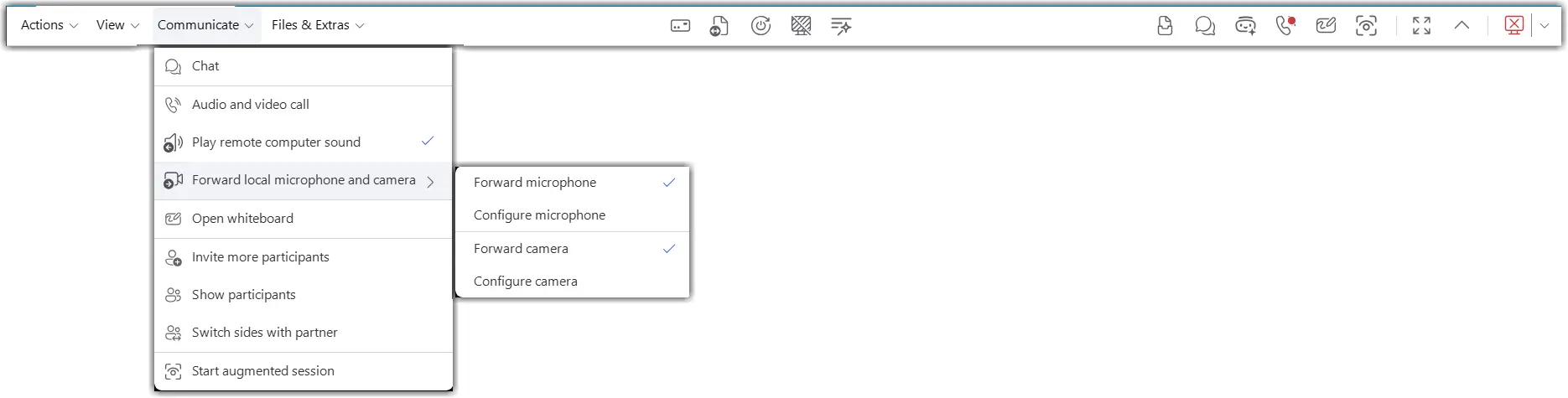
  2. In the session toolbar, enable audio forwarding, video forwarding, or both.
  3. If TeamViewer does not detect the required virtual drivers on the remote device, allow the installation to complete.
  4. To change the microphone forwarded by TeamViewer, select the Configure Microphone option, and choose the desired input device.
  5. To change the camera forwarded by TeamViewer, select the Configure Camera option and choose the desired video device.
  6. Open the desired meeting or communication application on the remote device.
  7. Select the TeamViewer virtual microphone and/or TeamViewer virtual camera in the application's audio and video settings.
  8. Verify that the remote application receives audio and video from your local devices.
How to change the forwarded audio/camera devices

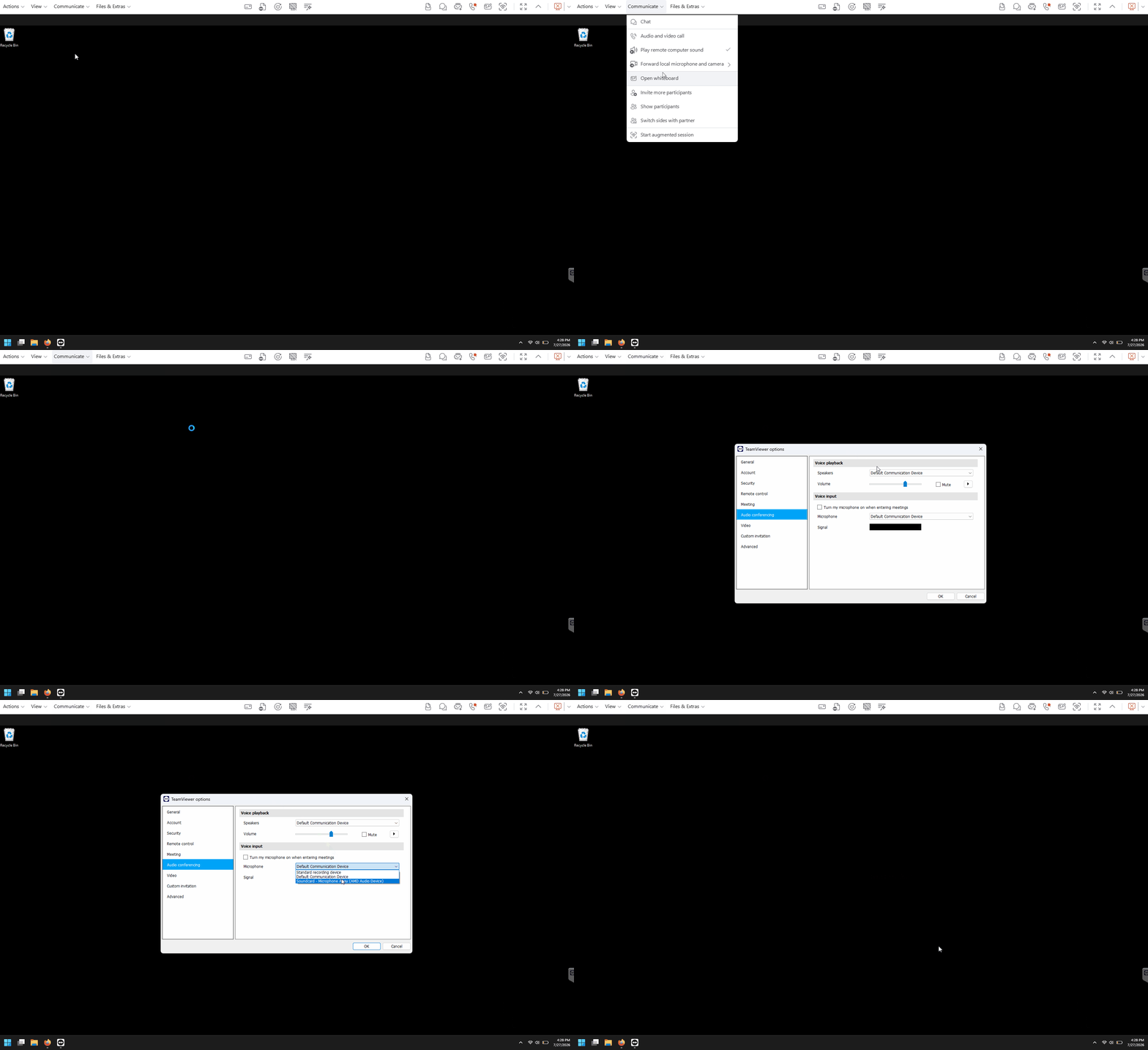
  1. While in the remote session, open the audio or video forwarding settings from the session toolbar.
  2. Select a different local microphone or camera.
  3. Confirm the selection.
  4. Test the device in the remote application.
How to manually install or uninstall the forwarding drivers

In TeamViewer Remote:

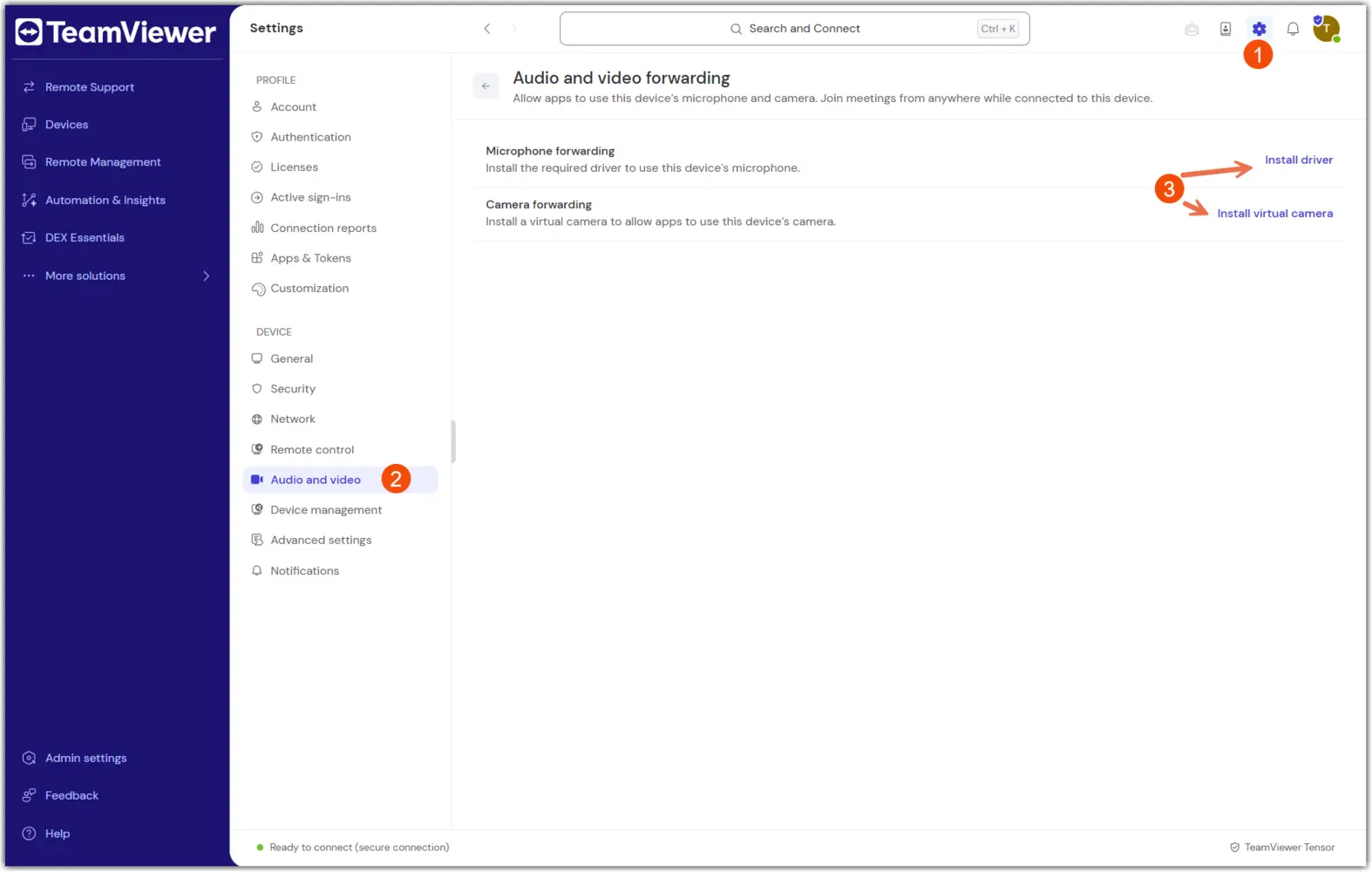
  1. Open TeamViewer settings on the remote device.
  2. Navigate to the audio and video forwarding driver section.
  3. Install or uninstall the virtual audio and camera drivers as needed.
  4. Confirm the change.
  5. Restart the remote session if required.
In TeamViewer (Classic):

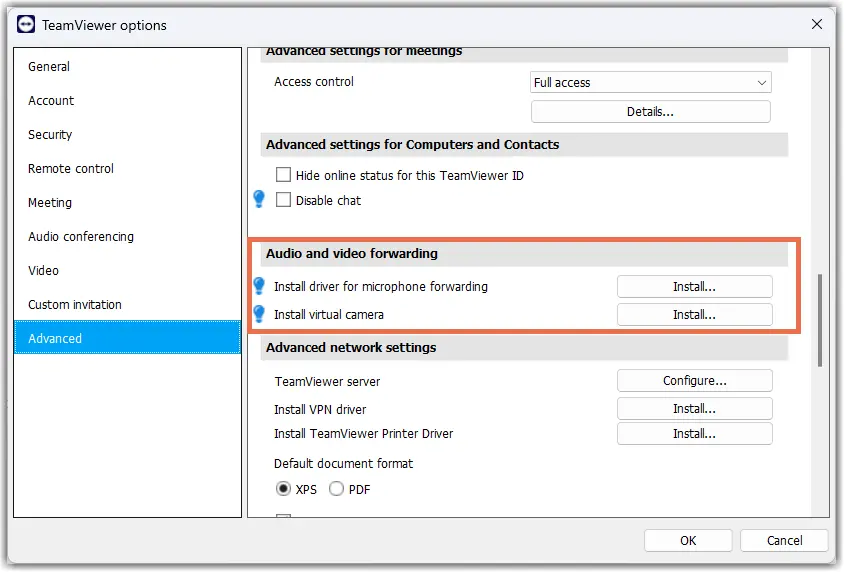
  1. Open TeamViewer Advanced settings: Extras → Options → Advanced → Show advanced.
  2. Navigate to the Audio and video forwarding section.
  3. Install or uninstall the virtual audio and camera drivers as needed.
  4. Confirm the change.
  5. Restart the remote session if required.
How to install the forwarding audio driver via MSI

The forwarding drivers can also be installed via MSI, using the following commands:

msiexec /i TeamViewer_Full.msi INSTALLVIRTUALAUDIO=1
msiexec /i TeamViewer_Host.msi INSTALLVIRTUALAUDIO=1

Lütfen bölgenizi seçin

Bir bölge seçmek, teamviewer.com'daki dili ve/veya içeriği değiştirir


ÖNERİLEN BÖLGE

  • Americas

    • Americas - English
    • América Latina - Español
    • Brasil - Português
    • Canada - English
    • Canada - Français
    • United States - English
  • Asia Pacific

    • Asia Pacific - English
    • Australia - English
    • 中国 - 中⽂(简体)
    • 香港 - 繁體中文
    • India - English
    • 日本 - ⽇本語
    • New Zealand - English
    • 대한민국 - 한국어
    • 台灣-繁體中文
    • ประเทศไทย - ภาษาไทย
  • Commonwealth of Independent States

    • CIS - English
    • СНГ - Русский
  • Europe

    • Europe - English
    • Belgique - Français
    • België - Nederlands
    • Bulgaria - English
    • Croatia - English
    • Cyprus - English
    • Czechia - Čeština
    • Denmark - English
    • Deutschland - Deutsch
    • España - Español
    • Estonia - English
    • Finland - English
    • France - Français
    • Greece - English
    • Ireland - English
    • Italia - Italiano
    • Latvia - English
    • Liechtenstein - Deutsch
    • Liechtenstein - Français
    • Liechtenstein - Italiano
    • Lithuania - English
    • Luxembourg - Français
    • Magyarország - Magyar
    • Malta - English
    • Nederland - Nederlands
    • Norway - English
    • Österreich - Deutsch
    • Polska - Polski
    • Portugal - Português
    • Romania - English
    • Schweiz - Deutsch
    • Suisse - Français
    • Svizzera - Italiano
    • Slovakia - English
    • Slovenia - English
    • Sweden - English
    • Türkiye - Türkçe
    • United Kingdom - English
  • Middle East Africa

    • Middle East Africa - English
    • Middle East Africa - Français
  • Ürünler
    • TeamViewer Remote
    • TeamViewer Tensor
    • TeamViewer DEX
    • TeamViewer Frontline
    • Fiyatlar
  • ONE platformu
    • TeamViewer ONE
  • Çözümler
    • Sektörlere göre
    • Kullanım alanlarına göre
    • Rollere göre
    • Kurumsal
  • Ortaklar
    • İş ortağımız olun
    • Bir iş ortağı bulun
    • Entegrasyon iş ortakları
  • Kaynaklar
    • Blog
    • Başarı öyküleri
    • Güven Merkezi
  • Destek
    • Destek ekibine ulaşın
    • Rehberler ve kılavuzlar
    • Bilgi Tabanı
    • Sistem durumu
    • Özel modüller
    • Geliştiriciler için
    • Topluluk
  • Firma
    • TeamViewer Hakkında
    • Kariyer
    • Yatırımcılar
    • Haber odası
    • Liderlik
    • Spor iş ortaklığı
    • Sürdürülebilirlik ve CSR
    • Kurumsal yönetim
  • Ekstra Bağlantılar
    • Satış İletişimi
    • TeamViewer User Focus Program
    • Make work work better
    • Haber bülteni
  • SKLA (EN)
  • Product Descriptions
  • Künye
  • Gizlilik ve Tanımlama Bilgileri (EN)
  • İletişim
Tanımlama Bilgisi Ayarları