Knowledge Base
User roles
Last Modified: Oct 10, 2025
User roles define the specific roles company administrators can create. User roles prescribe what services the user is permitted to view, edit and control. A user can have multiple roles assigned. The permissions that apply to a user are the sum of all permissions from all assigned roles.
User roles improve your productivity and security by:
- providing an overview of your user's setup
- making user permission provisioning easier and reducing the error probability
- reducing the threat that users have access to functionality they shouldn't have access to
Therefore, we highly recommend creating customized user roles for your organization.
Note: You can create up to 100 user roles.
This article applies to company administrators having the permission to Manage administrators and organization settings.
How to create user roles
To create a user role, please follow the instructions below:
- Click Admin settings on the left-hand side of TeamViewer Remote's interface.
- In the User Management menu, click on Roles.
- Click on the Create new role button.
- Enter a role name and click Continue.
- Select all the permissions your role should contain and click Continue.
- (Optional) If you have already created users, you can assign the role to these users and click Save. You will also be able to assign the role at a later stage.
- Click Save.
You have successfully created a role.
How to assign a user role to multiple users
To assign a user role to multiple users, please follow the instructions below:
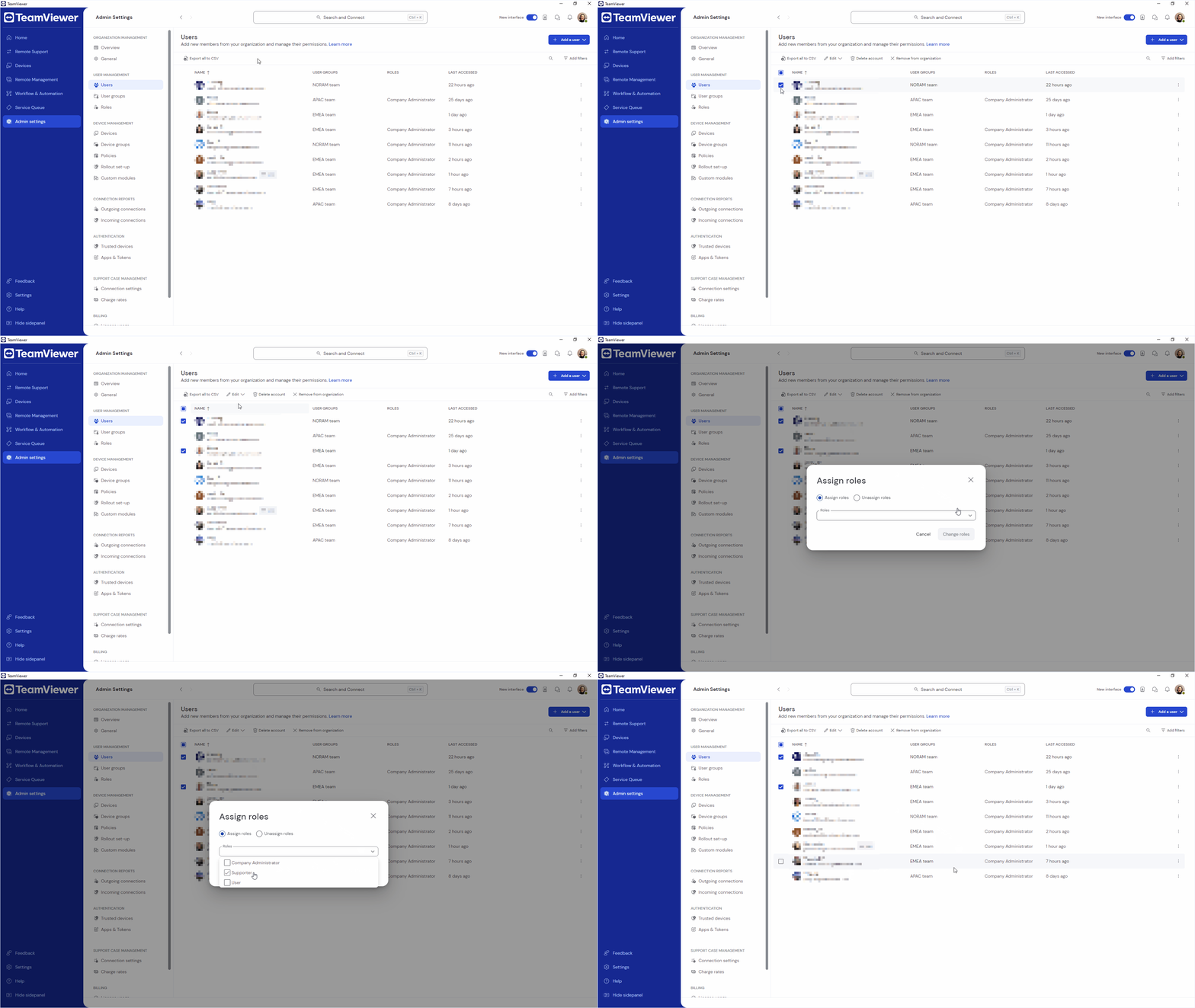
- Go to Admin settings.
- Within the User management section, go to Users.
- Select the users you want to assign a role to.
- Click Edit.
- Click Role assignments.
- Make sure Assign role is enabled and select the role you want to assign.
- Click Change roles.
How to assign a user role to a single user
To assign a user role to a single user, please follow the instructions below:
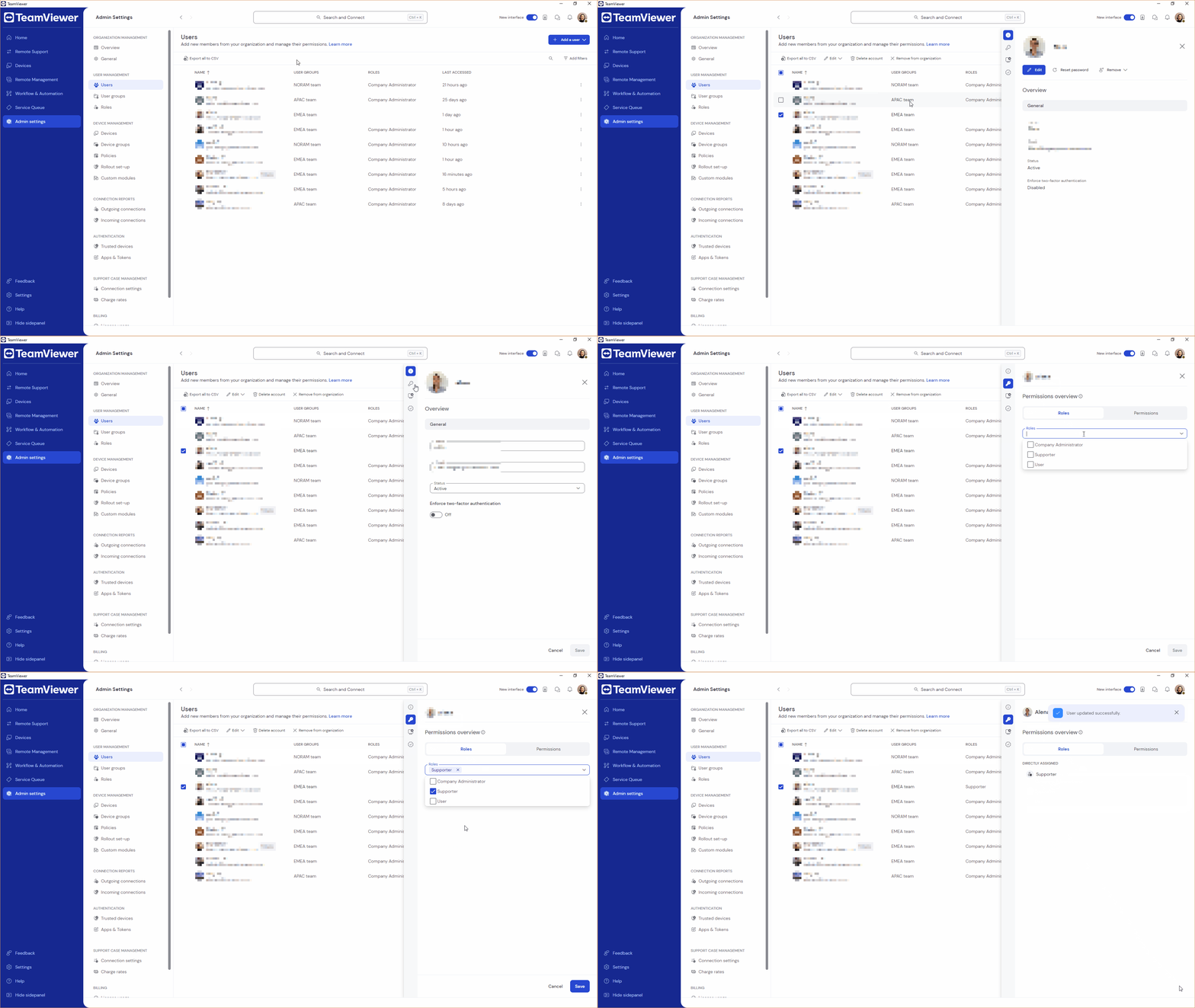
- Go to Admin settings.
- Within the User management section, go to Users.
- Select the user you want to assign a role to.
- Click Edit.
- Go to the Permission overview tab. Open the dropdown by clicking it.
- Select the roles the user should have assigned.
- Click Save.
How to check the user role permission of a user
To check the user role permission of a user, please follow the instructions below:
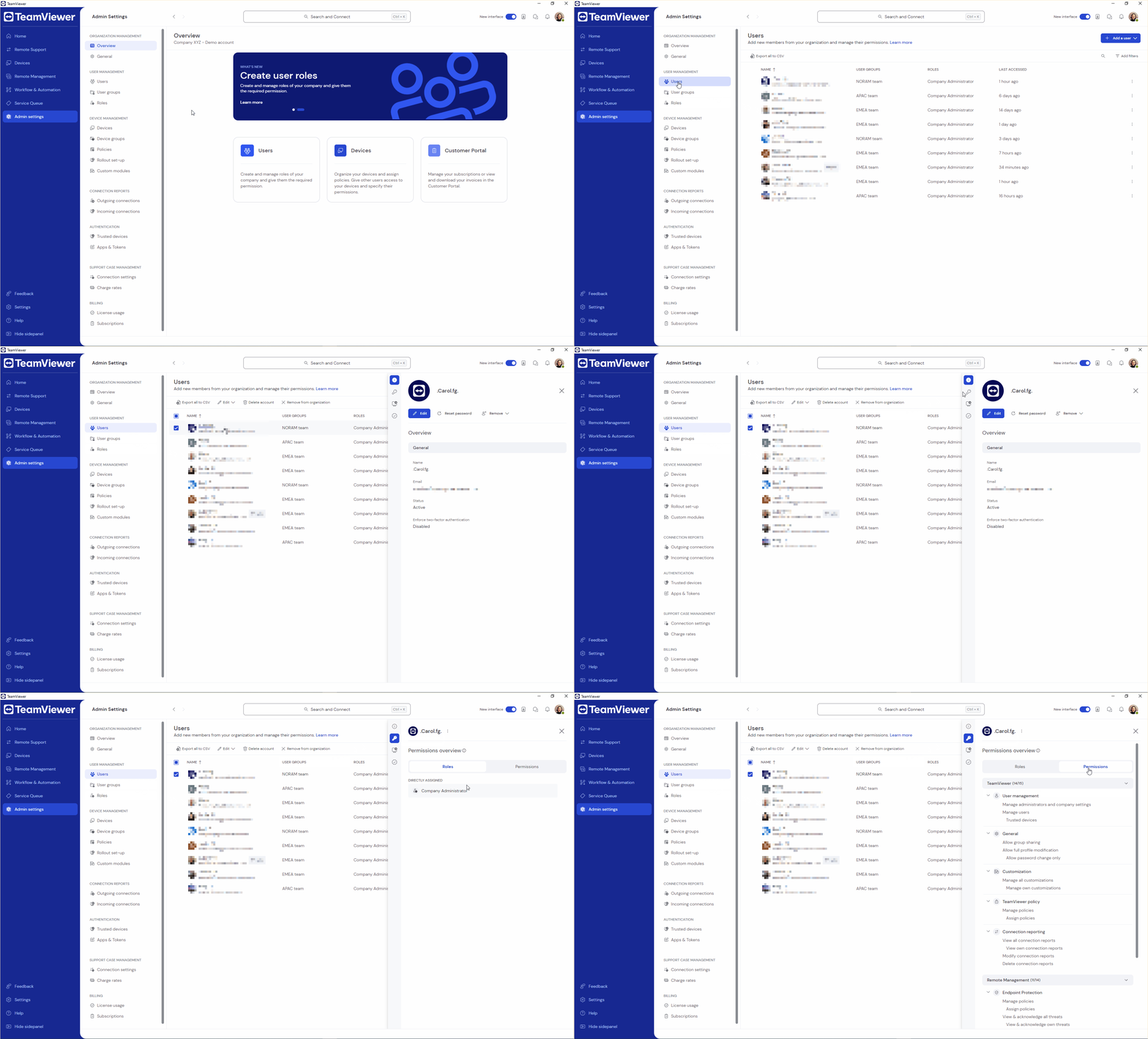
- Go to Admin settings.
- Within the User management section, go to Users.
- Click on the user you want to check.
- On the panel, click the Permissions overview icon.
You will see all the assigned roles and permissions in the respective tabs.
Set a user role as the default
Default user roles help administrators manage user permissions efficiently. They provide a structured way to control user permissions. With default roles, new users get the right permissions immediately once they are added to your company, simplifying user management and boosting security.
Note: The default user role will also apply to users you added via API and SCIM.
To set a user role as default, select the desired user role and click Set as default.
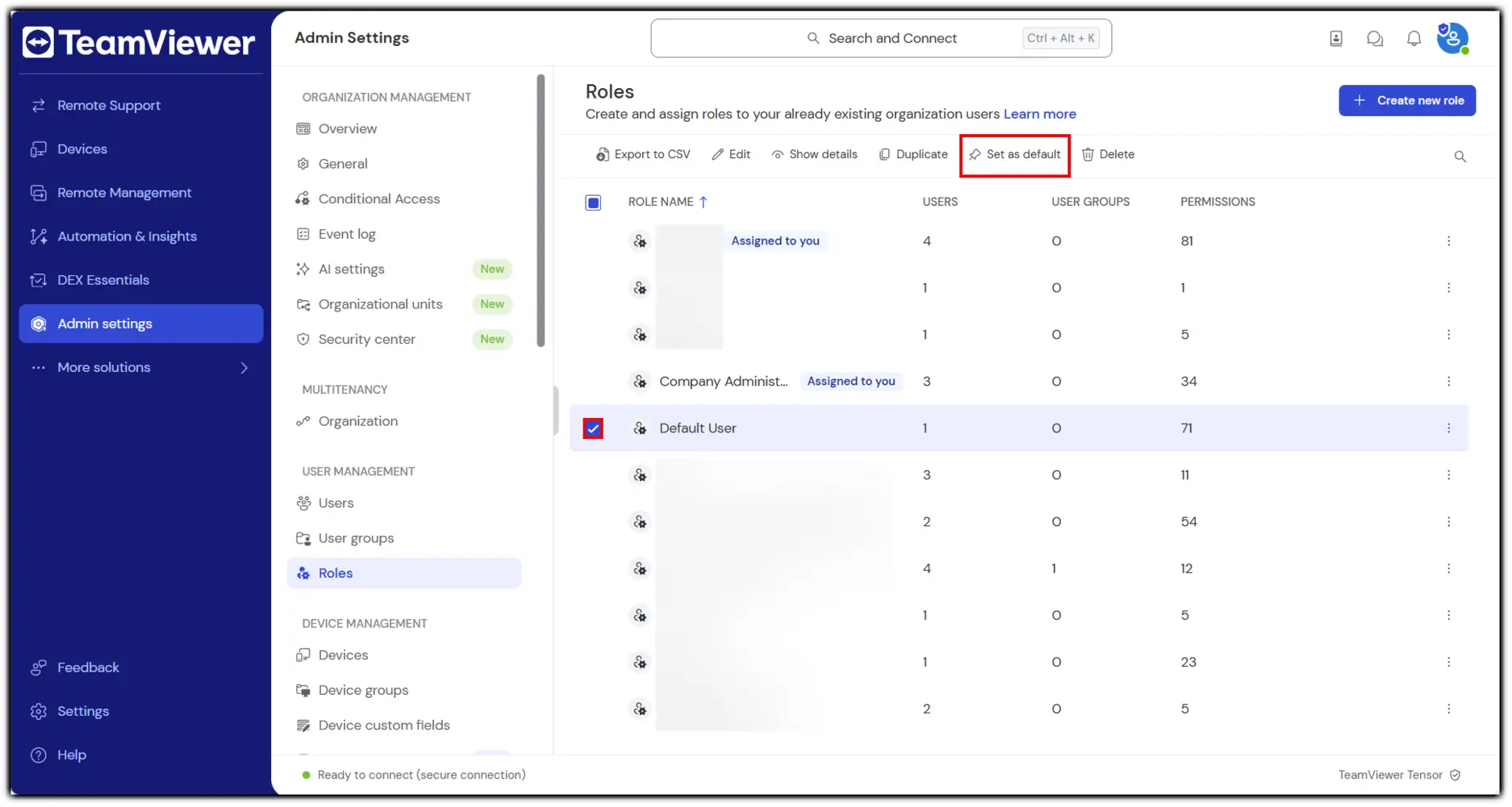
All users joining your company will be assigned this user role by default.