Knowledge Base
Add a device via link
Last Modified: Jul 21, 2025
Learn how to manually assign devices to your company using Host assignment links. Admins can easily assign devices by generating a Host assignment link and sharing it with remote users. Once the remote user opens the link, installs the Host, and confirms the assignment, the device will be seamlessly added to the All managed devices section. With this method, admins can streamline their device management process.
This article applies to Business, Premium, Corporate, and Tensor customers.
Step 1: Create a Host assignment link
To assign a device manually to your company using an automated Host assignment link, please follow the instructions below:
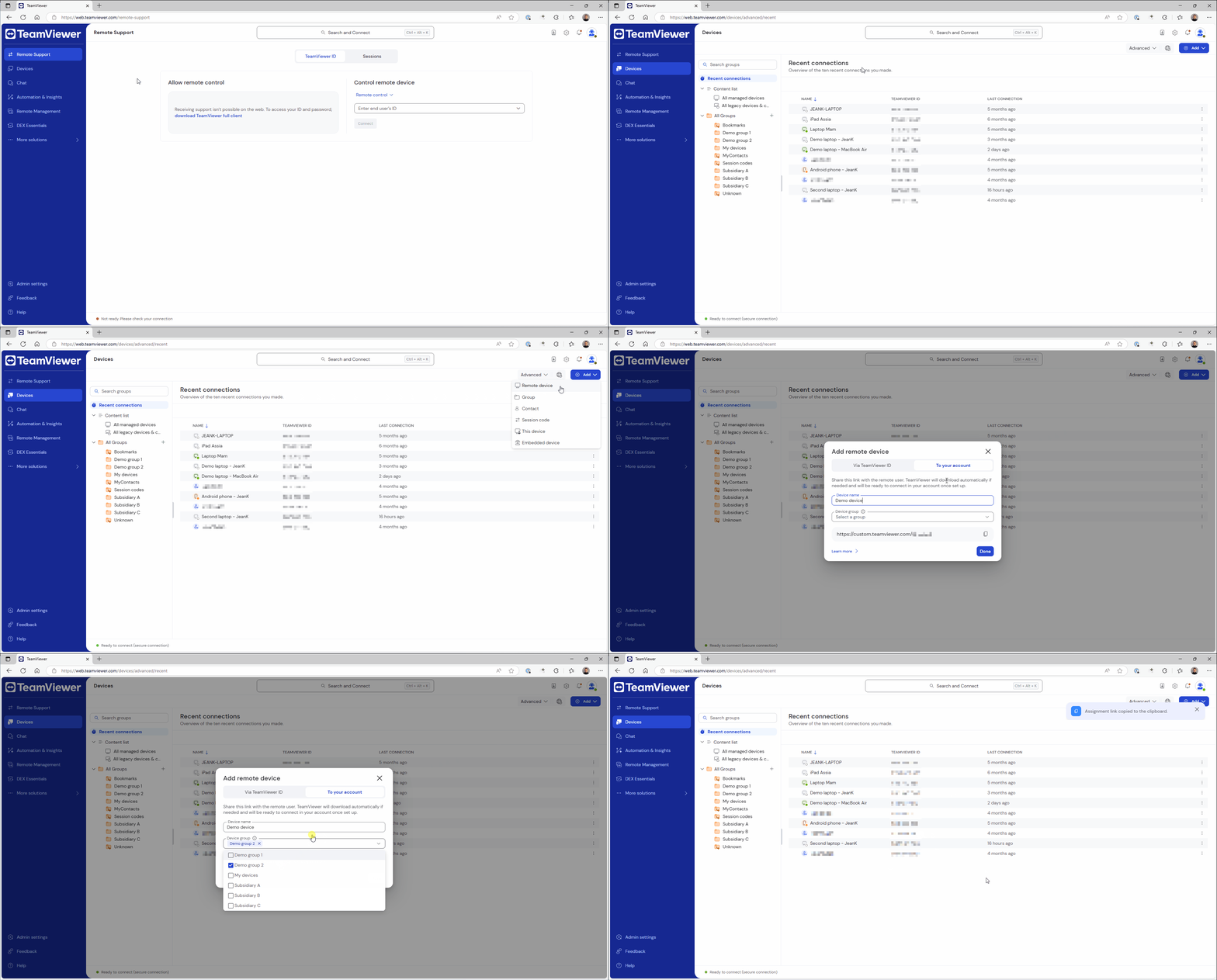
- Sign in to https://web.teamviewer.com/ or to the TeamViewer Remote full client.
- Go to Devices.
- Click the + Add button and select Remote device.
- Click the tab To your account. This will generate the Host's assignment link.
- Give your remote device a name and select the device group(s) to which the remote device should belong.
- Now, copy the Host assignment link for later use and click Done.
You have successfully created a Host assignment link.
Step 2: Share, install and assign
Now, you can share the Host assignment link with the remote user so they can install the Host and assign the Host to your company devices.
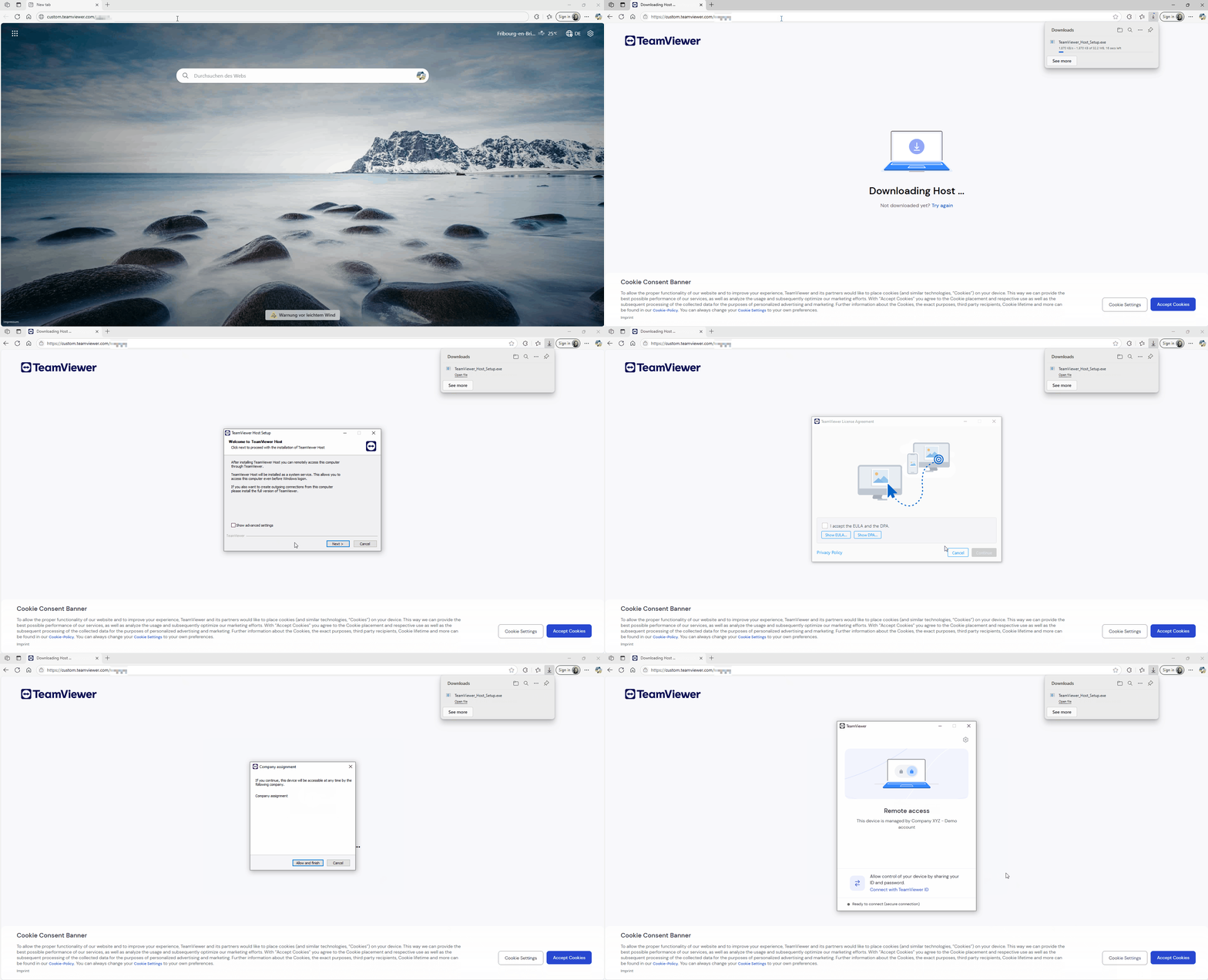
- Share the Host assignment link with the remote user via your preferred communication method.
- The remote user opens the link in their browser and installs the Host.
- Once the installation is done, they need to open the Host. They will be prompted to allow the assignment. They need to click Allow and finish.
You have successfully assigned the remote device to your company using the automated Host assignment link.