The Security Center helps administrators monitor and strengthen the security of their company’s TeamViewer environment. This feature provides actionable recommendations and visual indicators to guide you toward maximum security.
This article applies to Premium, Corporate, or Tensor license holders.
How to access the Security Center
To open the Security Center, please follow the instructions below:
- Sign in to your administrator TeamViewer account within the TeamViewer client or via https://web.teamviewer.com/.
- Go to the Admin settings.
- Within the Organization management section, click Security Center.
Track your overall security level
The Security Center also displays your current security level and score, providing a visual indicator of your progress toward maximum security.

Take immediate action
Each recommendation in the Security Center includes a clear explanation and a button to take immediate action. This allows administrators to fix issues directly or navigate to the appropriate settings without switching tabs or searching through the platform.
Level up and increase your device security
The Security Center provides recommendations for devices and guidance on how to enhance their security.

Within Devices without policies, “security policies” refers to the following TeamViewer policy rules:
- Prevent the use of personal passwords (enable)
-
Random password after each session (generate new)
-
Windows logon (not allowed)
-
Block and Allow list
-
Log incoming connections (log files) (enabled)
Note: Currently, admins can’t take any action from the devices tab.
Strengthen your users’ security
The Users section helps administrators identify potential risks related to user accounts and apply best practices to secure them. The system automatically checks several key criteria and provides actionable buttons to resolve issues.
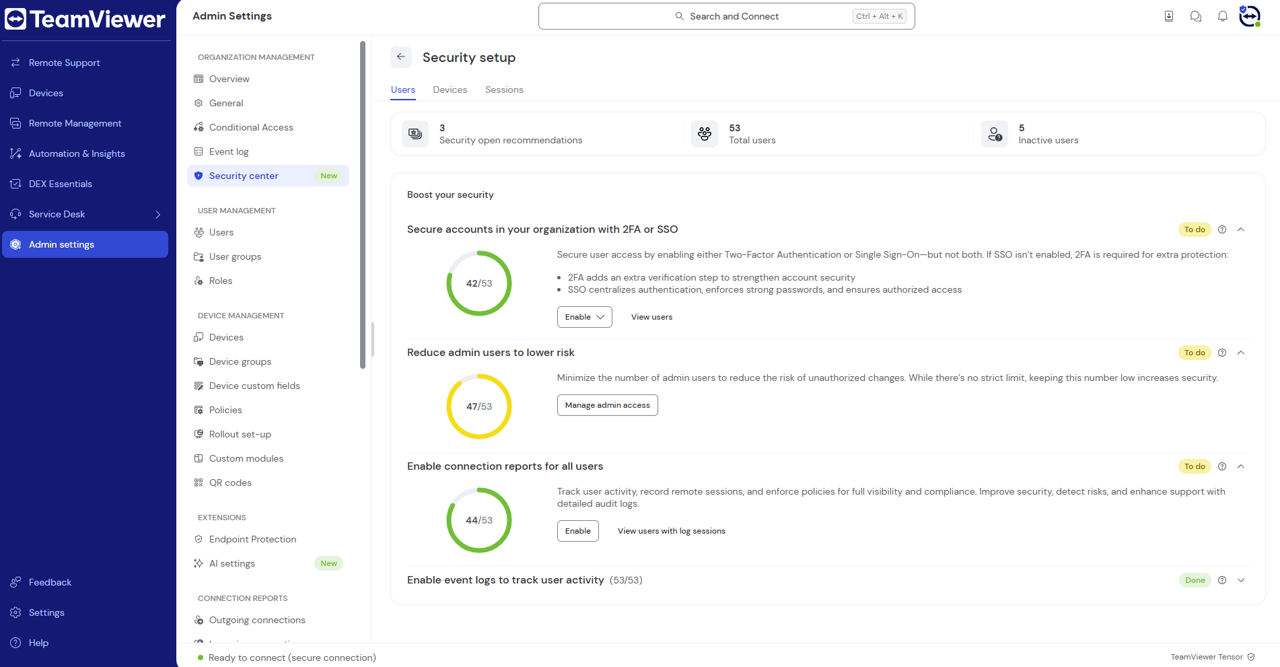
Secure accounts with two-factor authentication or Single Sign-On
To enhance access security, TeamViewer checks whether user accounts are secured with either two-factor authentication (2FA) or Single Sign-On (SSO). Enabling one of these methods is critical for protecting your organization from unauthorized access.
- 2FA adds a second layer of verification to user logins, providing enhanced protection.
- SSO (Tensor only) centralizes user authentication, enforces strong password policies, and ensures secure access through your identity provider.
Note: If SSO is not enabled, 2FA becomes mandatory to ensure adequate protection.
Reduce the number of admin users
The system identifies how many admin users exist within your organization. Keeping the number of admin users to a minimum helps:
- Reduce the risk of unauthorized configuration changes.
- Ensure tighter control over user and system permissions.
While there is no hard limit, we recommend minimizing admin accounts wherever possible.
Enable connection reports for all users (Premium, Corporate, or Tensor plans only)
For improved transparency and auditing, you can enable connection reports to track user activity across the organization. This feature helps you:
- Monitor remote sessions.
- Enforce security policies.
- Detect anomalies and ensure compliance.
Enable event logs for full visibility (Tensor license only)
Event logs record detailed information about user actions and changes made within TeamViewer. Enabling event logging allows you to:
- Review system activities such as logins, permission changes, and configuration updates.
- Audit compliance with internal and external security requirements.
Gain visibility into connection activity
The Connections section helps administrators monitor how TeamViewer is being used across the organization and identify potential risks related to remote access.
Monitor incoming and outgoing connections
The system displays the number of incoming and outgoing connections over the past 30 days. This helps you:
- Understand usage trends.
- Detect unusual activity.
- Ensure remote access aligns with your security policies.
Analyze the used authentication methods
Clicking View connection methods opens a detailed overview of the authentication methods used for incoming connections to managed devices.
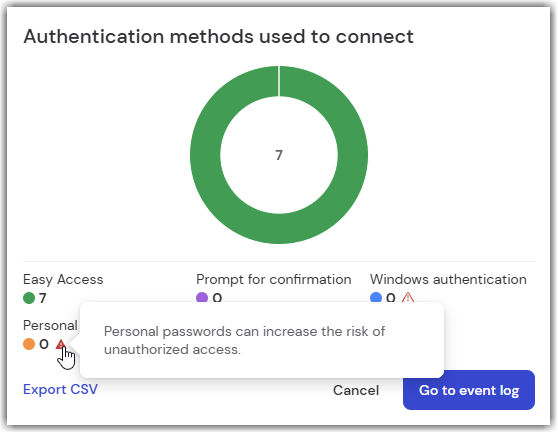
This allows you to:
- Verify that secure connection methods have been used such as prompt for confirmation or Easy Access.
- Identify gaps in authentication practices.
- View or export detailed connections and take granular control.
Note: Authentication method recommendations are only available to users with access to the Event Log.
You can also click Export CSV to download the data for further analysis or reporting.
Review Conditional Access rule coverage (Tensor license only)
TeamViewer shows how many Conditional Access rules are currently active.
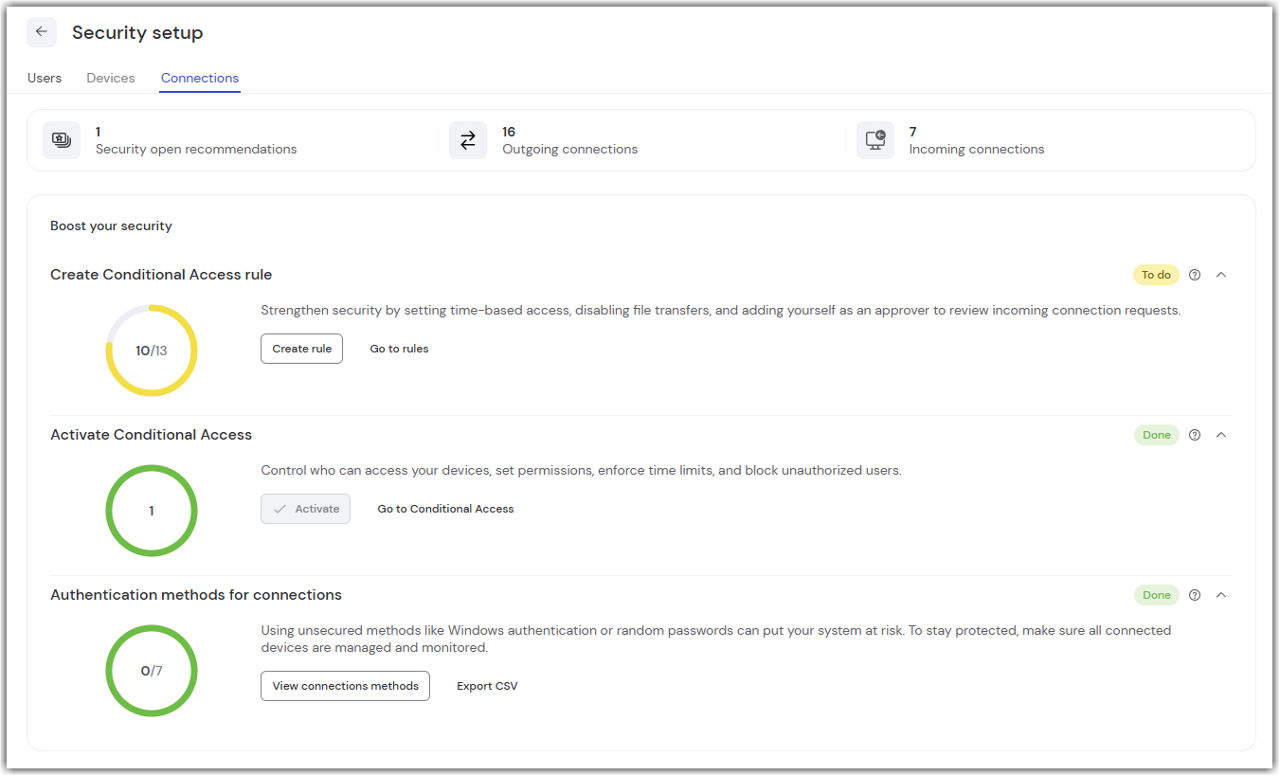
In this example, a 10 out of 13 indicator means:
- 10 rules are active
- 3 rules are inactive (2 expired, 1 scheduled)
This visibility helps ensure that Conditional Access is enforced consistently across your organization.