Clipboard synchronization lets you copy and paste text or images between your device and the remote device during a TeamViewer remote support session. This allows users to control how clipboard data is shared. You can enable, disable, or limit clipboard sync before or during a session. This article also explains how each clipboard mode behaves.
This article applies to all TeamViewer users.
What is clipboard synchronization?
Clipboard synchronization controls how copied content (text or images) moves between the local and remote device. You can manage clipboard sync in two places:
-
TeamViewer settings (defines the default behavior)
-
Actions ➜ Clipboard during a remote session (defines in‑session behavior)
Below, you find an overview of all available modes and how they behave.
Important note: Clipboard synchronization applies to both incoming and outgoing connections. The sync only works if clipboard synchronization is enabled on both devices.
Control clipboard synchronization
- Via TeamViewer settings
- Via the remote session panel
- In the Remote interface
- In the (Classic) interface
- Go to Settings.
- Within the Device section, go to Remote control.
- Go to Session settings.
- Go to Common settings.
- Set the default clipboard sync behavior as desired.
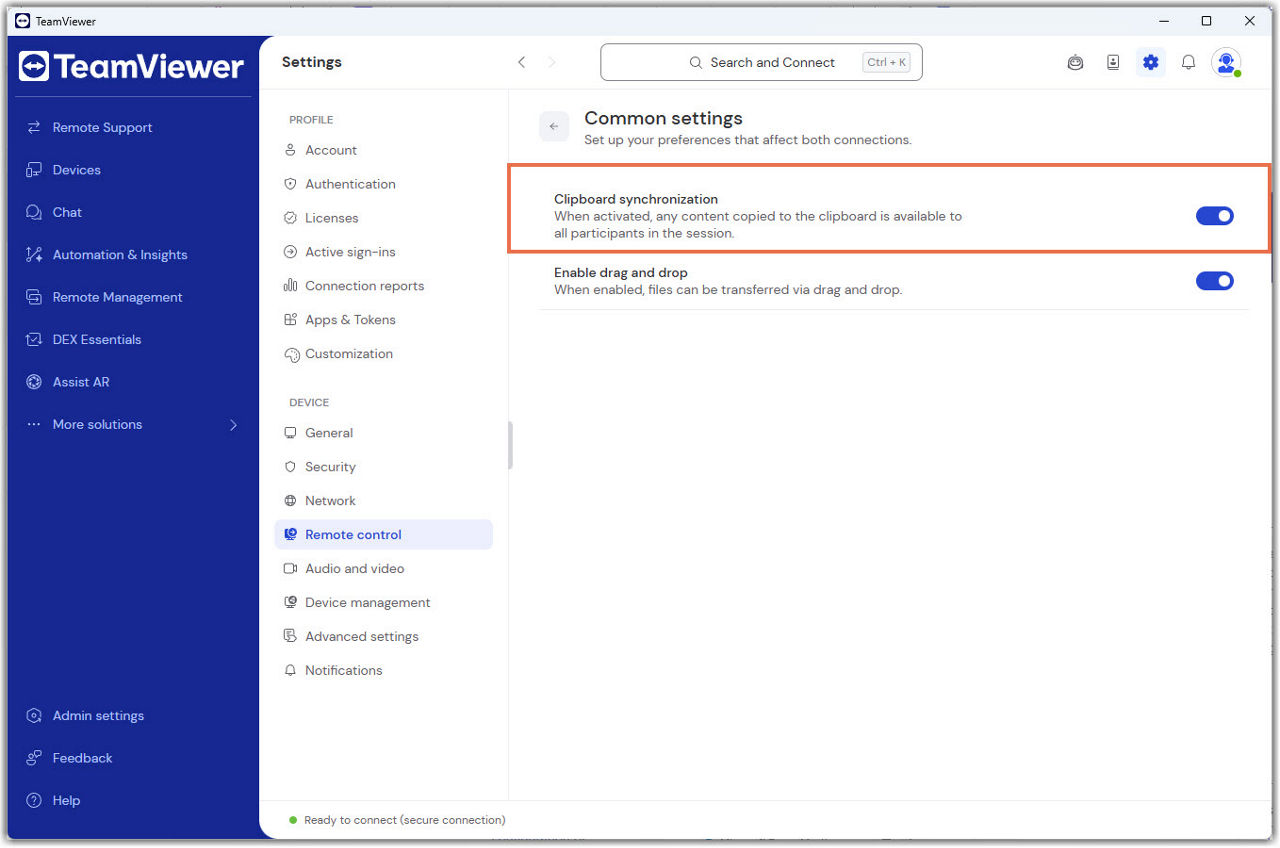
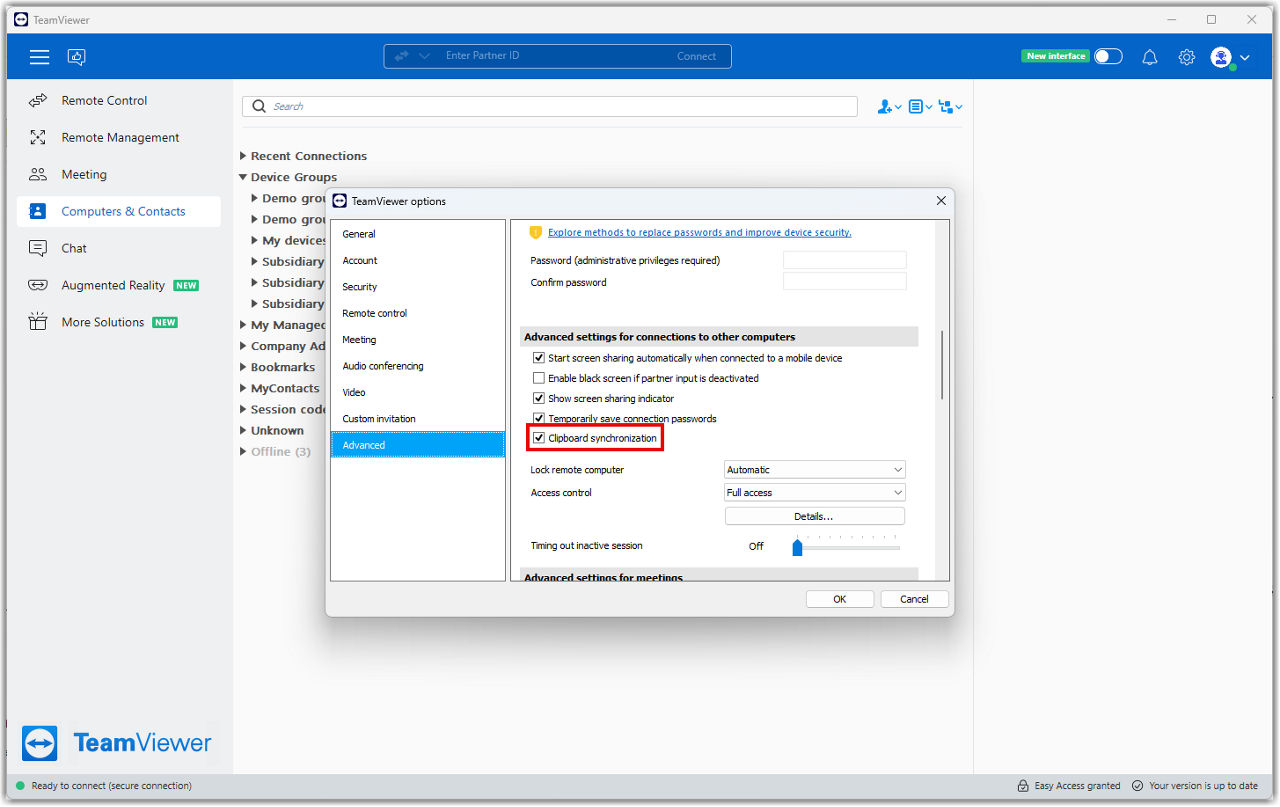
- Go to Options.
- Go to Advanced.
- Go to the Advanced settings for connections to other computers section.
- Set the default clipboard sync behavior as desired.
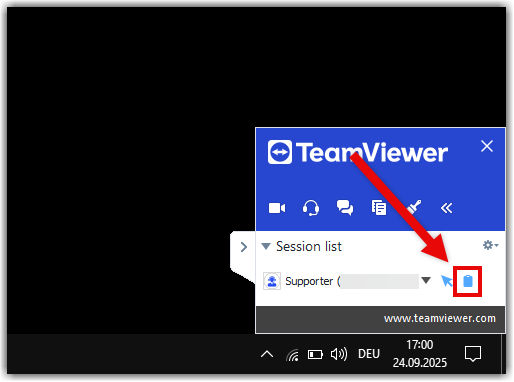
During a remote session, end users can enable or disable clipboard sync at any time.
-
Locate the clipboard sync toggle.
-
Click to enable or disable clipboard sync.
If clipboard synchronization is turned off:
-
Clipboard sync does not work in either direction
-
Nothing is copied between devices
-
In‑session clipboard modes do not override this setting
How to manage clipboard settings during a remote session
You can change how clipboard data is shared at any time during a session.
-
Open the Actions menu.
-
Select Clipboard.
-
Choose one of the available options listed below.
Clipboard modes during a remote session
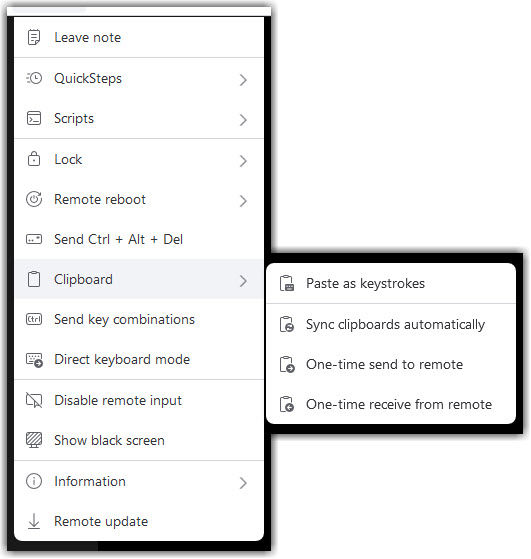
Sync clipboards automatically
This mode syncs clipboard content both ways.
-
When enabled, all copied text or images move automatically between devices
-
When disabled, automatic syncing stops
-
When disabled, only the last copied item can be sent manually
One-time send to remote
-
Sends only the last copied item from the local device to the remote device
-
No ongoing sync
-
Useful for sending a single password, code, or snippet
-
Resets to the previous state after sending
One-time send from remote
-
Sends only the last copied item from the remote device to the local device
-
No ongoing sync
-
Useful when you want to retrieve information without sharing your own clipboard
-
Resets automatically afterward
Paste as keystrokes
This mode pastes your clipboard content into the remote device as simulated keystrokes. This can be helpful when standard clipboard transfers are restricted or when you need to enter text in fields that do not accept pasted content.
To learn more about this mode, read the dedicated article:
Paste the clipboard as keystrokes during a remote session