
Security is at our core
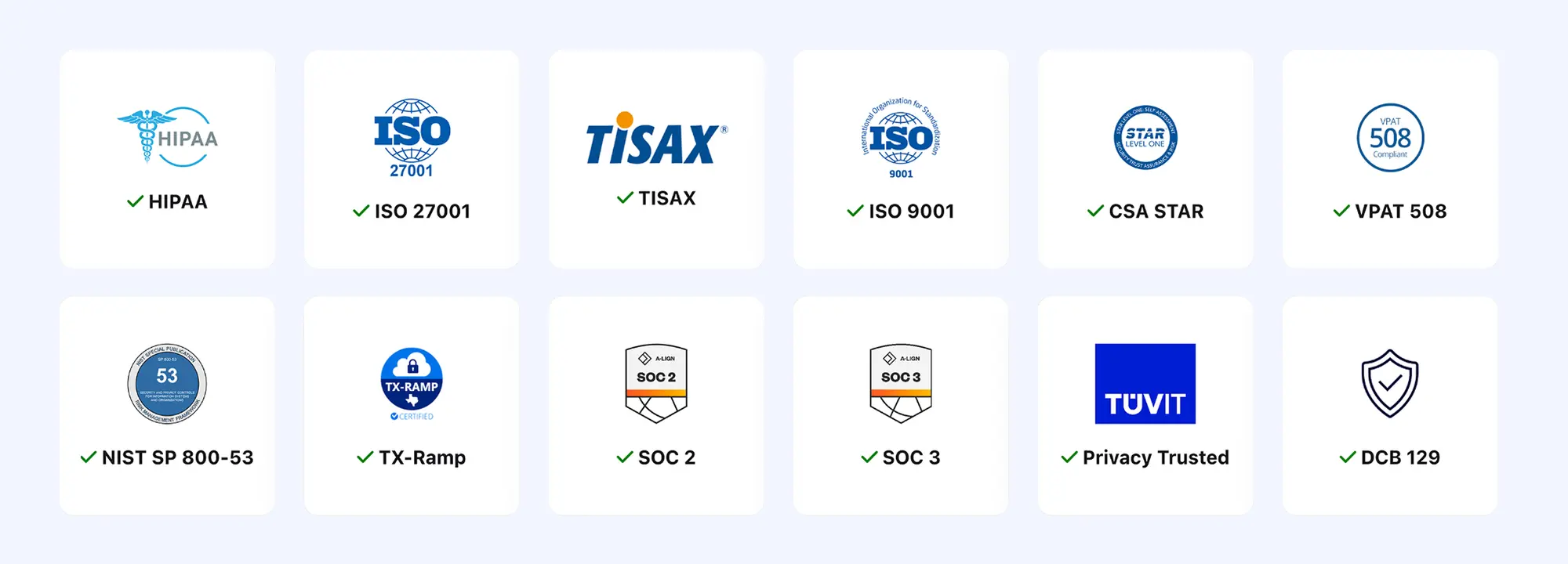
Compliance with ISO/IEC 27001, HIPAA/HITECH, and SOC 2 and 3 reflects our commitment to data protection, operational integrity, and regulatory alignment. So you can work with confidence.
Remotely access and control your servers with TeamViewer Remote—secured with enterprise-grade encryption. Deploy in minutes, monitor effortlessly. No boundaries, no compromises.


Traditional solutions leave IT teams stranded during critical boot processes, forcing costly on-site visits or risking extended downtime. TeamViewer puts you back in control, even during reboots.
Unsecured access creates vulnerabilities that cybercriminals actively exploit. TeamViewer’s AES-256 encryption and conditional access controls transform these weaknesses into your strongest defense.
When everyone has access, no one is accountable. Our role-based permissions and two-factor authentication ensure the right people have the right access, every time.
Most monitoring solutions overwhelm teams with alerts or miss critical issues entirely. TeamViewer’s server manager has reimagined monitoring to be both comprehensive and intuitive, keeping you informed without the information overload.
Complex configurations, performance bottlenecks, and constant maintenance drain resources. TeamViewer eliminates these headaches with direct, encrypted connections that deploy in minutes, not weeks.
TeamViewer revolutionizes server management with solutions, not workarounds. Our remote server access software combines enhanced security with unmatched simplicity, empowering you to control critical infrastructure from anywhere with confidence.

TeamViewer secures every connection with AES-256 encryption, protecting your remote connections across any network. We’ve engineered our remote desktop software to exceed industry standards with continuous updates that stay ahead of emerging threats. Unlike solutions treating security as an afterthought, it’s built into our core architecture. When your infrastructure powers mission-critical systems, thousands of IT professionals trust TeamViewer’s uncompromising protection.

Our authentication transforms security from a simple checkpoint into a dynamic framework. Multi-factor authentication combines with granular conditional remote control capabilities, defining exactly who connects, when, and from which devices. Create sophisticated policies and settings across devices and device groups—all from one dashboard. Block and allow lists, new version updates, integrated system health checks or hiding certain features from specific users. Our remote access software verifies multiple security factors before each connection, ensuring that even if credentials are compromised, your systems remain protected through additional verification layers.

Maintaining compliance requires proving your security posture. TeamViewer's comprehensive audit system captures every connection, file transfer, and configuration change with tamper-proof precision. Generate detailed reports for HIPAA, GDPR, SOX, or internal requirements instantly. Our detailed session recordings provide complete visibility into all remote access activities, while automated anomaly detection flags unusual behaviors to prevent insider threats. With TeamViewer, audits transform from stressful emergencies into routine verifications.

TeamViewer allows you to remotely connect to Windows, macOS, Linux, Android, iOS, Raspberry Pi, and embedded systems through one consistent interface. This platform independence means your team uses the same workflows regardless of target environment, eliminating multiple remote access solutions. We’ve engineered our technology to work smoothly even with legacy systems and specialized hardware, dramatically simplifying administration across heterogeneous environments. As your infrastructure evolves, TeamViewer adapts, from traditional servers to edge computing.

The VPN bottleneck eliminated entirely. TeamViewer establishes secure, direct remote access connections without complex network configurations, firewall exceptions, or performance-degrading tunneling. Deploy our solution in minutes instead of weeks. Your team gains instant access to local servers without the latency, bandwidth limitations, and configuration headaches of VPNs. This direct-connection architecture dramatically improves both security and performance, creating responsive remote sessions that feel like being physically at the server. IT teams consistently report significant time savings after switching to TeamViewer.

Compliance with ISO/IEC 27001, HIPAA/HITECH, and SOC 2 and 3 reflects our commitment to data protection, operational integrity, and regulatory alignment. So you can work with confidence.

Establishing a remote server connection is simple and secure using the TeamViewer remote access application. It allows verified corporate users to gain access to important files, software, and services from anywhere in the world, on their choice of device.

Install the remote desktop application on both your local device and the server you wish to access remotely. Our straightforward setup process requires no technical expertise, getting you connected in minutes without compromising on performance.

Log in with your TeamViewer account on both devices. Configure unattended access by creating a permanent password, assigning a memorable name to your server, and adding it to your devices list. Now you can manage your devices and contacts centrally.

Enable multi-factor authentication to add an essential layer of protection beyond passwords. Create custom security policies with role-based permissions and session logging, ensuring only authorized personnel can access your server environment.

On your device, open TeamViewer and find the remote server in your Computer and Contacts list. Click on it to start a remote control session. You can also enter the TeamViewer ID of the remote server in the Partner ID field and click Connect.
Don’t let limitations hold your business back. While our free version restricts commercial server use, TeamViewer’s business plans provide remote desktop software for unlimited connections, 24/7 priority support, and the enterprise-grade security features your infrastructure demands. Invest in encryption, compliance tools, and seamless integrations. All backed by our dedicated support team. Your servers deserve nothing less.
Unattended remote access helps you connect to and control a computer or device remotely without requiring a person to be physically present at that device to accept the connection.
Remote server access software tools allow remote access to servers and devices in a different location.
With TeamViewer, simply install the remote desktop application on both devices, start the program, and enter the ID and password of the remote device you want to connect to.
TeamViewer uses enhanced security protocols such as complete end-to-end encryption, dual-layer authentication verification, and comprehensive connection tracking to guarantee secure remote access. Even our free remote PC version maintains these essential security standards, though our business plans offer additional enterprise-grade features for commercial server management.
TeamViewer's remote desktop software uses a comprehensive authorization framework that combines multiple security layers, such as AES-256 encryption, multi-factor authentication, and conditional access controls.
Yes, you can reboot a server remotely with TeamViewer. Unlike traditional solutions that disconnect during reboots, TeamViewer maintains session control throughout the entire restart cycle. This feature is available in our business plans, which are specifically designed for commercial server management.
The best solution depends on your specific needs, but TeamViewer stands out for its security, universal device coverage, and ease of use. TeamViewer's remote desktop software uses a comprehensive authorization framework that combines multiple security layers, such as AES-256 encryption, multi-factor authentication, and conditional access controls.